Web based School
WinSock-Windows Network Programming |
 |
 |
Chapter 12WinSock-Windows Network ProgrammingIn this chapter you will learn what WinSock is. You
will also learn how the WinSock control is used to create applications for TCP and UDP.
When you are finished, you will be able to create:
What is WinSock?WinSock (short for Windows Sockets) is the standard
for programming network applications in Windows. All ActiveX programs use the routines in
the WinSock .DLLs to access the TCP/IP stack. WinSock is meant to be a universal interface
to the TCP/IP stream. From a computer's perspective, sockets in
programming work just like an electric socket. When a piece of software wants to get some
juice from the network, it plugs into a stream and gets whatever it needs. You can never
have any more connections than you have sockets, but the sockets are easy to install. Each
additional connection requires more and more power (or bandwidth). BackgroundBefore I go into the nuts and bolts of how to use
ActiveX WinSock features, here's a little background on WinSock. HistoryThe University of California at Berkeley is known
for all kinds of creative innovations (some more productive than others). The
"sockets" concept of networking is one of the best. Berkeley Software Distribution's UNIX was the first
to incorporate socket style-routines. BSD UNIX was developed to be the universal interface
to TCP/IP. Although it is still in wide use, it has fallen into a small niche as other
network systems such as NetWare and Windows NT have taken a dominant position. The TCP/IP
aspect of UNIX remains, though. The task of taking this TCP/IP implementation to a
Microsoft Windows machine was undertaken by a group of hobbyists and professionals. The
planning sessions were held during a series of conferences in the early part of this
decade. The WinSock standard was proposed in September of 1991. Research on it continued
on until January 1993, when the version 1.1 specification was released. WinSock 2 is
currently in its test phases and is planned for release in late 1996 or early 1997. It
will be significantly, if not completely, backwards compatible with version 1.1 Current Implementation
The WinSock standard has been accepted by Microsoft
as the official standard for programming TCP/IP applications in Windows. It is not,
however, owned by Microsoft, as ActiveX is. While Microsoft did have a very strong voice
in how WinSock was developed as a standard, WinSock has always been maintained by an
independent organization. According to Microsoft's press releases, ActiveX will also be
handed over to an independent standards body for continued maintenance and development. WinSock Vocabulary and ContextA WinSock supplier is the individual or organization
that creates an application based on the Windows Sockets API. An application is WinSock compliant if it
adheres to all of the provisions in the WinSock 1.1 specification (about 200 pages). It
must have at least one WinSock interface (or there is no reason to go through the
trouble of adhering to the WinSock specification!). Any application that is WinSock
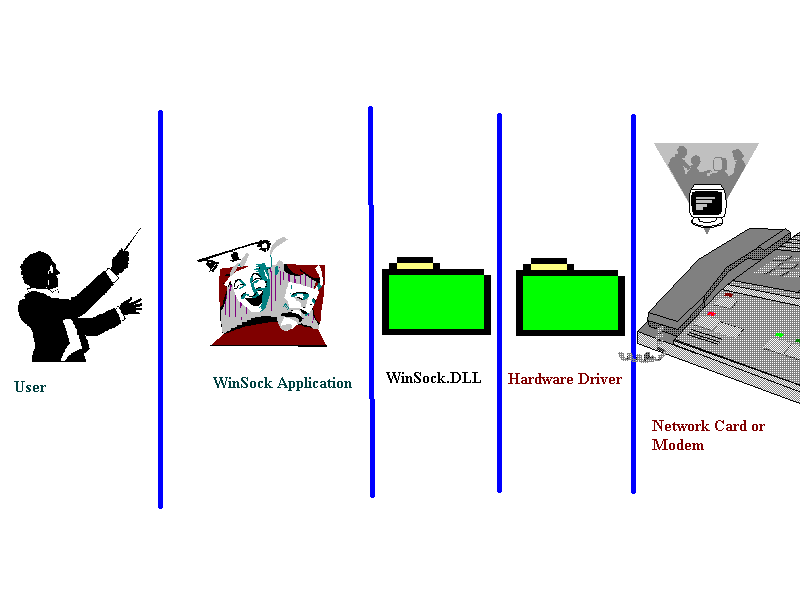
compliant is called a WinSock application (of course). Winsock Technical DescriptionWinSock routines are only one level in the hierarchy
of objects between you (the person) and the TCP/IP stream (see Figure 12.1). HierarchyFirst there is you, the user, and you are using a
WinSock application (say it's your Web browser). You want to use this thing to get some
information from the Internet, so your Web browser will need to access the TCP/IP stream,
which is the lowest level of the hierarchy. The TCP/IP stream has to come up from "out
there" on the Net to your computer through a hardware interface. This is your modem
or your network card—whichever you use to access the Internet. After the stream gets in through the hardware, there
is a piece of software that is usually part of the operating system. That is the driver
for your network hardware. This hardware driver monitors the network device as
well as the application's software to determine what is talking to whom. "On
top" of this hardware driver are the network stacks for whatever protocols you
use on your computer. On a Windows95 machine, these are usually NetBEUI, NetBIOS and
IPX/SPX. TCP/IP is also included for any Internet hosts. Whatever other network stacks are used on a
computer, every machine that accesses the Internet will have to have a TCP/IP stack as
well. Your Web browser communicates with this stack. Obtaining this communication between
your Web browser and the TCP/IP stack is the purpose of WinSock routines. FunctionsWinSock.DLL (also known as The WinSock Library) is a
file on your hard drive that contains the socket functions. This library is the hard
code for making the computer send the right 0s and 1s to the parts and pieces of your
computer. By making calls to this file and monitoring its states, you can perform all the
socket functions for communicating with TCP/IP. You will look at some of WinSock.DLL's
more basic functions to acquaint yourself with its features. When you run your Web browser, you are telling it to
view different pages on the Web. This is conducted by typing a URL (Uniform Resource
Locator). Within this URL is the name of the specific host on the Net from which you wish
to retrieve the page. The name portion of the URL can be in the domain-name format
If the domain name format is used, it will need to
be resolved into the IP format, which is how hosts on the Net are uniquely identified to
each other. (Only humans need the domain-name format to make this identification easier to
remember.) To get the IP address, use the GetHostByName() function. The WinSock GetHostByName() Function The GetHostByName() function is used to retrieve the
IP address of a specified host. This must be done before the connection can be made to the
other system because computers use IP addresses instead of domain names to identify
themselves to each other. Example: This function would return: On a similar note, if you need to convert an IP
Address to a host name, use the GetHostName() Function . The WinSock GetHostName() Function The GetHostName() function is used to retrieve the
domain name that is assigned to the specified host's IP address. This is used to make the
identification of a specific host easy for the user. Example: This function would return: WinSck.OCXImplementation of the WinSock API into a user
application can be quite complex because a tremendous number of interfaces are available.
Requesting a connection, making the connection, communicating, and so on are each
processes that involve many steps. States change as these steps are taken, and the
application must monitor these states, acting accordingly. In spite of this complexity, Windows Internet
applications can be developed with relative ease when using a plug-in control such as the
WinSck.OCX . This control takes over most of the difficult and repetitive tasks. This
leaves the programmer free to code only the most application-specific features. Purpose of the WinSock ControlThe WinSock control can be used to program client or
server machines. It can also be used in a special third mode called broadcast,
which is a hybrid of the two. InstallationThe ICP (Internet Control Pack), included on the
enclosed CD-ROM, contains controls for most of the more popular Internet protocols. The
most powerful of these, and perhaps the most difficult to use, is the WinSock TCP/UDP
control.
All other controls in this package are client
controls; they are used to connect to other machines that are waiting and
monitoring the Net for connection requests. The WinSock UDP and TCP controls, however, can
act as either client or server controls. If your application conforms to the proper
specifications, it can even act as a server control for HTTP, FTP, SMTP, and all the
others . In the following sections you will examine the
WinSock control's features for creating both a client and a server application in Visual
Basic. The first sample projects you will create are a
message server and a client application. A message server takes messages for you while you
are away from your computer, and a client application is used by others to send those
messages to you. Creating a WinSock TCP ServerTo create the WinSock server, start with a brand new
Visual Basic form. In the References option of the project, select Microsoft WinSock
Controls. Then add the controls to the Visual Basic toolbar.
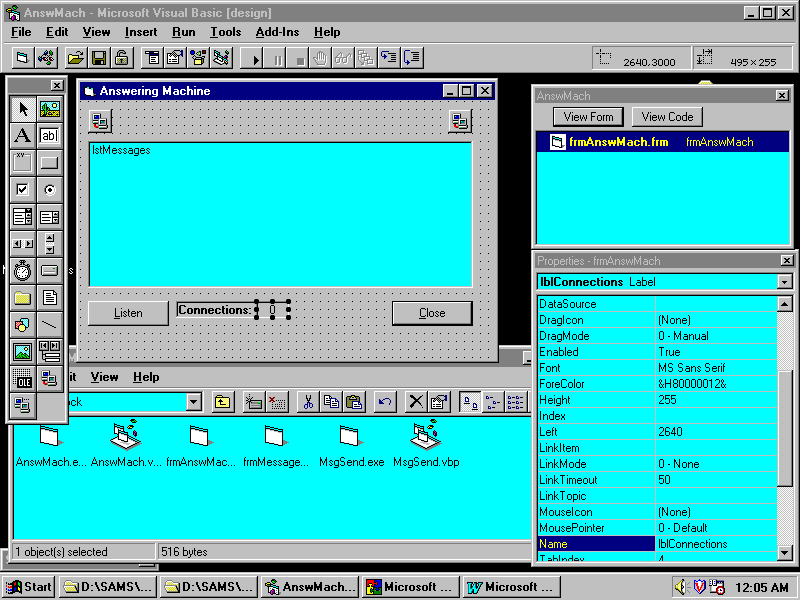
Next, add the labels , text boxes, buttons and so on
(see Figure 12.2). These will include:
Now add code to the appropriate controls so that
this application will take your messages for you. First of all, tell the control to monitor one TCP/IP
port to any incoming messages. For your answering machine, choose the random 1023 port. To
tell the WinSock control to monitor that port, set the LocalPort property, then invoke the
Listen method like so: The WinSock TCP Control's Listen Method The WinSock control's Listen method is used to
command the control to monitor the local TCP/IP port as specified in the LocalPort
property. Example: When a user sends a message (using the client
application that you will write later in this chapter) the ConnectionRequest event is
fired. When this happens, load a copy of the tcpReceiver control, leaving the tcpListener
control free to handle any other incoming calls. To track how many incoming messages are
arriving at one time, update the lblConnections counter. The WinSock TCP Control's Accept Method The WinSock control's Accept method is used to tell a control to accept an incoming request for a connection. A link to the connection request is passed to the control that is to accept the request. Example: This will tell the fourth WinSock control to accept
a connection request, identified as an integer. After this code has executed, the connection between
the client and the server is set. The next step is to wait for the client application
to send its message. When the server receives the message, the DataArrival event is fired.
When this happens, invoke the WinSock control's GetData method to retrieve the message.
The message is then added to the lstMessages list box for you to view. The message-taking
code looks something like this: The WinSock TCP Control's GetData Method The WinSock control's GetData method is used to
retrieve any data sent to the control from the remote client. The data is then sent to the
user-specified variable. Example: This will tell the second WinSock control to set the
string-type value of vbMyVariable to whatever was received through the WinSock connection.
As soon as the client sends its message, it closes
the socket. When this happens, decrease the Connections counter and unload the WinSock
control that was using it like so: The WinSock TCP Control's Close Method The WinSock control's Close method shuts down the connection between client and server. The control can then be unloaded, freeing network resources. Example: This closes the 27th WinSock connection, then
unloads the control.
After you compile this into an .EXE, your computer
will be able to run the program and, after you press the Listen button, it will take
incoming messages from the client program (which I will discuss now). Creating a WinSock ClientTo create the WinSock server, start with a brand new
Visual Basic form. In the References option of the project, select Microsoft WinSock
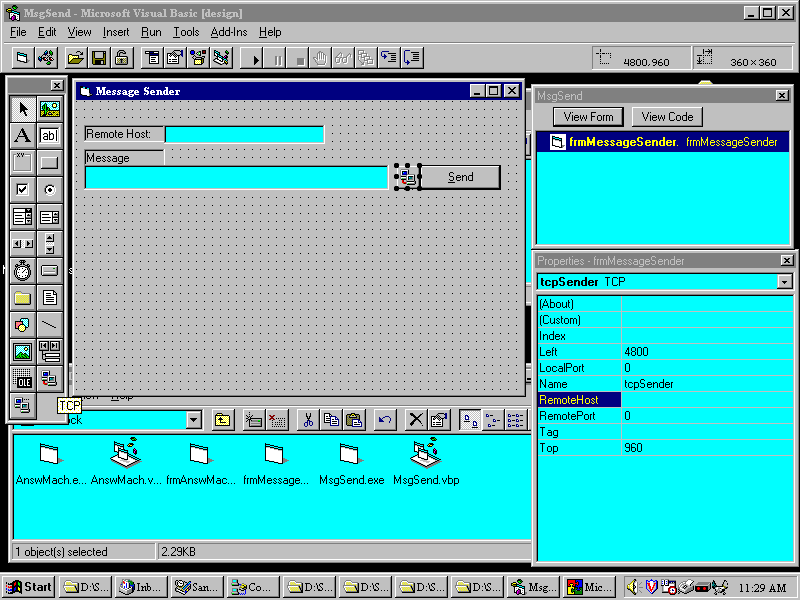
Controls. Then add the controls to the Visual Basic toolbar. The next step is to add the labels, text boxes,
buttons and such (see Figure 12.3). These will include:
Now add code to the appropriate controls so that you
can send messages to the server program. When the user has identified the IP address of the
answering machine and entered his message in the text box, he presses the Send button to
transmit the message to the server. Since the program does not do anything until the
user presses the button, you must add code to the Send button's Click event that tells it
to connect to the answering machine like so: The WinSock TCP Control's Connect Method or The WinSock control's Connect method is used by a
control that is acting in client mode to request a connection to an Internet server. The
IP address and the port on which it is listening can either be passed on the Connect
command line, or their respective properties can be set before the Connect method is
invoked. Example: or This instructs the WinSock control to request a
client connection to the server at 204.181.96.53 on port 25. As soon as the connection is made, send your data,
and log off. This is done in the tcpSender control's Connect event like so: The WinSock TCP Control's SendData Method The WinSock control's SendData method is used by the
control in either client or server mode to transmit data to the remote connection. Example: This instructs the WinSock control to send the data
string "I think therefore I am." to a WinSock application running on the remote
host. After you compile this into an .EXE, you will be
able to send a message from the Message box to any Internet host that is running the
server program.
WinSock UDPWhen you load the WinSock control onto your Visual
Basic toolbar, notice that it adds two icons—TCP and UDP. Each is capable of
transferring data over the Internet. The TCP control requires a user to request a
connection to a server and have that connection accepted. The UDP control , however, does
not require the request or acceptance of a connection; it simply broadcasts from a port to
a host (or an array of hosts) on the network. If the hosts are listening, they receive the
broadcast; if they are not they do not. UDP ServerTo create the WinSock UDP server, start with a brand
new Visual Basic form. In the References option of the project, select the Microsoft
WinSock Controls reference. Then add the controls to the Visual Basic toolbar using Ctrl_T
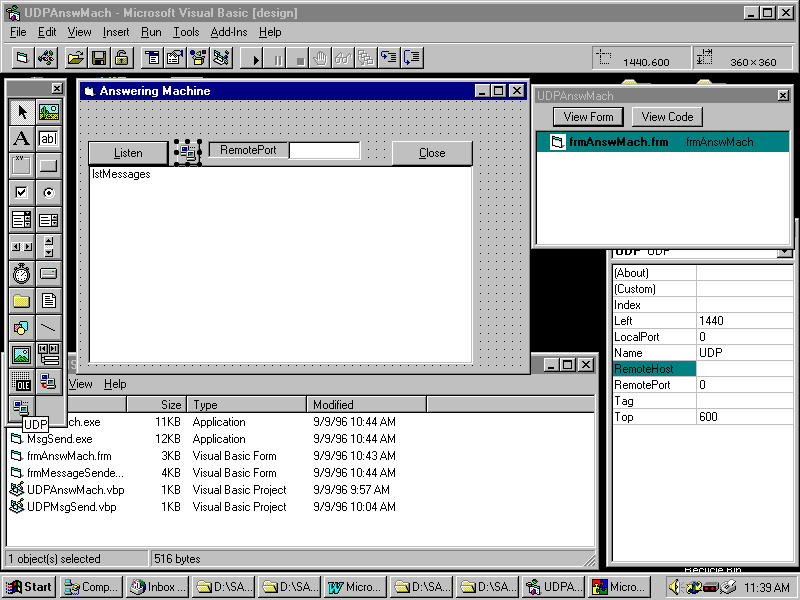
from Visual Basic's main window. Figure 12.4. The WinSock
UDP server answering machine form with the controls loaded and displayed. After you select the right tools and references, add
the labels, text boxes, buttons and so on (see Figure 12.4). For the server, these
include:
When the form is laid out, add the code that allows
the answering machine application to wait for incoming messages. In a UDP connection, this
involves nothing more than setting the LocalPort property of the control. To make the
Listen button await a connection, add the following code: When you have set the LocalPort of the UDP control,
it fires a DataArrival event for each string received. In your answering machine
application, add the incoming messages to the lstMessages list box. This application monitors the local port specified
in the txtLocalPort.Text property. When data comes in through that port, it fires the
DataArrival event, which adds the data string to the lstMessages list box. UDP ClientTo create the WinSock UDP client , start with a
brand new Visual Basic form. In the References option of the project, select the Microsoft
WinSock Controls reference. Then add the controls to the Visual Basic toolbar using Ctrl_T
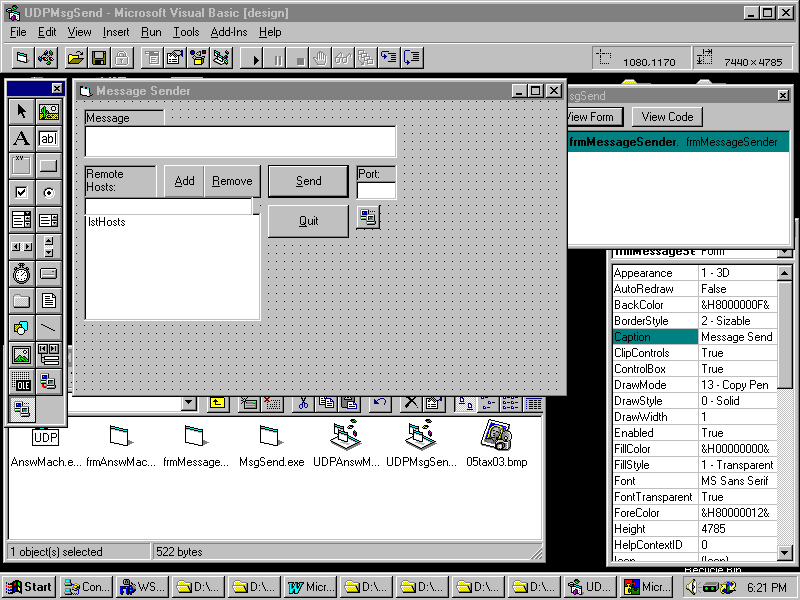
from Visual Basic's main window. Figure 12.5. WinSock UDP
control loaded into the UDP message sending project. After you select the right tools and references, add
the labels, text boxes, buttons and so on (see Figure 12.5). For the message-sending
application, these include:
When the form is laid out, add the code that allows
this message-sending application to broadcast its message to a number of waiting answering
machines. In a UDP connection, this involves nothing more than
setting the RemotePort and RemoteHost properties of the control and invoking the SendData
method. Thus, to make the Send button broadcast a message, add the following code: The WinSock UDP Control's SendData Method The WinSock UDP control's SendData method is used by
the server data to the remote connection(s) and on the specified port. Example: This instructs the WinSock UDP control to send the
data string "I think therefore I am." The message is broadcasted to the remote
machine only if the remote machine is currently monitoring the port. This application sends one message to each
RemoteHost in an array of UDP connections. Each of those hosts must be monitoring the same
port as the message sender at the time of the broadcast to receive the message. SummaryIn this chapter you have learned about WinSock
programming and how it applies to the Internet. You know about its beginnings as a
proposed standard in 1991, and its future release in the WinSock 2 specification. WinSock is used as a Windows programmer's interface
to the TCP/IP suite of network protocols, including SMTP, FTP, NNTP, HTTP and others.
Using the WinSock interface frees the programmer from having to coordinate a variety of
network management functions that are automated in the WinSock library. The WinSck.OCX file is one of the ActiveX custom
controls installed with Microsoft's Internet Control Pack. It provides a simplified
interface to the WinSock library to programmers in languages such as Visual Basic,
Microsoft Access, and Visual FoxPro. The WinSock control exposes features for two
different kinds of Internet connections—TCP (Transmission Control Protocol) and UDP
(User Datagram Protocol). TCP is host-to-host communication, and UDP is a broadcasted,
"connectionless" form of communication. Both TCP and UDP controls require a host on one
system that is sitting idle awaiting a connection, and a client on another host that
initiates the transaction. Q&A
WorkshopThe WinSock UDP control can be a very powerful tool
for broadcasting information in real-time to a number of different users. For this
exercise, you will create a broadcast server and a redistributable client that your users
will run to receive those real-time broadcasts. Try to meet the following specifications:
Quiz
|
|
|
Popular Tutorials
-
 MS Access
1109
MS Access
1109
-
 C++
1222
C++
1222
-
 HTML
584
HTML
584
-
 JavaScript
616
JavaScript
616
-
 Vbscript
873
Vbscript
873
-
 Oracle
473
Oracle
473
-
 VC++
875
VC++
875
-
 SQL
2959
SQL
2959
-
 XML
514
XML
514
-
 Java
814
Java
814
-
 Perl
455
Perl
455
-
 Linux
451
Linux
451