Web based School
Installing ActiveX Controls |
 |
 |
HTML—Hypertext Markup Language Chapter 16Installing ActiveX Controls
You now have a basic familiarity with OLE, COM, and
DCOM and how they relate to ActiveX controls, and you are ready to start using some of
that power in your own Web Pages. In this lesson you will learn:
You will also go through the steps involved in:
HTML—Hypertext Markup LanguageWeb pages are simple text documents with special
commands that you can put within brackets (such as <COMMAND>). These commands tell a
Web browser information about the page, such as it's title and type, and formatting
information, such as what characters are bold or italic. There are a few commands, or tags, that are
common to every HTML document. The basic structure of an HTML document should contain the
following information: As you can see, the document begins with
<HTML> and ends with </HTML>. These container commands tell the browser
where the document begins and where it ends. Also, within the head container tag are the
title tags, defining Title of your document as the title of this HTML document. The
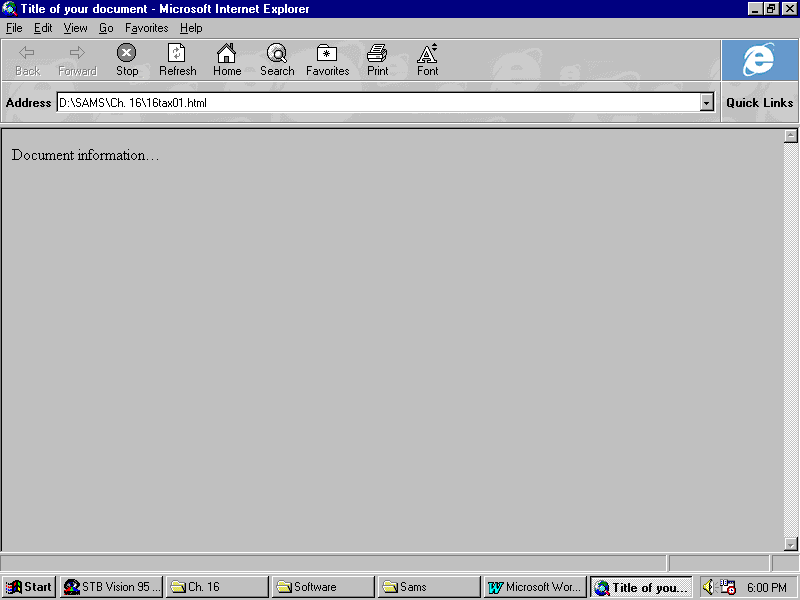
body container comes after the head container, and defines Document information...
as the body of the document. On a standard, graphical Web browser, the document would be
displayed as in Figure 16.1. This is discussed in greater detail in earlier chapters. Figure 16.1. Web view of a
basic HTML document.
Now you will create the Web page for your fictitious
company. The scenario for creating this page follows:
There are a few steps you must complete to create
your Web page.
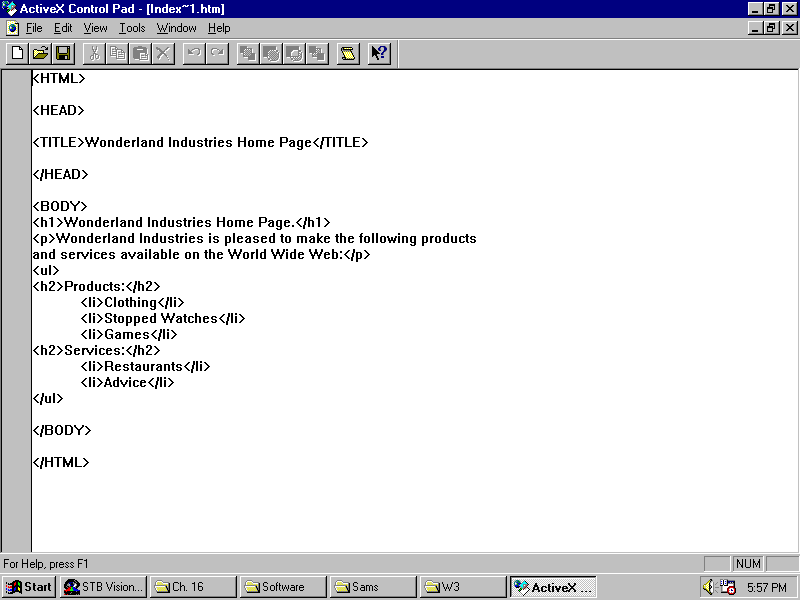
Figure 16.2. Home page
viewed with ActiveX Control Pad. Now you have created the initial home page for your
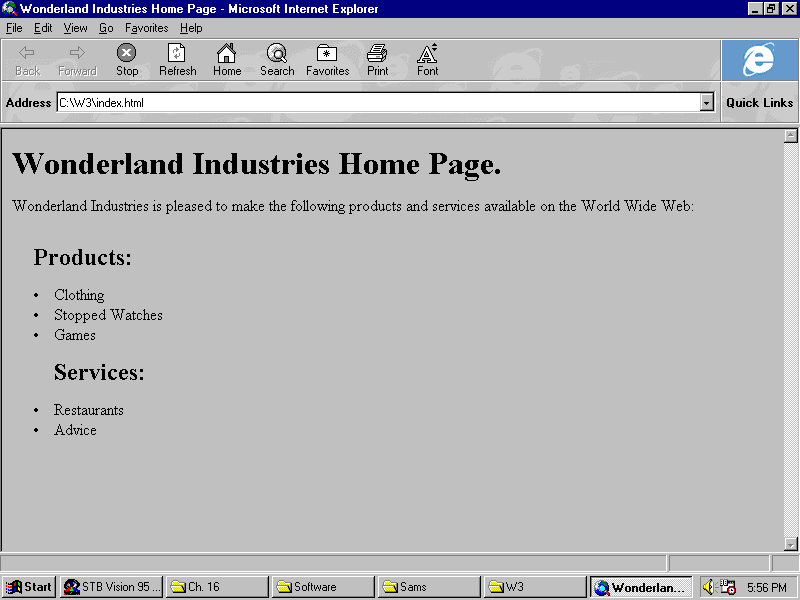
company. Double-click the desktop icon for C:\W3\index.aspl to launch your Web browser,
and you will be able to see the document as it will appear on the Web (see Figure 16.3). This is a fairly simple page, and is similar to the
first page with which many businesses begin their Web presence. HTML provides many more
typesetting and other formatting options to customize the display of text. However, even
with an e-mail hyperlink, the page lacks activity. The <OBJECT> TagThe <IMG> tag was the first to enable basic
multimedia within an HTML document. Using a command such as <IMG SRC=image.gif>
allows you to place a static image within a document. The <OBJECT> tag , once known as the
<INSERT> tag, is a container tag. This means that whenever it is used within a
hypertext document, there will be an <OBJECT> tag at the beginning of the object and a </OBJECT> tag at the end of the object. The space between
the tags is where you code the properties and parameters of the object.
The World Wide Web Consortium (the organization that
defines the standards for Internet operations) established the <OBJECT> tag to
enable rich forms of media content within Web pages. Using the object tag, one can specify
the MIME (Multimedia Internet Mail Extension) type for the object. Using the <OBJECT> tag, you can add active
content to your home page. In your Wonderland example, you will add a PowerPoint
Presentation to enhance the look and feel of the page. The <OBJECT> Tag <OBJECT> </Object> The object tag is part of the HTML 3.2 specification
for hypertext documents. It is used to make OLE and multimedia content available in HTML
pages over the Internet or over an intranet. Within this container tag, any parameters for
the current instance of the control are defined. To do this, you must first copy the PowerPoint
animation that your Public Relations Director, White Rabbit, gave you for your Web
directory. (You'll find a copy on the enclosed CD-ROM at \W3\wndrland.ppz. Copy that file
to C:\W3 on your local hard drive.) Now that you have a copy of the presentation, you
need to write an HTML document within which browsers can view the animation. To do this,
create a basic HTML document with a basic <OBJECT> tag defining the presentation's
properties. First, define the ClassID parameter for a PowerPoint
Animation. Then, define the size of the presentation. The format for the ClassID is The <OBJECT> tag for the White Rabbit's
Powerpoint animation within the HTML document should look like this:
Now you will create a Web page for Mr. Rabbit's
presentation and create a link to it in the Wonderland home page. To do this, create a
basic HTML document and insert the <OBJECT> tag for the presentation into the page.
Call the HTML document wndrland.aspl. Use the following code to create the new page. Internet Explorer ActiveX ControlsWhen you have made it this far, you will be able to
insert very powerful active content into an HTML document. The preceding example, using a
PowerPoint animation, is fairly simple and, as you can see, requires no scripting.
However, it requires the user to have the very large PowerPoint Viewer (or PowerPoint
itself) installed on the local machine. Lets work with some slightly smaller, but more
commonly used, ActiveX controls. These controls are installed from the AXDist.exe file in
the ActiveX SDK on the enclosed CD-ROM. The latest versions can be downloaded from
Microsoft's ActiveX Server (the URL is http://www.microsoft.com/intdev/sdk).
These controls provide dialog, display and command features that are not normally part of
an HTML document. The CyberTime PageThree useful ActiveX controls are the label, timer
and pop-up window controls. To learn how these controls are used, you'll create
an HTML file that displays the current time, and retrieves the current time from the U.S.
Department of Commerce Atomic Time Server (cool, eh?). Using Windows Notepad or the
ActiveX Control Pad, you will create a text file that begins like this: Next, insert a label control called,
"lblClock" into the document. Notice that you use the type attribute to identify
the MIME type of the control as an OLE object. The CODEBASE attribute tells the user's
browser where it can obtain a copy of the control. All this is done using the
<OBJECT> container tag: After you finish, this the control is automatically
created on the local machine. However, you still need to define the parameters of the
particular object like so: Finally, don't forget to use the closing
</Object> tag to avoid unpredictable results. That's all there is to inserting an
ActiveX control.
Now you'll add a timer control to the page . Both
the label and the timer controls should be very familiar to Visual Basic programmers. The
timer control is added in much the same way as the label control: Finally you'll add a new control, the pop-up window.
This cute little utility displays an HTML file in a temporary window. The window will
display all the formatting correctly, and disappears when the user clicks the screen. The
<OBJECT> tag for this control looks like this: After you have all the objects in place, add a bit
of code that displays the information from the U.S. Department of Commerce's atomic clock
when the user clicks the time: <SCRIPT LANGUAGE="VBScript"> <!-- Sub lblClock_Click PopUpWindow.Popup "http://132.163.135.130:14/" End Sub Sub Timer_Timer() lblClock.caption=time End Sub --> </SCRIPT> When you've entered all this code, you will have a
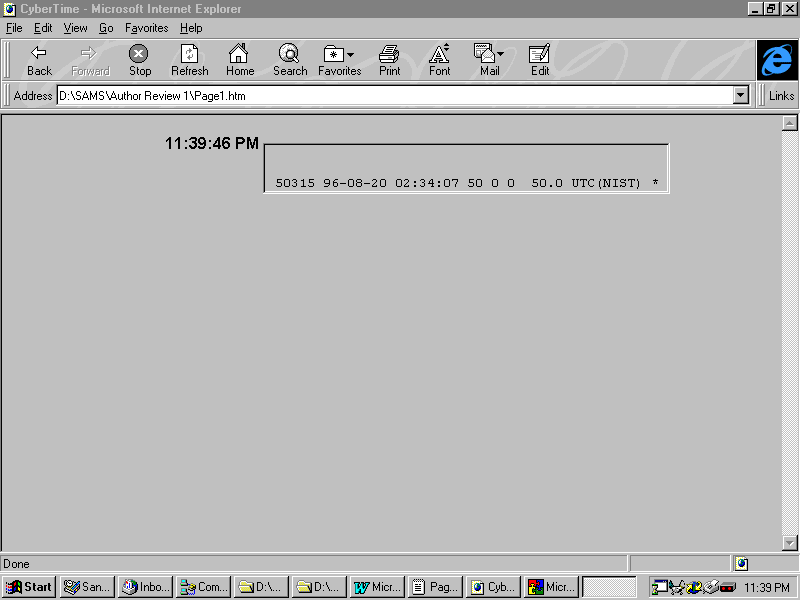
Web page that displays the local time and, when the user clicks the time, information from
an atomic clock is displayed in a pop-up window (See Figure 16.4). A working example of
this page can be found in the \W3\ directory of your CD-ROM in the file titled
CyberTime.aspl. Figure 16.4. A browser view
of a CyberTime page using ActiveX controls. Programmatic Installation of ActiveX ControlsNow that you know
how an HTML author uses ActiveX controls, you can get acquainted with how a programmer
uses them. Remember, though, that the use of ActiveX controls is not limited to Web
browsers and programming languages. They can be used by any program that uses OLE (such as
Word or Excel). Visual BasicInstallation of an ActiveX control into a Visual
Basic project is exactly the same as with any other custom control. In this section, you
will create a Web browser using the HTML control from the Internet Control Pack (ICP) on
the enclosed CD-ROM. If you have not already installed the ICP, simply double click the
MSICPB.exe file on the CD-ROM, and when the installation is complete, reboot your computer
to allow changes to take effect. After you install the ICP, create a new Visual Basic
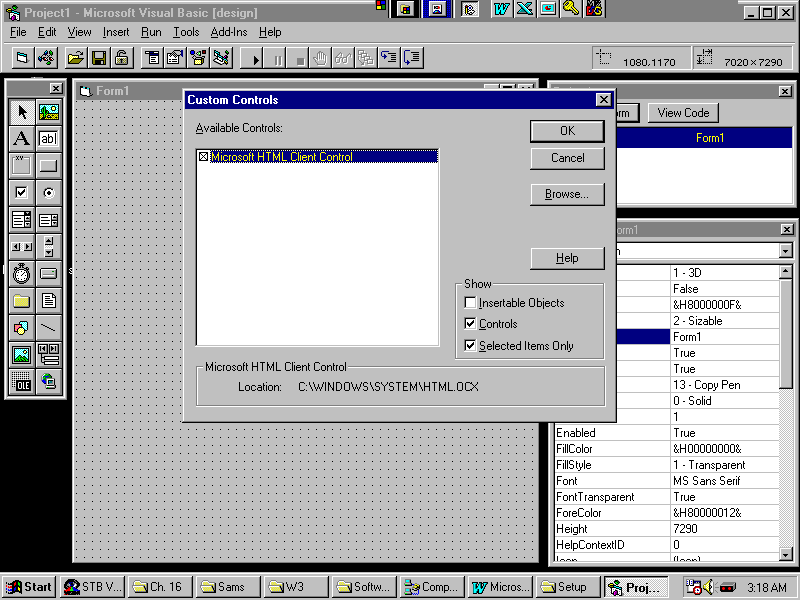
project called WebView.vbp. This will be Wonderland's corporate Web browser. With the project loaded into Visual Basic, press
Ctl+T to see what objects and controls are referenced (see Figure 16.5). Clear the check
box next to each control except for the Microsoft HTML Client Control control—that
one should be checked. This will remove any unnecessary controls from, and add the HTML
control to, the Visual Basic toolbox. Figure 16.5. Visual Basic
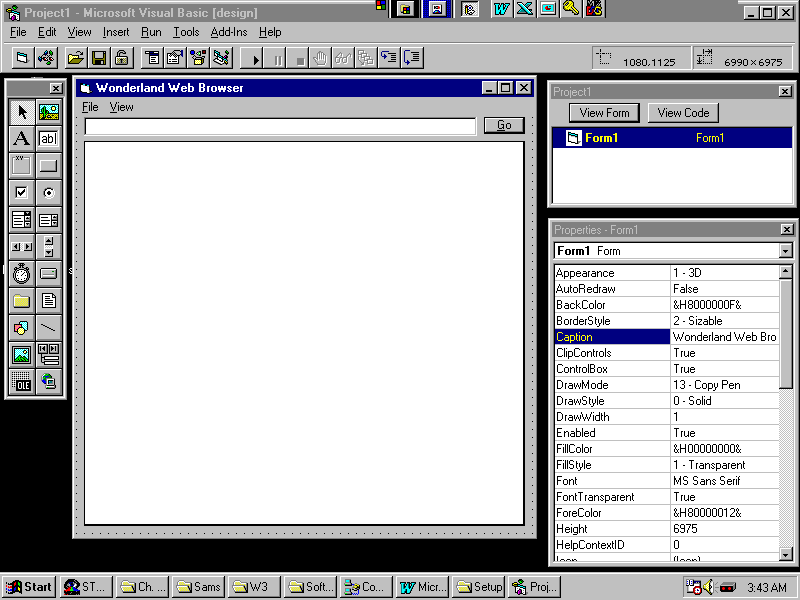
project with the Microsoft HTML Client Control loaded. Next, insert the control into a form. You should
also change the form's caption, identifying it as the Wonderland Web Browser. Add two menu
items, File Exit and View Source, an empty text box, and a command button labeled &Go.
The form should appear as in Figure 16.6. Figure 16.6. Form layout
for the Wonderland Web Browser. Add a bit of code to support the browser activities.
The code for the important subroutines of the Web browser follows, but you can add other
features to meet your needs. As you can see, most of the work is done by the HTML
control. The only thing you really needed to code was one menu option to exit the program,
and another menu option to toggle between Code View, and Web View modes.
When you have added all the controls and coded the
program, you are ready to browse simple Web documents. Because this program uses the
simple Microsoft HTML control, the program does not yet support all of ActiveX. This is
not a bug, though. The HTML control is a very powerful ActiveX control, and you can
program many advanced features into the project using it. For example, you added a menu item to allow the
viewing of source code for HTML pages. By clicking the View|Source menu item, you can
toggle between Code View and Web View. For those of you who have learned HTML by observing
the ways that other people do it, this can be a very valuable learning tool! Other LanguagesInstallation of an ActiveX control into IDE's other
than Visual Basic projects is different for each language. If you can use a custom control
in your favorite programming language, you should have no problem using ActiveX controls
because they install like any other custom control. Using ActiveX Controls within Active DocumentsAs I mentioned earlier, the quickest, cheapest,
easiest way to acquire ActiveX controls is by browsing an ActiveX document with an ActiveX
browser, such as MSIE. To better understand this, you will create a Web document for your
fictitious company that contains a redistributable ActiveX control. In the example with the PowerPoint presentation, you
used an inserted control and a linked object. Remember that an object (such as a
Powerpoint presentation) must be controlled by something (such as the PowerPoint program
or the free PowerPoint viewer). In that example, you referenced the control via the
ClassID (already installed on the user's machine), then pointed toward the specific
animation via the File parameter . In the following scenario, the powers that be at
Wonderland Industries have asked you to create another Web page. Business CaseThe queen of hearts has asked you to develop a page
for her gaming division. She would like a home page that allows users to select a site to
view from a list of sites. On this Web page, she wants a list box showing
several other entertainment sites. Your task is to create a Web page that allows users
with ActiveX browsers to select a site from the list and be transported to the new site .
This can be done with HTML alone, but for learning purposes, you'll do it in ActiveX. To
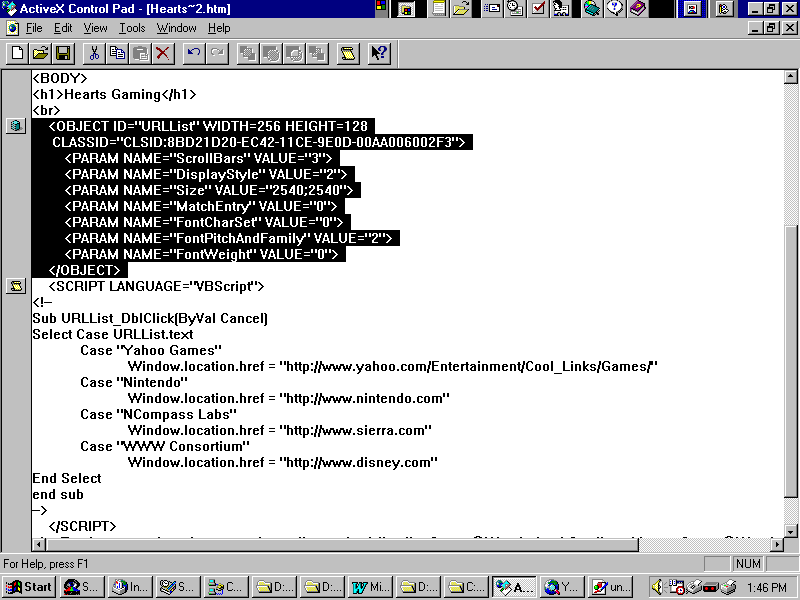
accomplish this, complete the following steps:
Figure 16.7. The <OBJECT> tag for the list box control as created within the ActiveX Control Pad. Next, add code to fill the list box. You'll use this
control to list the sites that the queen wants her visitors to be able to view. Even though you've added these objects to the form,
there is no code behind them. You must add a script that will populate the list box with
the queen's URLs. For this, you'll add a bit of VBScript (which you learned about
earlier). Finally, add a bit of code to tell the browser to
jump to the associated URL when the user double-clicks an item within the text box: When you finish with the HEARTS.aspL page, your
completed project should resemble the \W3\HEARTS.aspL file on the on the enclosed CD-ROM.
You will have created an ActiveX-enabled Web page with an embedded control. For this page,
the user must have the list box control already installed on his machine. The next chapter
discusses ActiveX control downloading to distribute controls over the network. SummaryIn this chapter, you have learned about the
<OBJECT> container tag and how it is used to insert active content into an HTML
page. This feature allows an HTML author to reference objects that are installed on a
user's machine. It also provides an object against which a VB or Java script can act. You have also learned the basics of using an ActiveX
control within a programming environment such as Visual Basic. Using an ActiveX control
exactly like any other custom control you can create your own proprietary, standalone
Internet applications and distribute them to your users. Q&A
WorkshopCreate a Web page with the following items inserted
as ActiveX Objects:
Quiz
|
|
|
Popular Tutorials
-
 MS Access
1109
MS Access
1109
-
 C++
1222
C++
1222
-
 HTML
584
HTML
584
-
 JavaScript
616
JavaScript
616
-
 Vbscript
873
Vbscript
873
-
 Oracle
473
Oracle
473
-
 VC++
875
VC++
875
-
 SQL
2959
SQL
2959
-
 XML
514
XML
514
-
 Java
814
Java
814
-
 Perl
455
Perl
455
-
 Linux
451
Linux
451