Web based School
Customizing ActiveX Control Properties |
 |
 |
Chapter 18Customizing ActiveX Control PropertiesBy now you should have a strong familiarity with the
processes involved in inserting objects into an HTML document and ensuring that those
objects are verifiably intact (or trusted). In this chapter, you will learn more about what
ActiveX controls are, what they can do, and how to make them do it. This chapter covers
Built-In ControlsDay 15, "What Is an
ActiveX Control?" discusses the COM and DCOM models for object-oriented programming.
The DCOM model provides the programmer with a hierarchical, standard set of objects that
would be found in an intranet-connected machine. Programmers can manipulate the properties
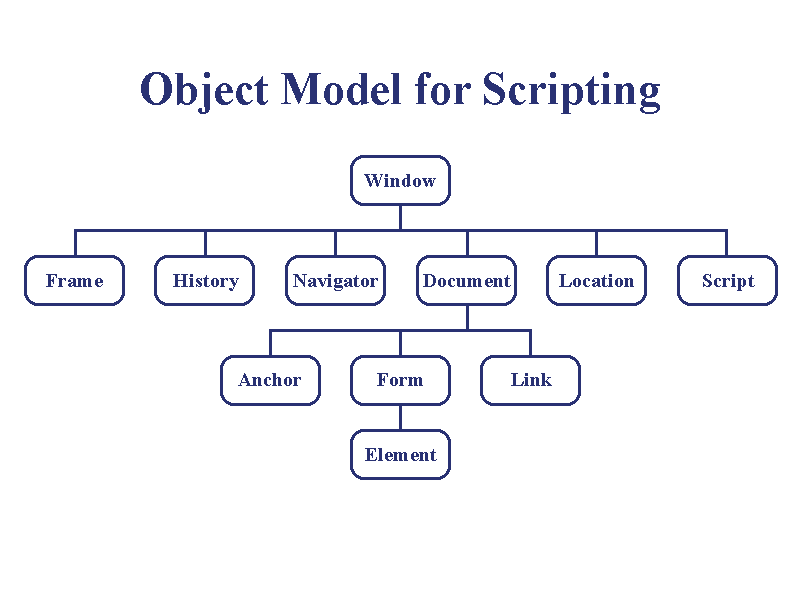
of these objects to enable customized networking features within their applications. This hierarchy follows the structure shown in Figure
18.1. I refer to this structure as the Object Model for Scripting and the Internet
Explorer Object, interchangeably. For a full explanation of each of the objects in the
hierarchy, you should refer to the documents in the ActiveX SDK under
\INetSDK\Help\ScriptOM\. Figure 18.1. The Object
Model for Scripting. To easily identify the objects within the Object
Model for Scripting , naming conventions are quite valuable. By naming your objects in a
consistent manner, you can easily tell what type of object something is. Using the conventions in the following table, you
can have many separate instances of a given object in use at the same time. You will still
be able to refer to each of them directly, and in a way that makes sense to someone who is
not already familiar with your code.
Table 18.1. Object Model naming
conventions .
Window ObjectThe topmost object within the Object Model For
Scripting is the Window object. The Window object is the container within which programs
or scripts will run. This is the primary object against which you will be programming. The
"window" to which it refers is the main window of your Web browser. If you wanted to refer to an object such as the
current location or URL, within the current window, you would address it as follows: Extending this out, or would set the location.href of the current window to
www.domain.net. Notice that the default parent of this Location
object is the Window object and the default property of the Location object is href.
By assigning the window a name, you can make your
code easier to read by adding something like this: Then you could refer to it elsewhere in the program
like this: Just like people, objects within the Internet
Explorer Object can be referred to in many ways. Each has its own name, as well as other
ways to refer to it that are relative to the context in which they are used. A window's parent is the window within which
it was created. Thus, if you have a window named wChild, and it is contained within a
frame that is in is contained within a top-level window named wParent, it would have the
full name: If you were to have a bit of script within wChild
that addresses its parent, you could refer to it as wParent or wChild.Parent. If you
wanted to refer to the topmost window, you could use the property Top and refer to it as
wChild.Top. There are other context-relative properties defined in the Object Model for
Scripting, such as Self, that work in a similar way.
Frames ObjectThe Frames object is a property of the Window
object. Some Web pages make use of a type of window display known as frames that
enables the display of several different Web pages within one window. (See Figure 18.2.)
Since several frames can be used within one window, the Frames object is used as an array.
Figure 18.2. Frames allow
the display of multiple Web pages within one window. When a browser loads a page with frames, a hyperlink
can instruct the client browser to change one or more of the pages, while leaving the
other pages intact.
When you reference Window.Frames(x) within a script
or program, what it will return is not a name or label or anything like that. It returns
an entire Window object. If you want to reference the URL of the document in the second
frame of a window, you would phrase it like this: In this way you are, for all practical purposes,
treating the wWindow.frFrames(1) object as a Window object.
Location ObjectAnother important property of the Window object is the Location object . Providing more than just the simple URL, this object enables you to use several powerful features that would not otherwise be available through straight HTML. This includes the capability to reference the port on which the connection is accepted, and the full filename of the specific file that was returned (if it had one).
History ObjectA really great property of the Window object is the
History object . A simple line like will set the variable intX to the number of pages
that were accessed by the browser window (or window frame). This object has two particularly powerful methods,
Back and Forward. These enable you to tell the browser to go back to a previous page, or
forward (if you have already gone back one or more pages). Unlike the Frames() property array, the number in
the history starts counting with 1=1. If no pages have been accessed yet, the value of the
history property will be set to d. Another method of the History object, Go, enables
you to select a specific site in the history and jump to that page. The format for this
would go something like this:
Document ObjectThe most important (and complex) property of the
Window object is the Document object. This is where the actual content of a Web page
resides. The next sections go into some of the details of Object properties so that when
you are done with the sections, you will be able to program with the properties. ColorA group of properties (LinkColor, aLinkColor,
vLinkColor) enables you to customize the color in which hyperlinks will appear. You can
use BGColor and FGColor to customize the color of the background and foreground,
respectively, of the document as a whole. For example, you can set the background color of a
page to all black using either the following format: Or, if you are referring to a document within the
current window: Several different color names are supported by the
Explorer Object Model including black, white, and gray; the primary colors red, yellow and
blue; and several tertiary colors such as green and orange. AnchorsThe Anchors property of the Document object returns
an array of all the hyperlink anchors within the document. Anchors are the pages
and locations, referenced within the document, to which a user may jump. An anchor, as typed within an HTML document would
look like this: To reference the third anchor within an HTML
document, your code would look something like this: This property would return a Window object
containing the properties of the referenced page. LinksThe Links object is another property array of the
Document object . It is very similar to the Anchors object, but it returns all the
hyperlinks within a document. FormsThe Forms object , also, is an array. Just what a
Forms object is could be confusing to anyone familiar with Visual Basic or other Windows
Programming language since a form in Windows is not the same as a form in HTML. In HTML,
which is the context used here, a form is an item such as a check box or a list box
or other user input item.
LocationThe Location object is a property of the Window
object , into which we will go into some detail. It is very powerful for determining
and/or setting the various options for accessing a given site. You should know that a URL consists of several
parts, even though it is presented as one long string, such as In the Location object, these can be set or
retrieved using the following properties:
There are two other properties, Hash and Search,
that apply to special features of an HTML document or CGI script that I do not go into
here. (Again, for full explanation of those objects, refer to the document "Object
Model For Scripting" in the ActiveX SDK.) LastModifiedThe LastModified property of the Document object is
just what it appears to be—the date when this file was last saved. There are
currently a variety of methods used by Netscape and others, who use <META> tags that
are not part of the HTML standard, to enable the author to set this date. For now, until
and unless the W3 Consortium decides to adopt another standard, this property is obtained
from the file date of the specific file on the server. TitleThe Title property of the Document object is
obtained from within the HTML document itself. It is set by the author of the HTML file by
enclosing it within the <TITLE> </TITLE> container tag. Should the author
neglect to assign a title to a document, the Title property will return an empty string,
"". ReferrerThe Referrer property of the Document object is a
very interesting item. It provides the ActiveX programmer with a method of determining how
the user found your page. A command line such as would return the URL of the page that had a
hyperlink that took the user to your page. If you track this information, and are listed
with a service such as Yahoo! or WebCrawler, you can tell how often a user was referred by
one of them, or if they were referred by a link in some other company's or user's page. If the user got to your page by typing the URL in
directly, this property will return a NULL value.
Talking to the DocumentThe next thing you need to know is how to tell the
document what it will tell the user. This is where GIGO (Garbage In/Garbage Out) comes
into play. The coolest interface in the world cannot hide bad content. Since I am
discussing the interface and not the content, I won’t go there. In the following sections you will review a couple
methods for sending content, whatever the quality, to the user through the document. Document.WriteBy using the Document.Write method , you can have
your application create the content of an HTML page on-the-fly. This written text will not
be saved to the copy of the HTML page, but rather, it will be simply added to the local
copy of the page, as viewed by the client browser.
Example: strMyString = "Hello world!" Document.Write strMyString
Open/CloseBefore you can write to a document , you need to
open the document for editing and then close it again. Thus, to perform the Write action
shown in the preceding section, you would have to have to format it something like this: Control Attributes and ParametersNow that you have learned a little about the
built-in objects within ActiveX we will refer, again, to the <OBJECT> tag. In
earlier chapters you learned how to insert objects, and even a little about customizing
their size with the Height and Width keywords. The next section gets a little deeper into
the parameters that are used to customize other control features. Attributes—ID, ClassID, DataEvery object that is inserted into an HTML page
should have an ID attribute . This is the unique name that will be used within the HTML
page, and any script within the page, to identify it. This name should follow the
conventions set forth in the previous section. If the object is an OLE object (such as an ActiveX
control), it should also name the ClassID attribute for the object. As you remember, the
ClassID is the unique name used within the local machine to identify the object within the
registry. Although the HTML author determines the ID, the ClassID is set by the control. No two controls should ever have the same ClassID so
that they can all be identified by their individual ClassIDs. If you have two different
timers, for example, and each has different behavior, you can refer to each of them by its
unique ClassID rather than by easily confused names like "Timer" and
"IETimer." Finally, the <OBJECT> tag should identify the
data that the object will use. This Data attribute can be identified by using one of two
methods. The first method points to the URL where the data is
stored: The second method is to put the actual data within
the Data attribute of the <OBJECT> tag: Now, let's bring these properties of the
<OBJECT> tag together to see how they will work. This <OBJECT> tag would insert an object
called objMyTextBox into the document. The ClassID is a pretend one, but it follows the
format for a real one. The data that would be used to initialize the control is contained
in the Data parameter, and is identified as the MIME type text/txt. The actual data is
simply the phrase, Hello world. Parameters
Summary
In this chapter you have learned something about the
Object Model for Scripting, or the Internet Explorer Object. This is the basic structure
against which ActiveX Controls operate. It has several properties, most of which are
entire objects unto themselves. The main (or topmost) object is the Window object.
Each Window object contains several objects, including the Frame, History, Navigator,
Location, Script and Document. Not all of these objects are applicable to every single
instance of the Window object. The most significant subsidiary object (or property)
of the Window object is the Document object (also called the DocObject). The Document
object contains the actual content of a Web page. It is also composed of several objects,
including the Link, Anchor, and Form objects. You also should have a slightly better understanding
of the <OBJECT> tag; most importantly, the Data attribute. Using this attribute, you
can specify the persistent data with which an ActiveX control is loaded. Using this
attribute, you can reference one control and have it instantiated many times, with a
different purpose on each instance. For more information on instantiation of ActiveX OLE
controls, as well as other ActiveX OLE information, please see Chapter
21, "Creating an ActiveX Control," and the Microsoft Developer’s
Network Level 2 Documentation. Q&A
WorkshopCreate a Web page using the <OBJECT> tag and
its Data parameter. Make this object a text box, and using the Data parameter, fill the
text box with some sort of text, such as Hello World!. Quiz
|
|
|
Popular Tutorials
-
 MS Access
1109
MS Access
1109
-
 C++
1222
C++
1222
-
 HTML
584
HTML
584
-
 JavaScript
616
JavaScript
616
-
 Vbscript
873
Vbscript
873
-
 Oracle
473
Oracle
473
-
 VC++
875
VC++
875
-
 SQL
2959
SQL
2959
-
 XML
514
XML
514
-
 Java
814
Java
814
-
 Perl
455
Perl
455
-
 Linux
451
Linux
451