Web based School
User Interaction with ActiveX Controls |
 |
 |
Chapter 19User Interaction with ActiveX ControlsBy now you have a pretty good idea of how to insert
controls into Web pages and Visual Basic applications. You also know how to modify the
properties of these controls—both programmatically and within the <OBJECT> tag.
In this chapter, you will take the next step and learn how to enable people who access
your ActiveX utility to interact with these controls. When you are finished with this chapter, you will be
able to create: Interactive HTMLWhen you create a Web page, there is nothing but
content—some words and maybe some graphics. When you insert a control, be it ActiveX
or something else, you do little more than enhance the content. To truly activate your page, you must allow
the user to interact with it. HTML provides a few different ways to allow user input: the
<FORM> and <INPUT> tags. The <FORM> Container TagWhen you want to code a user-input interface, you
use the Form object. It is defined within the <FORM> tag, and has several attributes
that define what the interface does (actions) and how it does it (methods).
The Action attribute points to the URL of the Web
item that will perform the selected function. This Web item can be just about anything
that can be passed as a URL or preferably, as a named object. If you do not specify a URL
to handle the action, it is assumed that the current document will be handling the
request. The Method attribute defines whether the user
request is for receiving information or for submitting it. The value for the Method
attribute can be either Post or Get.
If you have an HTML document loaded, and want to
load another page using the <FORM> tag to retrieve that document, it looks something
like this:
The <FORM> container tag is used to define an
area that allows for user input. The <INPUT> tags within the <FORM> container
tag specify what type of input the user may enter. This submits a request for the URL
http://www.domain.net/MyIndex.aspl#MyHeading. <FORM Method = "POST" Action =
"http://www.domain.net/MyIndex.aspl">
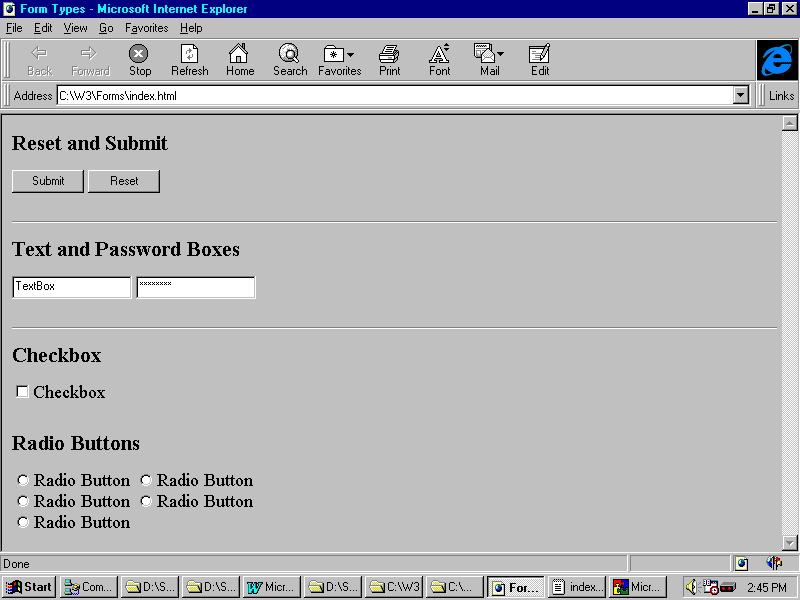
The <INPUT> TagThe <INPUT> tag allows you to specify the type
of user input to be allowed in the form. It does this through the Type and Value
attributes of the <INPUT> tag. Several of these types can be seen in Figure 19.1. Figure 19.1. Several
different input types on a Web page. The Type attribute specifies what kind of input the
user will provide. To select how the data input form is to be presented, use submit,
checkbox, radio, or text as the value of the Type attribute. textarea, password, reset and
image are also input types that you can use. Input Type: submitIn the earlier example, you created a form that
commanded that another Web page be loaded, but did not give the user a way to launch that
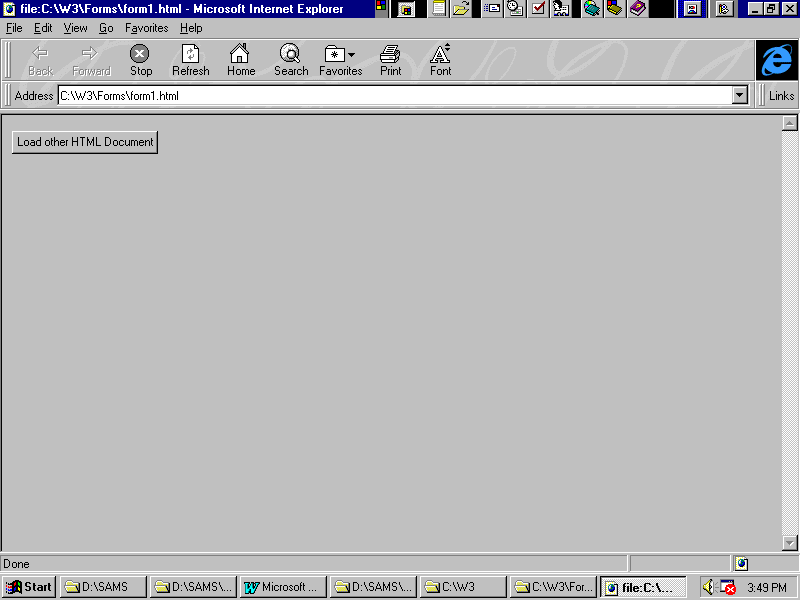
action. To rectify this, add a submit button to tell the browser to perform the action: In this example, a Submit button is displayed on the
page and the text "Load other HTML Document" is displayed on the face of the
button. When the user clicks the button, other.aspl is loaded. An example of this page can
be seen in Figure 19.2. A sister to the Submit button is the Reset button.
It is used in exactly the same way as the Submit button, except that when this button is
pressed, all of the values on the current form are reset to their defaults. Figure 19.2. An HTML form's
Submit button. Input Type: checkboxAnother input type is checkbox, which allows user
input of a simple True/False status. This feature allows you to get simple yes/no answers
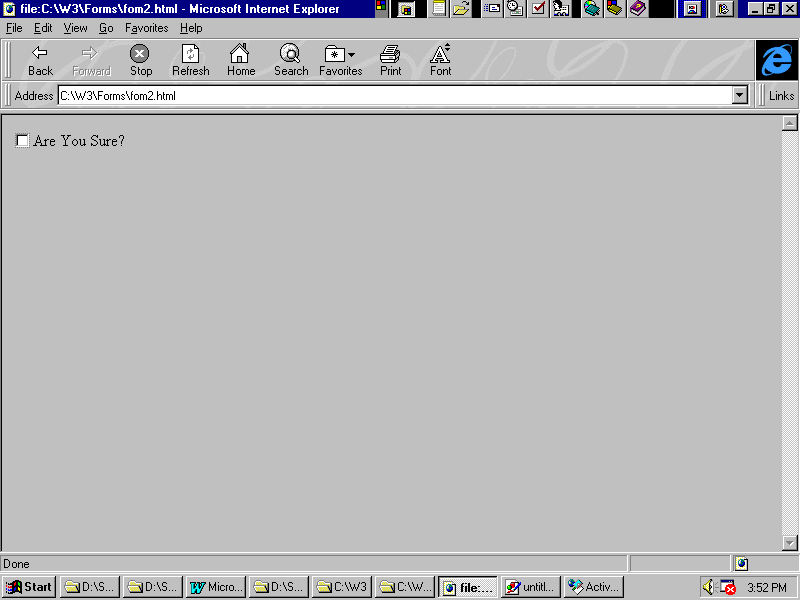
out of your users. In the following example, the user can answer the question Are You
Sure? by clicking the box: A sample of how this checkbox form would look in a
Web browser can be seen in Figure 19.3. Figure 19.3. An HTML form's
check box. The preceding sample defaults to a value of
False—the user is not sure. An ActiveX object can be programmed to set the value of
this item with the command ckCheckbox = True or ckCheckbox = False. It can also read the
value by referencing the value of ckCheckbox as if it were any other true/false variable. Input Type: radioAnother input type is the radio button. Several
radio buttons can be placed within one <FORM> container tag to allow the user to
select from a series of options; however, the controls do not have to be grouped together.
To specify that a radio button is part of a group, assign the same value in the Name
attribute to every button in the group. Then the user will only be able to select one of
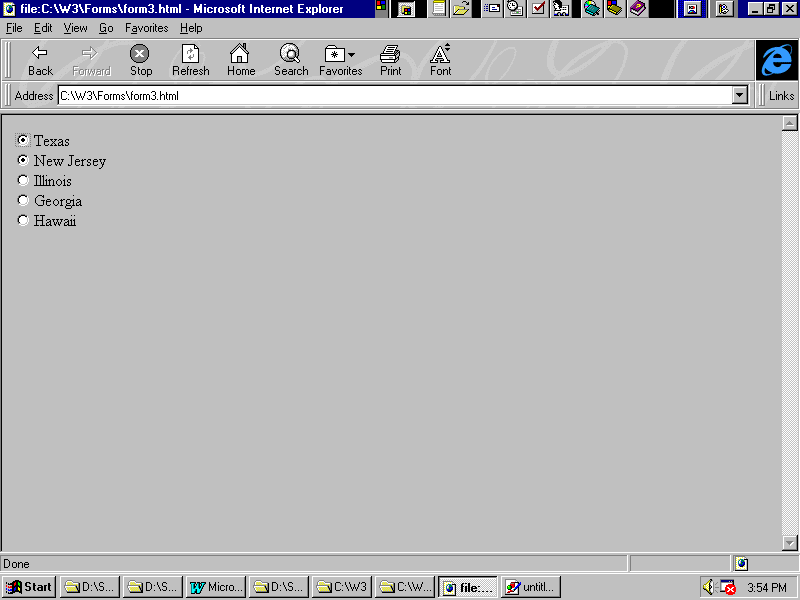
them. In this example, the user can select a value that
will represent the state he is in by selecting the appropriate radio button (see Figure
19.4). Figure 19.4. Radio buttons
on an HTML form. Input Type: textAnother input type is called text. The text box
allows users to input a string of characters instead of selecting from predefined options.
This input type uses two additional attributes: SIZE and MAXLENGTH. SIZE defines how many
characters the text box can display. MAXLENGTH defines the maximum number of characters
allowed in the text box. The Size attribute can be set to one number, such as
24, while the user can still enter more than 24 characters into the form. This is because
the Size attribute only defines how many character can be shown. The MaxLength
attribute defines how long the character string can be, and in this case, if it is set to
more than 24 characters, the user will be able to enter a data string that is longer than
the text box can display. If you do not specify the MaxLength value, there
will be no limit to the length of the string. Actually there is, but depending on the
environment, you won't want to use a string longer than 255 characters, and the maximum is
close to 65,000 characters. If you want to send an information stream that long, you
should consider breaking it up into parts, or submitting it as a binary file. In the following example, the text box is set to
request the user's name. The text box will show 24 characters, and will allow a maximum of
32 characters: Using the Yahoo! Search Form An alternative to the text type of input is the
textarea type. This works exactly the same as text, except that it allows multiline
entries by the users. If the text that the user is expected to enter is of
a sensitive nature, use the password type of input form. This one also works exactly like
a text box, except every character is replaced by an asterisk (*). By no means does this cover all types of user input
used within forms, but it gives a good summary of some of the ways users are able to input
data. As the HTML specification grows and the market comes up with new ways to request
user input, one day there just might be an input type called RetinaScan!
The previous chapter talked about giving each Form
object a name and conforming to a naming standard, such as frmForm. Input types should
also follow a naming convention. Here are a few suggestions, but there are many, many more
controls as well: Table 19.1. Naming conventions:
Form object input types .
Input types allow a variety of ways
for the user to enter information. Even if the user enters his data, the value of these
data input features can still be rendered null without something to retrieve the
information. Then the item that retrieved the information must either store it for future
use (such as in a Cookie), or acts on it before or while the user passes on to the next
page (such as through a bit of VB Script). Because input types such as the textarea and
password do not in and of themselves DO anything, some sort of client or server script or
an ActiveX control must reference the information provided. If the METHOD attribute of the
<FORM> tag is POST instead of GET, information in named objects contained within the
named form are passed to another HTML item, such as a CGI script or Web page. In a Post (or Query) method, named values are sent
after a ?, and each value is separated from the others by an &. A URL would look
something like this: This URL would access the fictional server script
search.exe on the server www.cnct.com in the directory /~davidk/cgi/. It would then submit
the value of the Name and Daughter variables (David and Shaina, respectively) and wait for
a confirmation or other document to be returned to the browser. Image MapsA very graphical method of providing user
input is the clickable image map . Users can click a portion of an image, and the HTTP
server or client will use the coordinates within the image on which the user clicked. To
enable this feature you need, along with your Web page, an image and a defined map of that
image. The <IMG> TagAs you begin writing with HTML, one of the first
things you become familiar with is the <IMG> tag . This tag allows you to insert a
graphic (usually .GIF or .JPG) into your document. The following example would insert an
image called sample.gif into your document: Specify the dimensions of the graphic with the
height and width attributes like so: Let's assume that 128x128 is the actual size of the
graphic so you don't need to bother with these sizing attributes. Just remember that you
are not restricted to the original size of the graphic. ISMAP and UseMap Map NameTo identify an image as a server-side clickable map,
add the ISMAP attribute to the <IMG> tag : To identify an image as a client-side clickable map,
add the USEMAP="mapname" attribute to the <IMG> tag: After you designate your image as a clickable image
map, define the attributes of the map. These attributes define which portions of the map
perform which actions. This map information can be contained within the Web page itself,
or the data could be in an external .MAP file.
Map Information Within HTML
To place map information within an HTML document ,
use the <MAP> </MAP> container tag. Ideally, this should appear in the
<HEAD> of the document. One or more <AREA> tags should appear within
the <MAP> container tags. <AREA> tags define the shape of each area within the
image, and what action will be taken when the user clicks within those areas. The
<AREA> tag uses 3 attributes to do this: SHAPE, COORDS and HREF. SHAPEThere are three shapes you can use in an image
map—rectangle (RECT), polygon (POLY) and circle (CIRC). If no SHAPE attribute is
specified, the default is rectangle. COORDSCoordinates are determined based on the standard x,y
format. In our example, the graphic is 128x128 pixels in size. So, the coordinates for the
upper-left corner of the image are 0,0, and the coordinates for the lower-right corner of
the image are 128,128. The COORD attribute to define the entire
rectangle of an image would appear as 0,0,128,128. To define only the left side of the
image, use 0,0,64,128. To define only the right side of the image, use 64,0,128,128.
HREF
Finally, the <AREA> tag uses the HREF
attribute . This defines the action that will be taken when a user clicks the specified
area. In its simplest form, the HREF attribute points to an HTML document, such as
gohere.aspl. Alternatively, it could point to a named anchor in the current document (such
as <A NAME = gohere>). To specify one of these anchors, preface the name with the
pound sign (#) (such as <a href="#MyLocation">My Location</a>.
Now let's take a look at the maps themselves. Figure
19.5 has a 128x128 graphic containing four distinctive areas. The event that is performed
depends on which quadrant is clicked by the user's mouse.
Map Information Within an External .MAP FileTo place map information within an external .MAP
file, you must create a text file. The extension for the map file can be anything you
want, but the file itself must be a text file. The map file consists of the same
<AREA> tags found in the attributes of a <MAP> container described previously.
User Input Via HTML ScriptingLet's briefly discuss some ways that you can obtain user input via a scripting engine, such as JavaScript (JScript) or VBScript. Bear in mind that whether you use VBScript, JavaScript, Perl, LISP, or a generic public domain script, each requires a scripting engine (usually a .DLL or two). These engines are based on the guidelines published by the WWW Consortium (http://www.w3.org). User Input with VBScriptVBScript offers several different methods for
providing user input. The more complex ones involve using embedded objects, but I want to
focus on how to provide objects with user input, or how to get data from the objects
themselves. This means you will be dealing with very basic forms of user input. Intrinsic EventsEach object has its own built-in intrinsic events.
These events are routines that are run whenever the user performs a given action, or when
a particular state that is being monitored changes. Some of these events, such as onLoad and onUnload,
are pretty obvious. The ones I want to cover those related to the Form's collection
object.
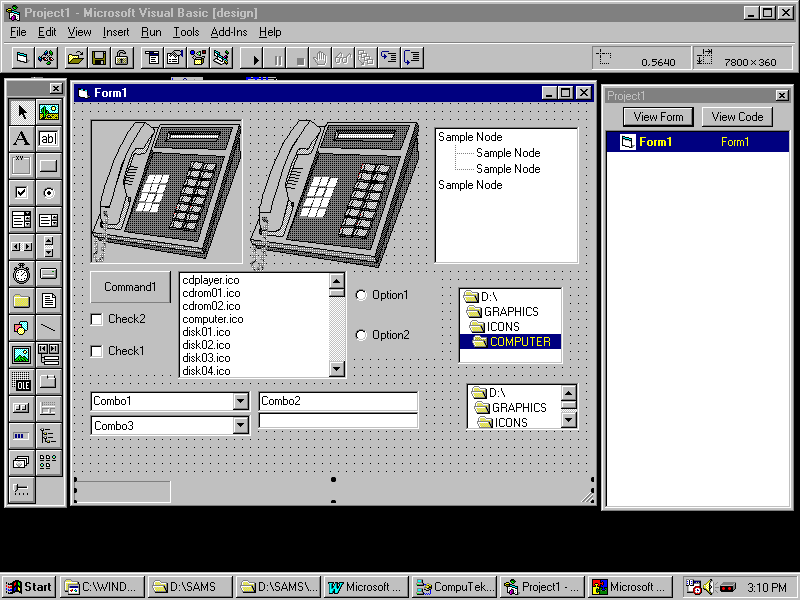
User Input Via Visual BasicAlthough HTML forms provide programmers with a rich
set of tools with which a user input interface can be created, they don't hold a candle to
the ones available from within a programming language like Visual Basic (see Figure 19.6).
This is because HTML was developed to be usable on any and every computer. Visual Basic is
used to program only within the Windows environment. The beauty of Visual Basic, when it comes to ActiveX
programming, is that you are no longer limited to performing Internet functions through a
Web browser or a command-line utility (blech!). All of the parts and pieces of Windows are
exposed to Visual Basic, and the programmer can reference these objects in conjunction
with the appropriate WinSock interfaces. These parts and pieces include the Common Dialog
controls and the routines in the Visual Basic RunTime library, as well as any other very
complex and powerful libraries that may be installed on the user's machine, like remote
access.
Figure 19.6 is a Visual Basic form. From it, you can
see that Visual Basic has a number of different methods for providing user input.
Drop-down and scrolling lists, images, and buttons are all familiar from standard HTML
forms. There are also a few others: tree view and directory view are part of the user's
Windows environment, not part of the HTML specification (yet). This bit of code in a Visual Basic project will
display a message box when the user presses a command button named cmdPressMe. Activate your own Visual Basic I/O interfaces
through the simple addition of an ActiveX control, such as one that comes in the Internet
Control Pack. These controls allow you to create standalone applications that work over
your machine's WinSock to support FTP, NNTP, HTTP, SMTP/POP3, and so on within your own
application. SummaryThis chapter familiarized you with the available
user-input mechanisms that allow the use of user-supplied data with ActiveX controls. In HTML, INPUT items are contained within the
<FORM> </FORM> container tags. Each INPUT item has a Name and a Type, as well
as a Value. The first two are defined within the HTML document. The third, Value, is
defined either programmatically (through a script) or by the users when they click a
button or enter text. Some input types that you can use include
Q&A
WorkshopCreate a Web page to be used for sending
mailing-list information. Include the following features within a form:
Add a submit button to the document, and code it to
send the information from the form to an imaginary CGI called MailList.exe. Quiz
|
|
|
Popular Tutorials
-
 MS Access
1109
MS Access
1109
-
 C++
1222
C++
1222
-
 HTML
584
HTML
584
-
 JavaScript
616
JavaScript
616
-
 Vbscript
873
Vbscript
873
-
 Oracle
473
Oracle
473
-
 VC++
875
VC++
875
-
 SQL
2959
SQL
2959
-
 XML
514
XML
514
-
 Java
814
Java
814
-
 Perl
455
Perl
455
-
 Linux
451
Linux
451