Web based School
- Chapter 17
- Working with Graphics
- Using Graphics in an Applet
- Drawing Lines and Shapes
- Drawing Lines
- Listing 17.1. The full text of JavaMan.java.
- Listing 17.2. The full text of JavaMan.asp.
- Workshop: Drawing Attention to Something
- Listing 17.3. The full text of Drawing.java.
- Listing 17.4. The full text of Drawing.asp.
- Summary
- Q&A
- Quiz
- Activities
- Working with Graphics
Chapter 17
Working with Graphics
During the previous hour you had a chance to experience the joy of text by displaying strings in a variety of fonts and colors. Using these Java classes makes the programming language an enjoyable text aid, but at some point you probably were expecting more. There's more to life than text, and this hour is evidence of that. You'll get a chance to draw shapes of different colors in a program--everything from rectangles to ovals to lines.
The following subjects will be covered:
- The drawing methods of the Graphics class
- Drawing lines
- Drawing rectangles, rounded rectangles, and 3-D rectangles
- Drawing polygons
- Drawing ovals
- Drawing with different colors
- Drawing filled and unfilled shapes
Using Graphics in an Applet
This isn't meant as a knock to those of us who enjoy displaying arrays, incrementing variables, or using a constructor method, but let's face it--many subjects in a programming language such as Java tend to be dry. It's hard to impress your non-programming acquaintances with the way your do-while loop determines which method to use in a mathematical application. Dates don't get nearly as excited as you do when a switch-case block statement handles a variety of different circumstances correctly. Nobody ever attracted a mate because they use the conditional operator (using conditioner, on the other hand...). Graphics programming is the exception to this general rule. When you write a program that does something interesting with graphics, it's a way to have fun with a programming language and impress relatives, friends, strangers, and prospective employers.
Drawing things such as lines and polygons is as easy in a Java applet as displaying text. You use a method of the Graphics class inside the paint() method of the program. The Graphics class stores information required to display something on-screen. The most common use of the class is to create an object that represents the applet window. This Graphics object is often called screen, and its methods are used to draw text with a command such as the following:
screen.drawString("Draw, pardner!", 15, 40);
This statement causes the text Draw, pardner! to be displayed at the (x,y) coordinates of (15,40).
All of the shape- and line-drawing methods work using the same (x,y) coordinate system as text. The (0,0) coordinate is at the upper-left corner of the applet window. x values go up as you head to the right, and y values go up as you head downward. You can determine the maximum (x,y) value that you can use in an applet with the following statements:
int maxXValue = size().width;
int maxYValue = size().height;
Drawing Lines and Shapes
Figure 17.1 shows JavaMan, an illustration composed of all the different things you'll be learning to draw during this hour:
- Lines: JavaMan's arm and fingers are lines.
- Rounded rectangles: The border of the illustration is a rectangle with rounded
corners.
- Rectangles: JavaMan's torso is composed of a filled gray rectangle covered with
100 unfilled rectangles. His mouth is another rectangle.
- Ovals: JavaMan's eyes are ovals.
- n Polygons: JavaMan's hat is a polygon.
Figure
17.1. JavaMan, a figure composed of Java
polygons and lines.
With the exception of lines, all of the shapes you can draw can be filled or unfilled.
A filled shape is drawn with the current color completely filling the space taken
up by the shape. Unfilled shapes just draw a border with the current color. The rounded
rectangle around Figure 17.1 is an example of an unfilled shape. Only the border
of the rectangle is drawn. JavaMan's hat is a filled shape because the entire hat
is filled in with the same color.
Before you create an applet to draw JavaMan, each of the drawing methods will be described. The screen object will be used as the Graphics object throughout this section, and it's the object used as an argument to the paint() method of an applet.
Drawing Lines
To draw a line, a statement such as the following is used:
screen.drawLine(200,110,170,115);
This statement draws a line beginning at the (x,y) coordinate of (200,110) and ending at (170,115). All lines in Java are one pixel in width, so you have to draw several lines side by side if you want to draw a thick line.
Drawing Rectangles
Rectangles can be filled or unfilled, and they can have rounded corners or square ones. The following statement draws an unfilled rectangle with square corners:
screen.drawRect(245,65,20,10);
This statement draws a rectangle with its upper-left corner at the (x,y) coordinate of (245,65). The width of the rectangle is 20 and the height is 10. These dimensions are expressed in pixels, the same unit of measure used for coordinates.
If you want to make the rectangle filled in, use the fillRect() method instead of drawRect(). The arguments are the same:
screen.fillRect(245,65,20,10);
You can draw rectangles with rounded corners instead of square ones by using the drawRoundRect() and fillRoundRect() methods. As you might expect, you use the drawRoundRect() to draw an unfilled rectangle, and you use the fillRoundRect() method to draw a filled rectangle. These methods have two extra arguments at the end that specify the distance from the corner to begin making it round. The following statement draws an unfilled, rounded rectangle:
screen.drawRoundRect(10,10,size().width-20, size().height-20, 15, 15);
This rectangle has its upper-left corner at the (10,10) coordinate. The last two arguments to drawRoundRect() specify that the corner should begin rounding 15 pixels away from the corner at (10,10). As with other rectangle methods, the third and fourth arguments specify how wide and tall the rectangle should be. In this case, size().width and size().height are used so that the rectangle can use the size of the applet window as a way to determine how large the rectangle should be.
Drawing Ovals and Circles
To draw ovals and circles, use the drawOval() and fillOval() methods. You can draw a circle by specifying the same width and height values, as in the following:
screen.fillOval(245,45,5,5);
This statement draws an oval at (245,45) with a height and width of 5. Changing one of the height or width coordinates to a different value would make the shape an oval instead of a circle.
Drawing Polygons
Polygons are the most complicated shape to draw because they have a varying number of points. To set up the points, all of the x coordinates of the polygon are put into an array of integers. All of the y coordinates are then put into another array, in the same order. The drawPolygon() and fillPolygon() methods are used with the arrays and the number of points as arguments:
int[] xPoints = { 205, 305, 240 };
int[] yPoints = { 43, 40, 15 };
int points = 3;
screen.fillPolygon(xPoints, yPoints, points);
You can use the fillPolygon() method to draw the entire polygon with the same color or use drawPolygon() to only draw the polygon's outline. All polygons are completed automatically by making the last point join up with the first point. In this example, (240,15) will connect to (205,43).
Another way to draw polygons is to use a Polygon object to hold all of the point values, as in the following:
int[] yellowX = { 64, 126, 136, 74, 64 };
int[] yellowY = { 228, 176, 184, 240, 228 };
yellow = new Polygon(yellowX, yellowY, 5);
screen.fillPolygon(xPositions, yPositions, points);
Polygons do not have to meet in a point, however; you can use drawPolyline() to draw partial polygons. This is done by specifying two integer arrays containing all of the points and the number of points, as in the following:
int[] xPoints = { 205, 305, 240 };
int[] yPoints = { 43, 40, 15 };
int points = 3;
screen.drawPolyline(xPoints, yPoints, points);
Unlike drawPolygon() and fillPolygon(), this method does not connect the first and last lines.
Creating JavaMan
To put all of these shapes together, load your word processor and create a new file called JavaMan.java. Enter Listing 17.1 into the file and save it when you're done.
Listing 17.1. The full text of JavaMan.java.
 1: import java.awt.*;
 2:
 3: public class JavaMan extends java.applet.Applet {
 4:
 5:     public void init() {
 6:         setBackground(Color.yellow);
 7:     }
 8:
 9:     public void paint(Graphics screen) {
10:
11:         screen.setColor(Color.black);
12:                     screen.drawRoundRect(10,10,size().width-20, 13:                    size().height-20,15,15);
14:
15:         screen.setColor(Color.gray);
16:         screen.fillRect(200,90,100,100);
17:
18:         screen.setColor(Color.blue);
19:                     for (int x = 200; x < 300; x += 5)
20:             for (int y = 90; y < 190; y += 5)
21:                 screen.drawRect(x,y,5,5);
22:
23:         screen.setColor(Color.black);
24:         screen.drawLine(200,110,170,115);
25:         screen.drawLine(170,115,160,90);
26:         screen.drawLine(160,90,150,94);
27:         screen.drawLine(160,90,153,85);
28:         screen.drawLine(160,90,158,83);
29:         screen.drawLine(160,90,163,84);
30:
31:         screen.setColor(Color.white);
32:         screen.fillOval(220,30,60,60);
33:
34:         screen.setColor(Color.green);
35:         screen.fillOval(245,45,5,5);
36:         screen.fillOval(255,45,5,5);
37:
38:         screen.setColor(Color.black);
39:         screen.fillRect(245,65,15,15);
40:
41:         screen.setColor(Color.magenta);
42:         int[] xPoints = { 205, 305, 240, 205 };
43:         int[] yPoints = { 43, 40, 15, 43 };
44:         int points = 4;
45:         screen.fillPolygon(xPoints, yPoints, points);
46:     }
47: }
After compiling the program successfully, create a new file in your word processor
called JavaMan.asp. Enter Listing 17.2 into the file.
Listing 17.2. The full text of JavaMan.asp.
1: <applet code="JavaMan.class" height=220 width=340>
2: </applet>
When you use appletviewer or a Java-capable Web browser to view this applet,
you will discover why I chose computer guide writing as a profession over illustration.
If you're using appletviewer, resize the window a few times to see how the
rounded black border changes.
Workshop: Drawing Attention to Something
To draw this hour to a close, you'll create an applet that uses a polygon, several polylines, a rounded rectangle, and three ovals. The finished product ought to be a familiar face.
Load your word processor and create a new file called Drawing.java. Enter the full text of Listing 17.3, and then save and compile the file when you're done.
Listing 17.3. The full text of Drawing.java.
 1: import java.awt.*;
 2:
 3: public class Drawing extends java.applet.Applet {
 4:     Polygon hair;
 5:
 6:     public void init() {
 7:         int[] hairX = { 125, 131, 156, 217, 270, 314, 244, 233,
 8:             196, 162, 147, 153, 180, 189, 125 };
 9:         int[] hairY = { 314, 122, 75, 57, 96, 287, 319, 118,
10:             87, 92, 133, 203, 231, 258, 314 };
11:         hair = new Polygon(hairX, hairY, 15);
12:
13:         setBackground(Color.lightGray);
14:     }
15:
16:     public void paint(Graphics screen) {
17:         screen.setColor(Color.white);
18:         screen.fillRoundRect(147,84,103,74,23,23);
19:         screen.fillOval(147,94,103,132);
20:
21:         screen.setColor(Color.black);
22:         screen.fillPolygon(hair);
23:
24:         int[] eyebrow1X = { 151, 168, 174, 171, 178, 193 };
25:         int[] eyebrow1Y = { 145, 140, 148, 184, 191, 188 };
26:         screen.drawPolyline(eyebrow1X, eyebrow1Y, 6);
27:
28:         int[] eyebrow2X = { 188, 197, 213, 223 };
29:         int[] eyebrow2Y = { 146, 141, 142, 146 };
30:         screen.drawPolyline(eyebrow2X, eyebrow2Y, 4);
31:
32:         int[] mouthX = { 166, 185, 200 };
33:         int[] mouthY = { 199, 200, 197 };
34:         screen.drawPolyline(mouthX, mouthY, 3);
35:
36:         screen.fillOval(161,148,10,3);
37:         screen.fillOval(202,145,12,5);
38:     }
39: }
The Drawing applet includes two methods, init() and paint(),
and a single Polygon object as the only variable. The Polygon object
is used to store all the information that's needed to draw a polygon.
The polygon is drawn by setting up an array of integers with the x coordinates of each point on the polygon. Next, another array of integers is set up with the y coordinates of each point. When both of these are set up, the following statement is used:
hair = new Polygon(hairX, hairY, 15);
The first two arguments to the Polygon constructor method are the integer arrays--hairX and hairY. The last argument is the number of points in the polygon.
Once you have created a polygon in this manner, you can use the drawPolygon() or fillPolygon() methods of the Graphics class to draw it. This action takes place in the paint() method of the applet because you need a Graphics object that indicates where the polygon should be drawn. An object called screen is used:
screen.fillPolygon(hair);
The fillPolygon() method draws a polygon that is filled in with the current color. If you do not want the polygon to be filled in, you can use the drawPolyline() method with two integer arrays instead.
You select colors with the setColor() method of the Graphics class. Constants from the Color class such as Color.red and Color.green are used as arguments to the setColor() method. The following statement in the paint() method sets the current color to black:
screen.setColor(Color.black);
In addition to the polygons, three ovals are drawn in the Drawing applet. The following is one of the statements used to draw an oval:
screen.fillOval(161,148,10,3);
The first two parameters to the fillOval() method are the (x,y) coordinates where the oval should be drawn. The last two parameters are the width and height of the oval.
After you have compiled Drawing.java successfully, open a new file in your word processor to create a the Web page to put the applet on. Create a new file called Drawing.asp and enter Listing 17.4 into the file.
Listing 17.4. The full text of Drawing.asp.
<applet code="Drawing.class" height=340 width=280>
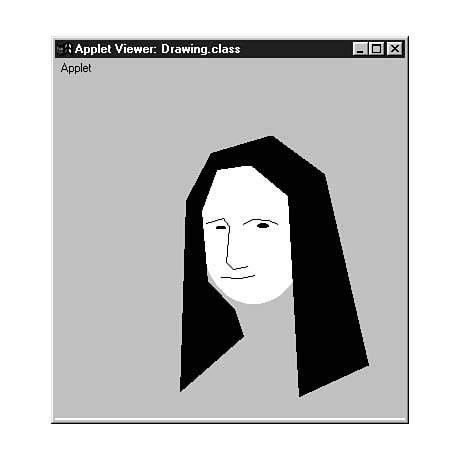
</applet> After saving the file, view the applet with the appletviewer tool or a Web browser. Figure 17.2 shows what the finished product should look like.
Figure 17.2. The output of the Drawing applet.
If the long black hair, moony expression, and stoned smile aren't enough of a
visual clue, this applet attempts to draw the Mona Lisa using a few polygons and
lines. Leonardo da Vinci didn't have the chance to use Java drawing commands when
he created the real Mona Lisa in 1503-1506, so he used paint instead. His results
were pretty impressive too, but it took him considerably longer than an hour to finish
his version.
The Louvre, the home of the Mona Lisa, has an extensive Web site at the following
address:
http://mistral.culture.fr/louvre/
A picture of the Mona Lisa is displayed under the title La Joconde (Monna Lisa) at the following address:
http://mistral.culture.fr/louvre/anglais/musee/collec/monna.asp
Summary
Drawing something using the polygons and other shapes available with Java might seem like more trouble than it's worth, especially when you can load image files such as .GIF files and .JPG files, as you'll see in the next hour. However, graphics depicted with polygons have two advantages over graphics that are loaded from image files:
- Speed: Even a small graphic, such as an icon, would take longer to load and display
than a series of polygons.
- Scaling: You can change the size of an entire image that uses polygons simply by changing the values to create it. For example, you could add a function to the Drawing class that doubles the values for every (x,y) point in the arrays before you display anything, and it would result in an image twice as large. Polygon images scale much more quickly than image files do and produce better results.
There are many instances where it makes more sense to use graphics files in your programs, but polygons can be a useful option.
Q&A
- Q Why does the JavaMan image flicker when I resize the applet window?
A The reason for this flicker is that the screen is automatically cleared each time the screen must be repainted. This happens in a method called update() that normally works behind the scenes. You can override this method in your programs to prevent the flickering problem, as you will see during the next hour.
Q Ovals and circles don't have corners. What are the (x,y) coordinates specified with the fillOval() and drawOval() method?
A The (x,y) coordinates represent the smallest x value and smallest y value of the oval or circle. If you drew an invisible rectangle around it, the upper-left corner of the rectangle would be the x and y coordinates used as arguments to the method.
Quiz
Test whether your Java graphics skills are taking shape by answering the following questions.
Questions
- 1. What method is used to change the current color before you draw something
in a program?
(a) shiftColor()
(b) setColor()
Could you repeat the question?
2. If you want to use the height and width of an applet window to determine how big something should be drawn, what can you use?
(a) A ruler and a friend who's good at math
(b) getHeight() and getWidth()
size().height and size().width
3. What personal failing did this guide's author admit to during this hour?
(a) poor grooming
(b) poor drawing ability
codependency
Answers
- 1. b. You can use the setBackground() method to set the background
color of an applet, and you can use the setColor() method of the Graphics
class to select the current color.
2. c.
3. b. JavaMan represents one of the high points of my illustrative career.
Activities
To draw upon your vast storehouse of graphical skills, do the following activities:
- Create a method that can multiply every integer in an array by some kind of common
factor. You can use this method in the Drawing applet to change the points
in a polygon to make it bigger or smaller before it is created.
- Add parameters to the JavaMan applet to control the colors used on the
background, body, and hat.


Popular Tutorials
-
 MS Access
1109
MS Access
1109
-
 C++
1222
C++
1222
-
 HTML
584
HTML
584
-
 JavaScript
616
JavaScript
616
-
 Vbscript
873
Vbscript
873
-
 Oracle
473
Oracle
473
-
 VC++
875
VC++
875
-
 SQL
2959
SQL
2959
-
 XML
514
XML
514
-
 Java
814
Java
814
-
 Perl
455
Perl
455
-
 Linux
451
Linux
451