Web based School
- Chapter 18
- Creating Animation
- Creating an Animated Logo Applet
- Listing 18.1. The full text of Animate.java.
- Sending Parameters to the Applet
- Listing 18.2. The full text of Animate.asp.
- Workshop: Follow the Bouncing Ball
- Listing 18.3. The full text of Bounce.java.
- Listing 18.4. The full text of Bounce.asp.
- Drawing the Image
- Summary
- Q&A
- Quiz
- Activities
- Creating Animation
Chapter 18
Creating Animation
Like the final voyage of the S.S. Minnow, the trip through the visual side of Java programming is a three-hour tour. At this point, you have learned how to use text, fonts, color, lines, and polygons in your Java applets. Any adversity you have experienced should have been minor, at least in comparison to the castaways of Gilligan's Island. At this point in the tour, passengers were asking the Skipper if hurricane-force winds were a scheduled part of the itinerary.
This third hour shows how to display image files in the .GIF and .JPG formats in your applets and some tricks to use when presenting these images in an animation. The following topics will be covered:
- Using Image objects to hold image files
- Putting a series of images into an array
- Cycling through an image array to produce animation
- Using the update() method to reduce flickering problems
- Using the drawImage() command
- Drawing to an off-screen workspace
- Why double-buffering improves animation results
- Establishing rules for the movement of an image
Creating an Animated Logo Applet
Computer animation at its most basic consists of drawing an image at a specific place, moving the location of the image, and telling the computer to redraw the image at its new location. Many animations on Web pages are a series of image files, usually .GIF or .JPG files, that are displayed in the same place in a certain order. You can do this to simulate motion or to create some other effect.
The first program that you will be writing today uses a series of image files for an animated logo. Several details about the animation will be customizable with parameters, so you can replace any images of your own for those provided for this example. Create a new file in your word processor called Animate.java. Enter Listing 18.1 into the file, and remember to save the file when you're done entering the text.
Listing 18.1. The full text of Animate.java.
 1: import java.awt.*;
 2:
 3: public class Animate extends java.applet.Applet implements Runnable {
 4:
 5:     Image[] picture = new Image[6];
 6:     int totalPictures = 0;
 7:     int current = 0;
 8:     Thread runner;
 9:     int pause = 500;
10:
11:     public void init() {
12:         for (int i = 0; i < 6; i++) {
13:             String imageText = null;
14:             imageText = getParameter("image"+i);
15:             if (imageText != null) {
16:                 totalPictures++;
17:                 picture[i] = getImage(getCodeBase(), imageText);
18:             } else
19:                 break;
20:         }
21:         String pauseText = null;
22:         pauseText = getParameter("pause");
23:         if (pauseText != null) {
24:             pause = Integer.parseInt(pauseText);
25:         }
26:     }
27:
28:     public void paint(Graphics screen) {
29:         screen.drawImage(picture[current],0,0,this);
30:     }
31:
32:     public void start() {
33:         if (runner == null) {
34:             runner = new Thread(this);
35:             runner.start();
36:         }
37:     }
38:
39:     public void run() {
40:         while (true) {
41:             repaint();
42:             current++;
43:             if (current >= totalPictures)
44:                 current = 0;
45:             try { Thread.sleep(pause); }
46:             catch (InterruptedException e) { }
47:         }
48:     }
49:
50:     public void stop() {
51:         if (runner != null) {
52:             runner.stop();
53:             runner = null;
54:         }
55:     }
56:
57:     public void update(Graphics screen) {
58:         paint(screen);
59:     }
60: }
This program uses the same threaded applet structure that you used during Chapter 14,
"Creating a Threaded Applet." Threads are often used during animation programming
because they give you the ability to control the timing of the animation. The Thread.sleep()
method is an effective way to determine how long each image should be displayed before
the next image is shown.
The Animate applet retrieves images as parameters on a Web page. The parameters should have names starting at "image0" and ending at the last image of the animation, such as "image3" in this hour's example. The maximum number of images that can be displayed by this applet is 6, but you could raise this number by making changes to Lines 5 and 12.
The totalPicture integer variable determines how many different images will be displayed in an animation. If fewer than 6 image files have been specified by parameters, the Animate applet will determine this during the init() method when imageText equals null after Line 14.
The speed of the animation is specified by a pause parameter. Because all parameters from a Web page are received as strings, the Integer.parseInt() method is needed to convert the text into an integer. The pause variable keeps track of the number of milliseconds to pause after displaying each image in an animation.
Preventing Flickering Animation
As with most threaded programs, the run() method contains the main part of the program. A while (true) statement in Line 40 causes Lines 41-46 to loop as long as the program is not stopped by someone leaving the Web page.
The first thing that happens in the run() method is a repaint(); statement. This statement causes the update() method and paint() method to be handled, in that order, so that the screen can be updated. Use repaint() any time you know something has changed and the display needs to be changed to bring it up to date. In this case, every time the Animate loop goes around once, a different image should be shown.
The update() method contains only one statement, paint(screen);. The reason to use this method is that it overrides the behavior that update() normally performs. If you did not override update() in the Animate program, it would clear the screen before calling on the paint() method. This action causes flickering animation problems that have been mentioned in previous hours.
Loading and Displaying Images
The paint() method is simple in this applet: It draws an image on-screen with the drawImage() method. The drawImage() method displays a current Image object at the (x, y) position specified. The following is another example of a drawImage() statement:
screen.drawImage(turtlePicture, 10, 25, this);
This statement displays the Image object called turtlePicture at the (x, y) coordinates of (10, 25). The this statement sent as the fourth argument to drawImage() enables the program to use a class called ImageObserver. This class tracks when an image is being loaded and when it is finished. The Applet class contains behavior that works behind the scenes to take care of this process, so all you have to do is specify this as an argument to drawImage() and some other methods related to image display. The rest is taken care of for you.
The preceding example assumed that an Image object called turtlePicture had been created and loaded with a valid image. The way to load an image in an applet is to use the getImage() method. This method takes two arguments, the Web address or directory that contains the image file and the file name of the image.
The first argument is taken care of with the getCodeBase() method, which is part of the Applet class. This method returns the location of the applet itself, so if you put your images in the same directory as the applet's class file, you can use getCodeBase(). The second argument should be a .GIF file or .JPG file to load. The following statement loads the turtlePicture object with a file called Mertle.gif:
Image turtlePicture = getImage(getCodeBase(), "Mertle.gif");
Storing a Group of Related Images
In the Animate applet, images are loaded into an array of Image objects called pictures. The pictures array is set up to handle six elements in Line 5 of the program, so you can have Image objects ranging from picture[0] to picture[5]. The following statement in the applet's paint() method displays the current image:
screen.drawImage(picture[current],0,0,this);
The current variable is used in the applet to keep track of which image to display in the paint() method. It has an initial value of 0, so the first image to be displayed is the one stored in picture[0]. After each call to the repaint() statement in Line 41 of the run() method, the current variable is incremented by one in Line 42.
The totalPictures variable is an integer that keeps track of how many images should be displayed. It is set when images are loaded from parameters off the Web page. When current equals totalPictures, it is set back to 0. As a result, current cycles through each image of the animation, and then begins again at the first image.
Sending Parameters to the Applet
Becaus the Animate applet relies on parameters to specify the image files it should display, you need to create a Web page containing these file names before you can test the program. After saving and compiling the Animate.java file, open up a new file in your word processor and call it Animate.asp. Enter Listing 18.2 into that file, and save it when you're done.
Listing 18.2. The full text of Animate.asp.
1: <applet code="Animate.class" width=230 height=166>
2: <param name="image0" value="sams0.gif">
3: <param name="image1" value="sams1.gif">
4: <param name="image2" value="sams2.gif">
5: <param name="image3" value="sams3.gif">
6: <param name="pause" value="400">
7: </applet>
This file specifies four image files: sams0.gif, sams1.gif, sams2.gif,
and sams3.gif. These files are listed as the values for the parameters image0
through image3. You can find the files used in this example on this guide's
CD-ROM in the directory Win95nt4/guide/Source/Hour18. They also can be downloaded
from the guide's official Web site at the following address:
http://www.prefect.com/java24
Look for the Chapter 18's graphics link that's available on the main page of the site. You also can specify any of your own .GIF or .JPG files if desired. Whichever files you choose should be placed in the same directory as the Animate.class and Animate.asp files. With the "pause" parameter, you can specify how long the program should pause after each image is displayed.
You might be wondering why the files and the parameters are given names that start numbering with 0 instead of 1. This is done because the first element of an array in a Java program is numbered 0. Putting an image0 called sams0.gif into pictures[0] makes it easier to know where these images are being stored.
Once the files have been put in the right place, you're ready to try out the Animate applet. Type the following command to use the appletviewer to view the page:
appletviewer Animate.asp
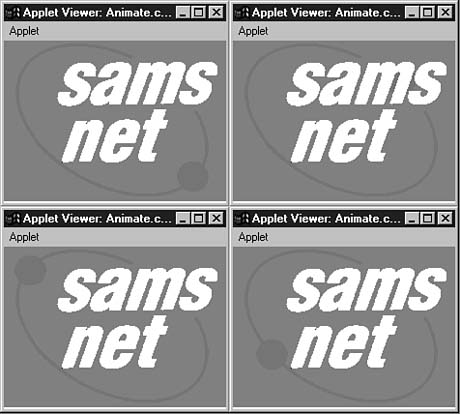
Figure 18.1 shows the four images of the animation that was provided for this guide.
Figure 18.1. Four shots of the Animate applet as it runs.
Although this is a simple animation program, hundreds of applets on the Web use similar functionality to present a series of image files as an animation. Presenting a sequence of image files through Java is similar to the animated .GIF files that are becoming more commonplace on Web pages. Although Java applets are often slower to load than these .GIF files, applets can provide more control of the animation and allow for more complicated effects.
Workshop: Follow the Bouncing Ball
This hour's workshop is an animation that definitely couldn't be replicated with an animated .GIF file or any other non-programming alternative. You'll write a program that bounces a tennis ball around the screen in lazy arcs, caroming off the sides of the applet window. Though a few laws of physics will be broken along the way, you'll learn one way to move an image file around the screen.
Create a new file in your word processor called Bounce.java, and enter the text of Listing 18.3 into it. Save and compile the file when you're done.
Listing 18.3. The full text of Bounce.java.
 1: import java.awt.*;
 2:
 3: public class Bounce extends java.applet.Applet implements Runnable {
 4:
 5:     Image ball;
 6:     float current = (float) 0;
 7:     Thread runner;
 8:     int xPosition = 10;
 9:     int xMove = 1;
10:     int yPosition = -1;
11:     int ballHeight = 102;
12:     int ballWidth = 111;
13:     int height;
14:     Image workspace;
15:     Graphics offscreen;
16:
17:     public void init() {
18:         workspace = createImage(size().width, size().height);
19:         offscreen = workspace.getGraphics();
20:         setBackground(Color.white);
21:         ball = getImage(getCodeBase(), "tennis.jpg");
22:     }
23:
24:     public void paint(Graphics screen) {
25:         height = size().height - ballHeight;
26:         if (yPosition == -1)
27:             yPosition = height;
28:         offscreen.setColor(Color.white);
29:         offscreen.fillRect(0,0,size().width,size().height);
30:         offscreen.drawImage(ball,
31:             (int) xPosition,
32:             (int) yPosition,
33:             this);
34:         screen.drawImage(workspace, 0, 0, this);
35:     }
36:
37:     public void start() {
38:         if (runner == null) {
39:             runner = new Thread(this);
40:             runner.start();
41:         }
42:     }
43:
44:     public void run() {
45:         while (true) {
46:             repaint();
47:             current += (float) 0.1;
48:             if (current > 3)
49:                 current = (float) 0;
50:             xPosition += xMove;
51:             if (xPosition > (size().width - 111))
52:                 xMove *= -1;
53:             if (xPosition < 1)
54:                 xMove *= -1;
55:             double bounce = Math.sin(current) * height;
56:             yPosition = (int) (height - bounce);
57:             try { Thread.sleep(200); }
58:             catch (InterruptedException e) { }
59:         }
60:     }
61:
62:     public void stop() {
63:         if (runner != null) {
64:             runner.stop();
65:             runner = null;
66:         }
67:     }
68:
69:     public void update(Graphics screen) {
70:         paint(screen);
71:     }
72: }
Before you dive into the discussion of what's taking place in this applet, you should
see what it does. Create a new file in your word processor called Bounce.asp
and enter Listing 18.4 into it.
Listing 18.4. The full text of Bounce.asp.
1: <applet code="Bounce.class" width=500 height=300>
2: </applet>
After saving this file, you need to get a copy of the tennis.jpg file and
put it in the same directory as Bounce.class and Bounce.asp. This
file is available from the same place as the Sams.net logo image files: the /Win95nt4/Source/Hour18
directory of the CD-ROM and the guide's Web site at http://www.prefect.com/java24.
Once you have copied tennis.jpg into the right place, use appletviewer
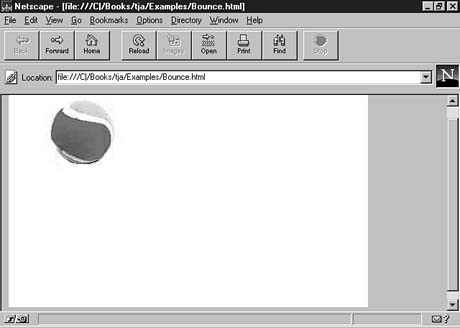
or a Java-enabled Web browser to display this program. Figure 18.2 shows the Bounce
applet running on Netscape Navigator.
Figure 18.2. The Bounce applet running on a Web page loaded by Netscape Navigator.
This applet displays a .JPG file of a tennis ball bouncing back and forth. It hits a point at the bottom edge of the applet window and rebounds upward close to the top edge of the window. When the ball hits the right or left edge of the window, it bounces in the opposite direction. If you're using appletviewer to try the applet out, resize the window by making the right and left edges smaller. The Bounce applet can keep track of your actions.
The Bounce applet is a relatively simple example of how to animate an image file using Java. It consists of the following steps:
- Draw the ball at its current location.
- Move the ball according to the rules that have been established for how the ball
should move.
- Check whether the rules need to be changed based on the ball's new location.
- Repeat.
Drawing the Image
The Bounce applet has the same basic structure as the Animate applet. It's a threaded program with start(), stop(), and run() methods to control the operation of the thread. There are also update() and paint() methods to display information on-screen.
The Image object called ball is loaded with the tennis.jpg image in the init() method. Several variables are used in the applet to keep track of the ball's location and its current rate of movement:
- xPosition: This variable is the x coordinate where the ball should be
drawn. This coordinate begins as 10.
- xMove: This variable is the amount that the ball should move along the
x axis after every screen update. This amount starts out as 1, but it will change
to -1 when the ball hits the right edge of the applet window. It changes back and
forth from -1 to 1 every time it hits an edge, and this change is handled by Lines
51-54.
- yPosition: This variable is the y coordinate where the ball should be
drawn. This coordinate is initially set to -1, which is a signal to the paint()
method that the yPosition needs to be set up before the ball can be drawn
for the first time. The yPosition value varies from a point near the bottom
of the applet window to the top edge.
- current: This floating-point number starts at 0 and increases by 0.1 each time the ball is redrawn. When it reaches 3, it is set back to 0 again. The current variable is used with a mathematical sine function to determine how high the ball bounces. Sine waves are a good way to approximate the movements of a bouncing ball, and the Math.sin() method enables a sine value to be used in conjunction with animation. The tennis ball is traveling half a sine wave each time it goes from the ground to the top of the window and back.
The movement rules that you establish for an animation applet will vary depending on what you're trying to show. The Bounce applet uses the Math.sin() method to create the slow arcs traveled by the ball.
Drawing to a Hidden Screen
The paint()method uses a technique called double-buffering to make the animation display more smoothly. Double-buffering is drawing everything off-screen to a storage place that's the same size as the program's display area and copying it to the display only when all drawing is done. The advantage to using double-buffering is that it reduces flickering and other things that might be seen while the paint() method is drawing things on-screen.
Because all drawing in an applet is done to a Graphics object that represents the applet window, you have to create an additional Graphics object for the off-screen area. You also must create an Image object to hold everything that's being drawn to the hidden area. Lines 14-15 create an Image object called workspace and a Graphics object called offscreen. These objects are set up in the init() method. Line 18 uses the createImage() method to set up workspace as an empty image the size and width of the applet window. Line 19 associates the offscreen object with the workspace image, using the getGraphics() method of the Image class.
The key to double-buffering is to draw everything to the off-screen area in the paint() method. To do this, use the offscreen object for all display methods instead of the screen object. Each of these methods will update the workspace image with the things that are being displayed.
When all drawing has been done and you know the off-screen area looks the way the screen should look, draw that entire off-screen image to the applet window by using a statement such as the one on Line 34:
screen.drawImage(workspace, 0, 0, this);
Because workspace is an Image object with the same dimensions as the applet window, you can use (0,0) as its coordinates, and it will fill the display area.
When you are drawing only one image to the screen during each update, as you did in the Animate applet, there's no reason to use double-buffering. However, if the animation involves more than one thing to draw, you will get better results by drawing to an off-screen area and then copying the whole thing to the screen at one time.
The Bounce applet requires an off-screen area because it clears the screen right before drawing the tennis ball during each update. The screen is cleared by drawing a filled white rectangle the size of the applet window. This rectangle is needed to remove the image of the ball in its last position before the new position is drawn.
Summary
Using the classes that come with the Java language, you can produce some interesting animated graphics and games. A lot of graphics functionality is built-in and can be used in short programs like those written during this hour.
Because Java is an interpreted language, its programs run at speeds slower than compiled languages such as C can achieve. This makes it more of a challenge to produce animated graphics at acceptable speeds. However, many applets on display on World Wide Web pages showcase Java's graphics capabilities.
What you have learned about graphics and animation should keep you from running adrift if you venture into uncharted waters like Java game programming and other visually inventive projects. Java animation programming is quite a challenge, but it could be worse. The Professor on Gilligan's Island had nothing to work with but coconuts and palm fronds, and he produced a washing machine.
Q&A
- Q Does a threaded animation program have to use Thread.sleep() to pause, or
can you omit it to produce the fastest possible animation?
A You have to put some kind of pause in place in an animation program, or the program will crash or behave erratically. Your applet is running as part of a bigger program, the Web browser or appletviewer, and that program won't be able to keep up with constant repaint() requests without the pause. Part of the process of animation design in Java is finding the right display speed that all applet-running environments can handle.
Q What happens if you draw something such as an image to coordinates that aren't within the applet window?
A Methods that draw something to a coordinate will continue to draw it even if none of it is visible within the area shown by the applet window. To see this in action, reduce the height of the Bounce applet as it runs in the appletviewer tool. The tennis ball will drop below the window and bounce back upwards into the window.
Quiz
Animate yourself as much as you can muster and answer the following questions to test your skills.
Questions
- 1. Where is the (0,0) coordinate on an applet window?
(a) In the off-screen double-buffering area
(b) The exact center of the window
The upper-left corner of the applet window
2. What thing did you not learn during this hour?
(a) How to use Graphics and Image objects to create an off-screen workspace
(b) How to override the update() method to reduce animation flickering
Why Thurston Howell III and his wife Lovey packed so much clothing for a three-hour tour
3. In a threaded animation applet, where should you handle most of the movement of an image?
(a) The run() method
(b) The init() method
The update() method
Answers
- 1. c. The x value increases as you head to the right, and the y value
increases as you head downward.
2. c. If the tiny ship had not been so weighted down with smoking jackets and evening gowns, the Skipper and Gilligan might have been able to outrun the storm.
3. a. Some movement might be handled by statements in the paint() method, but most of it will take place in run() or a method called from within run().
Activities
Before you're stranded and the subject of graphics is abandoned, picture yourself doing the following activities:
- Change the Bounce applet so that the ball loses 10 percent of its bouncing
strength each time it hits the ground. You can do this by changing the height
variable at a certain time within the run() method.
- Create an animation applet where the object or objects you move wrap around the
edges of the applet window, coming back through the opposite side.


Popular Tutorials
-
 MS Access
1109
MS Access
1109
-
 C++
1222
C++
1222
-
 HTML
584
HTML
584
-
 JavaScript
616
JavaScript
616
-
 Vbscript
873
Vbscript
873
-
 Oracle
473
Oracle
473
-
 VC++
875
VC++
875
-
 SQL
2959
SQL
2959
-
 XML
514
XML
514
-
 Java
814
Java
814
-
 Perl
455
Perl
455
-
 Linux
451
Linux
451