Web based School
Chapter 4
Using Forms to Gather and Send Data
- Understanding HTML FormTags
- Using the HTML FormMethodAttribute
- Generating Your First Web Page On-the-Fly
- Using the HTML Input Tag
- Making Your Text-Entry Form Fast and Professional Looking
- NPH-CGI Scripts
- Seeing What Happens to the Data Entered on Your Form
- Using URI Encoding
- Learning Perl
- Summary
- Q&A
By now, you've seen lots of Web pages and probably have created a few of your own. Web pages are really neat. They can be full of wonderful graphics and text, but if that's all they have on them, they're not much more than an electronic version of a paper brochure. Up to this point in the guide, you have seen some of the simpler ways to make your Web page more than a Net brochure. In this chapter, you will learn the fundamentals of the HTML Form tag-a requirement for building a real interactive Web page.
In particular, you will learn about these topics:
- Using the HTML Form tag format
- Using the Get and Post methods
- Generating Web pages on-the-fly
- Using the HTML Input tag
- Sending data to your CGI program
- Using URI encoding
Understanding HTML Form Tags
The HTML Form tag is the basis for passing data to your CGI programs on the server. When you create your CGI program, you also should be thinking about and creating the HTML Form tag that will pass the data to your CGI program.
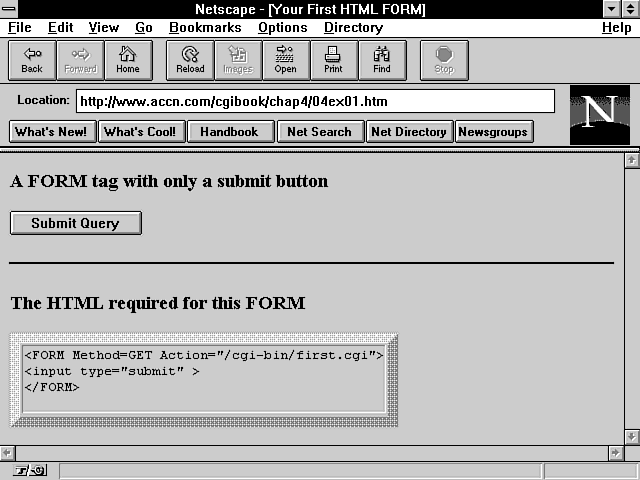
Because your CGI program and the HTML form must work together, we will build them together over the next several chapters. The simplest HTML Form tag creates a Submit button and activates your CGI program on your server. Figure 4.1 is an example of this simple format. This is not much different from creating a link to your CGI program. Listing 4.1 shows the HTML required to generate Figure 4.1; lines 7-9 create the Form tag.
Figure 4.1 : A Form tag with only a Submit button.
Listing 4.1. The HTML for Figure 4.1.
01: <html>
02: <head>
03: <title> Your First HTML FORM </title>
04: </head>
05: <body>
06: <h1> A FORM tag with only a Submit button </h1>
07: <FORM Method="GET" Action="/cgi-bin/first.cgi">
08: <input type="submit" >
09: </FORM>
10: <hr noshade>
11: <h1> The HTML required for this FORM </h1>
12: <table border = 10>
13: <td>
14: <xmp>
15: <FORM Method=GET Action="/cgi-bin/first.cgi">
16: <input type="submit" >
17: </FORM>
18: </xmp>
19: <tr>
20: </table>
21: </body>
22: </html>
Using the HTML Form Method Attribute
The HTML Form tag has the following syntax: <FORM METHOD="GET or POST" ACTION="URI" EncTYPE=application/x-www-form-urlencoded>
Line 7 of Listing 4.1 is a sample HTML Form tag: <FORM Method="GET" Action="/cgi-bin/first.cgi" >
Add an Input type to this
HTML, and you have an active form:
<INPUT type="submit">
| Warning |
| The Form tag does not allow any space between the opening < and the beginning of the tag type. The tags <FORM or <input don't work if entered as < FORM or < input. HTML tags are not case sensitive: Form, FORM, and form all are valid HTML tags. |
The HTML Form tag begins with a Method attribute. The Method attribute tells the browser how to encode and where to put the data for shipping to the server. And, as you saw in Chapter 2 "Understanding How the Server and Browser Communicate," the method will be used to generate a request method line, telling the server what type of data to expect. No data is shipped with the form in Figure 4.1, so you can think of that form as working a lot like a Server Side Include command.
Table 4.1 summarizes the details of the Method,
Action, and Enctype
fields of the Form tag. Appendix
B, "HTML Forms," presents a complete overview of the
HTML form syntax.
| Attribute | Description |
| ACTION | The URI (which usually will be a CGI script) to which the form's data is passed. The URI will be called regardless of whether there is any data as part of the submittal process. It is possible to omit a URI; in that case, the URI of the document the form is contained in will be called. The data submitted to the CGI script (URI) is based on the EncTYPE and the Method attributes. |
| EncTYPE | Defines the MIME content type used to encode the form's data. The only valid type now is the default value "application/x-www-form-urlencoded". Because the default value is the only valid value at the moment, you do not need to include this attribute in your Form tag. |
| METHOD | Defines the protocol used to send the data entered in the form's fields. The two valid method protocols are Post and Get. Get is the default method, but Post has become the preferred method for sending form data. The Get method's data is shipped appended to the end of the request URI, and it is encoded into the environment variable QUERY_STRING. The Post's data is appended after the response headers as part of standard input. |
The Get and Post Methods
There are two ways, or methods, in which your data will be shipped, or sent, to your CGI program on the server. The first method sends the data with the URI. This is done when the HTML Form tag uses the Get method like this: <FORM METHOD="GET" ACTION="A CGI PROGRAM">
This method of sending data is called the Get method. Pretty profound, huh? The other way of sending data has just as outlandish a name. It's called the Post method. Bet you can't figure out what's different here: <FORM METHOD="POST" ACTION="A CGI PROGRAM">
That's what you get when you let the entire Internet community in on your design. Everybody on the Net contributes, and you get these simple, unimaginative constructs. On the positive side, you'll probably have no problem remembering the Get and Post method names (unlike some of those names I had to remember for my Biology 101 class).
"So what's the difference between the Get and Post method?" you ask. Well, here's the answer, short and sweet.
The Get Method
The Get method sends your URI-encoded data appended to the URI string. The URI- encoded data and any path information are placed in the environment variables QUERY_STRING and PATH_INFO. Environment variables are covered completely in Chapter 6 "Using Environment Variables in Your Program," but this chapter also examines the QUERY_STRING.
URI encoding is very important and also is covered in detail later in this chapter. The examples I include here contain the complete CGI and HTML to enable you to see all the details. As you go through each example, you will learn about each of these topics and see how to apply them in a real example.
The Post Method
The Post method also URI encodes your data. It sends your data after all the request headers have been sent to the server, however. It includes the request header content length so that your CGI program can figure out how much data to read. Chapter 5 "Decoding Data Sent to Your CGI Program," gives you some examples of the Post method.
I told you it would be short and sweet, but don't worry; that's just a brief introduction. The details are covered quite well as we go through these next few chapters.
Generating Your First Web Page On-the-Fly
Generating Web pages on-the-fly only means using some type of program to send the Web page HTML back to the client or browser. Remember that, generally, the client clicks on a link or a URI, and that identifies a file on a server. The server finds the file, generates the correct response headers, and sends the file-usually the HTML-back to the client.
Comparing CGI Web Pages to HTML Files
So what's so different about generating a Web page on-the-fly? Not much. The server receives the request for a CGI program, just as if it were going to get an HTML file. When it goes to get the file (your program), several things happen:
- The file the server gets is executable. (Remember that you set the file attributes to executable, as shown in Chapter 1 "An Introduction to CGI and Its Environment.")
- The file extension identifies to the server that this is a CGI program. Usually, the extension is .cgi. (I introduced this in Chapter 1also.)
- Your CGI program tells the server what type of data will be returned to the client. Your program does this by generating a response header.
- The CGI program sends the data to the server, usually HTML, that it wants sent back to the client.
Exercise 4.1. Your first CGI program
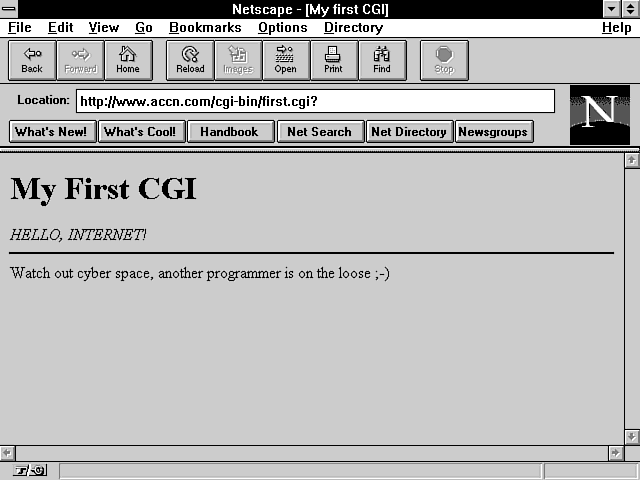
Figure 4.2 shows the Web page generated on-the-fly after the Submit button on the form in Figure 4.1 is clicked. Listing 4.2 shows the Perl code that generated this Web page on-the-fly. This example is as simple as it gets, but it illustrates the basics of CGI programming. You can take this program shell and build on it to generate much more complex CGI programs.
Figure 4.2 : A Web page generated from first.cgi .
Regardless of how complex your programs get, the basics remain the same:
- Your program must identify what type of data is being returned to the browser with a Content-Type response header.
- Your program must generate the data, usually HTML, that goes with the Content-Type response header defined in step 1.
Listing 4.2. Code for first.cgi.
01: #! /usr/local/bin/perl
02: print "Content-type: text/html\n\n";
03:
04: print <<'ending_print_tag';
05: <html>
06: <head>
07: <title> My first CGI </title>
08: <background="#000000" text="#FF0000" >
09: </head>
10: <body>
11: <h1>  My First CGI </h1>
12: <em> HELLO, INTERNET! </em>
13: <hr noshade>
14: Watch out cyber space, another programmer is on the loose ;-)
15: </body>
16: </html>
17: ending_print_tag
Analyzing first.cgi
CGI programming is not like HTML programming. At some point, you have to start writing and understanding some type of programming language. That, of course, is why you're reading my guide instead of one of the many on HTML. You probably already have some HTML guides, and they might even include some CGI programming introductions in them.
What I do throughout this guide is to help you understand the most popular programming language on the Net: Perl. I focus on the aspects of Perl that will help you with CGI programs. You won't get a complete education in Perl, but the point is you don't have to be a Perl expert or a professional programmer to become a CGI programmer. Not with my guide, anyway!
As I introduce new CGI programs, I will give a detailed discussion of the Perl code in each program. This guide is enough to enable you to generate your own Web pages from your own CGI programs. As you get more sophisticated in your programming, you probably will want to buy a programming guide on Perl. I recommend Teach Yourself Perl in 21 Days, by Dave Till, published by Sams Publishing; and Programming perl, by Larry Wall and Randal L. Schwartz, one of the nutshell handguides from O'Reilly & Associates, Inc.
Your first CGI program, appropriately named first.cgi, does the minimum required of a CGI program:
- It outputs the content type on line 2.
- It outputs HTML on lines 4-15.
| Note |
| OK, I admit it. I'm a programmer, and I love having fun with variable names. Geeks are like that; they have fun with the stupidest things. Every time I get to write your first CGI program, knowing that the program name is first.cgi, I get a little smile. Hey, you gotta get your fun where you can. My programming buddy, Burton, calls it whistling while you work. I like to whistle. |
Again, because this is your first CGI program, let's go over in detail the Perl code that makes this simple thing work.
As you go over the details of the code, you will focus on these topics:
- Telling the server what type of scripting language your CGI program contains
- Using the correct syntax to send the Content-Type response header
- Using the Perl << print command to make the HTML of your CGI program easier to output
Telling the Server What Scripting Language You Are Using
Line 1 in Listing 4.2, #!/usr/local/bin/perl
tells the server what type of script language you are using and specifies the directory where the Perl interpreter is located on my server. Your server might be different, but this is the default directory path, and it is likely to be the same on your server.
I use Perl throughout this guide, but you can use the Bourne shell
or C-shell scripting languages. Actually, you have many choices,
including compiled languages like C. Perl is very popular and
powerful, so we will stick with Perl.
| Warning |
| The #! is a special directive to the preprocessor, and it must not have any space between it and the left column. A space after #! is okay. Space before the pound-bang sign (#!) will cause the interpreter to view the pound-bang sign (#!) as just another comment, and your program will not work. |
Sending the Content-Type Header
Line 2 tells the server what type of data it is sending to the browser. The server adds any additional response headers required to send the attached HTML. Also notice on line 2 the closing \n\n; two CR/LFs are required to close the header request/response line sequence.
Don't forget the ending double newlines on the last response header. And don't get confused by the blank line between lines 2 and 4. That blank line is just for my visual convenience. It has zero impact on what is output from your first CGI program.
Using the Perl << Print Command
Line 4 demonstrates one of the nice features of Perl. The ending_print_tag that follows << tells Perl to print everything that follows <<'print_tag' until it finds the print_tag flush against the left margin. So lines 5-16 are printed to standard output without requiring a print statement on every line.
Sending Variables in Your CGI Program
That was a nice, simple, straightforward, and pretty dull example. But dull examples have their place. It made a good introduction, and now I can show you how to make things a little more interesting.
Why do I think that was dull? Well, you might just as well have sent that Web page using an HTML file. Part of the reason for building Web pages on-the-fly is to create Web pages with variable data in them.
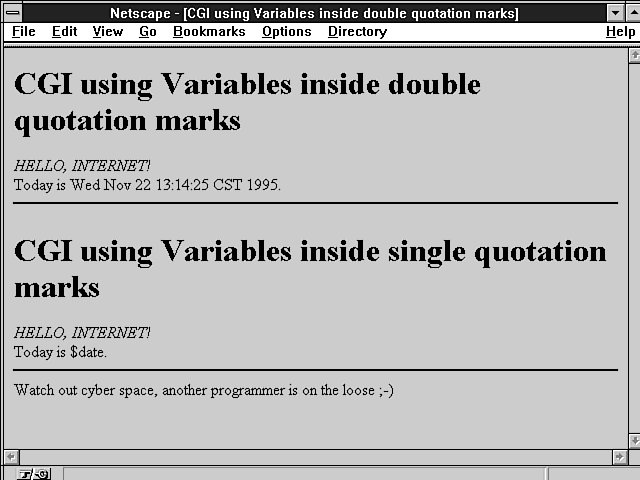
You don't want to send the same Web page back to every client. You want to customize your Web page for each client. You do this by sending variables or variable data in your Web page. The format I showed you in first.cgi won't do that. Figure 4.3 demonstrates variable interpolation. The top half of the figure shows the result of sending interpreted variables. The bottom half shows what happens when variable interpolation is turned off. Listing 4.3 contains the Perl code used to generate this Web page.
Figure 4.3 : A Web page showing variable interpolation.
The Mysteries of Quotation Marks
The difference between the top and bottom half of the page in Figure 4.3 is called variable interpolation. Obviously, you want variable interpolation, so how do you get it? The difference is only the type of quotation character you use in your print string. In general, this is true with most UNIX scripting languages. The quotation types follow:
- The paired backquotes (``) tell Perl to perform the system action inside the quotation marks.
- The paired double quotation marks ("") tell Perl to look for special characters and interpret them inside the print string.
- The paired single quotation marks ('') tell Perl to not look for or process any special characters in the print string.
As you go through the details of the Perl code in Listing 4.3, you will see examples of each of these quotation-mark techniques.
Listing 4.3. Perl code for generating variables and using single
and double quotation marks.
01: #!/usr/local/bin/perl
02: print "Content-type: text/html\n\n";
03:
04: $MyDate = `date`;
05:
06: chop $MyDate;
07:
08: print <<"ending_print_tag";
09: <html>
10: <head>
11: <title>CGI using Variables inside double quotation marks </title>
12: <background="#000000" text="#F0F0F0" >
13: </head>
14: <body>
15: <h1> CGI using variables inside double quotation marks </h1>
16: <p>
17: <em> HELLO, INTERNET! </em>
18: <br>
19: Today is $MyDate.
20: <hr noshade>
21: ending_print_tag
22:
23: print <<'ending_print_tag';
24: <h1> CGI using variables inside single quotation marks </h1>
25: <p>
26: <em> HELLO, INTERNET! </em>
27: <br>
28: Today is $MyDate.
29: <hr noshade>
30: Watch out cyber space, another programmer is on the loose ;-)
31: </body>
32: </html>
33: ending_print_tag
Backquote Marks
Notice on line 4, $MyDate = `date`;
that the variable $MyDate is set from the system command `date`. I access the system command by including it in single, back quotation marks (`system_command`). This tells Perl to execute the enclosed command. The assignment statement = tells Perl to assign the output of the system command to the variable $MyDate on the left-hand side of the equal sign (=).
Double Quotation Marks
Line 8, print <<"ending_print_tag";
tells Perl to print (as described earlier), but the double quotation marks also tell Perl to interpret any variables it encounters within the print string. $MyDate therefore converts the contents of the variable Sun Sep 3 10:48:58 CDT 1995.
Single Quotation Marks
The single quotation marks on line 23, print <<'ending_print_tag';
tell Perl not to interpret anything inside the print string. The variable $MyDate therefore is printed, instead of its contents.
Using the HTML Input Tag
Congratulations-you've made it through the basics of CGI programming.
Now it's time to get a little fancier. The first thing you need
to do is introduce the HTML Input
tag and its valid fields. The HTML Input
tag has the format <INPUT TYPE="field">.
The field value defines what "type" of data is visible
on your Web page form. This is the basis for all your data entry
and the real jumping-off point for building professional, interactive
Web pages. Table 4.2 is the basis for the examples in the remainder
of this chapter and Chapters 5 and 6. Each of the fields presents
a totally different entry form on your Web page. That makes the
HTML Input tag, in my own
humble opinion (IMOHO), the most important HTML tag available.
Take a few minutes to read through this table. Remember that I
will step through each of these Input
fields in examples throughout this guide.
| Field | Description |
| Checkbox | A two-state field: Selected or Unselected. The name/value pair associated with this attribute is sent to the CGI program only if it is in the Selected state. You can have a name/value pair default to Selected by adding the attribute Checked. |
| Hidden | The Hidden field is not visible on the form and frequently is used to maintain state information. |
| Image | This acts just like a Submit button but includes the location from where the image was selected (or clicked). |
| Password | The same as Text, except that each character typed is echoed as an asterisk (*) or space character. |
| Radio | The radio button allows only one of several choices to be selected. Only one name/value pair is valid for a radio selection set. You can make a default radio selection by adding the Checked attribute. |
| Reset | When this field is selected, all fields of the form are reset to their default values. |
| Submit | Visible as a selection button with the default name of Submit Query. You can change the name by using the Name field. When selected, the URI of the Action field is requested, and the form's input data is passed to the Action URI. (The Action URI is the CGI program on the server that handles the form's inputs.) If the Name field is used, the value of the Name field also is passed to the CGI program. This enables the CGI to distinguish between multiple Submit buttons on one form. |
| Text | A single line of text entry. You can specify the size of the window displayed by using the Size attribute and the length of acceptable data by using the Maxlength attribute. |
Sending Data to Your CGI Program with the Text Field
The Text field creates a
single-line text entry window on your Web page form. Your Web
page user can enter any keyboard data she wants from this window.
After your customer presses Enter, the data is URI encoded and
sent to the CGI program defined in the Action
field of the opening Form
tag. Using the Enter key to send the data entered on your form
only works if there is only one text-entry field on your Web page
form. If you have more than one
text-entry field, you need to use the Submit
Input field. (URI encoding and the Submit
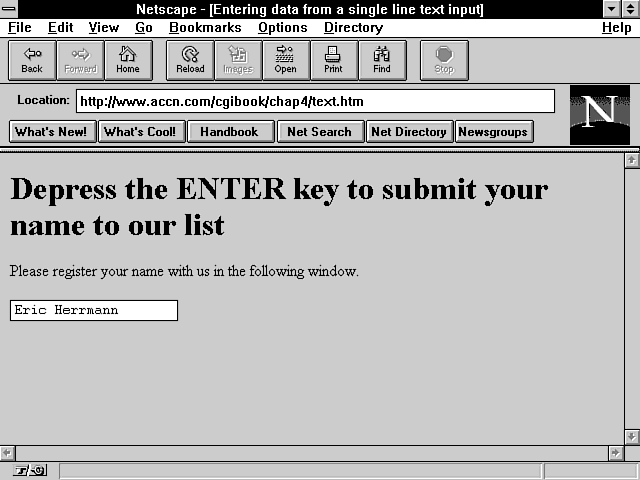
field are covered later in this chapter.) Figure 4.4 shows an
entry form with only one text-entry field, and Listing 4.4 shows
the HTML for this form.
Figure 4.4 : A single window text-entry form.
The syntax of the Text field follows: <INPUT TYPE=TEXT SIZE="a number" MAXLENGTH="a number" NAME="some name" VALUE="optional initial value">
Listing 4.4. HTML for a single window text-entry form.
01: <html>
02: <head><title>Entering data from a single line text input </title></head>
03: <body>
04: <h1>Depress the ENTER key to submit your name to our list</h1>
05: Please register your name using the following window.
06: <form action="/cgi-bin/first.cgi">
07: <input type=text name="enter" SIZE=20 Maxlenth=30 value="Eric Herrmann">
08: </form>
09: </body>
10: </html>
The Size Field
The Size field defines how large a text-entry window will appear on your form. With most browsers, you can enter more data than is available in the window. The text will just scroll off the left side of the entry window. This way, if one of your clients has a long name, he still can enter his name in a smaller window.
The Maxlength Field
The Maxlength field is handy to use when you have CGI programs that are interfacing with a database. Frequently, the fields in database programs need to be limited to some maximum value. You might have a database that takes only 20-character names, for example. Limit the amount of data that will be sent to your CGI program by setting the Maxlength field to 20. That means your CGI program doesn't have to check for entries in it that are too large. It's just one less thing to worry about.
The Name Field
One of the most important fields is the Name field. The name you assign this field is used in your CGI program to identify which incoming data belongs with which entry field. Data is passed to your CGI program as name/value pairs. The name is the variable name used in your CGI program. The contents or "value" of the Name field is the data entered in your text-input window.
The Value Field
The Value field is optional. It defines initial data to go into the entry window. If you put the value="some text" field in your Input tag, "some text" shows up in the entry window whenever the form is loaded or the Reset button is clicked.
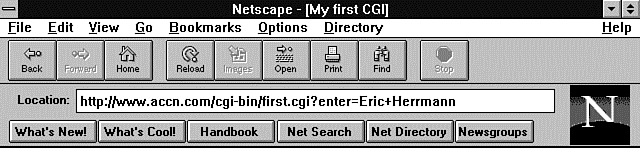
The returned Web page from the text-entry example in Figure 4.4 appears in Figure 4.5. Notice that in the Location field, you can see the name/value pair data. I call this the YUK! factor. This is the data passed to the server URI encoded. Also notice that the space between Eric Herrmann has been replaced with a plus sign (+). This is part of the URI encoding that is covered in detail shortly.
Using the Submit Button to Send Data to Your CGI Program
Sending data to your CGI program is what it's all about. And unless every form you create has only one entry field, you must use the Submit button to get the data to your CGI program. Whenever your form has more than one <INPUT type=text> tag or the type is anything besides Text, pressing the Enter (carriage return) key will not submit the data on the form.
The Submit Input Type format is similar to Text Input Type: <INPUT TYPE=SUBMIT NAME="get_price" value="Get Current Quote">
The Submit Input type appears on your form as a button. If you look back at Figure 4.1, notice that the button is named Submit Query. This is the default for <INPUT type="SUBMIT">. If you don't give a value definition, the button is named Submit Query. You can change the name of the button by giving it a value, as I did on line 33 of Listing 4.5. You also can give your Submit button a name. It makes sense to give your button a name if you have more than one button on your form. This way, your CGI program can tell from which Submit button the data is coming.
Making Your Text-Entry Form Fast and Professional Looking
In this section, I will show you a couple of tricks I use to make my Web pages just a little more spiffy.
First, I worry about the layout of the Web page. I like to get as much data as is reasonable in front of my clients during the loading of that first computer screen. If I can manage it, I want to present them with all the essential data on one screen. Use common sense with this guideline; crowding a screen with too much data probably is worse than too little data. The other thing I like is having my entry forms aligned neatly. The example presented later in this section shows you some simple techniques using HTML tables to accomplish these goals.
Next, I worry about speed. Sometimes it's a good idea-and not too hard-to use non-parsed header (NPH) CGI programs to speed up your Web page. The example here uses an NPH-CGI program to help with speed, form refresh, and the YUK! factor.
Finally, the example in this section begins the introduction to data encoding. It uses the Get method to send your data to the server. So this section covers the Get method and what happens with your URI-encoded data.
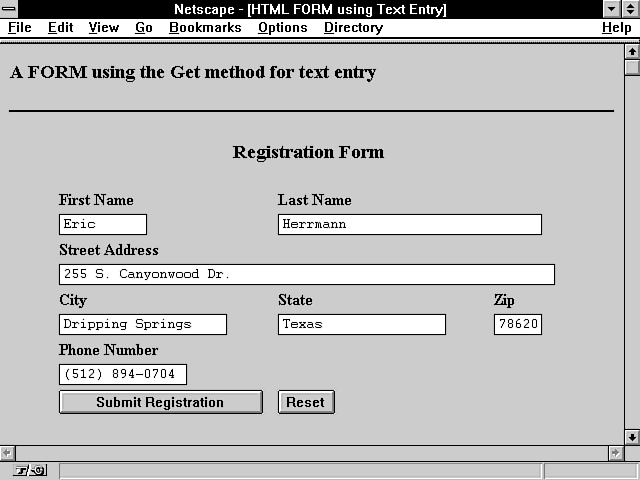
In addition to all these things, Figure 4.6 shows the immediate power of the text-entry field. Except for the use of the Submit button, I only use the Text Input type for this registration form. Listing 4.5 shows the HTML for Figure 4.6.
Figure 4.6 : A registration form using only text entry.
Listing 4.5. HTML for a registration form.
01: <html>
02: <head><title> HTML FORM using Text Entry</title></head>
03: <body>
04: <h1> A FORM using the Get method for text entry </h1>
05:
06: <hr noshade>
07: <center>
08:
09: <FORM Method=GET Action="/cgi-bin/nph-get_method.cgi">
10: <table border = 0 width=60%>
11: <caption align = top> <H3>Registration Form </H3></caption>
12: <th ALIGN=LEFT> First Name
13: <th ALIGN=LEFT colspan=2 > Last Name <tr>
14:
15: <td>
16: <input type=text size=10 maxlength=20 name="first" >
17: <td colspan=2>
18: <input type=text size=32 maxlength=40 name="last" > <tr>
19: <th ALIGN=LEFT colspan=3>
20: Street Address <td> <td> <tr>
21:
22: <td colspan=3>
23: <input type=text size=61 maxlength=61 name="street"> <tr>
24: <th ALIGN=LEFT > City
25: <th ALIGN=LEFT > State
26: <th ALIGN=LEFT > Zip <tr>
27: <td> <input type=text size=20 maxlength=30 name="city">
28: <td> <input type=text size=20 maxlength=20 name="state">
29: <td> <input type=text size=5 maxlength=10 name="zip"> <tr>
30:
31: <th ALIGN=LEFT  colspan=3> Phone Number <tr>
32: <td colspan=3> <input type=text size=15 maxlength=15 name="phone"
  value="(999) 999-9999"> <tr>
33: <td width=50%> <input type="submit" name="simple" value="
  Submit Registration " >
34: <td width=50%> <input type=reset> <tr>
35: </table>
36: </FORM>
37: </center>
38: <hr noshade>
39: </body>
40: </html>
Exercise 4.2. Formatting your form inside a table
If making your entry form look professional is important to you, you will want to go through this exercise to learn how to line up your text-entry fields even if your form does not always have the same number of columns.
I like the Table attribute because it enables me to build a well-aligned entry form. The browser helps me by looking at the number of columns my table has in it and then evenly spacing those columns across the screen. This is nice, except when I want the columns to line up and I have a different number of columns in each row, as shown in Figure 4.6.
I can trick the browser into lining up my columns if I always give the last column a column span equal to the remaining number of columns, as shown on lines 17 and 18 of Listing 4.5: <td colspan=2> <input type=text size=32 maxlength=40 name="last" > <tr>
and line 31: <th ALIGN=LEFT colspan=3> Phone Number <tr>
These lines force the ending column to be equal to the remaining maximum number of columns in a table.
Tables work by the browser making two passes through your table definition. On the first pass, the browser counts the number of rows and columns (among other things). On the next pass, it fills in the rows and columns, aligning them across your screen based on the largest number of columns in the table. In this case, the maximum number of columns is 3. So, on the first row of this table where there are two columns, made up of the First Name and the Last Name entry fields, I set the column span of the Last Name column to 2. This makes the browser line up the second column with column 2 of the other three column rows instead of trying to center the columns.
Use this formula: remaining_cols = max_cols - used_cols
Therefore, if you apply the formula to the example in Listing 4.5, it works out as shown here: max number of colums = 3, max_col number of columns used = 1, used_cols number of remaining columns = 2, remaining_cols = max_cols - used_cols
If you apply the formula to the Phone Number row, because no columns are used in the Phone Number row, colspan=3.
The other field that helps alignment in this example is the Align=LEFT field in the table header (<th>) or table data (<td>) fields. You can align left, right, or center on your table, depending on what looks best.
And, finally, a pure Netscapism: the <center> ... </center> HTML+ tag that centers the entire table on the page. I'll accept flames for this, but I like the cool extensions that Netscape gives me. The browsers that don't support the center aspect just see the table on the left of the Web page, which is okay.
NPH-CGI Scripts
There are at least two reasons to use NPH scripts, as illustrated in Listing 4.4. One reason exists all the time, and, after seeing how easy NPH scripts are to use, you might decide to use NPH scripts on a regular basis.
NPH-CGI Scripts Are Faster
Everything has its pros and cons. CGI programs require more of your server resources than plain HTML files. They make your server work harder. I can hear it now! "What do I care? It's only a machine." True, but be kind to your computer, and it will be kind to you.
The more you make your server work, the slower your Web pages are returned to your clients. You can help your server by not requiring it to parse the response headers. It's not very hard and eases the load on your machine.
If you'll recall from Chapter 2 the server normally parses your CGI-returned headers and generates any additional required response headers. This takes time and, when receiving data from the client, has an additional unwanted result (which is discussed in the next section).
URI-Encoded Data Ends Up in the Location Window
Besides slowing down the return of your Web page, the URI-encoded data appears in the Location field of the returned Web page.
Remember the basics of CGI programming:
- Your CGI program must tell the server what type of data you are sending to the client.
- Your CGI program sends that data.
So your CGI program tells the server what to do and then sends some data. This usually means sending a confirmation notice or just resending the registration form.
Your user gets the benefit of a confirmation notice, but the URI-encoded data is appended to your CGI URI and is made visible to the person registering. It just looks ugly. Listing 4.6 contains the URI shown when the registration form is returned.
Listing 4.6. Data appended to the URI.
http://www.accn.com/cgi-bin/nph-get_method.cgi?first=Eric&last=Herrmann&
street=255+S.+Canyonwood+Dr.&city=Dripping+Springs&state=Texas&zip=78620&
phone=%28512%29+894-0704&simple=+Submit+Registration+
YUK!
So, for this example, I used the non-parsed header CGI nph-get_method.cgi in Listing 4.7.
Listing 4.7. A non-parsed header script.
01: #! /usr/local/bin/perl
02: $date = 'date';
03: print<<"END"
04: HTTP/1.0 204 No Content
05: Date: $date
06: Server: $SERVER_SOFTWARE
07: MIME-version: 1.0
08:
09: END
| Warning |
|
To make the non-parsed header script work, it must begin with nph-.
NOT nph_ NOT nph NOT NPH BUT nph- The server will not parse anything returned from a CGI that begins with nph-. |
The most important part of this CGI script is line 4: HTTP/1.0 204 No Content
This is the Status response header discussed in Chapter 2. The value of 204 tells the browser that there isn't anything to load with this response header, so leave the existing Web page displayed.
I also return the date, the server type, and the MIME-version response headers, but the CGI works without these headers. All that is required is the Status response header of 204 and a blank line.
The server does less work, the form is not reloaded, and there's no YUK! factor.
We'll revisit this example in Chapter 5 using a different method that doesn't have the speed advantage but takes care of the YUK! factor and the lack of a confirmation notice.
Seeing What Happens to the Data Entered on Your Form
All the examples in this chapter used the Get method to gather and send your data to your CGI program on the server. The Get method for sending form data is the default method for sending data to the server. Besides the YUK! value of the Get method, it has another problem. The URI-encoded string passed to your server is limited by the input buffer size of your server. This means that the URI-encoded string can get too big and lose data. That's bad.
The data entered on your form is URI-encoded into name/value pairs and appended after any path information to the end of the URI identified in the Action field of your opening Form tag.
Name/value pairs are the basis for sending the data entered on your Web page form to your CGI program on the server. They are covered next in detail. The browser takes these steps to get your data ready for sending to the server:
- The browser takes the data from each of the text-entry fields and separates them into name/value pairs.
- The browser encodes your data. URI-encoding is covered later in this section.
- After the data is URI-encoded, the data is appended to the end of the URI identified in the Action field of your form statement. A question mark (?) is used to separate the URI and its path information.
The data after the question mark is referred to as the query string.
Whether or not you use the Get method, the URI-encoding of the query string is consistent for all data passed across the Net. The QUERY_STRING is one of the environment variables discussed in Chapter 6.
Listing 4.8 is the data from the registration form. You can see the name/value pairs separated by the ampersand (&) and identified as pairs with the equal sign (=).
Listing 4.8. The registration form data encoded for the server.
QUERY_STRING first=Eric&last=Herrmann&street=255+S.+Canyonwood+Dr.&
city=Dripping+Springs&state=Texas&
zip=78620&phone=%28512%29+894-0704&simple=+Submit+Registration+
In the example, there is no path information, so the query string begins immediately after the target URI, nph-get_method.cgi, is identified.
Name/Value Pairs
All the data input from a form is sent to the server or your CGI program as name/value pairs. In the registration example, you only used text input, but even the Submit button is sent as a name/value pair. You can see this on line 33 in Listing 4.5. <td width=50%> <input type="submit" name="simple" value=" Submit Registration " >
The Submit button name is simple and the value is Submit Registration. Notice that case is maintained in the Value fields.
Name/value pairs always are passed to the server as name=value, and each new pair is separated by the ampersand (&), as this example shows: name1=value1&name2=value2
This arrangement lets you perform some simple data decoding and have a variable=value already built for your Bourne or C-shell script to use. Using Perl, you can separate name/value pairs with just a little bit of effort. Input decoding is covered in Chapter 5.
Notice on line 16 of Listing 4.5 that the Name attribute is added to the Input type of text: <input type=text size=10 maxlength=20 name="first" >
If you are familiar with programming, name is the formal parameter declaration; the value, whether given by default or by entering data into the entry field, is the actual parameter definition.
Put into other words, the name is your program's way of always referring to the incoming data. The Name field never changes. The data associated with the Name field is in the value portion of the name/value pair. The Value field changes with every new submittal. In the sample first=Eric name/value pair, the name is first and the value is Eric.
Just remember that whether you use text-entry fields, radio buttons, checkboxes, or pull-down menus, everything entered on your Web page form is sent as name/value pairs.
Path Information
Path information can be added to the Action string identifying your CGI program. You can use path information to give variable information to your CGI program. Suppose that you have several forms that call the same CGI program. The CGI program can access several databases, depending on which form was submitted.
One way to tell your CGI program which database to access is to include the path to the correct database in the form submittal.
You add path information in the Action field of the opening HTML Form tag.
First, you identify your CGI program by putting into the Action field the path to your CGI program and then the program name itself-for example, <FORM METHOD=GET ACTION="/cgi-bin/database.cgi/">
Next, you add any additional path information you want to give your CGI program. So, if you want to add path information to one of three databases in the earlier URI, your code will look like this: <FORM METHOD=GET ACTION="/cgi-bin/database.cgi/database2/">
The path information in this example is database2/.
After the Submit button is clicked, the browser appends a question mark (?) onto the Action URI; then the name/value pairs are appended after the question mark.
Using URI Encoding
By now, you have figured out that in order to send your data from the browser to the server, some type of data encoding must have occurred. This is called URI encoding ; I use this term because, as discussed in Chapter 1 URL and URI are synonymous and the ncSA gurus use URI in their standards documents.
The convention of URI encoding Internet data was started in order to handle sending URIs by electronic mail. Part of the encoding sequence is for special characters like tab, space, and the quotation mark. E-mail tools have problems with these and other special characters in the ASCII character set. Next, the URI gets really confused if you used the reserved HTML characters within a URI. So, if the URI you're referencing includes restricted characters like spaces, they must be encoded into the hexadecimal equivalent.
So why do you care about URI encoding, other than the fact that I have been talking about it throughout this chapter? Well, for two reasons:
- Several reserved characters must be URI encoded if you include them in your URI string in the Action field or any other field sent to your CGI program. Spaces, the percent sign (%), and the question mark (?) are all good examples of special characters. These are covered next.
- All data is URI encoded, and if you're going to be able to decode it when it gets to your CGI program, you must understand it.
Reserved Characters
So what is this set of characters that cannot be included in your URI? One of the simple characters is the space character. If you own a Macintosh, spaces in filenames are a common and convenient feature of the Apple operating system. When shipped on the Net, however, they confuse things. If you have a filename called Race Cars, for example, you need to encode that into Race%20Cars.
The percent sign (%) tells the decoding routine that encoding has begun. The next two characters are hexadecimal numbers that correspond to the ASCII equivalent value of space.
If you want to send HTML tags as part of your data transfer, the
< and >
tags need to be encoded. They encode as %3C
for < and %3E
for >.
| Note |
| If you are unfamiliar with the hexadecimal numbering system, you should know that it is only another numbering system with values ranging from 0-15, where the numbers 10-15 are encoded as the letters A-F. So, the hexadecimal range is 0-F. Your encoding always begins with a % followed by two hexadecimal numbers. You don't really need to understand hexadecimal values any better than that; just read the numbers from the table and encode them as needed. |
Table 4.3 lists the ASCII characters that must be encoded in your URI. It shows the decimal and the hexadecimal values. The decimal values are included only for information. They cannot be used as encoding values; you must use the hexadecimal values in order to URI encode these characters.
In addition to the reserved characters listed here, several other characters should be encoded if you don't want them to be interpreted by your server or client for their special meanings:
- The question mark (?) encodes as %3F; otherwise, you will begin a query string too early.
- The ampersand (&) encodes as %26; otherwise, you start the separation of a name/value pair when you don't want to.
- The slash (/) encodes as %2F; otherwise, you will start a new directory path.
- The equal sign (=) encodes as %3D; otherwise, you might bind a name/value pair when you don't want to.
- The number sign (#) encodes as %23. This is used to reference another location in the same document.
- The percent sign (%) encodes as %25; otherwise, you really will confuse everyone. Decoding will start at your unencoded %.
If you want to look at the gory details of MIME/URI encoding, you can get RFC 1552, the MIME message header extensions document, off the Net. It has the encoding format in Section 3 and is available with the other Internet RFC documents at http://ds.internic.net/ds/dspg1intdoc.asp
The Encoding Steps
So now you know the basis for encoding all the data. Remember that all data sent on the Net is URI encoded. The rules used for encoding your data follow; they work for both the Post and the Get methods:
- Data is transferred as name/value pairs.
- Name/value pairs are separated from other name/value pairs by the ampersand (&).
- Name/value pairs are identified with each other by the equal sign (=). If no data is entered and a default value is defined, the value is the default value. If no default value is defined, the value is empty, but a name/value pair is sent.
- Spaces in value data are a special case. They are converted to the plus sign (+).
- Reserved characters cannot be used in the URI; they must be encoded.
- Characters that have special meaning (%, for example) must be encoded before being sent to the browser.
- Characters are encoded by converting them to their hexadecimal values.
- Encoded characters are identified as a percent sign followed by two hexadecimal digits (%NN).
Learning Perl
The Perl for and foreach statements are two of the power programming commands in Perl. The for statement should be familiar to most programmers, and it works as you would expect. In this "Learning Perl" section, you'll use the Perl for statement along with a few UNIX system commands to take a peek inside the UNIX password file. UNIX is such a trusting system that it lets just about anyone look around the system files. Here's your chance to see what the dark side, the evil hacker, is always trying to hack into.
It's the foreach statement, however, that really is a Perlism. The foreach statement generally is used for processing the Perl associative array. This makes the foreach statement special in Perl. Unique functions like the keys function are specially suited for the foreach statement and associative arrays. In this "Learning Perl" section, you'll become comfortable with Perl's for and foreach statements.
The Perl for Statement
Somehow it seems like a bit of illicit fun to mess around with the password file. So this exercise uses the password file one more time to illustrate the for loop control statement. The for statement and the foreach statement actually operate exactly in the same way. However, C programmers are so used to writing for loops based on the for (conditional expression) {block of statements}
syntax that most for loops are written using this standard style. The foreach statement generally is used to iterate through lists and arrays. You'll learn about the foreach statement in the next section, "The Perl foreach Statement." I hope I don't disappoint you too much with my mundane titles. At least you know what you're about to learn.
The for statement generally is used to perform a specific function for a predetermined number of times. Suppose that you want to take 100 steps forward before changing direction. Your for loop might look like the pseudocode in Listing 4.9.
Listing 4.9. A basic for
loop.
1: for ($count=1; $count < 101; $count++){
2: take one forward step;
3: }
4: change direction;
The conditional expression in the for loop on line 1 requires a little explanation. As you can see, there are actually three different statements inside the for conditional expression. Each of these conditional expressions follows a style built during C programming experience and needs to be explained separately.
The first statement often is referred to as the loop initializer. It is executed by the computer first and it is executed only once-the first time through the loop. The for loop conditional expression may be executed 101 times during this example, but the first initializing statement is executed only the first time the computer encounters the for loop conditional expression.
The second expression is the conditional expression you learned about in the while loop. Just like the while loop, the second statement or conditional expression of the for loop is evaluated before the block of statements that follows the for statement is executed.
The third statement traditionally increments the loop initializer, as shown on the first line of Listing 4.9. The third expression often confuses anyone not familiar with the for loop; it is executed once each time the block of statements is executed. If the conditional expression in statement 2 returns False and the block of statements is not executed, the third statement-the increment statement-is not executed either.
Listing 4.9 is rewritten in Listing 4.10 as a while loop. The two loops are identical in the way the computer executes them. Compare the two listings to get a complete understanding of how the computer is executing the three statements inside the for statement's conditional expression.
Listing 4.10. The for
loop as a while
loop.
1: $count = 1;
2: while ($count < 101){
3: take one forward step;
4: $count++;
5: }
If you need to keep a counter as shown in Listings 4.9 and 4.10, use the for loop statement. It's clearer exactly how the loop is being controlled than with the while statement. Everything that controls the loop happens at the beginning of the loop inside the parentheses, so there is no confusion when you're trying to decide how the loop control operates. Whenever you can, make your code easy to understand. Code that is easy to follow usually has fewer errors and is quicker to debug when it does have errors.
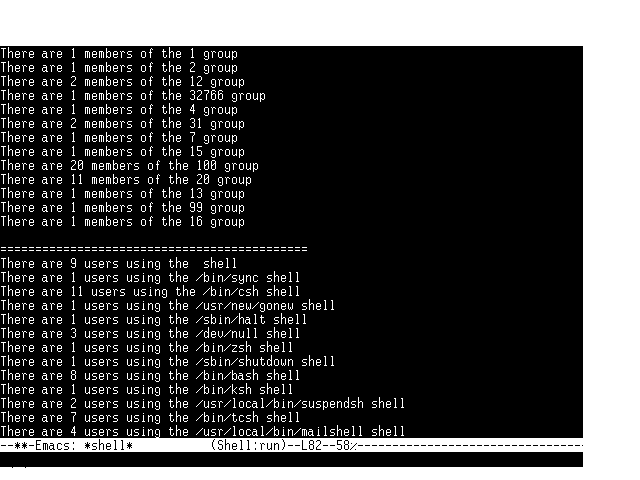
Listing 4.11 uses the for statement and the foreach statement. You will learn more about the foreach statement in the next section. Listing 4.11 examines the program in Listing 4.9-the Perl for statement. Figure 4.7 shows the output from Listing 4.11.
Figure 4.7 : Output from Listing 4.11.
Listing 4.11. The Perl for
statement.
01: #!/usr/local/bin/perl
02:
03: for ($NumberOfUsers=0; (@pwdlist = getpwent); $NumberOfUsers++){
04:     $user = $pwdlist[0];
05:     $userlist[$NumberOfUsers] = $user ;
06:     $shelltype = $pwdlist[8];
07:     $groupids  = $pwdlist[3];
08:     $shell_list{$shelltype}++;
09:     $group_list{$groupids}++;
10:     $usershell{$user} = $shelltype;
11: }
12:
13: for ($count = 0 ; $count < $NumberOfUsers; $count++){
14:    print "user number $count is $userlist[$count] \n";
15: }
16:
17: print "\n============================================\n";
18: foreach $group (keys(%group_list)){
19:     print "There are $group_list{$group} members of the $group group\n";
20: }
21:
22: print "\n============================================\n";
23: foreach $shell (keys(%shell_list)){
24:     print "There are $shell_list{$shell} users using the $shell shell\n";
25: }
26:
27:
The for statement on line 3 of Listing 4.11 operates exactly like the while statement on line 31 of Listing 3.10. The conditional expression of the second statement is the controlling expression (@pwdlist = getpwent). The controlling expression-expression 2-in this for loop is not affected by statement 1 ($NumberOfUsers = 0;) or statement 3 ($NumberOfUsers++).
Expression 1 initializes a counting variable as normal, and expression 3 increments a counting variable. Unlike most for loops, however, the control expression-expression number 2-does not use the counting variable as a condition of evaluating whether the loop's block of statements should execute. I wanted you to see a for loop that operates this way so that you would think about the different actions happening in each of the for loop's conditional expression statements.
The for loop on line 13 is
more like the traditional for
loop statement you were introduced to in Listing 4.9. This initializer
is set in expression 1. The conditional expression of expression
2 is based on the variable set and is incremented in expression
3.
| Modifying the Loop Control Index Variable |
| You can change the value of the index variable (the variable set and incremented in expressions 1 and 3) inside the for loop. You also can change the value of the loop control variable (the variable you test your index variable against-for example, $NumberOfUsers on line 13 of Listing 4.11) inside the for loop's block of statements. DON'T DO THIS. Never change the value of the control and index variable inside the block of statements of any loop. You'll invariably end up with code that is hard to understand and likely to have errors in it. If you need another variable in your block of statements, create one. They're essentially free. Now, someone will certainly tell you that variables take up memory space and time to create. I used to worry about memory and speed when I was writing flight software to drive weapons and navigation systems using 256KB of memory and a computer equivalent to an Intel 286. But, hopefully, you're not dealing with such silly restrictions. Write your code to be understandable. If you need to go back later and optimize it, I'll bet it isn't the extra data variable that's slowing down your program. |
Inside the first for loop (lines 4-10), you get all kinds of information out of the password file and save it away in associative arrays for later use. Lines 4-6 save the username, type of shell employed by this user, and the group ID of the user. Lines 8 and 9 count the number of times each shell type and group ID are used. These lines also create new associative array cell names as each new ID or type is encountered. Line 10 saves the shell type associated with each user. Using associative arrays to count instances of things such as shell types, group IDs, or even unique words in a text document is a common use of associative arrays and is explained further in the following paragraphs.
Because both the variables %shell_list
and %group_list from lines
6 and 7 of Listing 4.11 work the same way, this section concentrates
on how the associative array %group_list
is built.
| Note |
| If you're confused by the reference to the associative array %group_list from line 9 when all you see on line 9 is $group_list{$groupid}++, remember how individual array cells of associative arrays are referenced. All associative arrays are referenced by %array_name syntax, and all associative array cells are referenced by $array_name{array_cell_name}. So line 9 is an array cell reference to the associative array %group_list. |
Every user account on most UNIX systems is assigned a group ID. This generally is used to help separate the different types of staff members using the computer system. So you might have 10 different group IDs for hundreds of different accounts. A possible setup might include one group ID for managers, another for marketers, one for programmers, and so on.
Each time a new group ID is saved into the $groupids variable and then used on line 9 of Listing 4.11, it makes a new entry in the associative array %group_list. The initial value of that associative array cell is incremented by 1. Because Perl starts out numeric scalar variables at 0, incrementing the new array cell by 1 sets the array cell value to 1. If the group ID already has been used once to reference an array cell, that cell already exists. So, the value associated with the existing cell in the %group_list associative array is incremented by 1 with the plusplus (++) operator.
Because this is a lot easier to understand when you see it in action, take a few minutes to run this program on your computer and study the results. If you're really interested in understanding how the array cells are created and incremented, use the Perl debugger to study the data as it is created. The Perl debugger is explained in Chapter 13, "Debugging CGI Programs."
As mentioned earlier, the foreach statement on line 18 is explained in detail later in this chapter, so you'll just get a brief introduction to what's happening on lines 18-20. Look at the next section, "The Perl foreach Statement," for more details.
This foreach statement loops once for each array cell in the associative array %group_list. The keys function returns the indexes (array cell names) used to create each array cell. Those indexes are stored in the variable immediately following the foreach statement. Then, on line 19, each array cell index is used to get the value that was stored into that array cell on line 9. Run this program and study what is printed to the screen, and I think you'll have a better understanding of associative arrays and for loops.
The Perl foreach Statement
In the preceding section, you learned that the for statement and the foreach statement are actually the same command. The only thing that makes them different is the structure of the cue that follows the keyword for or foreach. If the conditional expression contains two semicolons, it acts like the for statement you studied earlier in this section. Otherwise, the for/foreach statement acts as if it is traversing a list or array.
Because Perl was built to make string and list traversal easy, the foreach statement is used more often than the for statement. That's my opinion only-NO religious e-mail about the virtues of for versus foreach, PLEASE.
The foreach statement generally is used to traverse arrays and lists; Listing 4.12 shows the syntax for the foreach statement.
Listing 4.12. The foreach
statement.
foreach $temporary_variable (@array) {block of statements}
foreach $temporary_variable (keys (%associative_array)) {block of statements}
foreach $temporary_variable (list) {block of statements}
You might have seen the syntax of the foreach statement as this:
foreach $temporary_variable (@array) {block of statements}
This illustration of the foreach syntax is actually complete. Because an array is a type of list and this certainly includes associative arrays, it is semantically complete. But it just doesn't seem clear enough for me. Therefore, you're getting the longwinded syntax of Listing 4.12.
The foreach statement traverses the array or list one element at a time. You could read the foreach statement as this:
For each array cell or list element, save the element/cell into a temporary variable and then perform the block of statements following the array/list.
Take special note of the temporary variable in Listing 4.12. This variable contains the contents of each element of the array or list. The temporary variable is set as the foreach statement traverses the list, but the temporary variable can be used only inside the block of statements associated with the foreach statement.
Type in the code shown in Listing 4.13 and be sure to run it. Seeing how the program works with the arrays and lists will help you understand how the foreach statement really works.
Listing 4.13. The foreach
statement.
01: #!/usr/local/bin/perl
02:
03: print "\n============================================\n";
04: foreach $number (1,2,3,7,12,15,"sixteen"){
05:     print "$number ";
06: }
07: print "outside the loop number is $number";
08:
09: print "\n============================================\n";
10: foreach $word ("one", "three", "five",8){
11:     print "$word ";
12: }
13: print "outside the loop word is $word";
14:
15: for ($NumberOfUsers=0; (@pwdlist = getpwent); $NumberOfUsers++){
16:     $userolder = $pwdlist[0];
17:     $userolderlist[$NumberOfUsers] = $userolder ;
18:     $shelltype = $pwdlist[8];
19:     $groupids  = $pwdlist[3];
20:     $shell_list{$shelltype}++;
21:     $group_list{$groupids}++;
22:     $useroldershell{$userolder} = $shelltype;
23: }
24:
25: print "\n============================================\n";
26: foreach $group (keys(%group_list)){
27:     print "There are $group_list{$group} members of the $group group\n";
28: }
29:
30: print "\n============================================\n";
31: foreach $userolder (sort(keys(%useroldershell))){
32:     print "$userolder uses the $useroldershell{$userolder}\n";
33: }
34:
35: print "\n============================================\n";
36: foreach $userolder (@userolderlist){
37:     print "userolder $userolder\n";
38: }
39:
The foreach statement on line 4 is processing a list. Notice that the list has a series of numbers and then a word. The mixing of numeric and string data doesn't matter to Perl. Each time one of the elements of the list is stored into $number, $number is formatted by Perl so that it can hold the data type of the list.
If you're new to programming, this might not seem like a big deal. If you're working with most other programming languages, however, you just cannot do this without a lot of work. Perl really makes life a lot easier for the programmer.
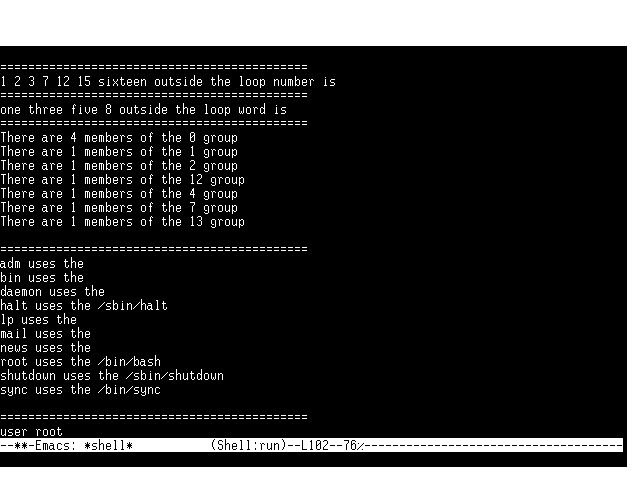
Just to be sure the idea of the temporary variable is clear, Listing 4.13 illustrates temporary variables by printing the $word temporary variable. Lines 7-13 print the temporary variable (also called a local variable) defined in the foreach statements on lines 4 and 10. Figure 4.8 shows the output from this program. Notice that neither print statement prints anything for the $number or $word variable.
Figure 4.8 : The foreach loop output from Listing 4.13.
This is a great illustration of a programming concept called scope. The scope of the foreach statement temporary variable is limited to the foreach block of statements. For a more detailed explanation of scope, refer to the section "Program Scope" in Chapter 6.
Lines 15-23 were discussed earlier. A discussion of lines 26-28 was deferred to this section so that they could be covered during a discussion of the foreach statement. Line 26 shows how to process an associative array using the foreach statement. This is one of the more common uses of the foreach statement.
The foreach statement is looking for a simple list item like the ones on lines 4 and 10, or the array on line 36. Because the associative array is a more complex structure than a simple array or list, some extra processing is required. To get the associative array in a format that works well with the foreach statement, Perl provides the keys() function.
The keys() function returns the indexes to any associative array passed to it. This works perfectly with the foreach statement, because each index into the associative array now is processed as a list and placed into the temporary variable associated with the foreach statement. Chapter 6contains more information about the keys() function.
Line 31 of Listing 4.13 shows one further variation of associative
array processing. This foreach
loop prints the user's account name just as the for
loop on lines 13-15 of Listing 4.11 did, but this foreach
loop prints the usernames in alphabetical order; as least it prints
the names in alphabetical order as far as Perl is concerned. You
might be a little disappointed in Perl, though. As far as Perl
is concerned, capital Z comes before lowercase a. So all account
names starting with a capital letter come first. Other than that,
the list of account names is given in A-Z and a-z alphabetical
order.
| Understanding Nested Parentheses |
| Whenever you try to understand a line with a bunch of parentheses on it, always start at the innermost parentheses and work your way out. The computer executes any statement enclosed in parentheses first. So if you have multiple statements enclosed in parentheses, the computer continues to look at each statement until it finds a statement that doesn't have any more parentheses. The following statement is an example: X = 2 + (3 * (4 + (2*2))); The computer first processes the (2*2) expression, saving the result of 4. The computer now sees (4 + (2*2)) as (4 + 4). The next statement, (3 * (4 + (2*2))) now is viewed as (3 * 8). Finally, the entire right-hand expression, 2 + (3 * (4 + (2*2))), is processed as 2 + 24. The result, 26, then is stored in the variable X. |
Just in case line 31 looks a little confusing to you, let's take a moment to figure out what's going on. foreach $user (sort(keys(%usershell))){
The first set of parentheses is passed the associative array %usershell to the keys() function: keys(%usershell).
The keys() function returns a list of the index to the %usershell associative array. We'll call that returned value $List_of_usershell_indexes.
The next set of parentheses is associated with the sort() function. It takes the $List_of_usershell_indexes returned from the keys() function and alphabetically sorts it. If you imagined the returned value from the keys() function replacing (keys(%usershell)), the sort() function's parameter looks like this: sort($List_of_usershell_indexes)
You already know that sort returns a sorted list, so we'll refer to its returned value as $Sorted_list_of_usershell_indexes.
Now we'll use this returned variable as a replacement for sort($List_of_usershell_indexes), which makes the foreach statement look like this: foreach $user ($Sorted_list_of_usershell_indexes)
The foreach statement assigns each of the indexes in $Sorted_list_of_usershell_indexes to the temporary variable $user. $user is set once for each of the different indexes, and the block of statements following the foreach statement is executed once each time a new index is assigned to $user.
Line 36 shows how to process a regular array using the foreach statement. Just put the array variable inside the parentheses, and Perl assigns each of the values of the array to the temporary variable-$user, in this case. After the entire array is traversed, the foreach loop acts just like any other control statement when its conditional expression evaluates to False: the block of statements is skipped and the statement following it executes.
Summary
In this chapter, you learned how to build simple HTML forms and then how the data entered on the form is sent to your CGI program.
The HTML Form tag is the basis for passing data to your CGI programs on the server.
The HTML Form tag has this syntax: <FORM METHOD="GET or POST" ACTION="URI" EncTYPE=application/x-www-form-urlencoded>
The Method attribute tells the browser how to encode and where to put the data for shipping to the server.
Your data is shipped or sent to your CGI program on the server in three ways:
- The Get method sends your data URI encoded and appended to the URI string.
- The Get method for sending form data is the default method for sending data to the server.
- The Post method sends your data after all the request headers are sent to the server.
The basics of CGI programming follow:
- Your program must identify what type of data is being returned to the browser with a Content-Type response header.
- Your program must generate the data, usually HTML, that goes with the Content-Type response header defined in step 1.
- The paired backquotes (``) tell Perl to perform the system action inside the quote marks.
- The paired double quotation marks ("") tell Perl to look for special characters and interpret them inside the print string.
- The paired single quotation marks ('') tell Perl to not look for or process any special characters in the print string.
The HTML Input attribute of the Form tag accepts several field values. Each field value defines a type of user input format. The HTML Input tag has the format <INPUT TYPE="field">. The Text field is the most commonly used field type. It creates a single-line text-entry window on your Web page form. Regardless of the Input type you choose, all the data input from a form is sent to the server or your CGI program as name/value pairs. Name/value pairs always are passed to the server as name=value, and each new pair is separated by the ampersand (&).
The data entered on your form goes through these formatting steps before being sent to the server:
- The browser takes the data from each of the text-entry fields and separates them into name/value pairs.
- The browser URI encodes your data.
- The data is appended to the end of the URI identified in the Action field of your form statement. A question mark is used to separate the URI and its path information.
Q&A
| I've seen forms without a method defined. How does that work? | |
| Because the Get method is the default method, if a method is not defined, the Get method is used. So,
<FORM ACTION="/cgi-bin/first.cgi"> is the same as <FORM METHOD=GET ACTION="/cgi-bin/first.cgi"> | |
| What's the difference between a Submit button and a link? | |
| A link, of course, is an HTML anchor with a hypertext reference-usually, to an HTML file. But you can link to a CGI program. So what's the difference?
Well, let's look at it from the Submit button viewpoint. Can you call an HTML file from the Submit button? Well, yes. "Eric," you say, "you're confusing me." Okay, I'm sorry. The difference is the "submittal" of the data. The link doesn't send any data.
The Submit button causes the browser to do the following: | |
| My first CGI program doesn't work. What's the matter? | |
When your CGI programs don't work, run through this checklist. Usually, you'll discover that it's one of these problems:
|


Popular Tutorials
-
 MS Access
1109
MS Access
1109
-
 C++
1222
C++
1222
-
 HTML
584
HTML
584
-
 JavaScript
616
JavaScript
616
-
 Vbscript
873
Vbscript
873
-
 Oracle
473
Oracle
473
-
 VC++
875
VC++
875
-
 SQL
2959
SQL
2959
-
 XML
514
XML
514
-
 Java
814
Java
814
-
 Perl
455
Perl
455
-
 Linux
451
Linux
451