Web based School
Chapter 9
Using Imagemaps on Your Web Page
- Defining an Imagemap
- Sending the x,y Coordinates of a Mouse Click to the Server
- Creating the Link to the Imagemap Program
- Using the imagemap.cProgram
- Using the Mapfile
- Using Client-Side Imagemaps
- Summary
- Q&A
Good morning! This morning, you will learn how to turn your Web page into a real visually driven, point-and-click environment. Just put some glossy images on your Web page and let your mouse do the clicking. In this chapter, you will learn how to use imagemaps-any type of graphics image linked to a program that reads the coordinates of the mouse click and, from that information, directs the browser to a related URI. You will learn how imagemaps work to enhance your Web page, and you will learn about a new type of imagemap: client-side imagemaps.
In particular, you will learn about the following topics:
- Defining an imagemap
- Using a mouse click to get to the server
- Using the imagemap program
- Building an imagemap file
- Using client-side imagemaps
Defining an Imagemap
Imagemaps look really slick on your home page, and you can build them without any programming skills. The basic steps for creating a working imagemap follow:
- Select an appropriate image. Any image will work, but you should select an image that has clear borders so that it is easy to understand where each mouse click will take your client. Also remember that loading images takes extra time. Keep the size of your images to the smallest size that will adequately do the job.
- Modify the image as necessary to create borders or areas you will define later as hotspots. A hotspot is a single pixel or group of pixels that, when clicked, activates a program that performs some action. With imagemaps, this means calling a predefined URI.
- Create an imagemap file, defining the hotspots of your imagemap.
- Test your imagemap file.
Imagemaps link a graphics image with a program on the server that interprets the location of the mouse click and redirects the Web client to another URI based on that mouse click.
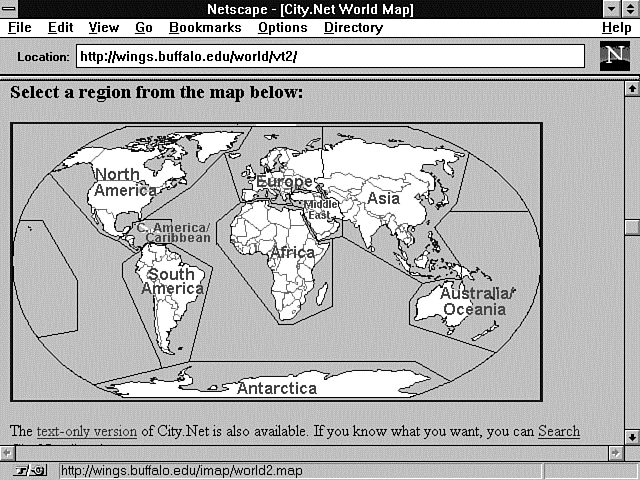
One really nice implementation of imagemaps is the Virtual Tourist program, which you can find at http://wings.buffalo.edu/world/vt2/
This site includes a very nice image of the world separated into various regions that are separated by drawn-in polygons. Polygons are closed figures like a rectangle or a box that can have as many sides as required. So they usually end up being irregularly shaped objects, just like the ones you see in Figure 9.1, which is the Virtual Tourist's Map of the World.
Figure 9.1 : The Virtual Tourist II Map of the World.
An imagemap usually is made up of regions, or hotspots, like this, as well as regions defined by circles, rectangles, and points. The actual imagemap is much less complex than a bunch of regions defined by circles, rectangles, and polygons, however. The imagemap itself is just any old image file that you happen to have taking up space on your hard disk or someone else's hard disk.
Don't forget that it doesn't take any longer for the browser to load an image off your hard drive than it does from some other server's hard drive. The Virtual Tourist II program makes use of this fact by loading its image of Madagascar from the Perry-Castaneda Library Map Collection at the University of Texas.
This library has a great collection of maps from all over the world, as shown in Figure 9.2, and can be reached at
Figure 9.2 : The Perry-Castaneda Library Map Collection. http://www.lib.utexas.edu/Libs/pcL/Map_collection.asp
When the Virtual Tourist loads the map of Madagascar, it loads its image from the Perry-Castaneda Library, and it is not an imagemap file.
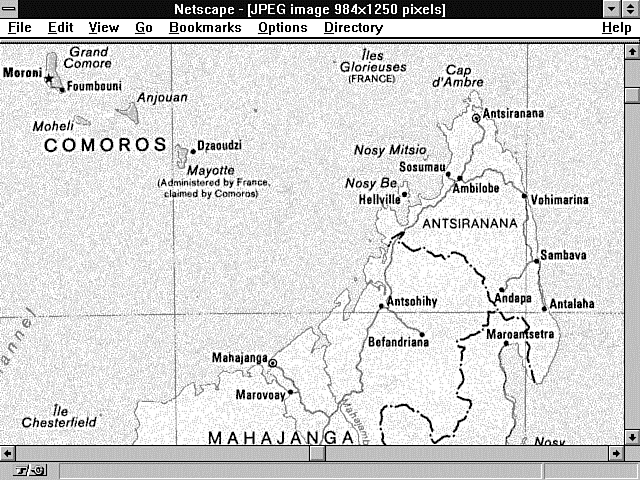
Nothing prevents this image from being a mapfile except the HTML that defines the link to the map of Madagascar. The image of Madagascar is too big to fit onto a single screen, as shown in Figure 9.3, but imagemaps use the size of the image as a definition of the x,y coordinates sent to your imagemap program, not the size of the screen displaying the image. The Madagascar image is approximately 985¥1,250 pixels, as measured from the upper left corner to the lower right corner. Having a map that is bigger than the computer screen can make your Web clients uncomfortable, because they can't see all the information they need to make a decision on one screen. That's usually considered bad Human Factors design. But if you try to squish down the map of Madagascar into one screen, you either have to distort the image or you can't distinguish anything. So in this case, a large image is probably a good choice. Also remember that you might not be using images on your site. If that's the case, as it is here, you don't have any control over the image size.
Figure 9.3 : A map of Madagascar.
You don't have to worry about your browser getting lost on where you're checking on the map. The browser knows the full size of the image and sends the x,y coordinates of where the image was checked on, not where the mouse was clicked on-screen. Each mouse click sends to your CGI program the x,y coordinates of the mouse click relative to the upper left corner of the image being clicked. The coordinates are relative coordinates because all images, regardless of size or location on-screen, have the same starting x,y coordinates of 0,0. The upper left corner coordinates are 0,0. All x,y coordinates are in pixels. The x coordinate increases as your mouse moves from the left to the right of the image. The y coordinate increases as your mouse moves from the top to the bottom of the image. So, if you have an image that is 600 pixels wide and 700 pixels tall, the coordinates of the upper right corner are 600,0; the lower right corner is 600,700; and the lower left corner is 0,700.
The coordinates are sent as x,y pairs separated by a comma when sent using the <IMG ISMAP> syntax; they are sent as name/value pairs (name.x and name.y) when using the HTML <FORM> <INPUT TYPE=IMAGE> syntax. As you would expect, the x coordinate is the first coordinate, followed by the y coordinate.
Both coordinates are relative to the size of the image file and not the size of the screen. Therefore, if your image file is restricted by height and width commands, the x,y coordinates passed to your program are restricted to the maximum values in the Height and Width tags. If you do not restrict the height and width of the image, the maximum values for x and y are not limited by the screen size. If the image scrolls vertically or horizontally, the browser sends the coordinates of the location selected on the image. This is very important, considering the wide variety of terminals available today. It is still very common to have a 14-inch monitor with 640¥480 resolution, and the image that fits on that screen is wildly different from even the image that fills a 14-inch, 1,024¥768 screen, much less one of the 22-inch CAD-CAM user screens.
The coordinates are passed to your CGI program only when you add the HTML Ismap attribute to the HTML Img tag or the <INPUT TYPE=IMAGE> HTML Form tag. You can have these coordinates sent to you in many ways, which are discussed in the next section. As you learn about the existing imagemap program, remember that it is nothing more than another CGI program available for you to modify and enhance.
and modify it to fit your needs. So pay attention to the variety of ways in which you can get the x,y coordinates of the mouse click and consider how you might use them in your own customized CGI imagemap program.
Sending the x,y Coordinates of a Mouse Click to the Server
Clicking on an image and getting the coordinates to a CGI program on the server can happen in more than one way. Most people just pass off this work to a predefined CGI program called imagemap.c on ncSA servers and htimage on CERN servers, but modifying or enhancing these programs to work within an HTML form or for other reasons isn't that difficult. In this section, you will learn how the x,y coordinates are passed to the server and, with that knowledge, you can decide how those coordinates will be handled.
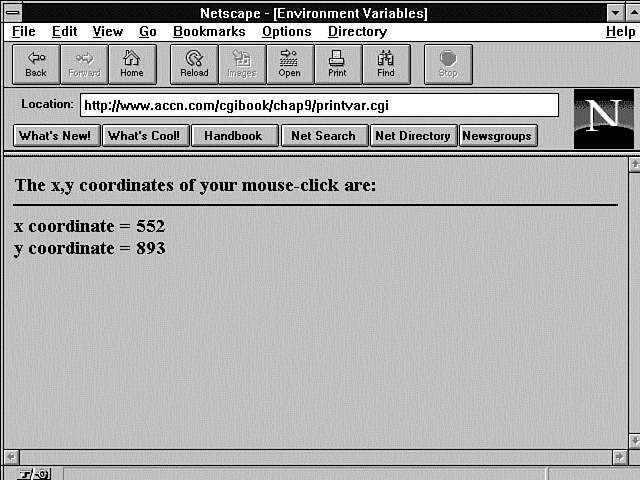
Listing 9.1 shows a short program that reads and prints the x and y coordinates passed after the imagemap is clicked. Figure 9.4 shows the output from Listing 9.1.
Figure 9.4 : The x,y coordinates as received by the server.
Listing 9.1. Printing the x,y coordinates of a mouse click.
01: #!/usr/local/bin/perl
02: push (@Inc, "/usr/local/business/http/accn.com/cgi-bin");
03: require("cgi-lib.pl");
04: &ReadParse(*stuff);
05: print &PrintHeader;
06: print "<html>\n";
07: print "<head> <title> Printing the x,y hotspot variables </title>
</head>\n";
08: print "<body>\n";
09: print "<h3> The x,y coordinates of your mouse-click are: </h3>
<hr noshade>";
10: print "x coordinate = $stuff{'xyhot.x'}<br>";
11: print "y coordinate = $stuff{'xyhot.y'}<br>";
12: print "</body>\n";
13: print "</html>\n";
The piece of HTML magic that makes all this work is the Ismap tag added to any HTML Image tag that is used as a hypertext reference or HTML Form action. The two valid types are the Web fill-out form <INPUT TYPE=IMAGE> tag and the Img tag when used with an HTML anchor (<A>), which includes an Href attribute.
When you use the Web fill-out form <INPUT TYPE=IMAGE NAME=xy-coordinates> tag, for example, the x and y values of the mouse-click pixel position in the graphics image are sent to your CGI program as name/value pairs. The x and y values can be retrieved by using the name xy-coordinates.x for the x value and xy-coordinates.y for the y value.
If you use the HTML anchor with a hypertext reference such as <a href=https://www.softlookup.com/cgi-bin/xy-values.cgi> <img src=/images/madagascar.jpg ismap> </a>
the x,y coordinate values are sent in the query string as two integers separated by a comma, as shown in this example: https://www.softlookup.com/cgi-bin/xy-values.cgi?125,845
Using the Ismap Attribute and the
Img TagThe x,y coordinates are sent to the server only if your Img link includes the Ismap tag. The coordinate of the mouse click is not sent if you do not include the Ismap tags for a hypertext reference. This makes a lot of sense, because if you don't direct the hypertext link to the imagemap program, the x,y coordinates show up in the query string and you get the famous YUK! effect. This is something you don't want to see every time someone clicks on an image.
The next few examples should help clarify the different results achieved when using the HTML Ismap attribute.
In this example, the hypertext reference calls the ncSA imagemap program: <a href=/cgi-bin/imagemap/mapfiles/mapfile.map> <image src-madagasc.jpg ISMAP> <a>
This hypertext reference creates an active link to the imagemap program and passes the x,y coordinates of the mouse click to the imagemap program. The x,y coordinates are used by the program with the mapfile.map to call a URI defined in the mapfile.map. The imagemap program and the mapfile.map file are discussed in this chapter. The x,y coordinates are not visible as query string data in the Location window, even though they are sent to the server as query string data.
In this example, the hypertext reference calls a custom CGI program that prints the x,y values received: <a href=/cgiguide/chap9/printvar.cgi> <image src=madagasc.jpg ISMAP> <a>
In this case, the hypertext link creates an active link with the image file. So when the image file is clicked with the left mouse button, the x,y coordinates of the mouse click are sent by the browser to the server in the query string. In this case, the x,y coordinates do appear as query string data, as shown in Figure 9.4.
In this example, the hypertext reference calls a custom CGI program that prints the x,y values received: <a href="/cgiguide/chap9/printvar.cgi"> <image src=madagasc.jpg width=950 height=500 ><a>
In this final example, using the href command, the x,y coordinate data is not sent along with the URI because the Ismap attribute is not included within the Img command.
Using the Ismap Attribute with <INPUT TYPE=IMAGE>
The alternatives when using the Web fill-out form <INPUT
TYPE=IMAGE> are not necessarily intuitive but are
very consistent. To be consistent, you always should use the Ismap
tag, but in practice, with the Web fill-out form, the Ismap
tag has no impact on whether the x,y coordinates are sent to the
server. If <INPUT TYPE=IMAGE>,
the x,y coordinates are sent to the browser. They are appended
to the Name attribute of
the <INPUT TYPE=IMAGE>
field. That means they can be retrieved by your own CGI program
as Name.x and Name.y,
as shown earlier. The following two <INPUT>
fields therefore have exactly the same effect:
<INPUT TYPE=IMAGE NAME=XY-COORDINATES ISMAP>
<INPUT TYPE=IMAGE NAME= XY-COORDINATES>
| Note |
| <ISMAP> is not case-sensitive. In any of these links, <ismap> works just as well as <ISMAP>. |
The two alternative input types work just fine in sending the coordinates to your own CGI program but fail miserably when you try to call the actual imagemap program. This means that, in most cases, you will not add imagemaps to your Web fill-out forms. If you are a C programmer, however, I think you will see that it would not be an overwhelming task to modify this program so that it works with Web fill-out forms. One possible modification is outlined in the next paragraph.
The imagemap program is freely available on the Net, so modifying the existing software is very reasonable. The part of the file that needs to be changed is included here as a program fragment in Listing 9.2. You want to make as small a change as possible, so changing how it loads up its input data is a prime candidate. This occurs where it checks for the number of incoming arguments. A test for the request method of Post before line 11 could replace the assumption that the call is from a hypertext link. If the calling method is Post, the variables testpoint[x] and testpoint[y] could be set from the incoming name/value pairs of xy-coordinates.x and xy-coordinates.y. The rest of the program does not need to change.
Listing 9.2. A program fragment from the ncSA imagemap.c
program.
01: int main(int argc, char **argv)
02: {
03: char input[MAXLINE], *mapname, def[MAXLINE], conf[MAXLINE],
errstr[MAXLINE];
04: double testpoint[2], pointarray[MAXVERTS][2];
05: int i, j, k;
06: FILE *fp;
07: char *t;
08: double dist, mindist;
09: int sawpoint = 0;
10:
11: if (argc != 2)
12: servererr("Wrong number of arguments,
client may not support ISMAP.");
13: mapname=getenv("PATH_INFO");
14:
15: if((!mapname) || (!mapname[0]))
16: servererr("No map name given. Please read the
17: <A HREF=\"http://hoohoo.ncsa.uiuc.edu/docs/setup/admin/
Imagemap.asp\">instructions</A>.<P>");
18:
19: mapname++;
20: if(!(t = strchr(argv[1],',')))
21: servererr("Your client doesn't support image mapping properly.");
22: *t++ = '\0';
23: testpoint[X] = (double) atoi(argv[1]);
24: testpoint[Y] = (double) atoi(t);
Of course, you're not limited to changing this program. Because you now understand that you can get the x,y coordinates of the mouse click simply by adding an input type of image, you can build any type of imagemapping program you want!
Now that you understand the limitations and possibilities that go with calling the imagemap program, take a look at how that program works on your server.
Creating the Link to the Imagemap Program
The ncSA httpd server uses a program called imagemap.c to determine what to do with the mouse-click coordinates sent to the server. Any image can be used with the imagemap program. The hypertext text reference points first to the imagemap program and then includes extra path information. The extra path information tells the imagemap program where to find a mapfile. The mapfile is a plain text file that the imagemap program uses to determine what URI to call for each mouse click. This mapfile is explained in detail later in this chapter in the section "Using the Mapfile."
First, as you have seen from the previous examples, you must include an image with the Ismap attribute added as part of the image command. Next, you must create a hypertext reference linking the image to the imagemap program.
If you are running an ncSA server or one of its clones, the imagemap directory should be in the public cgi-bin directory. Find out from your System Administrator where the public cgi-bin directory is located so that you can add the complete path in the hypertext reference. On my server, I have a cgi-bin directory on my document root, so my path is simply href=/cgi-bin/imagemap. The ncSA documentation recommends using an absolute URI to reference the imagemap program, which looks like this: http://www.server-name.com/cgi-bin/imagemap
That's step one of creating your hypertext link. Because the link actually is made up of the path to the imagemap program and the extra path information that points to your mapfile, you still need to add the extra path information. The extra path information is the full path to your imagemap file relative to your document root. In my case, I keep a mapfile directory below my document root, so the extra path information is /mapfiles/madagascar.map. The path to your directory needs to include your username if you have a personal account on a commercial server. So the path to your imagemap file might look like this: ~username/mapfiles/mapfile.map
Remember to make sure that your directory and file are readable and executable by the world. Otherwise, the imagemap program will not be able to open your mapfile. The full syntax of the URI linking the imagemap program to your inline image follows: href://domain-name/<PATH-TO-IMAGEMAP-PROGRAM>/<PATH-TO-MAPFILE-FILE>
The PATH-TO-IMAGEMAP-PROGRAM should define the full path to the imagemap program and should end with the imagemap. According to the latest release notes of the imagemap program, the PATH-TO-MAPFILE-FILE can be relative to the document root or begin at a user's public HTML directory using the ~username syntax described earlier. An example of a valid hypertext reference to the imagemap program is https://www.softlookup.com/cgi-bin/imagemap/mapfiles/madagascar.map
The <PATH-TO-IMAGEMAP-PROGRAM> is cgi-bin/imagemap, and the <PATH-TO-MAPFILE-FILE> is mapfiles/madagascar.map.
Using the imagemap.c Program
The ncSA httpd server distributes the imagemap.c program as part of its server distribution. You can get the latest copy of the imagemap program from http://hoohoo.ncsa.uiuc.edu/docs/tutorials/imagemap.txt
If you do this, you'll notice that this program has been in existence since 1993-an eternity for anything on the Net. This program is written in the C language and is not terribly complex. If you get a copy of this program, you can modify it to suit your own needs and keep it in your local cgi-bin directory. The first part of the imagemap deals with figuring out where your imagemap file is and reading in the data in your imagemap file. This is the area where you can make enhancements. The second half and actually smaller portion of the program is the checking of the points against the defined circles, rectangles, and polygons of the imagemap file. I don't recommend changing this section, especially the polygon code, because determining whether a point is within a polygon can be relatively painful. Take a look at the code for yourself, shown in Listing 9.3. This is the real meat of the imagemap program. Most of the work is in determining whether the mouse click is in a polygon, a circle, or a rectangle, and point code is relatively straightforward.
Listing 9.3. Determining the mouse-click location in the imagemap
program.
01: int pointinrect(double point[2], double coords[MAXVERTS][2])
02: {
03:         return ((point[X] >= coords[0][X] && point[X] <= coords[1][X]) &&
04:         (point[Y] >= coords[0][Y] && point[Y] <= coords[1][Y]));
05: }
06:
07: int pointincircle(double point[2], double coords[MAXVERTS][2])
08: {
09:         int radius1, radius2;
10:
11:        radius1 = ((coords[0][Y] - coords[1][Y]) * (coords[0][Y] -
12:         coords[1][Y])) + ((coords[0][X] - coords[1][X]) * (coords[0][X] -
13:         coords[1][X]));
14:         radius2 = ((coords[0][Y] - point[Y]) * (coords[0][Y] - point[Y])) +
15:         ((coords[0][X] - point[X]) * (coords[0][X] - point[X]));
16:         return (radius2 <= radius1);
17: }
18:
19: int pointinpoly(double point[2], double pgon[MAXVERTS][2])
20: {
21:         int i, numverts, inside_flag, xflag0;
22:         int crossings;
23:         double *p, *stop;
24:         double tx, ty, y;
25:
26:         for (i = 0; pgon[i][X] != -1 && i < MAXVERTS; i++)
27:                 ;
28:         numverts = i;
29:         crossings = 0;
30:
31:         tx = point[X];
32:         ty = point[Y];
33:         y = pgon[numverts - 1][Y];
34:
35:         p = (double *) pgon + 1;
36:         if ((y >= ty) != (*p >= ty)) {
37:                 if ((xflag0 = (pgon[numverts - 1][X] >= tx)) ==
38:                 (*(double *) pgon >= tx)) {
39:                         if (xflag0)
40:                                 crossings++;
41:                 }
42:                 else {
43:                         crossings += (pgon[numverts - 1][X] - (y - ty) *
44:                         (*(double *) pgon - pgon[numverts - 1][X]) /
45:                         (*p - y)) >= tx;
46:                 }
47:         }
48:
49:         stop = pgon[numverts];
50:
51:        for (y = *p, p += 2; p < stop; y = *p, p += 2) {
52:                 if (y >= ty) {
53:                         while ((p < stop) && (*p >= ty))
54:                                 p += 2;
55:                         if (p >= stop)
56:                                 break;
57:                         if ((xflag0 = (*(p - 3) >= tx)) ==
                        (*(p - 1) >= tx)) {
58:                                 if (xflag0)
59:                                         crossings++;
60:                         }
61:                         else {
62:                                 crossings += (*(p - 3) - (*(p - 2) - ty) *
63:                                 (*(p - 1) - *(p - 3)) /
                              (*p - *(p - 2))) >= tx;
64:                         }
65:                 }
66:                 else {
67:                         while ((p < stop) && (*p < ty))
68:                                 p += 2;
69:                         if (p >= stop)
70:                                 break;
71:                         if ((xflag0 = (*(p - 3) >= tx)) ==
                        (*(p - 1) >= tx)) {
72:                                 if (xflag0)
73:                                         crossings++;
74:                         }
75:                         else {
76:                                 crossings += (*(p - 3) - (*(p - 2) - ty) *
77:                                 (*(p - 1) - *(p - 3)) /
                              (*p - *(p - 2))) >= tx;
78:                         }
79:                 }
80:         }
81:         inside_flag = crossings & 0x01;
82:         return (inside_flag);
83: }
You can see the entire imagemap.c program in Appendix D, "The ncSA imagemap.c Program." The first half of the program is much longer than the program fragment in Listing 9.3 and really just deals with figuring out what file to open and reading in the data. This is not as easy in C as it is in Perl. C is not nearly as helpful when it comes to doing data conversion as is Perl.
Using the Mapfile
By now, you probably are ready to learn about the mapfile. This is the file that is pointed to by the extra path information in the URI. The mapfile is read by the imagemap program to determine what URI to point the browser toward based on the x,y coordinates of the mouse click. Probably the most important thing to understand about the imagemap file is how it is interpreted by the imagemap program. The imagemap program doesn't spend a lot of time trying to figure out whether you want this mouse click to be in circle one or circle two. It looks at the first line in the imagemap file, and if the program determines that the mouse click is within this region, it prints a Location response header with the URI defined in the imagemap file. The Location response header redirects the browser to another URI, making the mouse click act as if it is calling a different document.
Before you look at the exact syntax of the imagemap file, look at this summary of the actions of the imagemap program as seen from the server side:
- The server receives a URI request that ends up invoking an imagemap program. (By the way, the program could be named anything you want it to be named.)
- The imagemap program reads the extra path information, decoded by the server, to determine where the mapfile is located. (Older versions of the imagemap program used to get the imagemap file path information out of a configuration file.)
- The imagemap file is read one line at a time and matched against the x,y coordinates passed to the imagemap program.
- The first matching x,y coordinates cause the imagemap program to send a Location response header redirecting the client browser to the URI specified in the imagemap file.
- If a match is not found, a default URI is called or the nearest point URI is called. These two conditions are mutually exclusive and are discussed in the following section.
Looking At the Syntax of the Imagemap File
The imagemap file tells the imagemap program what URI to call for a matching x,y coordinate. The imagemap file itself is a simple text file that can be named anything you want, but it frequently has the file extension .map. Inside the ncSA server's version of the imagemap file, you can include comments describing what each coordinate set is related to on the image file. All comments begin with a hash sign (#). The hash sign must begin the comment line flush against the left margin. Every other non-blank line describes the method used to find the x,y coordinates, the URI, and the bounding coordinates of the method.
The syntax of active lines of the imagemap file follows: METHOD URI Hot-Spot-coordinates
The method can be one of five choices defined in Table 9.1.
| Method | Meaning |
| circle | Defines an area described as a circle, which is mathematically defined as the center point x + y coordinates, followed by any point on the edge of the circle x,y coordinates. For example,
Circle https://www.softlookup.com/cgi-bin/print-circle.cgi 450,325 |
| default | Defines the action to take if a matching area is not found for the mouse click. Do not use the default method and point method together. The point method always overrides the default method. |
| point | Defines any point on the image in x,y coordinates. The point method overrides the default method and is selected only if no other matching method can be found. You can have multiple points in your imagemap file. Each one is
tested for the closest match to the mouse-click point. Each time the point method is checked by the imagemap program, a new default action may be selected. For example,
point http://domain-name/path-filename 10,20 |
| poly | Defines an area described as a polygon, which is mathematically defined as a series of vertices of x,y coordinates that define a closed object made of no more than 100 vertices. For example,
poly http://domain-name/path-filename 110,144 301,56 The polygon code in the imagemap assumes a closed polygon, in which it assigns the value of the last point in the array of vertices to be equal to the value of the first point in the array of vertices. |
| Rect | Defines an area described as a rectangle, which is mathematically defined as the upper left x,y coordinates and the lower right x,y coordinates of the rectangle. For example,
http://domain-name/path-filename 230, 90 670, 575 |
Deciding Where to Store the Imagemap File
The imagemap file can be named anything you want, but you cannot put it anywhere you want. Because the imagemap program uses the PATH_INFO environment variable to determine where to find the mapfile, you cannot place the imagemap file in the document root directory. If you place the imagemap file in the document root directory, there is nothing to append to the EXTRA_PATH_INFO field of the URI.
The imagemap reference looks like this: href://domain-name/cgi-bin/imagemap/
You can't add another forward slash (/). It's illegal, and because
the extra path information begins after the trailing forward slash
(/), the PATH_INFO variable
will be empty and the imagemap program will fail. However, you
can put the imagemap file in a subdirectory below the document
root. I recommend creating a subdirectory called mapfiles
immediately be-low the document root. Then, within the mapfiles
directory, give each imagemap file a reasonable name that associates
it with the image and application the imagemap file is for. If
you have lots of mapfiles associated with many different applications,
you might decide to create an imagemap file directory below each
application.
| Warning |
| Remember: Never put your imagemap file in the document root directory. This will cause your imagemap to fail. |
Now that you know what the imagemap is and how it works, take a look at the tools you can use to build your mapfiles.
Increasing the Efficiency of Imagemap Processing
You can make your imagemap operate more efficiently or quicker by using a little discipline. Even a cursory examination of the poly code in Listing 9.3 shows that it contains several nested loops and requires many more calculations than the circle and rectangle code to determine whether a match is found. Just by choosing rectangles and circles over polygons, you speed up the processing of your imagemaps on the server side. Don't avoid the polygon as a choice altogether, though. It's much more important to define regions that make sense to your Web client than it is to increase efficiency even by a few seconds. If you take a look at the world map shown in Figure 9.5, you will see that it just doesn't make sense to do this map configuration in anything other than polygons. Never choose efficiency over understandability.
Using the Default URI
The default URI in the mapfile presents you with an interesting problem. What do you do if your user clicks your imagemap but doesn't select a valid region?
It is a server error to not have a default defined and have a mouse click that is not within a valid region. When you click the world out in the middle of the ocean, you are sent to a text version of the city.net Web site. I'm not sure whether the developers are punishing me for clicking their map in an unmarked region or whether they figure that if I can't select a valid region with a mouse, I'm too stupid to use their map and I should be using text anyway. Actually, I'm sure that it is just a logical decision on their part to move me to an area better suited to my talents. All kidding aside, links created by hypertext references always are faster, so moving the errant mouse clicker to a text input site is very reasonable.
I would have preferred a second or third option, however. Let's assume that because I'm on the WWW, I understand the point-and-click environment enough to not hurt myself. As a programmer, I then could interpret clicking an invalid region of the imagemap as mostly a curiosity factor. Curiosity is a good thing as far as I am concerned, so I don't want to penalize my Web client any more than necessary. My client already is paying a penalty by having to wait for the imagemap program to run. So I frequently choose one of two solutions. One involves not doing anything. Because it is an error to not have a default method defined in the imagemap file, though, you must have one defined for the default URI. If you define a default URI, however, the HTTP protocol requires that the URI provide a valid response header. In this solution, the program returns the No-Content response header sent by the non-parsed header script in Listing 9.4.
Listing 9.4. Returning the same location.
01: #!/usr/local/bin/perl
02: print "Location: https://www.softlookup.com/cgiguide/chap9/same.asp\n\n";
The Web client has to wait for the imagemap program to run and figure out that nothing valid was selected, and then nothing happens. That is not necessarily the most enlightening response, but after clicking a few areas that are not defined, most people get tired of waiting for the imagemap program to run and then getting no response. They start clicking inside the lines and probably stay there from then on.
Ordering Your Mapfile Entries
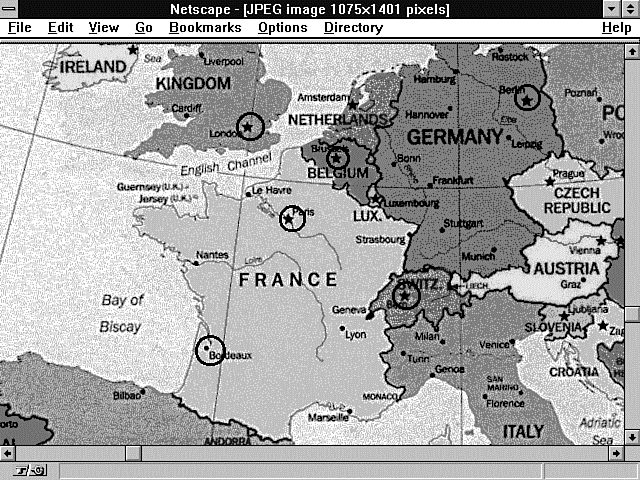
The mapfile still has one more secret to give up before you can use hotspots effectively on your map. One of the problems you need to understand how to deal with is overlapping areas. This is a common problem when dealing with all kinds of maps. Probably the easiest situation to imagine involves actually using a world map-for example, the map of Europe shown in Figure 9.6. When someone views this map and wants to look at the city of Brussels, London, or Paris, he should be able to click that area and get the information he needs about the city. That seems reasonable. But what do you do about the countries of Belgium, France, and the United Kingdom? If someone clicks within the general area of France, can you distinguish that from a click around the area of Paris or Bordeaux? The answer is a qualified yes.
Figure 9.6 : Defining the hotspots of Europe.
A qualified yes because you need to think about how the mapfile is processed in order to make overlapping areas work. You don't want to present a confusing image to your Web client. And you want a consistent result from your program when someone clicks your image. You can manage this by realizing that your mapfile is processed from top to bottom and that the imagemap program returns a hit on the first valid match it finds.
Think of a simple target made up of concentric circles. Each area overlaps the previous area, but if the bull's-eye area is the first region defined in your mapfile, any hits in the bull's-eye region are processed first and returned by the imagemap program. So, if you define your mapfile so that the bull's-eye region is followed by the 80s, then 60s, then 40s, and then 20s region, each click in the overlapping areas returns the correct hit. Listing 9.5 shows an example of such a mapfile. Notice that each region overlaps the one above it in the mapfile. The final rectangle region where no score is awarded overlaps all the previous regions.
Listing 9.5. A mapfile for creating a target.
01: default https://www.softlookup.com/target/you-missed-the-board.asp
02: circle https://www.softlookup.com/target/bullseye.asp 475,375 475,350
03: circle https://www.softlookup.com/target/eighty.asp 475,375 475,325
04: circle https://www.softlookup.com/target/sixty.asp 475,375 475,290
05: circle https://www.softlookup.com/target/forty.asp 475,375 475,240
06: circle https://www.softlookup.com/target/twenty.asp 475,375 475,190
07: rect https://www.softlookup.com/target/zero.asp 205,130 743,650
Okay, let's go back to the more realistic example of mapping hotspots onto the European map shown in Figure 9.6. Now you really don't need a lot of fancy tools for building mapfiles. They are only text files, and the format is relatively simple. This makes editing the mapfile easy after it is created, but creating all the points that go with the sample mapfile of Europe would be too much work. I therefore use a program called mapedit to build my mapfile, which is shown in Listing 9.6.
Listing 9.6. A mapfile for defining European hotspots.
01: default https://www.softlookup.com/cgi-bin/return-same-location.cgi
02: #Ireland
03: circle https://www.softlookup.com/countries/ireland/dublin 219,703 223,691
04: #Switzerland
05: circle https://www.softlookup.com/countries/switzerland/bern 493,948 501,936
06: poly bern 209,623 227,631 193,653 197,667 211,661 227,676 225,719
  209,736 135,749 103,683 209,622
07: #United Kingdom
08: circle https://www.softlookup.com/countries/united_kingdom/london 336,781 352,777
09: #Belgium
10: circle https://www.softlookup.com/countries/belgium/brussels 423,812 425,823
11: #France
12: circle https://www.softlookup.com/countries/france/paris 378,872 362,874
13: #France
14: circle https://www.softlookup.com/countries/france/bordeaux 296,1006 303,1022
15: #Germany
16: circle https://www.softlookup.com/countries/germany/berlin 613,750 613,765
17: #United Kingdom - This image overlaps with the city of
18: #London.  The circles that define the hotspots
19: #for all cities in the United Kingdom must come before the polygon
20: #that defines London
21: poly https://www.softlookup.com/countries/united_kingdom 195,655 214,659 230,672 234,705
  175,825 361,807 393,739 360,444 189,544 229,627 213,657
22: #Belgium - This image overlaps with the city of
23: #Brussels.  The circles that define the hotspots
24: #for all cities in Belgium must come before the polygon
25: #that defines Brussels.
26: poly https://www.softlookup.com/countries/belgium 400,792 423,798 437,790 458,804
  468,827 454,859 420,841 384,801 414,785
27: #France - This image overlaps with the cities Paris and
28: #Bordeaux.  The circles that define the hotspots
29: #for all cities in France must come before the polygon
30: #that defines France
31: poly https://www.softlookup.com/countries/france 386,801 392,815 420,841 445,857 471,871
  505,879 487,923, 478,925 453,961 471,983 465,1007
32: 483,1051 464,1074 376,1093 253,1048 265,923 216,876 221,860 289,834 385,800
#Switzerland - This image overlaps with the city of
33: #Bern.  The circles that define the hotspots
34: #for all cities in Switzerland must come before the polygon
35: #that defines Bern
36: poly https://www.softlookup.com/countries/switzerland 479,927 513,918 535,929 535,939
  554,947 556,961 548,969 522,981 497,981 474,981 455,961
37: #Germany - This image overlaps with the city of
38: #Berlin.  The circles that define the hotspots
39: #for all cities in Germany must come before the polygon
40: #that defines Berlin
41: poly https://www.softlookup.com/countries/germany 481,726 515,680 607,683 626,709
  650,805 591,833 630,880 604,902 615,924 531,924 487,918
Mapedit is a WYSIWYG (What You See Is What You Get) editor for imagemap files.
Mapedit enables you to designate the polygons, circles, and rectangles within the GIF and to specify a URI for each to link to. Take note that mapedit works only with GIF files. You must convert your JPEG images back and forth between the two formats in order to use this tool.
Mapedit enables you to load your GIF image into a scrollable, resizable window and then draw polygons, circles, and rectangles on top of it, specifying a URI for each. Before you bring the mapedit tool up, however, you should draw whatever clues you're giving to the person using your imagemap-which areas are hotspots. The mapedit tool draws polygons, circles, and rectangles, but it doesn't modify the image itself. So when you save your changes in mapedit, you are saving changes to the imagemap file that stores the coordinates of each figure you drew, but not a modified image file. This, of course, is a good thing. If you're designating hotspots on the European map (no pun intended), you don't really want the polygons you draw to define a country's borders to obscure the map. The existing map has enough information to tell your Web visitor that clicking in France will bring up information about France.
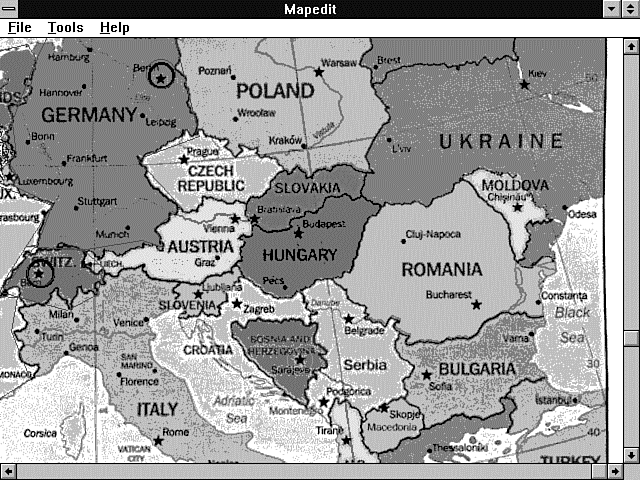
If you have selected a couple of cities as hotspots, as shown in Figure 9.7, you want to provide extra information that tells users that clicking in this area provides information on the city and not the country. When this is the case, you need to use some other tool to modify your image so that you can draw the permanent circles you see in Figure 9.7. I recommend Paint Shop Pro as a reasonably priced shareware tool. If you're really desperate, you can even use the Paintbrush tool provided with MS-Windows; however, it only reads BMP files, so I don't recommend it. Drawing circles, squares, and polygons is not very difficult. Just find a tool you are comfortable with that enables you to work with a variety of file formats and has some drawing capability.
Figure 9.7 : Creating hotspots on the map.
When you start up mapedit, pull down the File menu and choose Open/Create Map. A dialog box appears. You need to enter the file name you want to give your map, which should not already exist, and the file name of a GIF image the map will be of, which must exist. When you start out using the mapedit program, you can choose whether you want an ncSA or CERN imagemap file format. One nice feature of mapedit is its capability to switch between the two imagemap file formats with almost zero effort. With mapedit's Save As menu option, you just change the setting of the Style menu that appears to convert from ncSA to CERN or vice versa, and your imagemap file is converted to the new format. That's really nice and simple.
If the mapfile does not already exist, you are asked whether you want to create it. Click OK to continue. If the map does exist, mapedit determines the server type of the file regardless of previous file settings.
Mapedit then loads your GIF image into memory, and you get a friendly reminder to pay Tom his $25 while you are waiting. This isn't the fastest program in the world, so be prepared for a small delay while the image is loading. When the image is loaded, it appears in the main mapedit window, which should expand or shrink to suit the image. If the image is large, scrollbars for horizontal and vertical movement may appear. You can navigate the image by using the scrollbars; you also can resize the window arbitrarily.
Mapedit often dithers the incoming GIF image. This has no effect on the image itself because mapedit never changes the GIF file-only the imagemap file. Mapedit uses your system palette's colors to approximate the colors in the image as closely as possible.
Drawing the actual hotspots on your imagemap is relatively simple using mapedit, which is the point anyway. You can create circles, rectangles, or polygons. You cannot designate a point with mapedit; however, you can designate a default action.
Choose Polygon from the Tools menu to begin drawing a polygonal hotspot. Now click the left mouse button at some point on the edge of an area of interest in the image. Move the mouse pointer to another point on the edge of the area of interest, tracing its outline. A "rubber-band" line follows your mouse from the point of the initial click. Click again at this second point. Continue clicking points until you have outlined all but the final connection back to the first point. (You do not need to hold down the mouse button.) If you don't like the way your polygon is turning out, you can press Esc to cancel it and then start over with the left mouse button. To complete the polygon, click the right mouse button. Another window appears, prompting you for the URI to which this polygon should link. If you don't yet know the URI, type a name that is meaningful to you so that you will recognize it later. Also add any comments you want in the Comments window. Click OK or press Enter to continue. (The Enter key only has this effect in the URI window because multiple-line comments are allowed in the Comments window.)
The polygon now is traced in solid white and a final side between the last point and the first point is added automatically. (If the white outline is not easily visible on this image, try choosing Edit Sketch Color from the File menu.)
Creating rectangles is no more difficult; just choose Rectangle from the Tools menu. Click the left mouse button in one corner of a rectangular region of interest in the image. Now move the mouse pointer to the opposite corner, tracing out a rectangle. (You do not need to hold down the mouse button.)
Click the right mouse button to accept the rectangle, and enter a URI for it as you did for the polygon. (Just as for polygons, you can press Esc to cancel the rectangle while you are tracing it out.)
Circles work just like rectangles, except that the left mouse click positions the center of the circle, and you then can move the mouse pointer to any point on the edge of the desired circle and click the right mouse button to accept it.
The default color of white for drawing your hotspot regions is not always a good choice. You can edit the hotspot color by choosing Edit Sketch Color from the File menu. You are presented with the standard color selection dialog box, in which you can click on a color of your choice. Look for a color that contrasts well with the colors present in your images.
Don't forget the default URI; remember that it is an error to create an imagemap file where a default is undefined and still possible. You won't see this error until you test your imagemap on your server. Then when you or someone else selects an area that does not have a hotspot region defined or a default selection, you will get the error message shown in Figure 9.8.
Figure 9.8 : The error message sent by the image-map program when a default URI is undefined.
To set a default URI, pull down the File menu, choose Edit Default
URL, and enter a default URI in the window that appears. Click
OK or press Enter to accept it. On the other hand, you might want
to get rid of the default URI completely. After you set a default
URI, a Delete button appears in the Edit Default URL dialog box.
Click this button to remove the default URI.
| Note |
| The testing tool does not indicate when the default URI will be used. Not displaying anything clearly indicates that the click is not in any hotspot. |
Often, you will not know the final URI for each hotspot at first, or you will want to change it. You can do so by choosing Test/Edit from the Tools menu, clicking the hotspot in question, editing the URI that appears, and then clicking OK or pressing Enter. You also can edit in the Comments window at this time. (The Enter key does not dismiss the pop-up menu while in the Comments window; click the OK button instead.) Note that you can cut, copy, and paste in the URL window and URL Comments window by pressing the Ctrl+X, Ctrl+C, and Ctrl+V shortcut key combinations (just as in all other Windows applications).
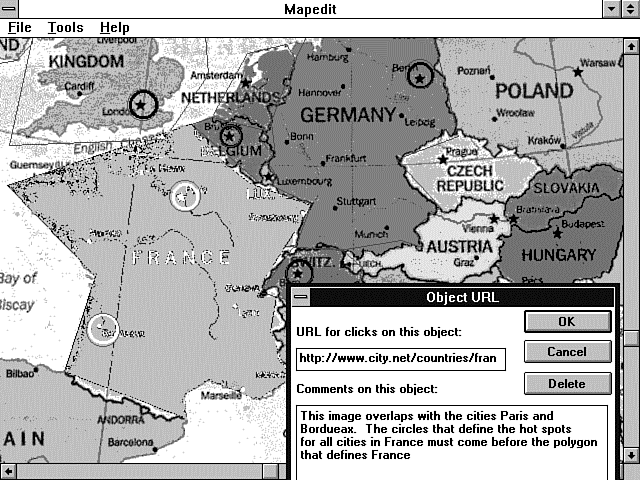
You will find the Test/Edit feature of mapedit quite handy, especially if you end up creating overlapping hotspots as I have for the European map in Figure 9.9. This map has hotspots around Paris, Bordeaux, and all of France. In Figure 9.9, you can see the France region highlighted and the pop-up window associated with this hotspot. This feature enables you to sketch out how you want to build your imagemap before you have everything defined.
Figure 9.9 : Using the Test/Edit feature of mapedit.
Using Client-Side Imagemaps
There are several disadvantages to server-side imagemaps, but probably the largest is that a call to the server is required merely to determine where the link is directed. This really slows down performance. In addition, there is no way for a browser to provide visual feedback to the user showing where a portion of an imagemap leads before the user actually clicks it.
Client-side imagemaps keep the advantages of a point-and-click graphical interface while getting rid of the burden of the server interface.
The Usemap Attribute
Adding a Usemap attribute to an Img element indicates that it is a client-side imagemap. The Usemap attribute can be used with the Ismap attribute to indicate that the image can be processed as a client-side or server-side imagemap. The argument to Usemap specifies which map to use with the image, in a format similar to the Href attribute on anchors. The Usemap attribute overrides the effect of an enclosing anchor (A) element. This allows backward compatibility with browsers that do not support client-side imagemaps. If the browser does not understand the Usemap attribute, it performs the action in the anchor (A) hypertext reference (HREF). If the browser understands the Usemap attribute, it ignores the anchor (A) hypertext reference and uses the URI referenced in the Map Area tags.
The syntax of the Usemap attribute is USEMAP="map-filename#mapname" or USEMAP="#mapname". If the argument to Usemap starts with a #, the browser uses the map name as a reference to a Map tag inside the current file. Otherwise, the browser tries to find the Usemap file on the local disk and then uses the map name to locate the specific Map tag referenced in the Usemap attribute.
This is a really nice feature because you now can use a common navigation banner across the top or bottom of your Web page and a common file to interpret that common navigation bar. This way, when you need to update the hotspots on your navigation banner, you can go to the common file and make your updates instead of going to all the Web pages that use that navigation banner and updating them one at a time.
An example of the Usemap syntax follows: <IMG src=/images/world.jpg USEMAP=#worldmap>
This example references the HTML Map tag that follows. This Map tag must be in the same file as the Usemap attribute: <MAP NAME="worldmap"> <AREA SHAPE="RECT" COORDS="10,10,150,150" HREF="https://www.softlookup.com/world/ europe.asp"> <AREA SHAPE="CIRCLE" COORDS="450,330,30" HREF="https://www.softlookup.com/world/ asia.asp"> <AREA SHAPE="POLYGON" COORDS="10,10,150,150,200,240" HREF="https://www.softlookup.com/world/nowhere.asp"> </MAP>
The HTML Map Tag
The HTML Map tag has a closing </MAP> and includes a Name attribute that defines the name of the map, whether the mapfile is in the same HTML file or in a separate HTML file, so that the mapfile can be referenced by an Img element. The syntax is <MAP NAME="mapname">. Between the opening and closing Map tags, an arbitrary number of Area tags is allowed.
The Area Tag and Its Attributes
The Area tag can be used only within an opening and closing Map tag. It is used to define the shape of the client-side hotspot and the resulting action when the hotspot is selected.
The shape of the hotspot is defined using the Shape attribute. The Internet draft, "A Proposed Extension to HTML: Client-Side Image Maps," written by James L. Seidman of Spyglass, Inc. (and where most of this information comes from), defines the shapes of circle, rectangle, polygon, and a Nohref, which is used to define the default regions.
If an Area tag is defined without a Shape attribute, the rect shape is assumed by the browser.
The Coords tag describes the position of an area. As with the imagemap file, the coordinates of the hotspot are defined using image pixels as the units, with the origin at the upper left corner of the image.
For a rectangle, the coordinates are given as left,top,right,bottom. The rectangular region defined includes the lower right corner specified; to specify the entire area of a 100¥100 image, for example, the coordinates are 0,0,99,99.
For a circular region, the coordinates are given as center_x,center_y,radius, specifying the center and radius of the circle. All points up to and including those at a distance of radius points from the center are included.
For a polygonal region, the coordinates specify successive vertices of the region in the format x1,y1,x2,y2,...,xn,yn. If the first and last coordinates are not the same, a segment is inferred to close the polygon. The region includes the boundary lines of the polygon. For example, 20,20,30,40,10,40 specifies a triangle with vertices at (20,20), (30,40), and (10,40). No explicit limit is placed on the number of vertices, but a practical limit is imposed by the fact that HTML limits an attribute value to 1,024 characters.
The Nohref attribute indicates that clicks in this region should perform no action. An Href attribute specifies where a click in that area should lead. A relative anchor specification is expanded using the URI of the map description as a base, instead of using the URI of the document from which the map description is referenced. If a Base tag is present in the document containing the map description, that URI is used as the base.
The Nohref attribute seems to be redundant because the definition states that a mouse click in an undefined region results in no action from the browser.
Summary
In this chapter, you learned that imagemaps are graphical images used to direct your Web client to other resources. Imagemaps take the place of the more traditional textual links. Imagemaps take advantage of the old saying, "A picture is worth a thousand words." With well-designed imagemaps, you can efficiently direct your Web site visitors with one picture where paragraphs of text otherwise would have been required.
You should be cautious of overusing imagemaps, however. It takes longer to load images than text, and every click on an imagemap requires an extra connection to the server to define where the x,y coordinates of the mouse click should send your Web site visitor.
To turn an image into an active imagemap, all you need to do is add the Ismap attribute of the Img tag and link the image to the imagemap program. Then create a text file called an imagemap file that defines the hotspot areas and the URI to call when a hotspot is selected.
Imagemaps can really enhance your Web site and generally are easy to install. So grab an image file and spruce up your home page.
Q&A
| I'm on a CERN server; what about me? | |
| This chapter applies to you just as well, only the names are changed to confuse everyone. The mapedit program enables you to switch between ncSA and CERN mapfile format, and the program name is
htimage instead of imagemap. Most of the differences are very minor. You can learn more about the CERN imagemap format at
http://www.w3.org/hypertext/WWW/Daemon/User/CGI/HTImageDoc.asp | |
| I can't find the imagemap file on my server. | |
| This is often a question for your Webmaster. However, there are a couple of choices you can make here. First, the imagemap program is only a C file, so you can download it from the ncSA tutorial site
defined earlier and just compile it into your own cgi-bin directory. Another choice is to use the UNIX find command and search for the imagemap program.
To locate the imagemap program using the find command, enter this command on the UNIX command line: | |
| I can't get the imagemap program to find my mapfile. | |
| Do you have your mapfile in the top-level directory? This is a common mistake. Remember that the imagemap file uses the EXTRA_PATH_INFO environment variable. The top-level directory is illegal as a choice for your mapfile because you can't pass a forward slash (/) as EXTRA_PATH_INFO. Also remember that the imagemap program might not be in your document tree, and the EXTRA_PATH_INFO must include the full path to your mapfile. | |
| I really need to use polygons. Is there anything I can do to speed them up? | |
| Sure. As I said earlier in this chapter, you really should use the most visually correct format for the hotspots on your imagemap. So using polygons makes sense quite often. You can speed up the processing of the polygon code simply by limiting the number of vertices in the polygon. To make a very finely detailed polygon, it usually isn't required to outline even the borders of countries. When people want to look at the map of France, they usually are going to click in the middle of France and not the edge of France. If they are clicking out by the edges and get another country, I don't think you should feel too bad about that. | |
| I can't get the x,y coordinates I want out of the mapedit program. What should I do? | |
| The mapfile is a simple text file, and you should edit it to redefine the exact x,y coordinates you need for your hotspots. I only use the mapedit program to approximate the x,y coordinates I need. I then use my copy of Paint Shop Pro to determine the exact x,y coordinates I want. At the bottom of this excellent shareware program, the x,y pixel position your cursor is on in the imagemap is displayed. Just replace the x,y coordinates in the mapfile with the ones on your screen. Don't overdo this, though. Frequently, it is not necessary to be exactly at the pixel in order to define good hotspot areas. |


Popular Tutorials
-
 MS Access
1109
MS Access
1109
-
 C++
1222
C++
1222
-
 HTML
584
HTML
584
-
 JavaScript
616
JavaScript
616
-
 Vbscript
873
Vbscript
873
-
 Oracle
473
Oracle
473
-
 VC++
875
VC++
875
-
 SQL
2959
SQL
2959
-
 XML
514
XML
514
-
 Java
814
Java
814
-
 Perl
455
Perl
455
-
 Linux
451
Linux
451