Web based School


— 6 —
Telnet and FTP
Telnet and FTP
In the last five days you have seen the architecture of TCP/IP, as well as both the Internet Protocol and the Transmission Control Protocol in considerable detail. Building on these two protocols is a layer of application-layer protocols that are commonly associated with TCP/IP. Today I look at the most common application layer protocols: Telnet, File Transfer Protocol (FTP), Trivial File Transfer Protocol (TFTP), and Simple Mail Transfer Protocol (SMTP), as well as a suite of tools called the Berkeley r-utilities.
To cover all four protocols in complete detail would require several hundred pages, so today I examine the protocols' most important aspects, including their purposes, their relations to TCP and IP, their control codes and behavior, and their typical usage. Each of the four application layer protocols has advantages that make it ideally suited for a particular purpose. I hope that by the end of the day you will understand why they are used and how they fit into the TCP/IP world.
Telnet
The Telnet (telecommunications network) program is intended to provide a remote login or virtual terminal capability across a network. In other words, a user on machine A should be able to log into machine B anywhere on the network, and as far as the user is concerned, it appears that the user is seated in front of machine B. The Telnet service is provided through TCP's port number 23 (see Table 4.1 or Appendix D, "Well Known Port Numbers," for the TCP port numbers). The term Telnet is used to refer to both the program and the protocol that provide these services.
Telnet was developed because at one time the only method of enabling one machine to access another machine's resources (including hard drives and programs stored there) was to establish a link using communications devices such as modems or networks into dedicated serial ports or network adapters. This is a little more complicated than might appear at first glance because of the wide diversity of terminals and computers, each with their own control codes and terminal characteristics. When directly connected to another machine, the machine's CPU must manage the translation of terminal codes between the two, which puts a hefty load on the CPU. With several remote logins active, a machine's CPU can spend an inordinate amount of time managing the translations. This is especially a problem with servers that can handle many connections at once: if each had to be handled with full terminal translation, the server CPU could be bogged down just performing this function.
Telnet alleviates this problem by embedding the terminal characteristic sequences within the Telnet protocol. When two machines communicate using Telnet, Telnet itself can determine and set the communications and terminal parameters for the session during the connection phase. The Telnet protocol includes the capability not to support a service that one end of the connection cannot handle. When a connection has been established by Telnet, both ends have agreed upon a method for the two machines to exchange information, taking the load off the server CPU for a sizable amount of this work.
Usually, Telnet involves a process on the server that accepts incoming requests for a Telnet session. On UNIX systems, this process is called telnetd. On Windows NT and other PC-based operating systems, a Telnet Server program is usually involved. The client (the end doing the calling) runs a program, usually called telnet, that attempts the connection to the server. A relative of the telnet program is the program rlogin, which is common on UNIX machines and which I look at later today; see the section titled "The Berkeley Utilities."
The rlogin program provides almost identical functionality to Telnet and adds support for the UNIX environment. Many machines, especially UNIX workstations, act as both client and server simultaneously, enabling a user to log into other machines on the network and other users to log into the user's machine.
Telnet Connections
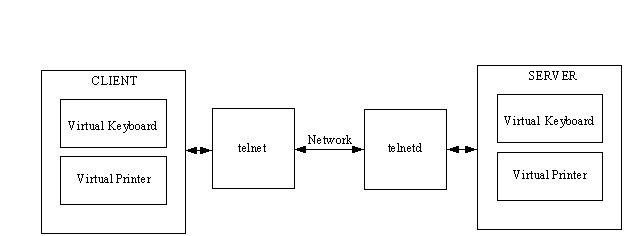
The Telnet protocol uses the concept of a network virtual terminal, or NVT, to define both ends of a Telnet connection. Each end of the connection (each NVT) has a logical keyboard and printer. The logical printer can display characters, and the logical keyboard can generate characters. The logical printer is usually a terminal screen, whereas the logical keyboard is usually the user's keyboard, although it could be a file or other input stream. These terms are also used in the File Transfer Protocol (FTP) and Simple Mail Transfer Protocol (SMTP). Figure 6.1 illustrates the NVT and logical keyboard and printer.
Figure 6.1. A network virtual terminal for Telnet.
The Telnet protocol treats the two ends of the connection as NVTs. The two programs at either end (telnet and telnetd for a UNIX server) manage the translation from virtual terminals to actual physical devices. The concept of virtual terminals enables Telnet to interconnect to any type of device, as long as a mapping is available from the virtual codes to the physical device. One advantage of this approach is that some physical devices cannot support all operations, so the virtual terminal does not have those codes. When the two ends are establishing the connection, the lack of these codes is noted, and sequences that would use them are ignored. This process is straightforward: one end asks whether the function is supported, and the other replies either positively or negatively. If it is supported, the necessary codes are sent. The list of supported functions is covered quickly in this manner.
When a connection is established through Telnet, telnetd (or whatever program is acting as the Telnet server) starts a process on the server for running applications. Every keystroke in a Telnet session must go through several different processes, as shown in Figure 6.2. Each keystroke goes through telnet, telnetd, and the applications that are used during the Telnet session. Some applications want to communicate through a terminal device, so the remote system runs a pseudo-TTY driver that acts like a terminal to the application. If a windowed interface such as X or Motif is used on the host and remote machines, the systems must be instructed to enable windowing information to be passed back and forth; otherwise, the remote machine tries to open the windows on the server.
Figure 6.2. A Telnet connection.
To start Telnet, you must provide either the name or the IP address of the machine to be connected with. The name can be used only if the system has a means of resolving the name into its IP address, such as with the Domain Name System. A port name can usually be used to connect to a specific service, but this is used infrequently. For example, to connect to a machine with the IP address 205.150.89.1, you would enter this command:
telnet 205.150.89.1
If the system had the name darkstar, which was resolvable into its IP address, you could issue this command:
telnet darkstar
If no name, address, or port is specified, Telnet enters its command mode and waits for specific instructions. When the connection is established, a user ID and password are requested. You can log in with any user ID that is valid on the remote system (it does not have to be the same user ID you have on the local system). A typical connection to a UNIX server looks like this:
telnet 205.150.89.1

Trying...

Connected to tpci

Escape character is '^]'.

HP-UX tpci A.09.01 A 9000/720 (ttys2)

login: tparker

password: xxxxxxxx

$
As you can see in the preceding code, Telnet tried to connect to the remote system, told you it was connected, then set up the communications parameters between the two systems. When that was done, the login prompt was displayed (as on any UNIX terminal), followed by a password request. If the login and password are enabled, the UNIX shell prompt (a dollar sign) is shown to indicate that the remote machine is now active.
You can use a machine name as part of the Telnet command only if the system has a means of resolving the name to its IP address. If not, no connection is established, although Telnet might remain in command mode. To exit, use Ctrl+D or the break sequence displayed as part of the start-up message.
You can enter Telnet's command mode at any time, usually by using the Ctrl+] key combination (hold down Ctrl and press the right bracket key). If you are currently connected to an active session when you enter command mode, Telnet waits for you to issue a command, execute it, and then return to the session automatically. Command mode lets you enter commands relative to the client (the machine you are physically in front of) instead of the server. You might need to do this to change directories or run a local application, for example.
Once the connection is successfully established, your session behaves as though you were on the remote machine, with all valid commands of that operating system. All instructions are relative to the server, so a directory command shows the current directory on the server, not the client. To see the client's directory, you would have to enter command mode. A sample Telnet login and logout session, calling from one UNIX workstation (merlin) to a server (tpci_hpws4, a name that can be resolved by the name server) follows:
merlin> telnet tpci_hpws4

Trying...

Connected to tpci_hpws4.

Escape character is '^]'.

HP-UX tpci_hpws4 A.09.01 A 9000/720 (ttys2)

login: tparker

password: xxxxxxxx

tpci_hpws4-1> pwd

/u1/tparker

tpci_hpws4-2> cd docs

tpci_hpws4-3> pwd

/u1/tparker/docs

tpci_hpws4-2> <Ctrl+d>

Connection closed by foreign host.

merlin>
Once you are connected to the remote machine, the session behaves exactly as if you were on that machine. To log out of the remote session, simply issue the logout command (in the previous example, the UNIX Ctrl+D combination), and you are returned to your local machine. The telnet program is useful when you are on an under-powered machine or terminal and you want to use another machine's processing capabilities, or if another machine has a particular tool that you don't want to load on your local machine.
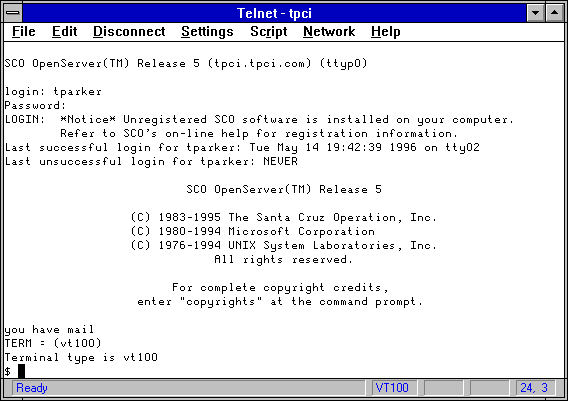
Telnet utilities are available for many different operating systems. Figure 6.3 shows a Windows for Workgroups Telnet application (part of a larger TCP/IP application suite from NetManage called ChameleonNFS, which I look at in much more detail on Day 10, "Setting Up a Sample TCP/IP Network: DOS and Windows Clients") logging into an SCO UNIX server. Even when the local machine has a graphical interface such as Windows, you can most likely connect to remote machines using a character-based interface.
Figure 6.3. Using Telnet from a Windows for Workgroups machine.
If the calling and receiving workstations use a graphical user interface (GUI) such as Motif or X, and you want to use them instead of a character-based interface, you must instruct both ends to use the local terminal for windowing (because you can't see a window on the remote terminal). Locally, a program is run that instructs the operating system to enable other machines to display directly onto the screen, and the remote must have an instruction to redirect windowing commands to the local screen. Many UNIX systems perform this function like this:
tpci_server-1> xhost +

tpci_server-2> telnet tpci_hpws4

Trying...

Connected to tpci_hpws4.

Escape character is '^]'.

HP-UX tpci_hpws4 A.09.01 A 9000/720 (ttys2)

login: tparker

password: xxxxxxxx

tpci_hpws4-1> setenv DISPLAY tpci_server:0.0

tpci_hpws4-2> <Ctrl+d>

Connection closed by foreign host.

tpci_server-3>
The UNIX xhost + instruction tells the local machine to enable the remote system to control windows on the local screen (which it normally is not allowed to do). The instruction setenv DISPLAY machine_name executed on the remote UNIX machine sets the UNIX shell environment variable DISPLAY to the local screen. Whenever a window must be opened (as when a Motif application is run), the windowing appears on the local screen, and the processing is conducted on the remote. These examples are for UNIX, but a similar sequence works on other machines and GUIs.
Complete applications that provide this capability to run local X and Motif windows on a Windows, Windows 95, or Windows NT machine are available from several commercial vendors. For example, Figure 6.4 shows an application running on a remote server called mandel that draws Mandelbrot figures. The server has been instructed to display the window on the local Windows for Workgroups machine using an X client package for Windows machines. The server passes all information about the size, position, and colors of the window, as well as instructions for drawing the contents to the local X client. The window appears on the Windows for Workgroups machine exactly as it would on the UNIX server.
Figure 6.4. Using an X client to show UNIX X windows on a PC.
Telnet Commands
Several service options are available when a Telnet session is established. Their values can be changed during the course of a Telnet session if both ends agree (one end might be prevented from enabling or disabling a service because of administrator or resource settings). There are four verbs used by the Telnet protocol to offer, refuse, request, and prevent services: will, won't, do, and don't, respectively. The verbs are designed to be paired (will/won't and do/don't). To illustrate how these are used, consider the following Telnet session, which has the display of these verbs turned on using the telnet command toggle options:
tpci_server-1> telnet

telnet> toggle options

Will show option processing.

telnet> open tpci_hpws4

Trying...

Connected to tpci_hpws4.

Escape character is '^]'.

SENT do SUPPRESS GO AHEAD

SENT will TERMINAL TYPE (don't reply)

SEND will NAWS (don't reply)

RCVD do 36 (reply)

sent won't 36 (don't reply)

RECD do TERMINAL TYPE (don't reply)

RCVD will SUPPRESS GO AHEAD (don't reply)

RCVD do NAWS (don't reply)

Sent suboption NAWS 0 80 (80) 0 37 (37)

Received suboption Terminal type - request to send.

RCVD will ECHO (reply)

SEND do ECHO (reply)

RCVD do ECHO (reply)

SENT won't ECHO (don't reply)

HP-UX tpci_hpws4 A.09.01 A 9000/720 (ttys2)

login:
A partial set of Telnet command codes is shown in Table 6.1. Additional codes are used to represent printer functions such as horizontal and vertical tabs and form feeds, but these have been left off the table for brevity's sake. Part of the Telnet command code set includes six terminal functions (IP, AO, AYT, EC, EL, and GA) that are common across most terminal definitions, so they are formally defined in the Telnet standard.
|
Code |
Value |
Description
| Abort Output (AO)
| 245
| Runs process to completion but does not send the output
| Are you there (AYT)
| 246
| Queries the other end to ensure that an application is functioning
| Break (BRK)
| 243
| Sends a break instruction
| Data Mark
| 242
| Data portion of a Sync
| Do
| 253
| Asks for the other end to perform or an acknowledgment that the other end is to perform
| Don't
| 254
| Demands that the other end stop performing or confirms that the other end is no longer performing
| Erase Character (EC)
| 247
| Erases a character in the output stream
| Erase Line (EL)
| 248
| Erases a line in the output stream
| Go Ahead (GA)
| 249
| Indicates permission to proceed when using half-duplex (no echo) communications
| Interpret as Command (IAC)
| 255
| Interprets the following as a command
| Interrupt Process (IP)
| 244
| Interrupts, suspends, aborts, or terminates the process
| NOP
| 241
| No operation
| SB
| 250
| Subnegotiation of an option
| SE
| 240
| End of the subnegotiation
| Will
| 251
| Instructs the other end to begin performing or confirms that this end is now performing
| Won't
| 252
| Refuses to perform or rejects the other end performing |
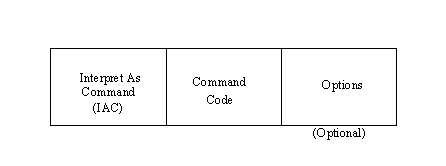
Telnet commands are sent in a formal package called a command, as shown in Figure 6.5. Typically the commands contain two or three bytes: the Interpret as Command (IAC) instruction, the command code being sent, and any optional parameter to the command. The options supported by Telnet are shown in Table 6.2.
Figure 6.5. The Telnet command structure.
|
Code |
Description
| 0
| Binary transmission
| 1
| Echo
| 2
| Reconnection
| 3
| Suppress Go Ahead (GA)
| 4
| Approximate message size negotiation
| 5
| Status
| 6
| Timing mark
| 7
| Remote controlled transmission and echo
| 8
| Output line width
| 9
| Output page length
| 10
| Output carriage-return action
| 11
| Output horizontal tab stop setting
| 12
| Output horizontal tab stop action
| 13
| Output form feed action
| 14
| Output vertical tab stop setting
| 15
| Output vertical tab stop action
| 16
| Output line feed action
| 17
| Extended ASCII characters
| 18
| Logout
| 19
| Bytes macro
| 20
| Data entry terminal
| 21
| SUPDUP
| 22
| SUPDUP output
| 23
| Send location
| 24
| Terminal type
| 25
| End of Record
| 26
| TACACS user identification
| 27
| Output marking
| 28
| Terminal location number
| 29
| 3270 regime
| 30
| X.3 PAD (Packet assembly and disassembly)
| 31
| Window size |
If you refer to the previous code listing with the options toggled on, some of the commands can be understood more clearly now. For example, will ECHO (which would be transmitted as values 255 251 1) instructs the other end to begin echoing back characters it receives. The command won't ECHO (the command would be 255 252 1) indicates that the sender will not echo back characters or wants to stop echoing.
TN3270
Many mainframes use EBCDIC, whereas most smaller machines rely on ASCII. This can cause a problem when trying to Telnet from EBCDIC-based machines to ASCII-based machines and vice-versa, because the codes being transferred are not accurate. To correct this, a Telnet application called TN3270 was developed, which provides translation between the two formats.
When TN3270 is used to connect between two machines, Telnet itself establishes the initial connection, and then one end sets itself up for translation. If an ASCII machine is calling an EBCDIC machine, the translation between the two formats is conducted at the EBCDIC (server) end unless there is a gateway between them, in which case the gateway can perform the translation.
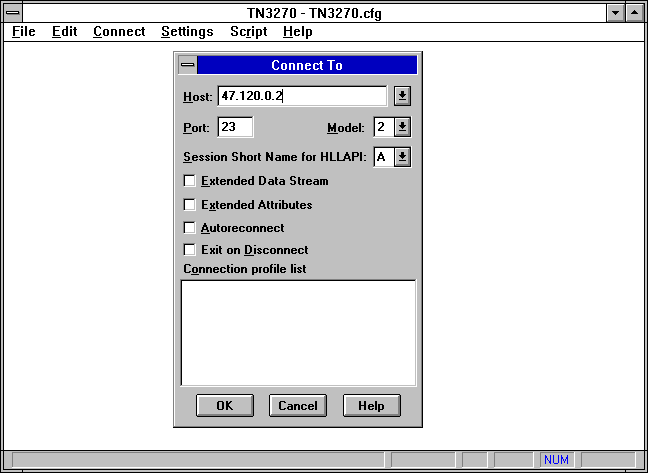
Many TCP/IP application suites that include a Telnet program also include a TN3270 program. For example, Figure 6.6 shows a TN3270 window from the NetManage ChameleonNFS suite in the process of connecting to a mainframe EBCDIC-based machine. The mainframe's IP address is used to initiate the connection.
Figure 6.6. TN3270 provides conversion between ASCII and EBCDIC.
File Transfer Protocol (FTP)
File Transfer Protocol, usually called FTP, is a utility for managing files across machines without having to establish a remote session with Telnet. FTP enables you to transfer files back and forth, manage directories, and access electronic mail. FTP is not designed to enable access to another machine to execute programs, but it is the best utility for file transfers.
FTP uses two TCP channels. TCP port 20 is the data channel, and port 21 is the command channel. FTP is different from most other TCP/IP application programs in that it does use two channels, enabling simultaneous transfer of FTP commands and data. It also differs in one other important aspect: FTP conducts all file transfers in the foreground, instead of the background. In other words, FTP does not use spoolers or queues, so you are watching the transfer process in real time. By using TCP, FTP eliminates the need to worry about reliability or connection management, because FTP can rely on TCP to perform these functions properly.
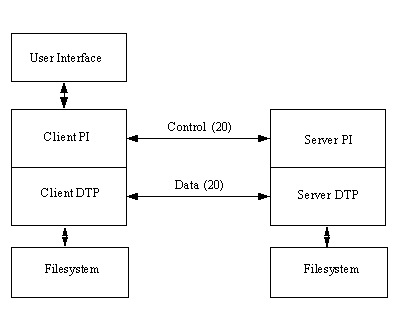
In FTP parlance, the two channels that exist between the two machines are called the protocol interpreter, or PI, and the data transfer process, or DTP. The PI transfers instructions between the two implementations using TCP command channel 21, and the DTP transfers data on TCP data channel 20. This is shown in Figure 6.7.
Figure 6.7. FTP channel connections.
FTP is similar to Telnet in that it uses a server program that runs continuously and a separate program that is executed on the client. On UNIX systems, these programs are named ftpd and ftp, respectively (similar to telnetd and telnet).
FTP Commands
Before looking at how you can use FTP to transfer files, you should look at the commands behind the protocol itself. As with Telnet's commands, these are for the protocol's use only and should not be used by a user (although administrators sometimes use the FTP commands for debugging and diagnostic purposes).
FTP's internal protocol commands are four-character ASCII sequences terminated by a newline character. Some of the codes require parameters after them. One primary advantage to using ASCII characters for commands is that a user can observe the command flow and understand it easily. This helps considerably in the debugging process. Also, it enables a knowledgeable user to communicate directly with the FTP server component (ftpd).
FTP commands used by the protocol are summarized in Table 6.3. These commands provide for the connection process, password checking, and the actual file transfers. These are not to be confused with the commands available to a user.
|
Command |
Description
| ABOR
| Abort previous command
| ACCT
| User account ID
| ALLO
| Allocate storage for forthcoming operation
| APPE
| Append incoming data to an existing file
| CDUP
| Change to parent directory
| CWD
| Change working directory
| DELE
| Delete file
| HELP
| Retrieve information
| LIST
| Transfer list of directories
| MKD
| Make a directory
| MODE
| Set transfer mode
| NLST
| Transfer a directory listing
| NOOP
| No operation
| PASS
| User password
| PASV
| Request a passive open
| PORT
| Port address
| PWD
| Display current directory
| QUIT
| Terminate the connection
| REIN
| Terminate and restart a connection
| REST
| Restart marker (restart transfer)
| RETR
| Transfer copy of file
| RMD
| Remove a directory
| RNFR
| Old pathname for rename command
| RNTO
| New pathname for rename command
| SITE
| Provides service specifics
| SMNT
| Mount a file system
| STAT
| Returns status
| STOR
| Accept and store data
| STOU
| Accept data and store under different name
| STRU
| File structure
| SYST
| Query to determine operating system
| TYPE
| Type of data
| USER
| User ID |
FTP also uses simple return codes to indicate transfer conditions. Each return code is a three-digit number, the first of which signifies a successful execution (the first digit is 1, 2, or 3) or a failure (the first digit is 4 or 5). The second and third digits specify the return code or error condition in more detail. The FTP return codes are shown in Table 6.4 and Table 6.5. The third-digit codes are not included here because there are many of them and they vary between implementations.
|
First Digit |
Description
| 1
| Action initiated. Expect another reply before sending a new command.
| 2
| Action completed. Can send a new command.
| 3
| Command accepted but on hold due to lack of information.
| 4
| Command not accepted or completed. Temporary error condition exists. Command can be reissued.
| 5
| Command not accepted or completed. Reissuing the command will result in the same error (don't reissue). |
|
Second Digit |
Description
| 0
| Syntax error or illegal command
| 1
| Reply to request for information
| 2
| Reply that refers to connection management
| 3
| Reply for authentication command
| 4
| Not used
| 5
| Reply for status of server |
FTP enables file transfers in several formats, which are usually system-dependent. The majority of systems (including UNIX systems) have only two modes: text and binary. Some mainframe installations add support for EBCDIC, whereas many sites have a local type designed for fast transfers between local network machines (the local type might use 32- or 64-bit words).
Text transfers use ASCII characters separated by carriage-return and newline characters, whereas binary enables transfer of characters with no conversion or formatting. Binary mode is faster than text and also enables for the transfer of all ASCII values (necessary for nontext files). On most systems, FTP starts in text mode, although many system administrators now set FTP to binary mode as a default for their users' convenience. FTP cannot transfer file permissions, because these are not specified as part of the protocol.
Before transferring files with FTP, make sure you are using the correct transfer mode. Transferring a binary file as ASCII results in garbage! Check with your system administrator if you are unsure of the mode, or watch the messages FTP returns to see the mode used.
FTP Connections
FTP is usually started with the name or address of the target machine. As with Telnet, the name must be resolvable into an IP address for the command to succeed. The target machine can also be specified from the FTP command line. For example, to connect to the IP address 205.150.89.5, you would issue this command:
ftp 205.150.89.5
When FTP connects to the destination, you must be able to log into the system as a valid user (as you do when connecting through Telnet). Some systems enable an anonymous or guest login for FTP file transfers (usually using your login name as a password as a record of your access; see the section titled "Anonymous FTP Access"), but most require you to have regular access to the machine. The following extract shows the login process as a user provides a login and password for the remote machine:
ftp tpci_hpws4

Connected to tpci_hpws4.

220 tpci_hpws4 FTP server

Name (tpci_hpws4:tparker):

331 Password required for tparker.

Password:

230 User tparker logged in.

Remote system type is UNIX.

Using binary mode to transfer files.
On large networks where a system such as Yellow Pages (YP) or Network Information Services (NIS) is used, FTP logins are usually permitted on most machines. If YP or NIS is not employed, you must be in the valid users file to obtain FTP access. As with Telnet, you can log into the remote with a different user ID from your local machine login. To transfer files, you must have the proper permissions on the remote, if file permissions are provided for by the operating system.
After logging into another machine using FTP, you are not actually on the remote machine. You are still logically on the client, so all instructions for file transfers and directory movement must be with respect to your local machine, not the remote one. Note that this is the opposite of Telnet (a distinction that causes considerable confusion among newcomers to FTP and Telnet).
Remember that all references to files and directories are relative to the machine that initiated the FTP session. If you are not careful, you can accidentally overwrite existing files.
The process followed by FTP when a connection is established is as follows:
- Login: Verifies the user ID and password.
- Define directory: Identifies the starting directory.
- Define file transfer mode: Defines the type of transfer.
- Start data transfer: Enables user commands.
- Stop data transfer: Closes the connection.
The steps are performed in sequence for each connection. A user has several commands available to control FTP; the most frequently used commands are summarized in Table 6.6.
|
FTP Command |
Description
| ascii
| Switch to ASCII transfer mode
| binary
| Switch to binary transfer mode
| cd
| Change directory on the server
| close
| Terminate the connection
| del
| Delete a file on the server
| dir
| Display the server directory
| get
| Fetch a file from the server
| hash
| Display a pound character for each block transmitted
| help
| Display help
| lcd
| Change directory on the client
| mget
| Fetch several files from the server
| mput
| Send several files to the server
| open
| Connect to a server
| put
| Send a file to the server
| pwd
| Display the current server directory
| quote
| Supply an FTP command directly
| quit
| Terminate the FTP session |
Using FTP is similar to Telnet, except that all movements of files are relative to the client. Therefore, putting a file is moving it from the client to the server, whereas getting a file is the reverse. A sample FTP session follows:
tpci_hpws1-1> ftp tpci_hpws4

Connected to tpci_hpws4.

220 tpci_hpws4 FTP server (Version 1.7.109.2 Tue Jul 28 23:32:34 GMT 1992) ready.

Name (tpci_hpws4:tparker):

331 Password required for tparker.

Password:

230 User tparker logged in.

Remote system type is UNIX.

Using binary mode to transfer files.

ftp> pwd

257 "/u1/tparker" is current directory.

ftp> get mandelfile1.gif

remote: mandelfile1.gif local: mandelfi.gif

200 PORT command successful

150 Opening BINARY mode data connection for mandelfile1.gif

226 File transfer complete

1192834 bytes sent in 0.89 seconds

ftp> <Ctrl+d>

tpci_hpws1-2>
In this short sample, I transferred a file called mandelfile1.gif from a UNIX machine (the server) to the local machine (the client). You might have noticed that the filename was truncated automatically by the server to fit the DOS filesystem naming conventions. Also, note that I used binary mode (which was the system default). If the default had been ASCII mode, I would have just transferred over a megabyte of total garbage that couldn't be used for anything.
A debugging option is available from the command line by adding -d to the command. This displays the command channel instructions. Instructions from the client are shown with an arrow as the first character, whereas instructions from the server have three digits in front of them. A PORT in the command line indicates the address of the data channel on which the client is waiting for the server's reply. If no PORT is specified, channel 20 (the default value) is used. Unfortunately, the progress of data transfers cannot be followed in the debugging mode. A sample session with the debug option enabled is shown here:
tpci_hpws1-1> ftp -d

ftp> open tpci_hpws4

Connected to tpci_hpws4.

220 tpci_hpws4 FTP server Name (tpci_hpws4:tparker):

---> USER tparker

331 Password required for tparker.

Password:

---> PASS qwerty5

230 User tparker logged in.

---> SYST

215 UNIX Type: L8

Remote system type is UNIX.

---> Type I

200 Type set to I.

Using binary mode to transfer files.

ftp> ls

---> PORT 47,80,10,28,4,175

200 PORT command successful.

---> TYPE A

200 Type set to A.

---> LIST

150 Opening ASCII mode data connection for /bin/ls.

total 4

-rw-r-----  1 tparker  tpci    2803  Apr 29 10:46 file1

-rw-rw-r--  1 tparker  tpci    1286  Apr 14 10:46 file5_draft

-rwxr-----  2 tparker  tpci   15635  Mar 14 23:23 test_comp_1

-rw-r-----  1 tparker  tpci      52  Apr 22 12:19 xyzzy

Transfer complete.

---> TYPE I

200 Type set to I.

ftp> <Ctrl+d>

tpci_hpws1-2>
You might notice in the previous code how the mode changes from binary to ASCII to send the directory listing, and then back to binary (the system default value). You can see how the two systems communicate to display the status messages that appear without the debugging option active.
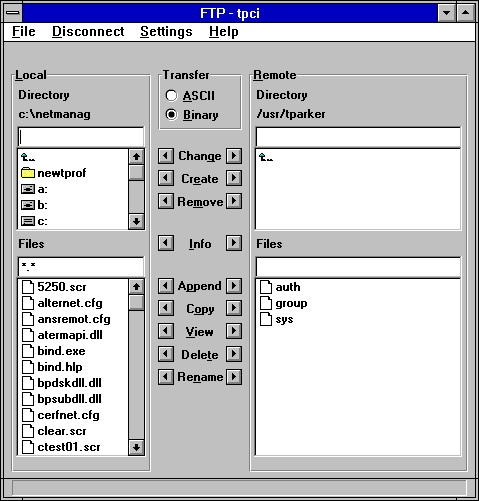
When FTP is used in a graphical user environment, you might be able to use a GUI-based tool. For example, NetManage's ChameleonNFS provides the FTP utility shown in Figure 6.8. In this case, the NFS client on the Windows for Workgroups machine has connected to a UNIX server. The Local side of the window shows the Windows machine, and the Remote side of the window shows the UNIX box's current filesystem contents. When using a GUI-based utility like this one, you can use the mouse and various buttons to transfer files back and forth between machines.
Figure 6.8. Many operating systems have a GUI-based FTP client.
FTP Third-Party Transfers
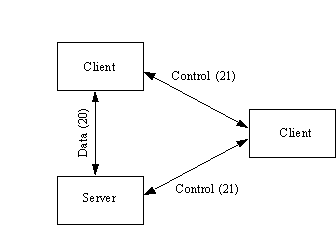
FTP enables a transfer to occur through a third machine positioned between the client and the server. This procedure is known as a third-party transfer and is sometimes necessary to obtain proper permissions to access the remote machine. Figure 6.9 shows the schematic of a third-party transfer, with the control connection made through a third machine.
Figure 6.9. A third-party FTP transfer.
When setting up a third-party connection, the client opens the control connections between the remote machine and the second client that handles the control channel. Only the control channel goes through the second client, whereas the data channel goes directly between the two ends.
When a transfer request is submitted, it is transferred through the second client, which checks permissions and then forwards the request to the server. The data transfer can take place directly, because the permissions were checked on the control channel.
Anonymous FTP Access
FTP requires a user ID and password to enable file transfer capabilities, but there is a more liberal method of enabling general access to a file or directory, called anonymous FTP. Anonymous FTP removes the requirement for a login account on the remote machine, usually enabling the login anonymous with a password of either guest or the user's actual login name. The following session shows the use of an anonymous FTP system:
tpci_hpws4-1> ftp uofo.edu

Connected to uofo.edu.

220 uofo.edu FTP server (Version 1.7.109.2 Tue Jul 28 23:32:34 GMT 1992) ready.

Name (uofo:username): anonymous

331 Guest login ok, send userID as password.

Password: tparker

230 Guest login ok, access restrictions apply.

ftp> <Ctrl+d>

tpci_hpws4-2>
If the remote system is set to enable anonymous logins, you are prompted for a password and then given a warning about access limitations. If there is a file on the remote system you require, a get command transfers it. Anonymous FTP sites are becoming common, especially with the popularity of the Internet.
FTP Servers
Most UNIX machines act as FTP servers by default. To provide FTP server facilities, they run the daemon ftpd when the operating system is booted. The daemon is usually handled by the UNIX inetd process. When you start using inetd, the inetd daemon watches the TCP command port (channel 21) for an arriving request for a connection, then starts ftpd to service that request. If you want to ensure that your UNIX or Linux system can handle FTP requests, make sure the ftpd daemon can be started when needed by inetd by checking the inetd configuration file (usually /etc/inetd.config or /etc/inetd.conf) for a line that looks like this:
ftp stream tcp nowait root /usr/etc/ftpd ftpd -l
If this line doesn't exist, you should add it. With most UNIX systems this line is already in the inetd configuration file, although it might be commented out, in which case you should remove the comment symbol.
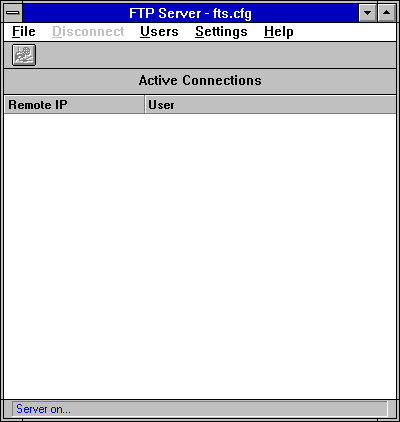
Windows, Windows for Workgroups, and Windows 95 all lack an FTP server program as part of their distribution software (although Windows 95 does have an FTP client), so you have to add a commercial package. Many commercial TCP/IP suites include an FTP server process. Figure 6.10 shows the NetManage ChameleonNFS program group, which includes an FTP server program you can use as an example for Windows for Workgroups and Windows 3.x machines.
Figure 6.10. The NetManage FTP Server dialog handles the FTP server process.
To start the NetManage FTP Server software, double-click the FTP server icon in the NetManage program group. A dialog, shown in Figure 6.10, appears. The FTP server process is now active, and anyone on another machine on your local area network can now connect to your machine, assuming they have access.
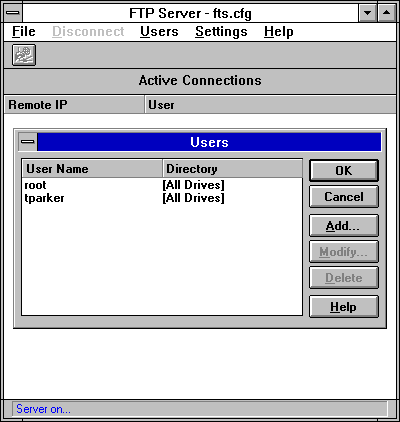
Access to your FTP service is controlled through the user lists maintained by the FTP Server package. Selecting the Users menu option from the NetManage FTP Server dialog opens the Users dialog, shown in Figure 6.11. This lets you add user names to your system. If another user on a different machine tries to connect to your FTP server software, the server verifies that their login name and password match the name and password you enter in this dialog. This lets you set up a list of users who can transfer files to and from your system, as long as the FTP server is running.
Figure 6.11. Access to your machine is controlled through the FTP Server Users dialog.
If you are running an FTP server process, it is often a good idea to create a directory just for FTP. Many users prefer to create a directory called public, which is where all files to be transferred in and out of the local system are placed. This lets you prevent accidental deletion or transfer of files in other directories on your system, as well as providing you with the opportunity to filter incoming material for suitability, viruses, and so on. If you use a transfer directory, check it regularly and make sure all users who have access to your system can work only in that directory.
If you want to provide an anonymous or guest account for users on your LAN or any other network that can connect to your machine, you should set up an account with either no password or a simple password like guest. It is very important to restrict the areas a guest or anonymous login can use.
As mentioned earlier, Windows 95 is supplied with client FTP software but not an FTP server. You can use other aspects of Windows 95 as a file transfer system, such as file and print sharing over any existing network, but these do not use FTP. If you want to set up an FTP server on your Windows 95 machine, you have to install third-party commercial software for this purpose.
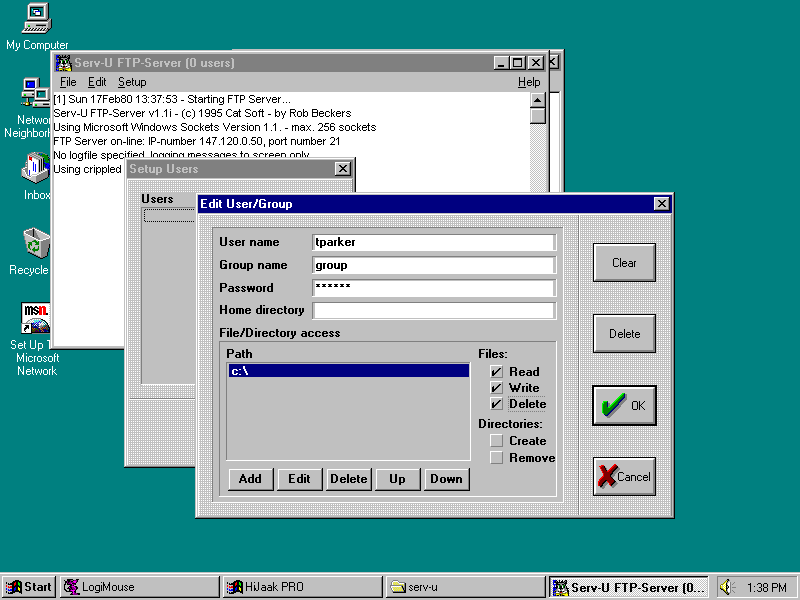
A popular Windows 95 FTP server package called FTP Serv-U was written by Rob Beckers and is provided as shareware. An executable file called Serv-U starts the server. To control access to your Windows 95 system, you can set up logins using the Serv-U Users menu option. This displays a screen that lets you add logins and passwords, as well as the directories and drives the user has access to. Figure 6.12 shows the Edit User/Group dialog with a user being added. When a user from another system logs into your Windows 95 machine, they are asked for a login and password.
Figure 6.12. Set up all users of your FTP server with the Edit User/Group dialog.
Trivial File Transfer Protocol (TFTP)
The Trivial File Transfer Protocol (TFTP) is one of the simplest file transfer protocols in use. It differs from FTP in two primary ways: it does not log onto the remote machine, and it uses the User Datagram Protocol (UDP) connectionless transport protocol instead of TCP. By using UDP, TFTP does not monitor the progress of the file transfer, although it does have to employ more complex algorithms to ensure proper data integrity. By avoiding logging onto the remote, user access and file permission problems are avoided. TFTP uses the TCP port identifier number 69, even though TCP is not involved in the protocol.
TFTP has few advantages over FTP. It is not usually used for file transfers between machines where FTP could be used instead, although TFTP is useful when a diskless terminal or workstation is involved. Typically, TFTP is used to load applications and fonts into these machines, as well as for bootstrapping. TFTP is necessary in these cases because the diskless machines cannot execute FTP until they are fully loaded with an operating system. TFTP's small executable size and memory requirements make it ideal for inclusion in a bootstrap, where the system requires only TFTP, UDP, and a network driver, all of which can be provided in a small EPROM.
TFTP handles access and file permissions by imposing restraints of its own. On most UNIX systems, for example, a file can be transferred only if it is accessible to all users on the remote (both read and write permissions are set). Because of the lax access regulations, most system administrators impose more control over TFTP (or ban its use altogether); otherwise, it is quite easy for a knowledgeable user to access or transfer files that could constitute a security violation.
TFTP transfers can fail for many reasons, because practically any kind of error encountered during a transfer operation causes a complete failure. TFTP does support some basic error messages, but it cannot handle simple errors such as insufficient resources for a file transfer or even a failure to locate a requested file.
TFTP Commands
The important instructions in TFTP's command set are shown in Table 6.7. The TFTP command set is similar to FTP's, but it differs in several important aspects because of the connectionless aspect of the protocol. Most noticeable is the connect command, which simply determines the remote's address instead of initiating a connection.
|
TFTP Command |
Description
| binary
| Use binary mode for transfers
| connect
| Determine the remote's address
| get
| Retrieve a file from the remote
| put
| Transfer a file to the remote
| trace
| Display protocol codes
| verbose
| Display all information |
TFTP enables both text and binary transfers, as does FTP. As with both Telnet and FTP, TFTP uses a server process (tftpd on a UNIX system) and an executable, usually called tftp. A sample TFTP session on a UNIX host is shown here, with full trace options and binary transfers turned on:
tpci_hpws1-1> tftp

tftp> connect tpci_hpws4

tftp> trace

Packet tracing on.

tftp> binary

Binary mode on.

tftp> verbose

Verbose mode on.

tftp> status

Connected to tpci_hpws4.

Mode: octet Verbose: on Tracing: on

Rexmt-interval: 5 seconds, Max-timeout: 25 seconds

tftp> get /usr/rmaclean/docs/draft1

getting from tpci_hpws4:/usr/rmaclean/docs/draft1 to /tmp/draft1 [octet]

sent RRQ <file=/usr/rmaclean/docs/draft1, mode=octet>

received DATA <block1, 512 bytes>

send ACK <block=1>

received DATA <block2, 512 bytes>

send ACK <block=3>

received DATA <block4, 128 bytes>

send ACK <block=3>

Received 1152 bytes in 0.2 second 46080 bits/s]

tftp> quit

tpci_hpws1-2>
In the session above, you can see that the trace and verbose commands turn on the echoing of the instructions flowing between the two machines during a file transfer. Every time a block of data is sent after the get command is issued (the send ACK instruction shown on the session above), a received instruction is returned to acknowledge the ACK.
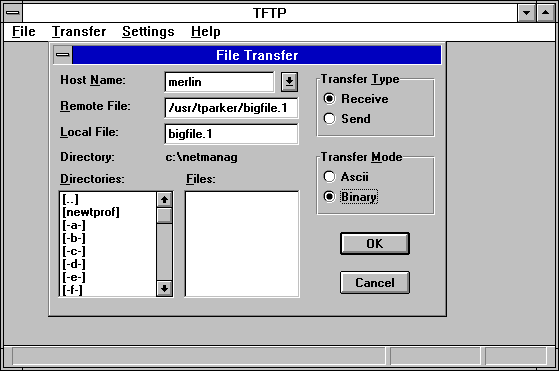
TFTP is available on all UNIX systems as well as in TCP/IP suites for other operating systems. Figure 6.13 shows the TFTP utility from ChameleonNFS, which lets you enter the remote host name, the remote and local filenames, and the type of transfer you want. The file transfer is then performed in the background using UDP.
Figure 6.13. Using TFTP to transfer a file.
TFTP Packets
TFTP uses UDP as a transport protocol, so TFTP can use the UDP header to encapsulate TFTP protocol information. TFTP uses the UDP source and destination port fields to set the two ends of the connection. It accomplishes this by the use of TFTP Transfer Identifiers, or TIDs, which are created by TFTP and passed to UDP, which then places them in the headers.
As with Telnet and FTP, TFTP uses port binding, where the sending machine selects a TID, and the remote is set to port number 69 (TFTP's port number). The remote machine responds with an acknowledgment of a connection request, a source port of 69, and the destination TID sent in the request.
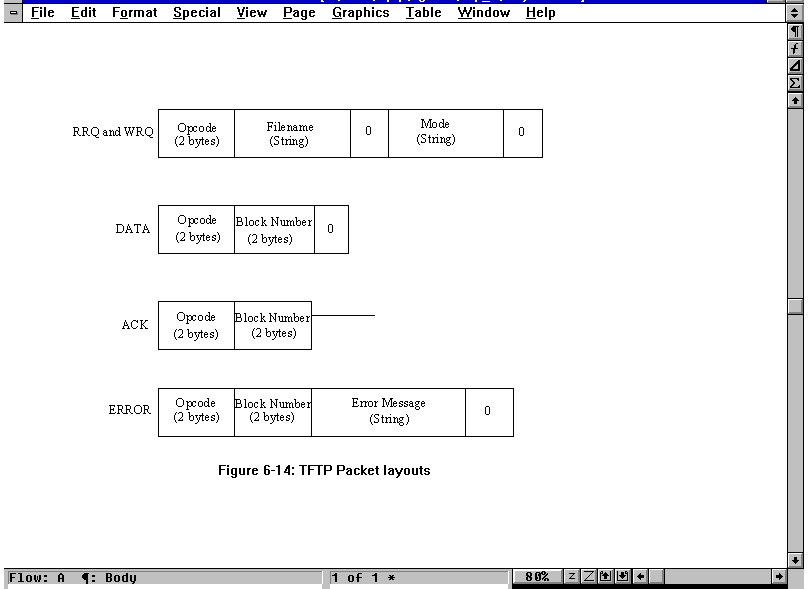
TFTP uses five types of Protocol Data Units, which are referred to as packets in the TFTP lexicon. These packets are listed in Table 6.8. Their layout is shown in Figure 6.14. Error messages supported by TFTP are shown in Table 6.9.
Figure 6.14. TFTP packet layouts.
|
Code |
OpCode |
Description
| ACK
| 4
| Acknowledgment
| DATA
| 3
| Send Data
| Error
| 5
| Error
| RRQ
| 1
| Read request
| WRQ
| 2
| Write request |
|
Code |
Description
| 0
| Not defined
| 1
| File not found
| 2
| Permissions prevent access
| 3
| Disk full or allocation limit exceeded
| 4
| Illegal TFTP operation requested
| 5
| Unknown transfer number |
The layouts for both RRQ and WRQ packets have a Mode field, which indicates the type of transfer. There are three modes currently available to TFTP:
- NetASCII: Standard ASCII codes.
- Byte: 8-bit bytes and binary information.
- Mail: Indicates that the destination is a user, not a file (information is transferred as NetASCII).
The last block in all packets contains between 0 and 511 bytes of data, labeled 0 in Figure 6.14. This pads out the block of data to 512 bytes.
The communications process used by TFTP begins with the client sending an RRQ or WRQ request to the server through UDP. As part of the request, a transaction number, the filename, and a code to identify the transmission mode to be used are specified. The transaction number is used to identify future transactions in the sequence.
Because there is no connection between the two, the client sets a timer and waits for a reply from the server. If one doesn't arrive before the timer expires, another request is sent. After an ACK is received, a DATA packet is transmitted, for which another ACK or an ERROR is received. If there are several packets to be transferred, they are constructed so they have a length of 512 bytes and an incrementing sequence number. The process terminates when a DATA packet with a length of less than 512 bytes is received by the server. For each packet sent, TFTP waits for an acknowledgment before sending the next, a system known as a flip-flop protocol.
Simple Mail Transfer Protocol (SMTP)
The Simple Mail Transfer Protocol (SMTP) is the defined Internet method for transferring electronic mail. SMTP is similar to FTP in many ways, including the same simplicity of operation. SMTP uses TCP port number 25.
Most UNIX systems use programs called sendmail or mmdf to implement SMTP (as well as several other mail protocols). The sendmail program, for example, acts as both a client and a server, usually running in the background as a daemon. Users do not interact with sendmail directly but use a front-end mail program such as mail, mailx, or Mail. These mail system interfaces pass the message to sendmail for forwarding.
SMTP uses spools or queues. When a message is sent to SMTP, it places it in a queue. SMTP attempts to forward the message from the queue whenever it connects to remote machines. If it cannot forward the message within a specified time limit, the message is returned to the sender or removed.
SMTP Commands
SMTP data transmissions use a simple format. All the message text is transferred as 7-bit ASCII characters. The end of the message is indicated by a single period on a line by itself. If for some reason a line in the message begins with a period, a second one is added by the protocol to avoid confusion with the end-of-message indicator.
SMTP has a simple protocol command set, listed in Table 6.10. Using these protocol elements, mail is transferred with a minimum of effort.
|
Command |
Description
| DATA
| Message text
| EXPN
| Expansion of a distribution list
| HELO
| Use in connection establishment to exchange identifiers
| HELP
| Request for help
| MAIL
| The sender's address
| NOOP
| No operation
| RCPT
| The message destination address (more than one can be provided)
| RSET
| Terminate the current transaction
| SAML
| Send a message to the user's terminal and send mail
| SEND
| Send a message to the user's terminal
| SOML
| Either send a message to the user's terminal or send mail
| TURN
| Change the sending direction (reverse sending and receiving roles)
| VRFY
| Verify the user name |
When a connection is established, the two SMTP systems exchange authentication codes. Following this, one system sends a MAIL command to the other to identify the sender and provide information about the message. The receiving SMTP returns an acknowledgment, after which a RCPT is sent to identify the recipient. If more than one recipient at the receiver location is identified, several RCPT messages are sent, but the message itself is transmitted only once. After each RCPT there is an acknowledgment. A DATA command is followed by the message lines, until a single period on a line by itself indicates the end of the message. The connection is closed with a QUIT command.
The sender and recipient address fields use standard Internet formats, involving the user name and domain name (such as tparker@tpci.com). The domain can be replaced by other information if a direct connection is established, or if there is a forwarding machine in the path. SMTP uses the Domain Name System (DNS) for all addresses.
The Berkeley Utilities
The University of California at Berkeley was instrumental in the development of TCP/IP and contributed many utility programs to the application tool set. These are usually known by the term Berkeley r-Utilities. They are called r-utilities because they all start with the letter r (for remote). Most of the utilities are UNIX-specific, although they have since all been ported to other operating systems.
The hosts.equiv and .rhosts Files
To enable machines to communicate correctly over networks, access rights for machines and users must be set. Usually, when logging into another machine, a user must supply a user ID and a password. When you log into many machines, retyping this information can be tedious and time-consuming. It can also be a security problem, because it is easy to write a program that monitors network connections for this information. A way to enable fast access without actually logging in and preventing interception of passwords is clearly useful in some cases.
The system administrator can decide that all login names used on other machines whose names are in the file hosts.equiv are allowed access on the local machine. This enables a protocol that queries a machine for access to check the hosts.equiv file for the requesting machine's name, and if it is found, to grant access to the user on the remote machine. The user has the same access rights as on his or her home machine.
If the protocol doesn't find an entry in the hosts.equiv file, it can check another file maintained in a user's home directory, called .rhosts. A user can control who has access to their login name with the file .rhosts in their home directory, enabling other users to log in as if they were that user. The .rhosts file must be owned by the user (or root) and not allow write access to all users (on a UNIX system, the other permission cannot be write). An .rhosts file consists of a line for each user to be allowed into the home directory. The line consists of a machine name and a login name. A sample .rhosts file is shown here:
tpci_hpws1 rmaclean

tpci_hpws1 bsmallwood

tpci_hpws3 ychow

tpci_hpws3 bsmallwood

tpci_hpws4 glessard

tpci_hpws4 bsmallwood

tpci_sunws1 chatton

merlin tparker

merlin ahoyt

merlin lrainsford
This file allows user bsmallwood to log in from three different machines.
rlogin
The rlogin command (for remote login) enables a user to log into another machine. It is very similar in functionality to Telnet, although the protocol is much simpler. There is a background program running on the server called rlogind, and the program rlogin resides on the client.
The rlogin protocol begins a session by sending three character strings, separated by 0s. The first string is the user's login ID (on the client), the second string is the login name for the server (usually but not always the same as the login name on the client), and the third string is the login name and transmission rate of the user's terminal (such as wyse60/19200). When received on the server, the strings can be converted to environment variables (such as UNIX's TERM terminal variable). You cannot log into the remote machine with a different user ID, because the system does not prompt for the login name. It does prompt for a password, however.
After the login process is completed, rlogin doesn't use any protocol. Every character you type on the client machine is sent to the server, whereas every server-generated character is displayed on your console. The only exit to your local machine is by closing the connection by using Ctrl+D or entering the escape character on a line by itself. By default, the escape character is a tilde (~).
Some versions of rlogin enable a shell escape, a temporary suspension of the rlogin session and a return to the operating system, by using ~!.
rsh
The rsh utility (remote shell) lets you execute commands on a remote machine. As with most Berkeley utilities, a background process called rshd is involved. Executing a command on a remote machine is a matter of adding rsh and the machine name to the front of the command line, such as rsh tpci_hpws3 who or rsh tpci_sunws1 tar xvf /dev/rct0 (using UNIX examples). The rsh utility depends on the presence of either hosts.equiv or .rhosts to enable login; otherwise, access is not granted.
The rsh utility is not a shell in the sense that it does not interpret commands like the UNIX C shell or Bourne shell. Instead, a command entered is sent to the server's standard input and output, executing the command as a local process through the TCP connection. The primary advantage of this is that a shell script that executes on your local machine can be submitted to the remote machine with no modification, where it runs just as if it were local (except using the remote's file system). Unfortunately, any return codes generated by the remote system are not sent back to your local machine. Also, most screen-oriented applications do not function properly, because they have no terminal output to write to.
rcp
The Berkeley rcp (remote copy) command is similar to the UNIX cp command, except that it works across the network. The command syntax and option lists for rcp are the same as cp, although a machine name is usually specified as part of the filename by the addition of the machine name followed by a colon (see the following examples). Even recursive copying of directories is supported (a useful and attractive feature of rcp that isn't available under FTP or TFTP). The rcp program acts as both server and client, initiated when a request arrives.
rcp tpci_hpws4:/user/tparker/doc/draft1 .


rcp file2 merlin:/u1/bsmallwood/temp/file2


rcp -r merlin:/u2/tparker/tcp_guide tpci_server/tcp_guide


rcp merlin:/u1/ychow/iso9000_doc tpci_server:/u1/iso/doc1/iso_doc_from_ychow


rcp file4 tparker@tpci.com:new_info
As the examples indicate, the filenames at both the local and remote machines are specified, with standard UNIX conventions supported. The third example shows a file being transferred from one machine to another, neither of which is the machine from which the command is initiated. The last example shows the use of a full DNS-style name for the destination address.
The rcp utility is a faster method of transferring files than FTP, although rcp requires access permission through an .rhosts file (not hosts.equiv). Without an entry in this file, access is refused and FTP or TFTP must be used.
rwho
The rwho (remote who) command uses the rwhod daemon to display a list of users on the network. It shows all network users, compiled from a regularly sent packet of information from all running rwhod programs. The frequency of this packet broadcast is system-dependent but is usually in the order of every one to three minutes. When an rwhod program receives a broadcast from another machine, it places it in a system file for future use. (The file on a UNIX system is called /usr/spool/rwho.)
When a machine has not sent a broadcast message within a time limit (usually eleven minutes), it is assumed that the machine has disconnected from the network, and all users listed as active on that machine in the system file are ignored. The rwhod program drops a user ID from its broadcast if nothing has been entered at the user's terminal in the last hour.
The output from an rwho request is shown in the following example. For each user, it shows their login name, their machine and terminal name, and the time and date of their login.
bsmallwood merlin:tty2p      Feb 29 09:01

etreijs    tpci_hpws2:tty01  Feb 29 12:12

rmaclean   goofus:tty02      Feb 28 23:52

tparker    merlin:tty01      Feb 29 11:43

ychow      prudie:tty2a      Feb 28 11:37
The rcp program has one major problem on large networks: the continuous sending of update packets by each machine creates a considerable amount of network traffic. For this reason, some implementations directly request the user names only when an rwho request is received.
ruptime
The ruptime utility displays a list of all machines on the network, their status, the number of active users, current load, and elapsed time since the system was booted. The program uses the same information as the rwho command.
A sample output from a ruptime command follows:
merlin     up    3:15,12 users, load 0.90, 0.50, 0.09

prudie     down  9:12

tpci_hpws1 up   11:05, 3 users, load 0.10, 0.10, 0.00

tpci_hpws2 up   23:59, 5 users, load 0.30, 0.25, 0.08

tpci_hpws3 down  6:45

tpci_hpws4 up    9:05, 1 user,  load 0.12, 0.05, 0.01
rexec
The rexec (remote execution) program is a holdover from earlier versions of the UNIX operating system. It was designed to enable remote execution of a command through a server process called rexecd. The utility uses the dedicated TCP port number 512.
The protocol used by rexec is very similar to rsh, except that an encrypted password is sent with the request and there is a full login process. The rexec utility is seldom used because rsh is a faster and more convenient method for executing a command remotely.
Summary
Today I looked at the primary application protocols that use TCP/IP, as well as the Berkeley utilities. Now that you can see how protocols work on top of the TCP and IP protocols, the layered structure of TCP/IP becomes more pronounced. Future days' texts build on this information.
Q&A
What is the purpose of Telnet and FTP?
Telnet provides a remote login capability, whereas FTP enables you to transfer files across the network.
What channels (port numbers) are used by Telnet, FTP, and SMTP?
Telnet uses port number 23. FTP uses port number 21 for the control information and port number 20 for data. SMTP uses port number 25.
When you issue a get command in FTP, is it moving a file from the local to remote, or vice versa?
FTP commands are relative to the remote, so a get command moves a file from the local to the remote.
How does TFTP differ from FTP?
TFTP does not require logging in. It sends a request over UDP. With FTP, you must log into the destination either directly or through a third-party device.
Does rlogin differ from telnet?
The rlogin program was developed earlier and for most users has no difference. There are some version dependencies with some releases of rlogin, reflecting its earlier (and less full-featured) origins.
Quiz
- Explain what a network virtual terminal is.
- Draw diagrams showing two- and three-party FTP sessions, indicating the port numbers used by each machine.
- Why would you want to enable anonymous FTP access? Are there any reasons for disallowing it?
- TFTP enables files to be transferred without logging in. What problems can this cause?
- What are the Berkeley Utilities?
Workshop
If you have access to a Telnet or FTP session, try logging into a remote machine and transferring files back and forth. Try to recognize that Telnet does everything relative to the local machine, whereas FTP is relative to the remote.

Popular Tutorials
-
 MS Access
1109
MS Access
1109
-
 C++
1222
C++
1222
-
 HTML
584
HTML
584
-
 JavaScript
616
JavaScript
616
-
 Vbscript
873
Vbscript
873
-
 Oracle
473
Oracle
473
-
 VC++
875
VC++
875
-
 SQL
2959
SQL
2959
-
 XML
514
XML
514
-
 Java
814
Java
814
-
 Perl
455
Perl
455
-
 Linux
451
Linux
451