Project Requirements
Chapter Nine
A JavaScript Application
Today you will use knowledge gained yesterday to
construct an application using JavaScript and ActiveX controls. You will start with the
requirements for the application, do some quick design work, then implement the design.
Project Requirements
You've got a friend, let's call him JP, who runs a
programming shop. He has a new project that requires daily interaction with the customer
during development. The customer's headquarters is on the other coast. Both JP and the
customer have an Internet connection, and he wants to use it to facilitate the necessary
technical exchange. Specifically, he wants to be able to present the current status of the
project, give the user access to project documents and briefings, let the customer enter
in a change request, and finally, let the customer see the status of any change requests.
Overall, he also doesn't what this to look like a normal, billboard-type Internet site. He
wants it to look and act more like one of his company's programs. He asks, "Can you
do it?" You respond, "Is tomorrow too late?"
Can You Do It?
When you get back to your office, you kick yourself
for your traditional, overly optimistic estimate. You start to take a look at what he
wants and how you might do it.
You are lucky in that the customer knows what he
wants. The worst times I have spent in the programming business revolve around situations
in which the customer knew what he didn't want (normally after it was built), but couldn't
quite articulate what he wanted. Let's look at the basic requirements:
- Web site
- Display program status
- Access to documents and briefings
- Customer's capability to enter in a change request
- Customer's capability to track the status of a
particular change request
- More of a program look and feel
You write these down, call home, and tell them you
will be a little late. "How late?" home asks. "Spring," you say. The
first thing you want to do is create a rough layout of the Web site. On a napkin, you
sketch something that looks like Figure 9.1.
Figure 9.1. Layout of the
Web site.
This shows a Welcome page linked to Project Status,
Change Request, and Status pages. From here you will
- Use Word to rough out the three main pages
- Design the database in Access
- Add a driver for the BigProj database to the system's
ODBC Manager
- Use the Internet Information Server Add-In for Access
to create an Insert page for the Change Request
- Use the Internet Information Server Add-In for Access
to create a Search page for Change Request Tracking
- Use the Internet Information Server Add-In for Access
to create a dynamic information page
After you have done all this, you will finish the
project by
- Customizing the pages with products from the ActiveX
Control Pad
- Using a <FRAME> to give the Web site more of a
program look and feel
- Hacking our way into the scripts Internet Information
Server Add-In for Access creates and customizing them using JavaScript
Use Word to Rough Out
the Three Main Pages
Open up Word; make sure you have Internet Assistant
installed (see Day 4, "Tools of the Trade" for details).
Select New from the File menu and select HTML.dot as your template. Add the logo (logo.bmp
on the CD-ROM), some general welcome remarks, and links to the Project Status
(projstat.asp), Change Request (chngreq.asp), and Change Request Tracking (chngtrac.asp)
pages. Your screen should look like Figure 9.2.
Figure 9.2. Welcome page
for JP Programming .
Save your work as welcome.asp. Your HTML Code should
look like Listing 9.1.
Listing 9.1. welcome.asp .
<HTML>
<HEAD>
<TITLE>Untitled</TITLE>
<META NAME="GENERATOR" CONTENT="Internet
Assistant for Microsoft word">
</HEAD>
<BODY>
<P>
<CENTER><IMG SRC="biglogo.bmp"><BR>
</CENTER>
<P>
<CENTER><FONT SIZE=5>Welcome to JP Programming!
We have the finest
</FONT></CENTER>
<P>
<CENTER><FONT SIZE=5>programmers Working on up
to date solutions
to your</FONT></CENTER>
<P>
<CENTER><FONT SIZE=5>programming problems.
This is the Big-Expensive
Project</FONT></CENTER>
<P>
<CENTER><FONT SIZE=5>Home Page. Use it to
view the project status,
enter Change</FONT></CENTER>
<P>
<CENTER><FONT SIZE=5>Requests, and Track
the status of the Change
Request.</FONT></CENTER>
<P>
<CENTER> </CENTER>
<P>
<CENTER><A HREF="projstat.asp" >Project
Status</A></CENTER>
<P>
<CENTER><A HREF="chngreq" >Enter a Change
Request</A></CENTER>
<P>
<CENTER><A HREF="chngtrac.asp" >Track a
previous Change Request</A></CENTER>
</BODY>
</HTML>
Next, open a new HTML page in Word. This will be the
Project Status page . You will be putting some ActiveX controls here later. For now, all
you need is a logo, a return link to welcome.asp, and a link to a file called bigproj.doc
Your page should look like Figure 9.3.
Figure 9.3. Project Status
page.
Save your work as projstat.asp. Your HTML code
should look like Listing 9.2.
Listing 9.2. projstat.asp .
<HTML>
<HEAD>
<META NAME="GENERATOR" CONTENT="Internet
Assistant for Microsoft Word">
<TITLE>Untitled</TITLE>
</HEAD>
<BODY>
<P>
<CENTER><IMG SRC="biglogo.bmp"><BR>
</CENTER>
<P>
<CENTER>This page will be merged with
the Dynamic Data Page created
by the IIS Add in<BR>
</CENTER>
<P>
<CENTER><A HREF="welcome.asp" >Back to Home</A></CENTER>
<P>
<CENTER><A HREF="bigproj.doc" >Link to
Big-Expensive Product Document</A>
<BR>
</CENTER>
</BODY>
</HTML>
Open a new HTML page in Word. This
will be the Change Request page. You will be putting some ActiveX controls here to collect
and send the Change Request. You will also add some of the code generated by Internet
Information Server Add-In and generate the order from this page. Place a logo and a return
link to the Welcome page (welcome.asp) Your page should look like Figure 9.4.
Figure 9.4. Change Request
page.
Save your work as chngreq.asp. Your HTML code should
look like Listing 9.3.
Listing 9.3. chngreq.asp .
<HTML>
<HEAD>
<META NAME="GENERATOR" CONTENT="Internet
Assistant for Microsoft Word">
<TITLE>Untitled</TITLE>
</HEAD>
<BODY>
<P>
<CENTER><IMG SRC="biglogo.bmp"><BR>
</CENTER>
<P>
<CENTER>This page will be merged with the
Insert Data files generated
by the IIS addin<BR>
</CENTER>
<P>
<CENTER><A HREF="welcome.asp" >Back to Home</A><BR>
<BR>
</CENTER>
</BODY>
</HTML>
Open a new HTML page in Word. This will be the
Change Request Tracking page. You will be modifying this page with frames and code
generated by Internet Information Server Add-In. Again, all we need now is a logo and a
return link to the Welcome page (welcome.asp) Your page should look like Figure 9.5.
Figure 9.5. Change Request
Tracking page .
Save your work as chngtrac.asp. Your HTML code
should look like Listing 9.4.
Listing 9.4. chngtrac.asp .
<HTML>
<HEAD>
<META NAME="GENERATOR" CONTENT="Internet
Assistant for Microsoft Word">
<TITLE>Untitled</TITLE>
</HEAD>
<BODY>
<P>
<CENTER><IMG SRC="biglogo.bmp"><BR>
</CENTER>
<P>
<CENTER>This page will be merged with the
Search files generated
by the IIS addin<BR>
</CENTER>
<P>
<CENTER><A HREF="welcome.asp" >Back to Home</A><BR>
<BR>
</CENTER>
</BODY>
</HTML>
This is a good point to stop and check your work so
far. You can look at these pages and test the links in Word or in the browser. I recommend
using the browser because few of your friend's customers will be using Word to look at
this site. Now, let's design a database.
Design the Database in
Access
I won't go into any database theory or design
philosophy hereit would be fun, but it is beyond the scope of this guide. In this
section, you will simply create the objects you need.
Open Access and create a new database called
bigproj.mdb. Add two new tables, Project and Chngreq, as shown in Figure 9.6.
Figure 9.6. BigProj
database.
Switch to the Project table and create the fields
shown in Figure 9.7.
Figure 9.7. Project table.
Switch to the chngreq table and create the fields
shown in Figure 9.8.
Figure 9.8. Chngreq table.
Add a Driver
At this point you need to add a reference to the
database to the ODBC Driver Manager . Open your ODBC Administrator, push the System DSN
button, and add a new entry based on an Access driver. Fill the entry in as shown in
Figure 9.9.
Figure 9.9. ODBC
Administrator .
Using the Internet
Information Server Add-In
Now you are ready to use the Internet Information
Server Add-In to add a dynamic data page to use with the Project Status page. This new
page will return a current view of the data every time the page is called. Name this new
page pjdynam.asp. You will have to close Access and then open it again. Otherwise, the
Internet Information Server Add-In will not see the new entry you just made in the ODBC
Administrator. Open up the BigProj database and launch The Internet Information Server
Add-In by choosing it from the Tools menu under Add-ins. On the first page of the Internet
Information Server Add-In Wizard, choose Dynamic Display Wizard. On the next screen choose
the table project. Make sure your datasource is BigProj. Proceed to the field screen and
add all the fields.
Move on to the final input page. You are going to
tinker with this screen so there is no need to add anything. Press Finish. Print out the
instruction sheet generated if you can't remember what to do with the three files you just
generated. (You will have created two files like Listings 9.5 and 9.6.) pjdynam.htx is the
template file that will show the data when requested. pjdynam.idc is the file you will
call from the Web page to generate the up-to-date project report.
Listing 9.5. pjdynam.htx .
<HTML>
<META NAME="GENERATOR" CONTENT="IIS
Add In For Access 95">
<HEAD><Title>HTML document for the World Wide Web</Title></HEAD>
<BODY BGCOLOR="#FFFFFF">
<%begindetail%>
<%if CurrentRecord EQ 0 %>
<TABLE BORDER BGCOLOR="#FFFFFF">
<TR>
<TH><B>Task</B></TH>
<TH><B>OPR</B></TH>
<TH><B>StartDate</B></TH>
<TH><B>ProjEnd</B></TH>
<TH><B>Status</B></TH>
<TH><B>Remarks</B></TH>
</TR>
<%endif%>
<TR>
<TD Align=Left><%Task%></TD>
<TD Align=Left><%OPR%></TD>
<TD Align=Right><%StartDate%></TD>
<TD Align=Right><%ProjEnd%></TD>
<TD Align=Left><%Status%></TD>
<TD Align=Left><%Remarks%></TD>
</TR>
<%enddetail%>
<%if CurrentRecord EQ 0 %>
<HR=2><P>
<CENTER><B>No records were selected!<B></CENTER><P>
<%endif%>
</TABLE>
<HR=2>
<CENTER>This page was produced by using the
<B>IIS Add-In for Access 95</B><BR>
<I> Copyright 1996 Microsoft Corporation</I>.</CENTER>
</BODY></HTML>
This file will stand by itself. You will customize
it later.
Listing 9.6. pjdynam.idc .
Datasource: BigProj
Template: pjdynam.htx
SQLStatement:
+Select "Task", "OPR", "StartDate",
"ProjEnd", "Status", "Remarks"
+From "project";
#IDC-DynamicDisplay FrontHTM-None ReportHTM-pjdynam.htx
For those of you familiar with Structured Query
Language, you can see that this IDC will execute a Select * from project. This statement
gets all the columns and rows from the database.
Now, for the Change Request Page you will need to
generate an HTM, an HTX, and an IDC file to do an insert into the database. Launch the
Internet Information Server Add-In again. This time, on the first page, choose Insert Page
Wizard. On the next screen choose the Custreq table. Make sure your datasource is BigProj.
On the next screen choose all the fields except reqnum. The easiest way do this is select
all the fields and then remove reqnum. You are going to tinker with this page so nothing
is necessary on the final screen. Save your work as crinsrt.asp. (The Add-In will name the
other two files automatically.) You will generate crinsrt.asp, crinsrt.htx, and
crinsrt.idc as shown in Listings 9.7, 9.8, and 9.9. Print out the file summary report.
Listing 9.7. crinsrt.asp.
<HTML>
<META NAME="GENERATOR" CONTENT="IIS Add In For Access">
<HEAD><Title>HTML document for the
World Wide Web</Title></HEAD>
<BODY BGCOLOR="#FFFFFF">
<FORM ACTION="/scripts/crinsrt.idc" METHOD = "POST" >
<TABLE BORDER BGCOLOR="#FFFFFF">
<TR>
<TD>Requestor</TD>
<TD><INPUT NAME="Requestor"</TD></TR><P>
<TR>
<TD>DateofRequest</TD>
<TD><INPUT NAME="DateofRequest"</TD></TR><P>
<TR>
<TD>AffectedAreq</TD>
<TD><INPUT NAME="AffectedAreq"</TD></TR><P>
<TR>
<TD>Requested Change</TD>
<TD><INPUT NAME="Requested Change"</TD></TR><P>
<TR>
<TD>NeedByDate</TD>
<TD><INPUT NAME="NeedByDate"</TD></TR><P>
<TR>
<TD>Status</TD>
<TD><INPUT NAME="Status"</TD></TR><P>
</TABLE>
<P><INPUT TYPE="SUBMIT" VALUE="Submit"
ALIGN="MIDDLE">
<INPUT TYPE="RESET" NAME="reset"
VALUE="Clear all fields" ALIGN="MIDDLE"></P></FORM>
<HR=2>
<CENTER>This page was produced by using the
<B>IIS Add-In for Access 95</B>.
<BR><I> Copyright 1996 Microsoft Corporation</I>.</CENTER>
</BODY></HTML>
Listing 9.8. crinsrt.htx .
<HTML>
<META NAME="GENERATOR" CONTENT="IIS Add In For Access">
<HEAD><Title>HTML document for
the World Wide Web</Title></HEAD>
<BODY BGCOLOR="#FFFFFF">
<P><B>The following information was recieved.</B><BR>
<TABLE BORDER BGCOLOR="#FFFFFF">
<TR>
<TD ALIGN="RIGHT"><B>Requestor</B></TD>
<TD><%idc.Requestor%></TD></TR>
<TR>
<TD ALIGN="RIGHT"><B>DateofRequest</B></TD>
<%IF idc.DateofRequest EQ "NULL" %> <%else%>
<%idc.DateofRequest%><%endif%></TD></TR>
<TR>
<TD ALIGN="RIGHT"><B>AffectedAreq</B></TD>
<TD><%idc.AffectedAreq%></TD></TR>
<TR>
<TD ALIGN="RIGHT"><B>Requested Change</B></TD>
<TD><%idc.Requested Change%></TD></TR>
<TR>
<TD ALIGN="RIGHT"><B>NeedByDate</B></TD>
<%IF idc.NeedByDate EQ "NULL" %> <%else%>
<%idc.NeedByDate%><%endif%></TD></TR>
<TR>
<TD ALIGN="RIGHT"><B>Status</B></TD>
<TD><%idc.Status%></TD></TR>
</TABLE><P>
<A HREF="/crinsrt.asp">Return To Data Entry Page</A>
<CENTER>This page was produced by using the
<B>IIS Add-In for Access 95</B>
<BR><I> Copyright 1996 Microsoft Corporation</I>.</CENTER>
</BODY></HTML>
Listing 9.9. crinsrt.idc .
Datasource: BigProj
Template: crinsrt.htx
DefaultParameters: DateofRequest=NULL, NeedByDate=NULL
SQLStatement:
+INSERT INTO "chngreq" ("Requestor",
"DateofRequest", "AffectedAreq", "Requested Change",
"NeedByDate", "Status")
+VALUES ('%Requestor%', %DateofRequest%,
'%AffectedAreq%', '%Requested Change%', %NeedByDate%, '%Status%');
#IDC-Insert FrontHTM-crinsrt.asp ReportHTX-crinsrt.htx
You need to generate one more group of forms with
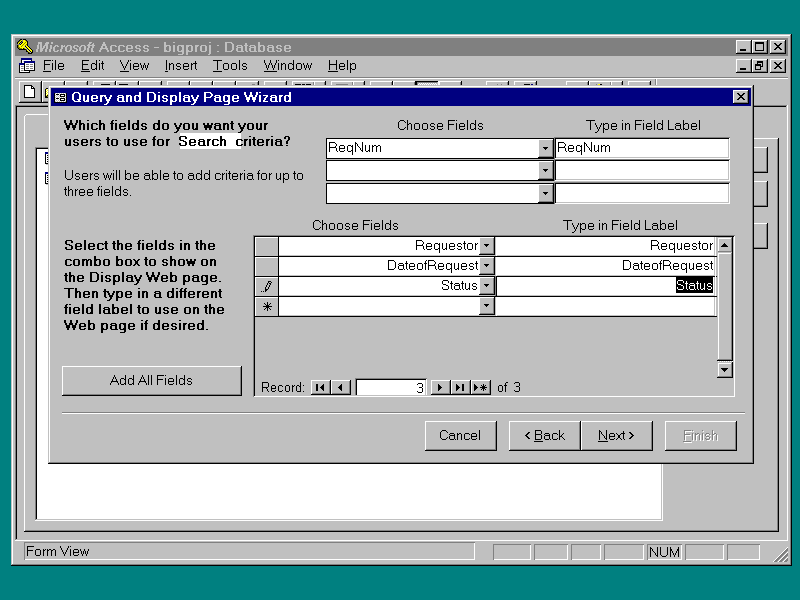
the Internet Information Server Add-in Wizardthe query for the Track Status Change
Order page. This time call up the wizard and choose the Query and Display option. Pick the
Chrgreq table. Choose the ReqNum field to search. Pick the Requestor, DateofRequest, and
Status field for display. These will be the fields included in the return record. All this
is shown in Figure 9.10.
Figure 9.10. Setting up the
Search and Return page .
Save the file as crtrac.asp. This will also save
crtrac.asp and crtrac.idc. Your files should look like Listings 9.10, 9.11, and 9.12.
Listing 9.10. crtrac.asp .
<HTML>
<META NAME="GENERATOR" CONTENT="IIS Add In For Access">
<HEAD><Title>
HTML document for the World Wide Web
</Title></HEAD>
<BODY BGCOLOR="#FFFFFF">
<FORM ACTION="/scripts/crtrack.idc" METHOD = "POST" >
<TABLE BORDER BGCOLOR="#FFFFFF">
<TR>
<TD ALIGN="RIGHT">ReqNum</TD>
<TD><INPUT NAME="ReqNum"</TD></TR><P>
</TABLE>
<P><INPUT TYPE="SUBMIT" VALUE="Search"
ALIGN="MIDDLE">
<INPUT TYPE="RESET" NAME="reset"
VALUE="Clear all fields" ALIGN="MIDDLE"></P></FORM>
<HR=2>
<CENTER>This page was produced by using the
<B>IIS Add-In for Access 95</B>.
<BR><I> Copyright 1996 Microsoft Corporation</I>.</CENTER>
</BODY></HTML>
Listing 9.11. crtrac.htx .
<HTML>
<META NAME="GENERATOR" CONTENT="IIS Add In For Access">
<HEAD><Title>
HTML document for the World Wide Web
</Title></HEAD>
<BODY BGCOLOR="#FFFFFF">
<%begindetail%>
<%if CurrentRecord EQ 0 %>
<TABLE BORDER BGCOLOR="#FFFFFF">
<TR>
<TH><B>Requestor</B></TH>
<TH><B>DateofRequest</B></TH>
<TH><B>Status</B></TH>
</TR>
<%endif%>
<TR>
<TD Align=Left><%Requestor%></TD>
<TD Align=Right><%DateofRequest%></TD>
<TD Align=Left><%Status%></TD>
</TR>
<%enddetail%>
<%if CurrentRecord EQ 0 %>
<HR=2><P>
<CENTER><B>No records were selected!<B></CENTER><P>
<%endif%>
</TABLE>
<HR=2>
<CENTER>This page was produced by using the
<B>IIS Add-In for Access 95</B>.
<BR><I> Copyright 1996 Microsoft Corporation</I>.</CENTER>
</BODY></HTML>
Listing 9.12. crtrac.idc .
Datasource: BigProj
Template: crtrack.htx
DefaultParameters: ReqNum="ReqNum"
SQLStatement:
+Select "Requestor", "DateofRequest", "Status"
+From "chngreq"
+Where "ReqNum" = %ReqNum%
#IDC-Search FrontHTM-crtrack.asp
ReportHTX-crtrack.htx
You have what you need from the Internet Information
Server Add-in Wizard. Let's move on.
What Do We Have So Far?
All the files you have generated so far are in the
rough subdirectory of this chapter's entry on the CD-ROM. Feel free to link them up and
put them on your Web site. This is the end of the rough draft stage. From here you will
complete each Web page using JavaScript and ActiveX controls. From here you will
- Design an overall frame for the project
- Design a navigation bar for the Web site
- Design the Change Request form
- Change the IDC and HTX files for the Change Request
form to return the tracking number of the request form
- Add a track Change Request function to the navigation
bar
When you are done with these changes, you will have
the Web site JP wanted.
The Main Frame
One of the most interesting current developments in
Web page technology is the frame. You have seen examples of frames throughout this guide.
From them you know that frames can make your Web site look and act more like a program.
Instead of being sequential, a site with a frame can have parts that stay put while others
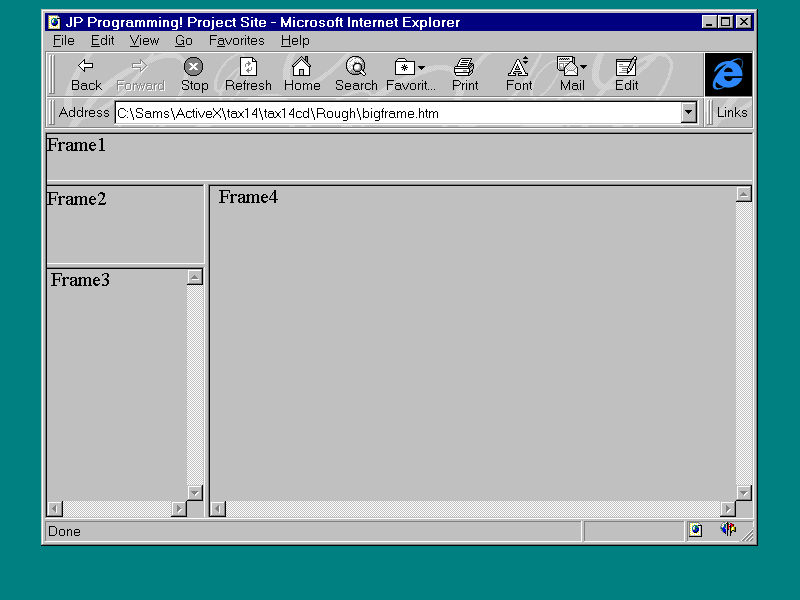
are dynamic. For this project, to satisfy the requirement for a program look and feel you
will use a frame to divide the screen into four parts, as shown in Figure 9.11.
Figure 9.11. The main
frame.
The source for this frame is pretty straightforward,
as shown in Listing 9.13.
Listing 9.13. bigframe.asp .
<HTML>
<HEAD>
<TITLE>JP Programming! Project Site</TITLE>
</HEAD>
<FRAMESET FRAMEBORDER="3" FRAMESPACING="3"
ROWS="49,*">
<FRAME MARGINWIDTH="0" MARGINHEIGHT="0" SRC="Basic.asp"
NAME="Frame1" NORESIZE SCROLLING="no">
<FRAMESET FRAMEBORDER="3" FRAMESPACING="3"
COLS="160,*">
<FRAMESET FRAMEBORDER="3" FRAMESPACING="3"
ROWS="80,*">
<FRAME MARGINWIDTH="0" MARGINHEIGHT="2" SRC="Basic.asp"
NAME="Frame2" SCROLLING="no">
<FRAME MARGINWIDTH="4" MARGINHEIGHT="0" SRC="Basic.asp"
NAME= "Frame3" SCROLLING="yes">
</FRAMESET>
<FRAME MARGINWIDTH="9" MARGINHEIGHT="0" SRC="Basic.asp"
NAME="Frame4" SCROLLING="yes">
</FRAMESET>
<NOFRAMES>
</NOFRAMES>
</FRAMESET>
</BODY>
</HTML>
The frames are named by the NAME attribute in the
<FRAME> tag. It is not obvious from the code where the frames are located. To
clarify which frame is where the page basic.asp, which is loaded into each frame, uses a
JavaScript routine that runs when the window loads to print out the window name. Listing
9.14 shows how this works.
Listing 9.14. basic.asp .
<HTML>
<HEAD>
<SCRIPT LANGUAGE="JavaScript" FOR="window"
EVENT="onLoad()">
<!--
window.document.open()
window.document.write(window.name)
window.document.close()
-->
</SCRIPT>
<TITLE>New Page</TITLE>
</HEAD>
<BODY>
</BODY>
</HTML>
Let's solve part of our puzzle by adding the link to
the document , bigproj.doc, that you put in projstat.asp. Load projstat.asp into Word or
edit it by hand. Remove the logo, left justify the links, and add new links to memo.doc
(done with Memo Wizard) and briefing.ppt (done with Briefing Wizard. Then target these
links to Frame4. See Listing 9.15 for details.
Listing 9.15. Revised projstat.asp.
<HTML>
<HEAD>
<TITLE>Untitled</TITLE>
<META NAME="GENERATOR" CONTENT="Internet
Assistant for Microsoft Word
2.0z">
</HEAD>
<BODY>
<P>
<A HREF="memo.doc" TARGET = "Frame4">Memo</A>
<P>
<A HREF="bigproj.doc" TARGET = "Frame4" >
Link to Big-Expensive Product
Document</A>
<P>
<A HREF="briefing.ppt" TARGET =
"Frame4">Briefings</A><BR>
</BODY>
</HTML>
Replace basic.asp with projstat.asp in bigframe.asp.
While you are at it, put the small company logo in Frame2. To do that, modify the projstat
in the rough directory to logo.asp, as shown in Listing 9.16.
Listing 9.16. logo.asp .
<HTML>
<HEAD>
<META NAME="GENERATOR" CONTENT="Internet Assistant for Microsoft Word
2.0z">
<TITLE>Logo</TITLE>
</HEAD>
<BODY>
<IMG SRC="lillogo.bmp"><BR>
</BODY>
</HTML>
Change bigframe.asp to load logo.asp. After changing
bigframe.asp to load both logo.asp and projstat.asp, bigframe.asp should look like Listing
9.17.
Listing 9.17. bigframe.asp .
<HTML>
<HEAD>
<TITLE>JP Programming! Project Site</TITLE>
</HEAD>
<FRAMESET FRAMEBORDER="3" FRAMESPACING="3"
ROWS="49,*">
<FRAME MARGINWIDTH="0" MARGINHEIGHT="0"
SRC="Basic.asp" NAME="Frame1"
NORESIZE SCROLLING="no">
<FRAMESET FRAMEBORDER="3" FRAMESPACING="3"
COLS="160,*">
<FRAMESET FRAMEBORDER="3" FRAMESPACING="3"
ROWS="80,*">
<FRAME MARGINWIDTH="0" MARGINHEIGHT="2" SRC="logo.asp"
NAME="Frame2" SCROLLING="no">
<FRAME MARGINWIDTH="4" MARGINHEIGHT="0"
SRC="projstat.asp" NAME=
"Frame3" SCROLLING="yes">
</FRAMESET>
<FRAME MARGINWIDTH="9" MARGINHEIGHT="0"
SRC="Basic.asp" NAME="Frame4"
SCROLLING="yes">
</FRAMESET>
<NOFRAMES>
</NOFRAMES>
</FRAMESET>
</BODY>
</HTML>
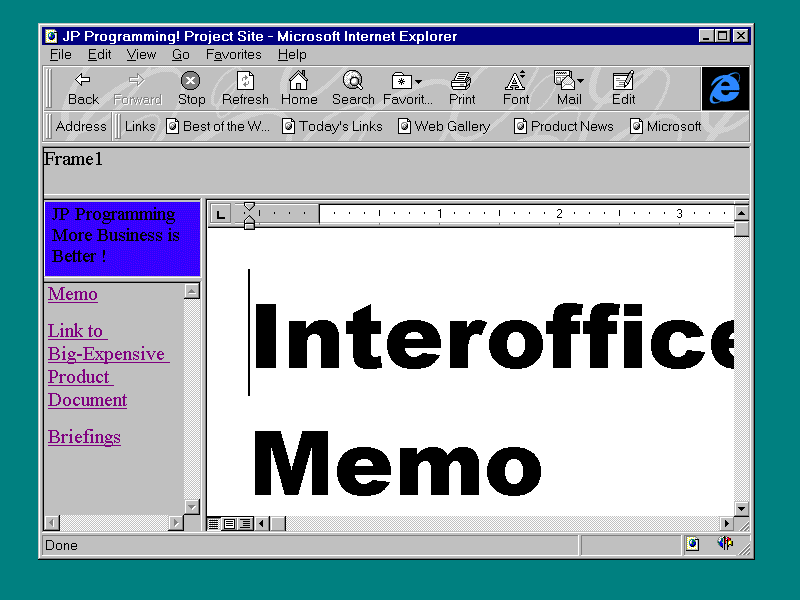
Your project so far should look like Figure 9.12.
Figure 9.12. The project so
far.
Note that when you select one of the links, Frame4
acts as an OLE container and brings in Word or PowerPoint, depending on the document you
chose. Tell your customer you worked for weeks to get this. The customer doesn't have to
know you haven't coded a single line yet, only changed some HTML tags. Let's do some
coding.
The Navigation Bar
Open up the ActiveX Control Pad , make a new HTML
layout, and place three buttons. Associate the pictures, home.gif, docs.gif, and
cardfile.gif with btnHome, bntStatus, and btnChangeRequest. (You can use your own pictures
if you want.)
Since this is a navigation bar, most users would
expect some kind of text to come up when the mouse is over the buttons. Place code in the
onMouseMove events of each button to put a message describing the button in the status
bar. Then put code in the btnHome click event to launch welcome.asp. Finally, put code in
the btnStatus click event to launch the pydynam.idc file that generates the current
status. Make both the welcome.asp and the pjdynam.idc results appear in Frame4. Your code
should look like Listing 9.18.
Listing 9.18. navigate.alx .
<SCRIPT LANGUAGE="JavaScript"
FOR="btnChangeRequest"
EVENT="MouseMove(Button, Shift, X, Y)">
<!--
self.status = "Change Request"
-->
</SCRIPT>
<SCRIPT LANGUAGE="JavaScript"
FOR="btnStatus" EVENT="Click()">
<!--
window.parent.frames[3].location.href="/scripts/
pjdynam.idc?"
-->
</SCRIPT>
<SCRIPT LANGUAGE="JavaScript" FOR="btnHome"
EVENT="Click()">
<!--
window.parent.frames[3].location.href="/tax09/
welcome.asp"
-->
</SCRIPT>
<SCRIPT LANGUAGE="JavaScript" FOR="btnStatus"
EVENT="MouseMove(Button, Shift, X, Y)">
<!--
self.status = "Project Status"
-->
</SCRIPT>
<SCRIPT LANGUAGE="JavaScript" FOR="btnHome"
EVENT="MouseMove(Button, Shift, X, Y)">
<!--
self.status = "Home"
-->
</SCRIPT>
<DIV ID="Layout1" STYLE="LAYOUT:
FIXED;WIDTH:394pt;HEIGHT:31pt;">
<OBJECT ID="btnHome"
CLASSID="CLSID:D7053240-CE69-11CD-A777-00DD01143C57"
DATA="DATA:application/x-oleobject;BASE64,
"
STYLE="TOP:0pt;LEFT:16pt;WIDTH:31pt;
HEIGHT:31pt;TABINDEX:0;ZINDEX:0;">
</OBJECT>
<OBJECT ID="btnChangeRequest"
CLASSID="CLSID:D7053240-CE69-11CD-A777-00DD01143C57"
DATA="DATA:application/x-oleobject;BASE64,
STYLE="TOP:0pt;LEFT:55pt;WIDTH:31pt;
HEIGHT:31pt;TABINDEX:1;ZINDEX:1;">
</OBJECT>
<OBJECT ID="btnStatus"
CLASSID="CLSID:D7053240-CE69-11CD-A777-00DD01143C57"
DATA="DATA:application/x-oleobject;BASE64,
"
STYLE="TOP:0pt;LEFT:94pt;WIDTH:31pt;
HEIGHT:31pt;TABINDEX:2;ZINDEX:2;">
</OBJECT>
</DIV>
Put navigate.alx into navigate.asp.
Listing 9.19. navigate.asp .
<HTML>
<HEAD>
<TITLE>New Page</TITLE>
</HEAD>
<BODY>
<OBJECT CLASSID="CLSID:812AE312-
8B8E-11CF-93C8-00AA00C08FDF"
ID="navigate_alx" STYLE="LEFT:0;TOP:0">
<PARAM NAME="ALXPATH" REF VALUE="navigate.alx">
</OBJECT>
</BODY>
</HTML>
Finally modify bigframe.asp to place navigate.asp
into Frame1. The line:
<FRAME MARGINWIDTH="0" MARGINHEIGHT="0"
SRC="Navigate.asp"
NAME="Frame1" NORESIZE SCROLLING="no">
reflects the placement of navigate.asp into Frame1.
Place pjdynam.idc and pjdynam.htx into the scripts directory and fire up your browser. You
should see something like Figure 9.13.
Figure 9.13. The navigation
bar in the main frame .
As you play with this, you will notice a couple of
things. First, the welcome window we designed seems out of place in this environment. I'm
not running an art class (you may have seen my bicycle pictures in an earlier chapter),
and it won't further your study of design with ActiveX and JavaScript, but as you start to
use frames in Web site, you will have to rethink how you present your content. Also, the
text you put in the MouseMove events does change as you float over the buttons and does
communicate what the buttons are to the icon challenged. Time to build the next form.
The Change Request Form
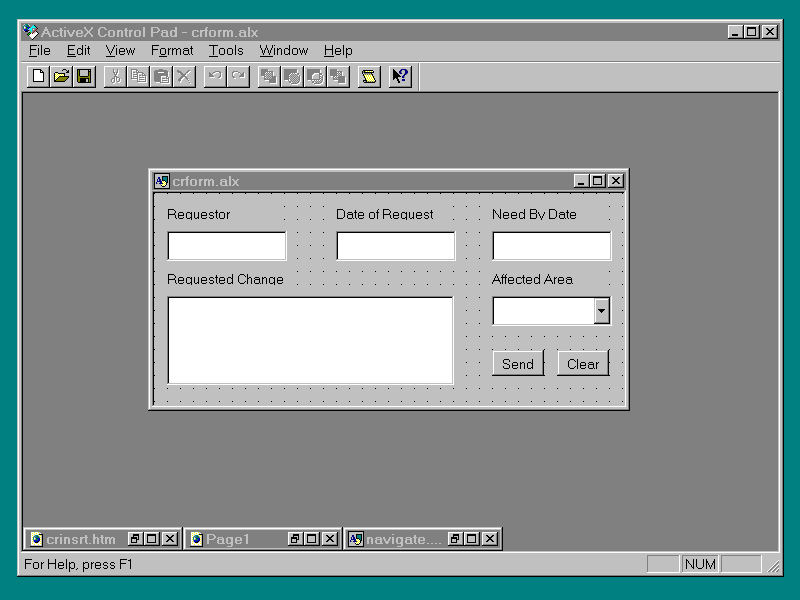
The Change Request form needs to gather data about
what the user wants to change. You will use the ActiveX Control Pad to create a Change
Request form. Place four text boxes, one combo box, two buttons, and five labels as shown
in Figure 9.14.
Figure 9.14. Change Request
form.
Then name the controls and add the code shown in
Listing 9.20.
Listing 9.20. crform.alx .
</SCRIPT>
<SCRIPT LANGUAGE="JavaScript"
FOR="btnClear" EVENT="Click()">
<!--
DateofRequest.Text = ""
NeedByDate.Text = ""
RequestedChange.Text = ""
Requestor.Text = ""
-->
</SCRIPT>
<SCRIPT LANGUAGE="JavaScript"
FOR="Layout1" EVENT="OnLoad()">
<!--
AffectedArea.AddItem('GUI')
AffectedArea.AddItem('Calculations')
AffectedArea.AddItem('Timing')
AffectedArea.AddItem('Security')
-->
</SCRIPT>
<SCRIPT LANGUAGE="JavaScript"
FOR="btnSend" EVENT="Click()">
<!--
if (CheckValues())
{
//submit the data
}
-->
</SCRIPT>
<DIV ID="Layout1" STYLE="LAYOUT:FIXED;
WIDTH:282pt;HEIGHT:127pt;">
<OBJECT ID="RequestedChange"
CLASSID="CLSID:8BD21D10-EC42-11CE-9E0D-00AA006002F3"
STYLE="TOP:62pt;LEFT:8pt;WIDTH:172pt;
HEIGHT:53pt;TABINDEX:0;ZINDEX:0;">
<PARAM NAME="VariousPropertyBits"
VALUE="2894088219">
<PARAM NAME="Size" VALUE="6053;1863">
<PARAM NAME="FontCharSet" VALUE="0">
<PARAM NAME="FontPitchAndFamily" VALUE="2">
</OBJECT>
<OBJECT ID="Label6"
CLASSID="CLSID:978C9E23-D4B0-11CE-BF2D-00AA003F40D0"
STYLE="TOP:47pt;LEFT:8pt;WIDTH:78pt;
HEIGHT:8pt;ZINDEX:1;">
<PARAM NAME="Caption" VALUE="Requested Change">
<PARAM NAME="Size" VALUE="2751;275">
<PARAM NAME="FontCharSet" VALUE="0">
<PARAM NAME="FontPitchAndFamily" VALUE="2">
</OBJECT>
<OBJECT ID="Label7"
CLASSID="CLSID:978C9E23-D4B0-11CE-BF2D-00AA003F40D0"
STYLE="TOP:8pt;LEFT:8pt;WIDTH:70pt;
HEIGHT:8pt;ZINDEX:2;">
<PARAM NAME="Caption" VALUE="Requestor">
<PARAM NAME="Size" VALUE="2476;275">
<PARAM NAME="FontCharSet" VALUE="0">
<PARAM NAME="FontPitchAndFamily" VALUE="2">
</OBJECT>
<OBJECT ID="Requestor"
CLASSID="CLSID:8BD21D10-EC42-11CE-9E0D-00AA006002F3"
STYLE="TOP:23pt;LEFT:8pt;WIDTH:72pt;
HEIGHT:18pt;TABINDEX:3;ZINDEX:3;">
<PARAM NAME="VariousPropertyBits" VALUE="746604571">
<PARAM NAME="Size" VALUE="2540;635">
<PARAM NAME="FontCharSet" VALUE="0">
<PARAM NAME="FontPitchAndFamily" VALUE="2">
</OBJECT>
<OBJECT ID="DateofRequest"
CLASSID="CLSID:8BD21D10-EC42-11CE-9E0D-00AA006002F3"
STYLE="TOP:23pt;LEFT:109pt;WIDTH:72pt;
HEIGHT:18pt;TABINDEX:4;ZINDEX:4;">
<PARAM NAME="VariousPropertyBits"
VALUE="746604571">
<PARAM NAME="Size" VALUE="2540;635">
<PARAM NAME="FontCharSet" VALUE="0">
<PARAM NAME="FontPitchAndFamily" VALUE="2">
</OBJECT>
<OBJECT ID="Label8"
CLASSID="CLSID:978C9E23-D4B0-11CE-BF2D-00AA003F40D0"
STYLE="TOP:8pt;LEFT:109pt;WIDTH:70pt;
HEIGHT:8pt;ZINDEX:5;">
<PARAM NAME="Caption" VALUE="Date of Request">
<PARAM NAME="Size" VALUE="2476;275">
<PARAM NAME="FontCharSet" VALUE="0">
<PARAM NAME="FontPitchAndFamily" VALUE="2">
</OBJECT>
<OBJECT ID="Label9"
CLASSID="CLSID:978C9E23-D4B0-11CE-BF2D-00AA003F40D0"
STYLE="TOP:8pt;LEFT:203pt;WIDTH:70pt;
HEIGHT:8pt;ZINDEX:6;">
<PARAM NAME="Caption" VALUE="Need By Date">
<PARAM NAME="Size" VALUE="2476;275">
<PARAM NAME="FontCharSet" VALUE="0">
<PARAM NAME="FontPitchAndFamily" VALUE="2">
</OBJECT>
<OBJECT ID="NeedByDate"
CLASSID="CLSID:8BD21D10-EC42-11CE-9E0D-00AA006002F3"
STYLE="TOP:23pt;LEFT:203pt;WIDTH:72pt;
HEIGHT:18pt;TABINDEX:7;ZINDEX:7;">
<PARAM NAME="VariousPropertyBits" VALUE="746604571">
<PARAM NAME="Size" VALUE="2540;635">
<PARAM NAME="FontCharSet" VALUE="0">
<PARAM NAME="FontPitchAndFamily" VALUE="2">
</OBJECT>
<OBJECT ID="btnClear"
CLASSID="CLSID:D7053240-CE69-11CD-A777-00DD01143C57"
STYLE="TOP:94pt;LEFT:242pt;WIDTH:31pt;
HEIGHT:16pt;TABINDEX:8;ZINDEX:8;">
<PARAM NAME="Caption" VALUE="Clear">
<PARAM NAME="Size" VALUE="1101;550">
<PARAM NAME="FontCharSet" VALUE="0">
<PARAM NAME="FontPitchAndFamily" VALUE="2">
<PARAM NAME="ParagraphAlign" VALUE="3">
</OBJECT>
<OBJECT ID="btnSend"
CLASSID="CLSID:D7053240-CE69-11CD-A777-00DD01143C57"
STYLE="TOP:94pt;LEFT:203pt;WIDTH:31pt;
HEIGHT:16pt;TABINDEX:9;ZINDEX:9;">
<PARAM NAME="Caption" VALUE="Send">
<PARAM NAME="Size" VALUE="1101;550">
<PARAM NAME="FontCharSet" VALUE="0">
<PARAM NAME="FontPitchAndFamily" VALUE="2">
<PARAM NAME="ParagraphAlign" VALUE="3">
</OBJECT>
<OBJECT ID="AffectedArea"
CLASSID="CLSID:8BD21D30-EC42-11CE-9E0D-00AA006002F3"
STYLE="TOP:62pt;LEFT:203pt;WIDTH:72pt;
HEIGHT:18pt;TABINDEX:10;ZINDEX:10;">
<PARAM NAME="DisplayStyle" VALUE="7">
<PARAM NAME="Size" VALUE="2540;635">
<PARAM NAME="MatchEntry" VALUE="1">
<PARAM NAME="ShowDropButtonWhen" VALUE="2">
<PARAM NAME="FontCharSet" VALUE="0">
<PARAM NAME="FontPitchAndFamily" VALUE="2">
</OBJECT>
<OBJECT ID="Label10"
CLASSID="CLSID:978C9E23-D4B0-11CE-BF2D-00AA003F40D0"
STYLE="TOP:47pt;LEFT:203pt;WIDTH:70pt;
HEIGHT:8pt;ZINDEX:11;">
<PARAM NAME="Caption" VALUE="Affected Area">
<PARAM NAME="Size" VALUE="2476;275">
<PARAM NAME="FontCharSet" VALUE="0">
<PARAM NAME="FontPitchAndFamily" VALUE="2">
</OBJECT>
</DIV>
You put code in the bntClear click event to clear
the fields. You made a new function, CheckValues, that is called on the btnSend click
event. CheckValues makes sure the user has put values in all the fields. You placed code
in the Layout1.onload event to put items into the combo box (AffectedArea). In
anticipation of the manipulation of the IDC files in the next section, add crform.alx to
crinsrt.asp (the form you generated to insert the Change Request data into the database)
and modify crinsrt.asp to look like the Listing 9.21..
Listing 9.21. crinsrt.asp .
<HTML>
<META NAME="GENERATOR" CONTENT="IIS
Add In For Access 95">
<HEAD><Title>Change Request Form</Title></HEAD>
<BODY>
<OBJECT CLASSID="CLSID:812AE312-
8B8E-11CF-93C8-00AA00C08FDF"
ID="crform_alx" STYLE="LEFT:0;TOP:0">
<PARAM NAME="ALXPATH" REF VALUE="crform.alx">
</OBJECT>
<FORM ACTION="/scripts/crinsrt.idc"
METHOD = "POST" NAME = "ORDERFORM" >
<INPUT TYPE = "Hidden" NAME="Requestor">
<INPUT TYPE = "Hidden" NAME="DateofRequest">
<INPUT TYPE = "Hidden" NAME="AffectedArea">
<INPUT TYPE = "Hidden" NAME="RequestedChange">
<INPUT TYPE = "Hidden" NAME="NeedByDate">
<INPUT TYPE = "Hidden" NAME="Status">
</FORM>
</BODY></HTML>
The layout of crinst.asp will become clearer in the
next section. Open up navigate.alx and add this line:
window.parent.frames[3].location.href="/tax09/crinsrt.asp"
to the btnChangeRequest click method. This will
enable crinsrt.asp to be placed into Frame4 by navigate.alx. Fire up bigframe.asp and test
out your new page. It should look like Figure 9.15.
Figure 9.15. Change Request
Form in action.
You are on the homestretch. One big and one little
thing left to clean up. Let's do the big thing first.
Returning the Change
Request Tracking Number.
The way crinst.htx is written now, it will send a
list of the data the user sends via crinst.idc. What you want to do here is have it return
a unique tracking number from the field ReqNum. In the Access database bigproj.mdb, this
field is of type Autonumber. This means that the database will assign it a unique value
after the data is inserted. What you will do here is have crinst.htx create another
request, routed through a new IDC and HTX file, that will return the ReqNum. Modify
crinst.htx to look like Listing 9.22.
Listing 9.22. Changed crinst.htx .
<HTML>
<HEAD><Title>InterMedia</Title>
<%IF idc.LastName EQ "NULL" %>
<BODY BGCOLOR="#FFFFFF">
Nothing Happened
</BODY></HTML>
<%else%>
<SCRIPT LANGUAGE="JavaScript"
FOR="window" EVENT="onLoad()">
<!--
window.document.forms[0].elements[0].Value =
"<%idc.DateofRequest%>"
window.document.forms[0].elements[1].Value =
"<%idc.Requestor%>"
window.document.forms[0].submit()
-->
</SCRIPT>
</HEAD>
<BODY>
<FORM ACTION="/scripts/crreqnum.idc"
METHOD="POST" NAME="ORDERNUM">
<INPUT TYPE=Hidden NAME="DateofRequest">
<INPUT TYPE=Hidden NAME="Requestor">
</FORM>
</BODY></HTML>
<%end if%>
Here, you have embedded script in the template file
that loads up another request and submits it when window.onload event occurs. Write a new
file, crreqnum.idc, that will use RequestDate and Requestor to return a ReqNum. Name it
crreqnum.idc. It should look like Listing 9.23.
Listing 9.23. crreqnum.idc .
Datasource: BigProj
Template: crreqnum.htx
DefaultParameters:
SQLStatement:
+Select "Reqnum"
+From "chngreq"
+Where "Requestor" Like '%Requestor%'
+And "DateofRequest" = '%DateofRequest%'
#IDC-Insert FrontHTM-crinstr.asp
ReportHTX-crreqnum.htx
Notice this is an SQL statement that returns a
chngreq (which has been created by the database because it is an Autonumber) and passes
the results to the template crreqnum.htx. What you need here is a simple template that
will present the user with the Change Request Number. Try the code in Listing 9.24.
Listing 9.24. crreqnum.htx .
<HTML>
<HEAD><Title>Order Number</Title></HEAD>
<BODY BGCOLOR="#FFFFFF">
<%begindetail%>
<P>
<P>
<CENTER>
<P><B>Thank You For You Attention</B><BR>
<P><B>Change Request Received from
<%idc.Requestor%></B><BR>
<P><B>On <%idc.DateofRequest%> </B><BR>
<P><B>This is your Order Number</B><BR>
<P><B><%Reqnum%></B><BR>
<P><B>Keep it for your records</B><BR>
</CENTER>
<%enddetail%>
<%if CurrentRecord EQ 0 %>
<HR=2><P>
<CENTER><B>Can't Find Order for %Requestor%<B></CENTER><P>
<CENTER><B>Call us at 904 555 1010 for
assistance!<B></CENTER><P>
<%endif%>
<HR=2>
<CENTER>I Made this Page By Hand</B></CENTER>
</BODY></HTML>
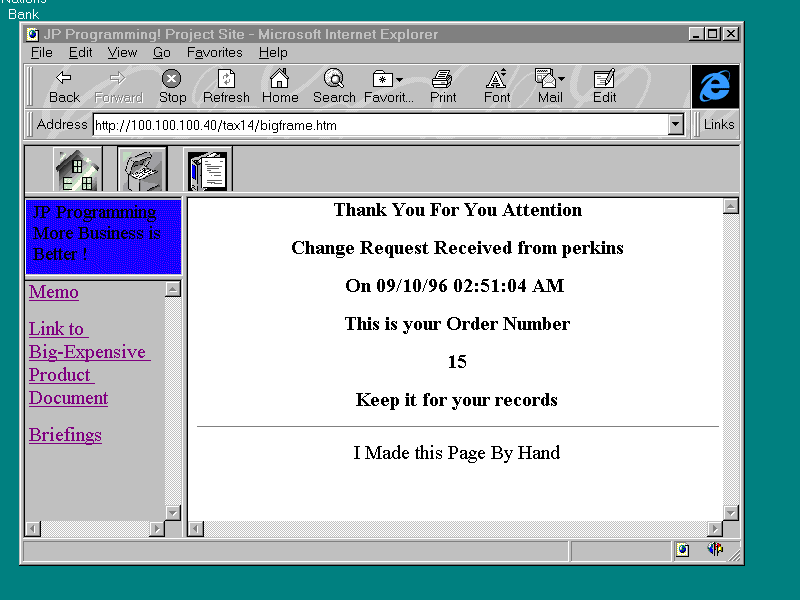
Upon closer examination, this is a simple HTML that
just presents the Change Request Number. The project now looks like Figure 9.16.
Figure 9.16. The Returned
Change Tracking Number .
Now that you have given the users a Change Request
Number, which they will probably lose (that is a different project), you need to give them
a way to use it.
Adding a Track Change
Request to the Navigation Bar .
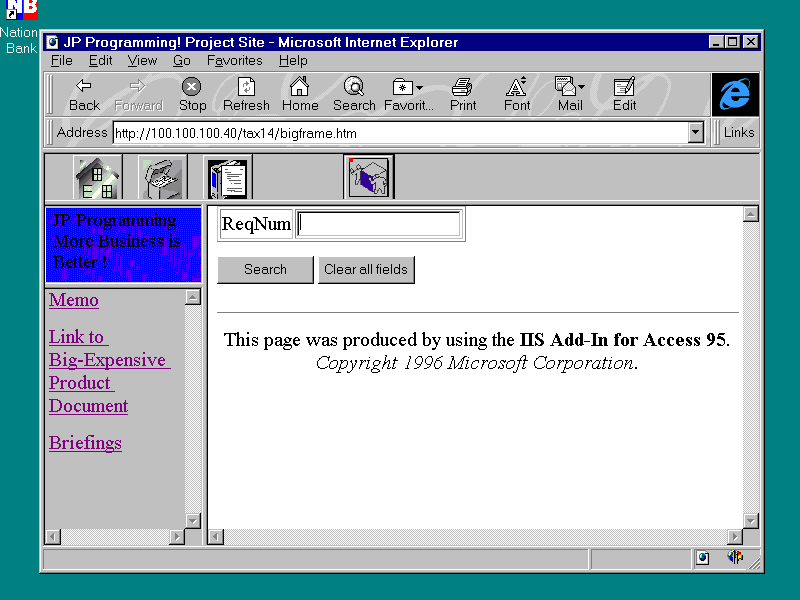
Add another button to the navigation bar. Name it
btnfind. Use picture findpeps.gif. Your navigation bar should now look like Figure 9.17.
Figure 9.17. Final
navigation bar.
Add code to the MouseMove and onclick events of
btnfind. In the MouseMove, add a line to print a message to the status bar. In the click
event, add code to launch the form crtrac.asp that you generated at the start of this
process. You are now done with the project. The code section of navigate.alx should look
like Listing 9.25.
Listing 9.25. New navigate.alx .
<SCRIPT LANGUAGE="JavaScript"
FOR="btnChangeRequest"
EVENT="MouseMove(Button, Shift, X, Y)">
<!--
self.status = "Change Request"
-->
</SCRIPT>
<SCRIPT LANGUAGE="JavaScript" FOR="btnStatus"
EVENT="Click()">
<!--
window.parent.frames[3].location.href="/scripts/
pjdynam.idc?"
-->
</SCRIPT>
<SCRIPT LANGUAGE="JavaScript" FOR="btnHome"
EVENT="Click()">
<!--
window.parent.frames[3].location.href="/tax09/
welcome.asp"
-->
</SCRIPT>
<SCRIPT LANGUAGE="JavaScript"
FOR="btnStatus"
EVENT="MouseMove(Button, Shift, X, Y)">
<!--
self.status = "Project Status"
-->
</SCRIPT>
<SCRIPT LANGUAGE="JavaScript" FOR="btnHome"
EVENT="MouseMove(Button, Shift, X, Y)">
<!--
self.status = "Home"
-->
</SCRIPT>
<SCRIPT LANGUAGE="JavaScript"
FOR="btnChangeRequest" EVENT="Click()">
<!--
window.parent.frames[3].location.href="/tax09/
crinsrt.asp"
-->
</SCRIPT>
<SCRIPT LANGUAGE="JavaScript" FOR="btnFind"
EVENT="Click()">
<!--
window.parent.frames[3].location.href="/tax09/
crtrack.asp"
-->
</SCRIPT>
<SCRIPT LANGUAGE="JavaScript" FOR="btnFind"
EVENT="MouseDown(Button, Shift, X, Y)">
<!--
self.status = "Find Change Request"
-->
</SCRIPT>
Remember the pictures in the <OBJECT> tags
generate lots of lines of characters that you don't need to see. If you fire up your Web
site and hit the Find button, your screen will look like Figure 9.18.
Figure 9.18. Finding a
Change Request Number.
Summary
You have covered lots of ground today. You used all
your acquired skill to build a project using ActiveX and JavaScript. The application you
built looks more like a program that a traditional Web site, a trend I suspect will
continue. At this point you have had the opportunity to use both scripting languages. You
should probably have some initial feelings about which one will suit your purpose.
Tomorrow your ActiveX education will continue.
Q&A
- Q I noticed the application we built today didn't
use Tool Tips (windows that float above controls when the mouse passes overhead). Can I
use ToolTips?
- A Not with the ActiveX controls we used. If
you need ToolTips, I suggest you visit the Web sites of some ActiveX component builders.
- Q I notice some different notation today for
changing the values of the variables inside <FORM> tags. Was that just for variety?
- A No. Something you always have to watch out
for is how a language is implemented versus the specification for the language. Some
properties that work on Internet Explorer using VBScript do not work with Internet
Explorer and JavaScript and vice versa.
Quiz
- Where, in crfrom.alx, would be a good place to check
the validity of the user inputs?
- What is the syntax for triggering the submit event in
a <FORM> section on the first frame in collection of frames?
- Which of the following lines will work in JavaScript:
window.document.forms(0).elements[0].Value = "Launch"
window.document.forms[0].elements[0].Value = "Launch"
window.document.forms[0].submit
|