Web based School


- 23 — Formatting Tables with tbl
23 — Formatting Tables with tbl
23 — Formatting Tables with tbl
By Susan Peppard
Meet tbl, the troff and nroff table preprocessor.
tbl is not a popular troff tool. It is cursed and vilified and mocked, but it is used. The people who hate tbl rarely take the time to learn even the basics of formatting a table. Instead, they have two or three reliable samples that they just keep
copying over and over, changing the data each time. When something goes wrong, they ask a friend or a colleague—maybe even an enemy—for help.
You don't have to do that. tbl isn't that hard to learn. As with all UNIX utilities and programs, you can learn as much or as little as you like. You can learn the rudiments of tbl in an hour. This chapter includes some sample tables to enlarge your
collection.
tbl Requirements
tbl is a troff preprocessor. This means that the tbl code you write is processed by tbl before troff gets anywhere near it. Typically, you send a file through tbl and pipe the output to troff. The syntax is
tbl filename | troff options
tbl Macros
troff recognizes tbl output by the macros that begin and end a table: .TS and .TE. (The .TS H and .TH macros are discussed in the "Column Headings" section later in this chapter.)
The code that produces a simple table is
.TS

box;

cB cB cB

l l l.

Days[TAB]Months[TAB]Years

Monday[TAB]January[TAB]1990

Tuesday[TAB]February[TAB]1991

Wednesday[TAB]March[TAB]1992

.TE
Minimal Format Options
In addition to the macros, a table must include at least one line of format options. These options tell tbl whether you want your columns left-justified, centered, or right-justified—in short, how you want each column to look. The rule is one
option per column. Therefore, a three-column table with all columns left-justified has the following format options:
l l l.
The last line of format options must end with a period.
These are the minimum options you need for a three-column table. With these options, every row in your table has left-justified columns. If you want centered column headings with left-justified data, then you need two rows of format options:
c c c

l l l.
tbl uses the first format line to format the first row of your table. It uses the second format line to format the second row of your table. When it runs out of format lines, as it does in row 3 in this example, tbl formats the rest of your table
according to the last format line.
You can't format a complex table with the bare minimum; you need to use more of the options that tbl provides.
Table Data
Table data is entered with a tab between each column. If a line is too long for your terminal and, therefore, wraps, you can use the continuation character (\). Each new line starts a new row in the table.
To leave a cell empty, use a tab. For example, to enter a row that contains no entries in the first, second, and fourth columns but contains an entry in the third column, do this:
[TAB][TAB]entry
You don't need to enter the last tab—the one for the fourth column. tbl doesn't mind if you specify too little data. It complains only if you specify too much.
tbl Options
In addition to format options, tbl enables you to use global options. Global options affect the appearance of your table as a whole. tbl provides a wide range of format and global options.
Format Options
Format options include more than just instructions on how to justify columns. The tbl format options include
|
l (or L) |
Left-justifies the column. |
|
r (or R) |
Right-justifies the column. |
|
c (or C) |
Centers the column. |
|
n (or N) |
Specifies a numeric column. It lines up the column on decimal points—or units digits if there are no decimal points. |
|
a (or A) |
Specifies an alphabetic column. It indents text one em. |
|
s (or S) |
Spans the column horizontally. |
|
^ |
Spans the column vertically. |
Spanning is explained in the "Horizontal and Vertical Spanning" section later in this chapter.
Two more format options enable you to adjust the width of your columns. You can use them in conjunction with any of the options listed above.
|
e |
Equalizes the width of the indicated columns. |
|
w |
Enables you to specify a width for a column. |
lw(1i), for example, creates a left-justified column that is one inch wide.
Other format options enable you to change the font and the point size. You can also change vertical spacing.
|
f (or F) |
Changes the font. The font is specified immediately after f, as in fCW. |
|
b (or B) |
Changes to bold font. |
|
i (or I) |
Changes to italic font. |
|
p (or P) |
Changes the point size. The size is specified immediately after p, as in p9. |
|
v (or V) |
Changes vertical spacing. The spacing is specified immediately after v, as in v10. |
Global Options
tbl's global options affect the placement of your table on the page and its appearance. They are specified on a single line that ends with a semicolon (;). The options must be separated by spaces, tabs, or commas.
One global option, for example, enables you to change the default column separator, the tab, to another character. The exclamation point is typically used in technical writing. Because there's nothing to get excited about in the text, tbl doesn't get
confused.
The global options are
|
expand |
Expands the table to the full width of the page. It cannot be used with center. |
|
box |
Puts a box around the table. |
|
doublebox |
Puts a double box—a box drawn with two lines—around the table. |
|
allbox |
Puts each item in the table in a box. |
|
tab(x) |
Changes the column separation character to x. |
|
linesize(n) |
Sets the point size of lines under column heads or of lines that make up boxes to n points. |
|
delim(xy) |
Uses x and y as eqn delimiters. (eqn is discussed in Chapter 24, "Formatting Equations with eqn.") |
The center and expand options are straightforward and do exactly what you would expect.
By default, tables are left-justified. The center option centers your table with respect to the defined line length. The table might not always look centered. It depends on what indents are used before the table and after it. You can use .in with a
positive or negative value to adjust the horizontal placement of the table. Remember, though, to reset the indent that comes after the table.
The reasons for using expand are less obvious. expand makes the width of your table equal to the defined line length. You might want to do this for a special effect. It also comes in handy if you're working with a custom macro package that has outdented
headings with text indented an inch or more. expand enables you to take advantage of the unused left margin.
tbl provides three global options that you you can use to draw boxes around tables. Figure 23.1 shows an example of each option.
Figure 23.1. The box options.

allbox is useful when you have many narrow columns (perhaps with numeric data). The lines make the table easier to read. In most other situations, the lines are distracting and unattractive.
The tab option enables you to specify a different character as the column separator. Many people do this routinely. Just be careful to choose a character that doesn't appear in your table.
There is a benefit to changing the tab character to a single character such as # or !. If your input line is long, you might exceed the wrap margin, and your input line will become two lines. If you then join the two lines, your tab turns into a space.
If you change the space to a tab, the line might split again. This is annoying. It is also less likely to happen if you are using # or !. # and ! are single characters, not 4 to 8 characters like the tab.
The linesize option affects all the lines in your table. If you use it to draw a heavy box around the whole table, you must adjust the point size for internal lines.
If your table contains equations, you can set the eqn delimiters in a tbl global option. These delimiters must not appear elsewhere in the table, except as eqn delimiters. They also can't be the same as the tab character. (Refer to Chapter 24,
"Formatting Equations with eqn," for more information.)
Advanced tbl Formatting
tbl gives you control over almost every aspect of table formatting, including column headings, horizontal and vertical spanning, text blocks, spacing options and lines, and changing format options.
Column Headings
To make column headings stand out, underline them. tbl provides several styles to choose from.
|
_ |
Draws a continuous single underscore the width of the table. When it used with allbox, it draws a double underscore under the column headings. The code line containing _ must have no other entries. |
|
= |
Draws a continuous double underscore the width of the table. The code line containing = must have no other entries. |
|
_[TAB]_ |
Two or more underscores separated by tabs. _[TAB]_ draws a single underscore the width of the contents of each column. |
|
=[TAB]= |
Two or more equals signs separated by tabs. =[TAB]= draws a double underscore the width of the contents of each column. |
|
\_[TAB]\_ |
Backslash underscores separated by tabs. \_ draws a single underscore the width of each column. (Does not work with newer versions of tbl.) |
|
\=[TAB]\= |
Backslash equals signs separated by tabs. \= draws a double underscore the width of each column. (Does not work with newer versions of tbl.) |
To specify column headings that will appear on every page of a multipage table, use the .TS H and .TH macros.
Use .TS H to start your table if you are going to specify a column heading. Then use .TH after the lines that constitute the heading. Be sure to include underscores and spaces if they are part of the heading.
Horizontal and Vertical Spanning
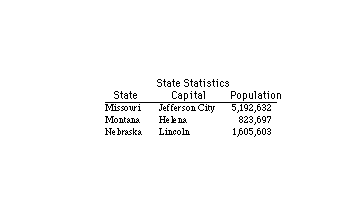
tbl accommodates both horizontal and vertical spanning. Use horizontal spanning to center a column heading over more than one column, as in
c s s
Figure 23.2 illustrates horizontal spanning.
Figure 23.2. A table with horizontal spanning.
You can code vertical spanning in the tbl format options or in the table data. Vertical spanning in the column headings is produced by using ^ in the format specifications. Vertical spanning in the table data is produced by using \^.
Text Blocks
A text block is a block of text—a paragraph—used as a table entry. Figure 23.3 shows a table with text blocks.
Figure 23.3. A table with text blocks.

The text block is coded as part of the table entry:
1990-1991[TAB]T{

.na

Writer. \f2Jurassic Park II\fP, \f2Daughter of the Firm\fP, \f2The

Cat in the Hat Spends a Year in Provence\fP. Took best-selling ideas

and capitalized on them. Raised my income 576% in just one year.

T}

.sp .5

1991-date[TAB]T{

.na

Law Student. Attending Harvard Law School; expect to receive degree

this year.

T}
Because tbl right-justifies text blocks, you might want to turn off adjustment inside the text blocks, as in the previous example. Use .na to do this.
The number of text blocks that can be used within a single table varies, depending on the tbl version. If you're using a recent version, don't worry about this. Even if you're using an old version, don't worry. tbl will complain loudly if you use too
many text blocks. Your only remedy is to break the table into smaller tables.
Text blocks complicate a table. The first time you use them, you're almost certain to leave out the beginning or ending T-brace or to use an opening brace instead of a closing one. If you do this, tbl assumes your unmatched T-brace is data and prints
it, so the error is easy to find.
Spacing and Lines
The default gap between columns is 3 ens. You can adjust this gap by putting a number between your format options, as in
cB 2 lB 2 lB 1 cB
You can even set the gap to 0.
You can use .sp to put more space between table rows. (Don't use macros; use the troff primitive.) Using .sp .25 before and after an underscore and with column headings usually improves the appearance of the table.
If you have some two-line column heads and some one-line column heads, the allbox global option looks really awful. Similarly, if you've spanned any column, allbox doesn't work correctly. You can insert vertical lines between columns by using the pipe
character (|). You can even combine vertical lines with changes in the column gap.
Changing Format Options
You can change format options in the middle of a table. You can't change the number of columns, but you can change anything else. Use spanning to change the apparent number of columns.
To change tbl format options, use the .T& macro and insert a line (or several lines) of format options.
A Fancy Table
The following code illustrates the advanced formatting techniques described in the previous sections. It produces the table shown in Figure 23.4.
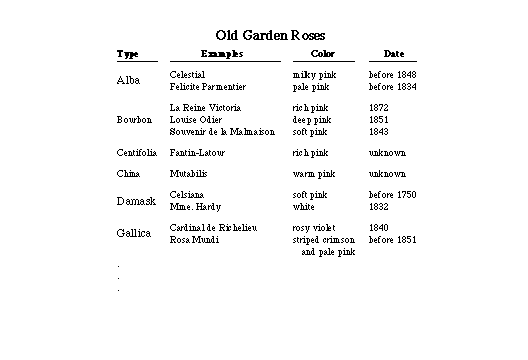
.TS

center;

c s s s

lB cB cB cB

l l l l.

\fb\s14Old Garden Roses\s0\fP

.sp .25

Type[TAB]Examples[TAB]Color[TAB]Date

.sp .25

\_[TAB]\_[TAB]\_[TAB]\_

.sp .25

Alba[TAB]Celestial[TAB]milky peach[TAB]before1848

\^[TAB]Felicite Parmentier[TAB]pale pink[TAB]before 1834

.sp .5

Bourbon[TAB]La Reine Victoria[TAB]rich pink[TAB]1872

\^[TAB]Louise Odier[TAB]deep pink[TAB]1851

\^[TAB]Souvenir de la Malmaison[TAB]soft pink[TAB]1843

.sp .5

.Centifolia[TAB]Fantin-Latour[TAB]rich pink[TAB]unknown

.sp .5

China[TAB]Mutabilis[TAB]warm pink[TAB]unknown

.sp .5

Damask[TAB]Celsiana[TAB]soft pink[TAB]before 1750

\^[TAB]Mme. Hardy[TAB]white[TAB]1832

.sp .5

Gallica[TAB]Cardinal de Richelieu[TAB]rosy violet[TAB]1840

\^[TAB]Rosa Mundi[TAB]striped crimson[TAB]before 1581

[TAB][TAB][TAB]\0\0and pale pink

.TE
Troubleshooting
When you use tbl, keep the following points in mind:
- Don't use macros in tables. They don't get digested properly. It's tempting to put in a .P. You do it without thinking, but often a single .P can wreck your table. Don't try to embed lists in tables. At the very least, don't try it when you're on a
tight deadline. Macros and tables don't mix.
- Don't mix your font changes. If you use B in a format option line to get bold text, don't use f2 for italics. However, escape sequences in your table data are fine. Likewise, don't use macros.
- If you can't get the a format option to work, indent with \0. \0 inserts a space the width of a numeral.
- A common source of error in tables is a space after a T-brace. For some reason, it really makes tables crazy. The space is invisible, too, so you don't see it.
- If you specify a column width and the contents of that column are longer than the specified width, your width setting is ignored. Think of it as a minimum width, not a maximum.
- If you omit a T-brace, tbl gets confused about your columns and might, for example, put column 2 in column 1. This plays havoc with your column width. You might not even see column 2 if this happens. Don't worry; column 2 isn't lost. It simply printed
somewhere out in the middle of the Atlantic Ocean. When you fix your table, it will come back and behave.
Summary
tbl is one of the most used, yet least liked programs, offered by the UNIX system. It is well worth the effort to learn at least the rudiments of tbl, because you can use tables to your advantage in unexpected situations. You can also make friends and
influence supervisors if you take the time to learn tbl thoroughly. A good tbl debugger is hard to find.
Popular Tutorials
-
 MS Access
1109
MS Access
1109
-
 C++
1222
C++
1222
-
 HTML
584
HTML
584
-
 JavaScript
616
JavaScript
616
-
 Vbscript
873
Vbscript
873
-
 Oracle
473
Oracle
473
-
 VC++
875
VC++
875
-
 SQL
2959
SQL
2959
-
 XML
514
XML
514
-
 Java
814
Java
814
-
 Perl
455
Perl
455
-
 Linux
451
Linux
451