Web based School


- 24 — Formatting Equations with eqn
- eqn Macros and Delimiters
- eqn Keywords
- eqn Operators
- Spaces and Braces
- Fractions
- Square Roots
- Sums, Integrals, and Limits
- Brackets, Braces, and Piles
- Arrays and Matrices
- Defines
- Precedence
- Finishing Touches
- Unconventional Uses for eqn
- Troubleshooting
- eqn and the Preprocessors
- eqn and pic
- eqn and grap
- eqn and tbl
- Summary
24 — Formatting Equations with eqn
24 — Formatting Equations with eqn
By Susan Peppard
Suppose that you had to format an expression like this:

You could format it with troff primitives, but it would take some time—probably a great deal of time. If you're writing a calculus text, you don't want to spend half of your day moving tiny numbers and letters up and down. You want to get on
with your writing.
There's good news. UNIX provides a tool, called eqn, that does all the formatting for you. There's more good news, too. Because the focus of eqn is limited—all it does is format equations—it is easier to learn and use than tbl or pic.
eqn is a troff preprocessor—like tbl, pic, and grap—that you use to format mathematical expressions. There is an nroff version. But let's face it: Formatting a complex equation with nroff is a bit like wearing double-bladed skates to the
Olympic trials.
Like the other preprocessor files, eqn files can't be sourced in (with .so). If you try this, troff formats your code neatly, but your code is left untouched by eqn. To source in code that has already been processed by eqn, run eqn on a file that
contains only your equation. First write the output to a file (eqn filename > outputfile), and then source in the output file. You can also read in the output file.
The devisers of eqn make a point of telling you that you don't have to know anything about mathematics (or typesetting) to use eqn. This is a bit misleading. If you don't know anything about math, you'll be surprised by the output of eqn: all the
letters are in italics. (If you don't know anything about typesetting you may not know what italics are, but I'm assuming you do.)
The italics are a mathematical convention. Letters representing constants or variables (a, b, c, x, y, z, etc.) are always set in italics. Numbers and special words (like "sin" and "cos") are set in roman type.
Besides selecting fonts for the characters in your equations, eqn provides you with a wide range of mathematical symbols, including the integral sign, upper- and lower-case Greek letters, plus, minus, equal sign, greater than, and less than.
eqn Macros and Delimiters
eqn processes your code before troff sees it. This means that you must send your file through eqn and pipe the output to troff. troff needs to know that you've used eqn. You tell it so by using two macros and one or two delimiters. A delimiter is a
character used to signal the beginning or the end—or both—of an equation. For example, # is a delimiter. To tell troff that you are using eqn with # as the beginning and ending delimiters, put these lines before the start of your equation:
.EQ

delim ##

.EN
The eqn delimiters are used for in-line equations. (Even if you're sure you won't need in-line equations, it's a good idea to provide the delimiters. You never know.)
To define the delimiter, include the following lines in your file:
.EQ

delim ##

.EN
To turn the delimiters off:
.EQ

delim off

.EN
To use the delimiters, just surround your eqn code with them:
# a + b = c #
Don't worry about the height of your in-line equation. troff automatically adjusts line spacings.
Choosing Delimiters and Placing the Definition
The guides suggest $$ and warn you to stay away from eqn symbols like { and ( and ~ and ^ and ". There is no default delimiter. They also suggest you put your delimiter definition at the top of your file. This is fine until you have to say that the
widget costs $5000.
.EQ

delim $$

.EN

The widget costs $5000.

.P

The enhanced widget costs $7500.

.P

Here's a formula for the cost of the widget:

$x sup 2 + x sup 2 =$ cost of widget.
The result is:
The widget costs 5000. . PTheenhancedwidgetcosts7500.

Here's a formula for the cost of the widget:x2+x2=cost of widget.
Not quite what you wanted. You can, of course, turn the delimiters off before you use the dollar sign as dollar sign.
Or you can choose a different delimiter. (There are drawbacks to all of them.) I prefer ##, but this choice can't be used with the other preprocessors. (See "eqn and the Preprocessors" later in the chapter.) Exclamation points are usually
safe, especially if you're doing technical writing. (Technical writing rarely rises to the level of excitement needed to justify exclamation points.)
The same might be said for placing the delimiter definition: There are drawbacks to any location. The traditional place for eqn delimiters is at the top of your file. That's where someone else would look for it. That's where you look for it six months
from now. If you're juggling text that's full of dollar signs and pound signs and exclamation points, then turn the delimiters off at the top of your file and invoke them as needed. Turn the delimiters off as soon as you're done with them.
If you really want to wreak havoc on a file, try this:
.EQ

delim ee

.EN
This is a wonderful April Fool's joke to play on your boss, if you have access to her files, and if you've already found another job.
eqn Keywords
eqn was designed to be easy for mathematicians to learn and use. It uses familiar words and abbreviations. For example, if you read a1=b2 aloud, you would say, "a sub one equals b sub two." That's what eqn says. The spaces here are important.
They are discussed later in this chapter.
#a sub 1 = b sub 2#
The opposite of sub is sup, for superscript. For example,
#a sup 2 > b sup 2
The eqn keywords are
|
above |
back |
bar |
bold |
ccol |
|
copy |
cpile |
define |
delim |
dot |
|
dotdot |
down |
dyad |
fat |
font |
|
from |
fwd |
gfont |
gsize |
hat |
|
highbar |
ifdef |
include |
int |
integral |
|
inter |
italic |
lcol |
left |
lineup |
|
lowbar |
lpile |
mark |
matrix |
over |
|
pile |
prod |
rcol |
right |
roman |
|
rpile |
size |
space |
sqrt |
sub |
|
sumsup |
tilde |
to |
under |
union |
|
uputilde |
vec |
|
|
|
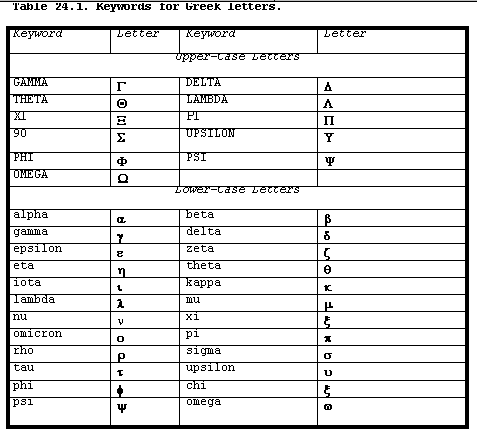
Table 24.1 lists the keywords for Greek letters.
Note that there is no provision for the upper-case letters that are identical to their roman cousins (A, B, E, H, I, K, M, N, O, P, T, X, and Z). If you want an upper-case alpha, just type A.
eqn also includes the following terms, which are printed in roman, not italic, type:
|
and |
arc |
cos |
cosh |
|
det |
exp |
for |
if |
|
Im |
lim |
ln |
log |
|
max |
min |
Re |
sin |
|
sinh |
tan |
tanh |
|
eqn Operators
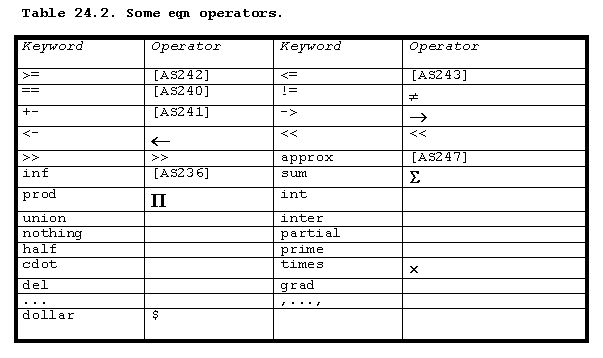
You've already met some of the eqn operators—+, -, =, and >. Table 24.2 lists the other eqn operators.
In addition, eqn offers nine diacritical marks, which are listed in Table 24.3.
If you need to use a bar with one of the other diacritical marks, use highbar to place the bar correctly. There is also a lowbar. For example, the following code
.EQ

delim ##

.EN

#X highbar#

.sp .5

#x highbar#

.sp .5

#x bar#

.sp .5

#x lowbar#

.sp .5

#x dotdot highbar#

.sp .5

#{x tilde} highbar#
produces this output:

To draw a bar over an entire expression, use braces. For example:
{ ( alpha - beta ) * gamma } bar
Spaces and Braces
Like most UNIX programs, eqn has to be able to recognize keywords. And, like UNIX, eqn understands that spaces delimit keywords, as do certain operators. For example, UNIX understands
who|grep sally
or
who | grep sally
The pipe acts as a delimiter, so UNIX can parse your command. Similarly, UNIX understands both the following:
mail sally<myletter

mail sally < myletter
In this example, the redirect (less than) sign acts as a delimiter. UNIX does not recognize the hyphen (minus sign) as a delimiter, despite the fact that many options must be preceded by this character. If you type ls-1, UNIX politely responds: ls-1:
not found.
eqn behaves the same way. If you write
.EQ

a+b=c

.EN
eqn will process this easily because it recognizes + and = as delimiters. The output of this code will be identical to the output from
.EQ

a + b = c

.EN
or even
.EQ

a+ b

    =

  c

.EN
All of these are output as a+b=c.
eqn pays no attention to spaces or newlines except as delimiters. Once eqn has determined what you mean (or what it thinks you mean), it throws away spaces and newlines.
To obtain spaces in your output, use a tilde (~) for a 1-character space, or a circumflex (^) for a half-character space:
.EQ

a~+~b~=~c

a^+^b~=~c

.EN
This produces
a+b=c
Grouping
If you say, "3 plus 2 times 5" your listener doesn't know whether you mean 25 or 13. eqn has the same problem. Like your listener, eqn makes an assumption about # a + b * c #. If you provide no more information, eqn groups according to the
order in which you enter information. In other words, it assumes parentheses.
Although computers do this, mathematicians don't. They believe in precedence, which holds that multiplication always precedes addition. Therefore, 3 + 2 ´ 5 is 13. Period. Even mathematicians, though, sometimes need parentheses.
Because parentheses are used so often in mathematical expressions, eqn wants you to use curly braces—{ and }—to indicate grouping in your expressions. Therefore, if you really meant 13, you would write
# a + {b * c} #
The spaces here are important.
Because eqn's treatment of spaces is its hardest aspect to get used to, here is a list of rules to memorize. You could have them printed on a tee-shirt or tattooed on your hand if that seems easier.
- eqn throws away all internal spaces once it has used them.
- eqn uses internal spaces to recognize special words and symbols.
- You can use circumflexes (^)—eqn calls them hats—or tildes (~) to set off special words and symbols. eqn replaces each tilde with a space in the output. It replaces each circumflex with a half space.
- You can use braces or quotation marks to set off parts of an equation, but they have special meanings.
Braces are used for grouping. They force eqn to treat the enclosed term (or terms) as a unit. Braces can be nested.
Quotation marks force eqn to treat the enclosed term literally. For example, to print a brace, enclose it in quotation marks.
- When in doubt, use a space.
- eqn ignores newlines, so you can spread your equation over several lines to make it more readable.
Table 24.4 contains some examples that may help:
Desired Output |
Code |
Actual Output |
|
a + b = c |
a~+~b~=~c |
(as desired) |
|
a + b = c |
a + b = c |
a+b=c |
|
a=(x2)+1 |
a=(x sup 2) + 1 |
(as desired) |
|
a=(x2)+1 |
a=(x sup 2)+ 1 |
a=(x2)+1 |
|
x2 |
x sub 2 |
(as desired) |
|
x2 |
x sub2 |
xsub2 |
|
xi2 |
x sub i sup 2 |
(as desired) |
|
xi2 |
x sup 2 sub i |
x2i |
Fractions
Fractions are produced in a straightforward way. Simply use the word over. For example, the code
# a over b #
produces

More complex fractions present additional problems. Think about the following equation for a moment:
a + b over c
This code line could mean # {a+b} over c # or # a + {b over c} #. The most important thing to remember about fractions is to use braces.
You can, of course, produce an expression with a fraction like this:

Square Roots
The keyword sqrt produces the root sign. Consider these expressions:
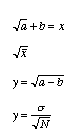
They are produced with the following code:
sqrt a+b=x

sqrt {X bar}

y= sqrt {a-b}

y = sigma over {sqrt N}
You can also produce large root signs. For example,
sqrt {{a sup x} over b sub y}
When you do this, however, the root sign doesn't just get bigger; it gets thicker—and uglier. In cases like this, you're better off using a fractional power. For example,
{( a sup x /b sub y ) } sup half
produces

Sums, Integrals, and Limits
In their simplest form, sums, integrals, and limits are produced by sum, int, and lim. Of course, you never see them in their simplest form. Usually included is a from or even a from and a to. For example,
sum from 1=0 to {i=inf} x sup i

int from a to b

lim from {n -> inf} sum from i=0 to m c sup i
produces
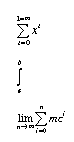
In addition, you can use prod, union, and inter to produce the symbols used with sets.
Brackets, Braces, and Piles
You can create big braces and brackets by enclosing expressions that require them. Consider the following code:
#left [ {a over b} + {c over d} right ]#

#left { {s over t} - {r over q} right }#
The expression that this code produces is

You can specify floor and ceiling characters. For example,
left floor a over b right floor =>

left ceiling x over y right ceiling
produces

Although piles look like big brackets, they are actually different. Piles line up in three ways: left, right, and centered. For example,
A= left [

pile { a above b above c }

pile { x above y above z }

right ]
produces

If you require only one brace, you must include a null argument for the missing side. Consider
left ""

lpile

{SIGMA X sub 3 above SIGMA X sub 1

X sub 3 above SIGMA X sub 2 X sub 3}

right )
which produces

Arrays and Matrices
To create an array or a matrix, use the keyword matrix, as in
matrix {

lcol { 0 above {x over y} }

rcol { 1 above {x sup 2} }

}
This code produces

You could use ccol to center columns. The main advantage of using the matrix keyword, though, is that the elements align themselves horizontally better.
Defines
If you use a complex term over and over again, you can define it as something short. A good choice, for example, is &. Then, instead of typing
x= sqrt {SIGMA {x sup 2}} over N
you can type
x= &
define works like this:
.EQ

define &  'sqrt {SIGMA {x sup 2}} over N'

x = &

.EN
You can select any characters you want—fg, xy, and so on—but be sensible. Don't choose ^ or ~. Don't choose your eqn delimiters. And don't choose an eqn keyword, even though it is permitted.
Precedence
Without braces to force it to look at terms as groups, eqn recognizes the following orders of precedence:
dyad vec under bar tilde hat dot dotdot


left right


fwd back down up


fat roman italic bold size


sub sup


sqrt over


from to
All operations group to the right, except for sqrt, left, and right, which group to the left.
Finishing Touches
eqn offers several ways for you to beautify your output. You can line up several equations, change fonts and point sizes, and insert vertical and horizontal movement.
To line up several equations, use mark and lineup. mark, which can be used only once in an equation, marks the horizontal position where lineup aligns the other equations. For example,
.EQ

a mark = b

.EN

.EQ

lineup = b+1

.EN

.EQ

lineup = b+c+1

.EN
produces

You can also change fonts and point sizes in an equation. Table 24.5 describes the keywords used.
Keyword |
Description |
|
bold |
Prints the next character or term in bold type |
|
fat |
Prints the next character or term in pseudo-bold, by overstriking |
|
font f |
Changes to font f any font that troff recognizes (such as R, B, I, CW, and HB) |
|
italic |
Prints the next character or term in italic type |
|
roman |
Prints the next character or term in roman type |
|
size n |
Changes to point size n, which can be specified as a number or as a relative quantity (such as size -2 or size +3) |
There is a gsize option for setting a global point size. Similarly, there is a gfont. You should put these options near the top of your file; otherwise, eqn uses the default point size (usually 10).
Unconventional Uses for eqn
You can use eqn to put diacritical marks on foreign words. Just remember that eqn prints words in italics. So you need to specify roman. Consider the following code:
No# roman e dotdot #l Coward

Georg H# roman a dotdot #ndel

malague# roman n tilde #a
It produces
Noël Coward
Georg Händel
malagueña
You can also use eqn to produce the service mark symbol if it isn't available as a troff special character. The service mark is like the trademark except that it reads SM. For example,
XYZZY-Box# sup roman SM #
produces
XYZZY-BoxSM
Okay, it's not as neat as XYZZY-BOX\(SM, but it's a whole lot better than XYZZY-Box\v' -3p'\s-3SM\s+3\v' +3p'!
Troubleshooting
Sometimes, despite your best efforts, your equations just don't come out right. Here are some suggestions for detecting and correcting faulty code, and for dealing with some of eqn's more arcane characteristics.
Using checkeq
At its best, eqn is quirky. So, before you print a 50-page chapter containing 70 equations, check your equations. This pinpoints syntax errors such as unmatched delimiters. The checkeq program is a good place to start. Use checkeq like this:
checkeq myeqnfile
If checkeq finds no errors, it displays the following:
myeqnfile
or
myeqnfile:

     New delims: ##, line 2
If you have an odd number of delimiters, you'll see something like this:
myeqnfile:

myeqnfile:

     New delims: ##, line 2

     3 line ##, lines 7-9

     3 line ##, lines 9-11

     3 line ##, lines 11-13

     3 line ##, lines 13-15

     3 line ##, lines 15-17

     Unfinished ##
If, for some reason, you've specified bad delimiters (#$, for example, or #), checkeq announces:
myeqnfile

     Strange delims at Line 2
or
myeqnfile

     Unfinished
checkeq isn't good for much more than this.
Processing to /dev/null
Because checkeq lets a lot of mistakes slip by, you can also process your equation and send output to /dev/null (so you don't clutter your directory with a lot of troff output).
To do this:
eqn myeqnfile > /dev/null
When errors are found, you see a message like the following:
eqn: syntax error near line 19, file nyeqnfile

    context is

    !a = (x >>> {sup <<<< 2}) + 1!
The line number is not guaranteed, but it should be close.
Again, this is not foolproof because, if eqn can process your code, it will. You'll get no error message, even if your output is garbled or nonexistent.
Additional Suggestions
If you get no output at all:
If your file contains nothing but an equation, try inserting a line of text before the equation. If you don't want text, use translated tildes:
.tr ~

~ ~ ~

.EQ

x sup 2 + y sup 2 = z sup 2

.EN
Oddly enough, this does not seem to affect eqn code—even code with tildes in it.
If the vertical spacing is wrong: Try printing your file with a different macro package—or with no macro package. (If you're using a home-grown package, you may have to pipe your file through eqn before you send it through troff.) Try
processing the eqn code and replacing the code with the processed code in your file. Try using space 0 as the first line of your eqn code:
.EQ

space 0

code

.

.

.

.EN
If you're using the .EQ/.EN macros to delimit your equation, try using delimiters (## or !!)—and, of course, vice versa.
If your equation is garbled: Check for omitted spaces and braces. (Use them, even if you don't really need them.) Count braces and parentheses to make sure you have an even number of each. checkeq—and eqn itself—doesn't always find this
problem. If your equation contains a sup, make sure you use spaces around its argument, even if there's a brace. Make sure you have keywords in the right order. For example, #x highbar tilde# produces no error message, but it prints the bar right on the
tilde. (The correct order is #x tilde highbar#.) If your equation is long or complicated, use lots of spaces and newlines to make it easy to read.
eqn and the Preprocessors
You can use eqn with any of the other preprocessors (pic, grap, and tbl), but only with delimiters—not with .EQ/.EN macros. Before you do this, however, ask yourself if it's really necessary. You could always get another job, or move to a tiny
island with no electricity and no telephone lines.
The sections that follow provide some help if you can't face life without grap.
eqn and pic
You cannot use ## as eqn delimiters with pic code. You can use $$ and !! and %%. I wouldn't experiment with anything else.
Complicated equations inside pic pictures will come out wrong if eqn has to provide extra vertical space—for example, for an integral sign. Use space 0 to (try to) prevent this, as follows:
.EQ

delim !!

.

.

.

pic code "!space 0 eqn code!"
You need the quotation marks for pic.
A simple example of pic and eqn is

The code is as follows:
.EQ

delim !!

.EN

.PS

box ht .75i wid i.5i "!a sup 2 + b sup 2 = c sup 2!"

.PE
eqn and grap
Because grap is built on pic, you can expect similar problems if you use eqn with grap. You can use the same delimiters, and you can expect to have to use space 0 to correct vertical spacing problems. eqn tries to override grap's spacing unless you do.
Do just as you did for pic; here's an example:
.EQ

delim !!

.EN

.G1

label left "!y= sqrt { (2x sup 3 + 1)/3}!"

.G2
You must use quotation marks, as with pic.
eqn and tbl
There are a few simple rules for using eqn in tables. (tbl is discussed in detail in Chapter 23.)
- If you have equations and tables in your file, run the file through tbl first.
- Do not use pound signs (##) as delimiters. (I tried it and got several indignant screenfulls of complaints. I'm not sure what the conflict is.)
- Do not use the same characters for eqn delimiters and tbl tab characters.
- Avoid using T braces with equations.
- Don't put an equation in an n-style column. tbl cannot process the equation properly.
To put an equation in a table, do the following:
- Define your eqn delimiters (use exclamation points).
- Start your table.
- Insert your eqn code between exclamations points.
With me and ms, you can use arguments to the .EQ macro to position your equation horizontally. Both packages accept the following:
.EQ C     \centers the equation

.EQ I     \indents the equation

.EQ L     \left justifies the equation
Summary
eqn is a limited use program, but a very useful one. It's easy to learn, easy to use (except for the spaces), and it does an excellent job of setting mathematical expressions.
multipage table, use the .TS H and .TH macros.
Use .TS H to start your table if you are going to specify a column heading. Then use .TH after the lines that constitute the heading. Be sure to include underscores and spaces if they are part of the heading.
Horizontal and Vertical Spanning
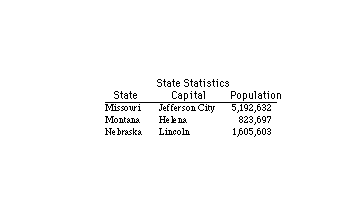
tbl accommodates both horizontal and vertical spanning. Use horizontal spanning to center a column heading over more than one column, as in
c s s
Figure 23.2 illustrates horizontal spanning.
Figure 23.2. A table with horizontal spanning.
You can code vertical spanning in the tbl format options or in the table data. Vertical spanning in the column headings is produced by using ^ in the format specifications. Vertical spanning in the table data is produced by using \^.
Text Blocks
A text block is a block of text—a paragraph—used as a table entry. Figure 23.3 shows a table with text blocks.
Figure 23.3. A table with text blocks.
The text block is coded as part of the table entry:
1990-1991[TAB]T{

.na

Writer. \f2Jurassic Park II\fP, \f2Daughter of the Firm\fP, \f2The

Cat in the Hat Spends a Year in Provence\fP. Took best-selling ideas

and capitalized on them. Raised my income 576% in just one year.

T}

.sp .5

1991-date[TAB]T{

.na

Law Student. Attending Harvard Law School; expect to receive degree

this year.

T}
Because tbl right-justifies text blocks, you might want to turn off adjustment inside the text blocks, as in the previous example. Use .na to do this.
The number of text blocks that can be used within a single table varies, depending on the tbl version. If you're using a recent version, don't worry about this. Even if you're using an old version, don't worry. tbl will complain loudly if you use too
many text blocks. Your only remedy is to break the table into smaller tables.
Text blocks complicate a table. The first time you use them, you're almost certain to leave out the beginning or ending T-brace or to use an opening brace instead of a closing one. If you do this, tbl assumes your unmatched T-brace is data and prints
it, so the error is easy to find.
Spacing and Lines
The default gap between columns is 3 ens. You can adjust this gap by putting a number between your format options, as in
cB 2 lB 2 lB 1 cB
You can even set the gap to 0.
You can use .sp to put more space between table rows. (Don't use macros; use the troff primitive.) Using .sp .25 before and after an underscore and with column headings usually improves the appearance of the table.
If you have some two-line column heads and some one-line column heads, the allbox global option looks really awful. Similarly, if you've spanned any column, allbox doesn't work correctly. You can insert vertical lines between columns by using the pipe
character (|). You can even combine vertical lines with changes in the column gap.
Changing Format Options
You can change format options in the middle of a table. You can't change the number of columns, but you can change anything else. Use spanning to change the apparent number of columns.
To change tbl format options, use the .T& macro and insert a line (or several lines) of format options.
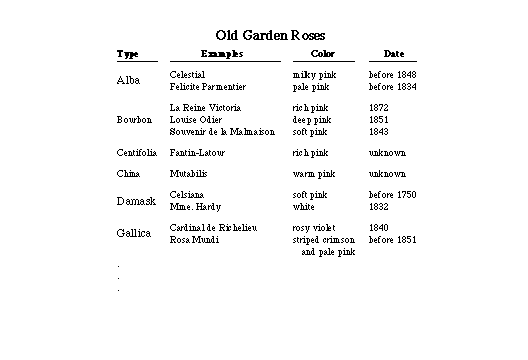
A Fancy Table
The following code illustrates the advanced formatting techniques described in the previous sections. It produces the table shown in Figure 23.4.
.TS

center;

c s s s

lB cB cB cB

l l l l.

\fb\s14Old Garden Roses\s0\fP

.sp .25

Type[TAB]Examples[TAB]Color[TAB]Date

.sp .25

\_[TAB]\_[TAB]\_[TAB]\_

.sp .25

Alba[TAB]Celestial[TAB]milky peach[TAB]before1848

\^[TAB]Felicite Parmentier[TAB]pale pink[TAB]before 1834

.sp .5

Bourbon[TAB]La Reine Victoria[TAB]rich pink[TAB]1872

\^[TAB]Louise Odier[TAB]deep pink[TAB]1851

\^[TAB]Souvenir de la Malmaison[TAB]soft pink[TAB]1843

.sp .5

.Centifolia[TAB]Fantin-Latour[TAB]rich pink[TAB]unknown

.sp .5

China[TAB]Mutabilis[TAB]warm pink[TAB]unknown

.sp .5

Damask[TAB]Celsiana[TAB]soft pink[TAB]before 1750

\^[TAB]Mme. Hardy[TAB]white[TAB]1832

.sp .5

Gallica[TAB]Cardinal de Richelieu[TAB]rosy violet[TAB]1840

\^[TAB]Rosa Mundi[TAB]striped crimson[TAB]before 1581

[TAB][TAB][TAB]\0\0and pale pink

.TE
Troubleshooting
When you use tbl, keep the following points in mind:
- Don't use macros in tables. They don't get digested properly. It's tempting to put in a .P. You do it without thinking, but often a single .P can wreck your table. Don't try to embed lists in tables. At the very least, don't try it when you're on a
tight deadline. Macros and tables don't mix.
- Don't mix your font changes. If you use B in a format option line to get bold text, don't use f2 for italics. However, escape sequences in your table data are fine. Likewise, don't use macros.
- If you can't get the a format option to work, indent with \0. \0 inserts a space the width of a numeral.
- A common source of error in tables is a space after a T-brace. For some reason, it really makes tables crazy. The space is invisible, too, so you don't see it.
- If you specify a column width and the contents of that column are longer than the specified width, your width setting is ignored. Think of it as a minimum width, not a maximum.
- If you omit a T-brace, tbl gets confused about your columns and might, for example, put column 2 in column 1. This plays havoc with your column width. You might not even see column 2 if this happens. Don't worry; column 2 isn't lost. It simply printed
somewhere out in the middle of the Atlantic Ocean. When you fix your table, it will come back and behave.
Summary
tbl is one of the most used, yet least liked programs, offered by the UNIX system. It is well worth the effort to learn at least the rudiments of tbl, because you can use tables to your advantage in unexpected situations. You can also make friends and
influence supervisors if you take the time to learn tbl thoroughly. A good tbl debugger is hard to find.
Popular Tutorials
-
 MS Access
1109
MS Access
1109
-
 C++
1222
C++
1222
-
 HTML
584
HTML
584
-
 JavaScript
616
JavaScript
616
-
 Vbscript
873
Vbscript
873
-
 Oracle
473
Oracle
473
-
 VC++
875
VC++
875
-
 SQL
2959
SQL
2959
-
 XML
514
XML
514
-
 Java
814
Java
814
-
 Perl
455
Perl
455
-
 Linux
451
Linux
451