GIMP Review: Free Photoshop Alternative for Photo Editing in 2026
GIMP is probably the first name people bring up when someone says, “I need Photoshop, but I don’t want to pay for Photoshop.” And honestly, that makes sense.
It’s free, it runs on Windows, macOS, and Linux, and it gives you a serious set of image-editing tools without asking for a monthly subscription. If you need layers, masks, brushes, color correction, retouching tools, filters, and plugin support, GIMP can handle a lot more than people expect from free software.
But here’s the thing.
GIMP isn’t Photoshop with a different logo. It has its own way of doing things, and the interface can feel a little strange at first if you’re coming from Adobe tools. I’ve seen people open it, click around for five minutes, and say, “Where is everything?” Then, after a few tutorials, they realize it’s actually powerful — just not always beginner-friendly.
- What GIMP is best for
- Where it beats most free photo editors
- Where Photoshop is still better
- The best free and online GIMP alternatives
- Whether GIMP is the right Photoshop replacement for you
Quick Verdict: Should You Use GIMP?
Use GIMP if you want the most powerful free desktop alternative to Photoshop and you’re willing to spend a little time learning it. Skip it if you want something super simple, browser-based, or built mainly for templates and social media graphics.
Best for
- Users replacing Photoshop on a budget
- Photo editing and retouching
- Layer-based image editing
- Open-source software fans
- Windows, Mac, and Linux users
Not ideal for
- Total beginners who want a Canva-style interface
- Heavy Adobe Creative Cloud workflows
- Professional print users who depend on native CMYK workflows
- People who only need quick online edits
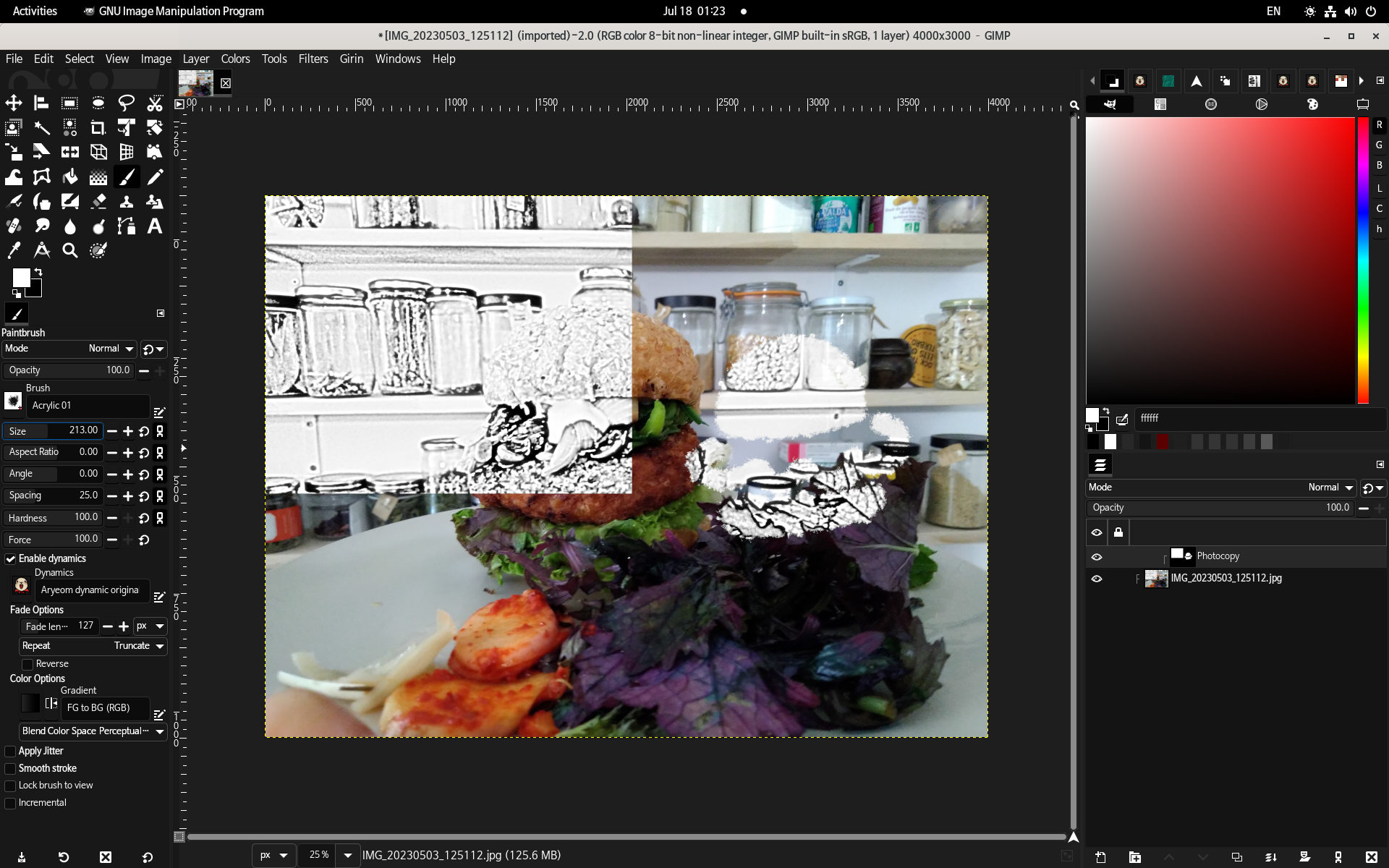
GIMP Snapshot
| Software | GIMP — GNU Image Manipulation Program |
|---|---|
| Category | Image editor / photo editor / raster graphics editor |
| Developer | The GIMP Development Team |
| Platforms | Windows, macOS, Linux |
| Price | Free |
| License | Open source |
| Current stable version | 3.2.4 |
| Best alternatives | Photopea, Krita, Paint.NET, Pixlr, Inkscape |
What Is GIMP?
GIMP is a free and open-source image editor used for photo editing, retouching, image manipulation, drawing, and graphic design tasks. It’s been around for years, and it’s especially popular with users who want a serious desktop editor without paying Adobe every month.
Think of it as the “power user” option among free Photoshop alternatives. It’s not as clean and beginner-friendly as Paint.NET, and it’s not as convenient as Photopea because it doesn’t run in the browser. But if you want real editing depth for free, GIMP is usually the first tool to test.
You can use it for things like product photo cleanup, thumbnail editing, image resizing, color correction, basic compositing, transparent backgrounds, web graphics, and layered designs. So, yes, it can replace Photoshop for plenty of everyday users.
Just don’t expect it to feel exactly like Photoshop on day one.
Why People Look for GIMP Instead of Photoshop
Photoshop is excellent software, but not everyone needs a professional Adobe subscription to crop a photo, fix colors, remove a small object, or prepare images for a website. That’s the gap GIMP fills.
A student might need to edit a poster. A small business owner might need product images. A blogger might need simple graphics. A Linux user might want something powerful that runs natively. None of these people necessarily want another monthly payment.
That’s where GIMP becomes attractive: no subscription, no trial countdown, no cloud lock-in, and no pressure to keep paying just to open your own files.
Key GIMP Features
- Layer-based editing
- Layer masks and blend modes
- Selection tools
- Brushes and painting tools
- Retouching and healing tools
- Color correction and adjustment tools
- Filters and effects
- Plugin support
- PSD file support with limits
- Cross-platform desktop support
What GIMP Does Well
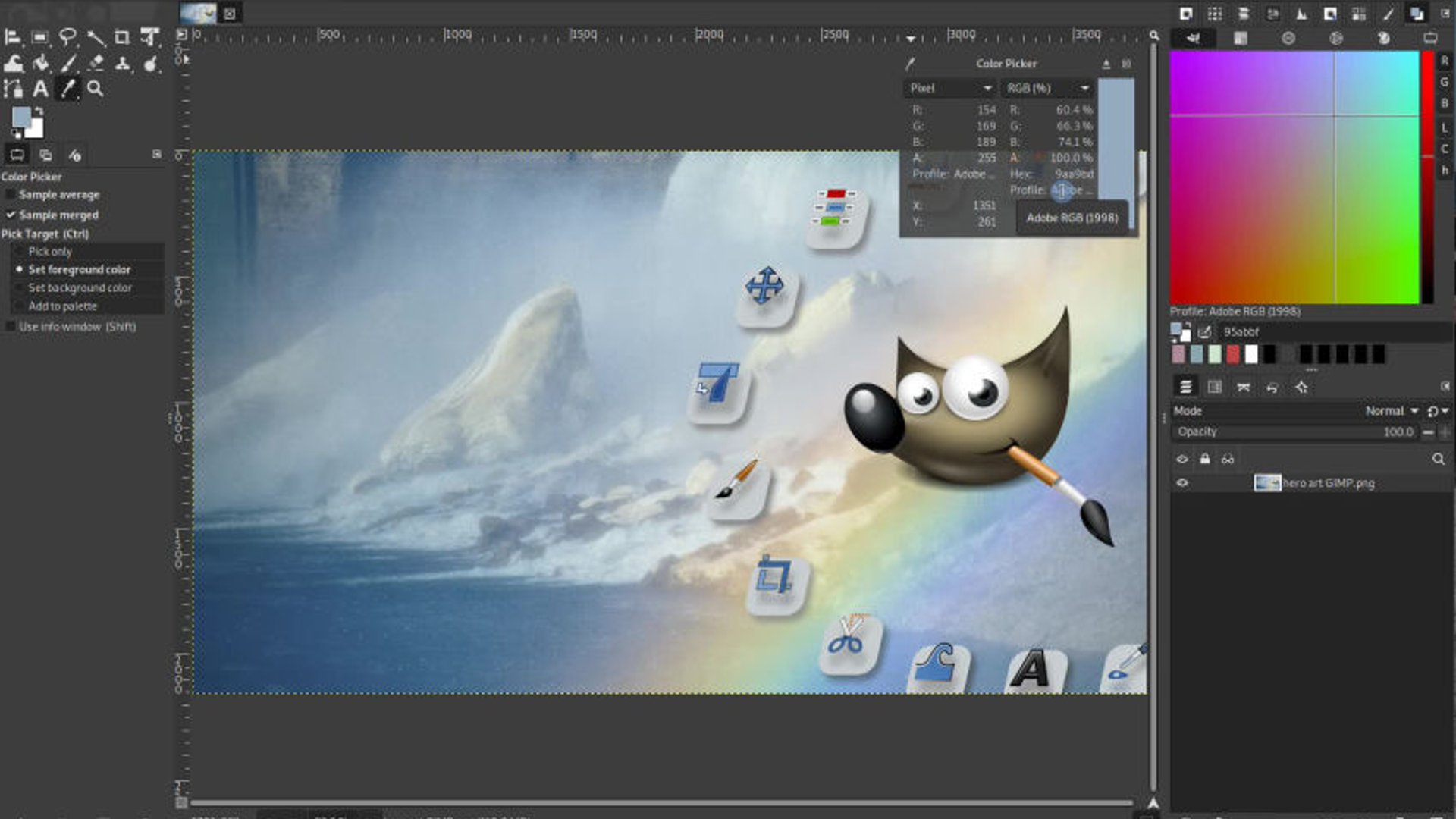
GIMP is strongest when you treat it like a real desktop editor, not a tiny quick-fix app. If you need control, layers, masks, brushes, and detailed adjustments, it gives you a lot of room to work.
It’s also nice for people who care about open-source software. You’re not locked into a subscription. You don’t need to sign into an account just to edit a file. You download it, install it, and use it.
✓ Pros
- Completely free
- Open source
- Works on Windows, Mac, and Linux
- Strong layer and mask support
- Good plugin ecosystem
- Powerful enough for serious editing
- No subscription or account required
✗ Cons
- Interface can feel dated or confusing
- Steeper learning curve than simpler editors
- Not a perfect Photoshop clone
- PSD compatibility can be imperfect
- No native Adobe cloud workflow
- Not the fastest option for casual edits
Where GIMP Falls Short
Look, GIMP is great for free software, but it’s not magic.
Photoshop still wins for some professional workflows, especially if you work inside Adobe’s ecosystem all day. Designers who rely on exact PSD compatibility, advanced AI tools, professional print workflows, shared Creative Cloud assets, or client files built in Photoshop may still need the real thing.
GIMP also takes patience. The tools are there, but beginners won’t always find them quickly. If you only need to crop one image and add text, something like Pixlr, Canva, or Paint.NET may feel less annoying.
Best Free GIMP Alternatives
GIMP is strong, but it isn’t the right fit for everyone. Here are the alternatives your users should compare before deciding.
1. Photopea — Best Online Photoshop-Style Alternative
Photopea runs in the browser and feels much closer to Photoshop’s layout. It’s especially useful if you need to open PSD files without installing anything. If your main complaint about GIMP is “I don’t want to learn a new interface,” try Photopea.
2. Krita — Best for Digital Painting
Krita is better than GIMP for artists, illustrators, and concept designers. It has a stronger painting workflow and a more artist-focused brush system. For photo editing, GIMP is usually better. For drawing, Krita wins.
3. Paint.NET — Best for Windows Beginners
Paint.NET is easier and lighter than GIMP. It won’t replace Photoshop for professionals, but it’s great for quick edits, screenshots, resizing, and simple graphics on Windows.
4. Pixlr — Best for Quick Browser Edits
Pixlr is a friendly online editor for quick jobs. It’s not as deep as GIMP, but it’s easier when you just want to crop, resize, add text, or clean up an image in the browser.
5. Inkscape — Best for Vector Graphics
Inkscape isn’t really a GIMP replacement because it edits vector graphics, not photos. But if your job involves logos, icons, SVG files, or illustrations, it pairs nicely with GIMP.
Best Online Alternatives to GIMP
If you don’t want to install anything, start with these:
- Photopea — best for layered Photoshop-style editing in the browser
- Pixlr — best for fast, casual online photo edits
- Canva — best for templates, social media graphics, and simple layouts
- Adobe Express — best for quick branded designs and simple web-based editing
For big layered files, desktop software still feels safer. But for quick edits, online tools are often enough.
GIMP vs Photoshop vs Photopea vs Krita
| Tool | Free? | Online? | Best For | Beginner Friendly? |
|---|---|---|---|---|
| GIMP | Yes | No | Free desktop photo editing | Medium to hard |
| Photoshop | Trial / paid | Limited web options | Professional Adobe workflows | Medium |
| Photopea | Free tier | Yes | PSD editing in browser | Easy if you know Photoshop |
| Krita | Yes | No | Digital painting and illustration | Medium |
| Paint.NET | Free direct download / paid store option | No | Simple Windows edits | Easy |
When You Should Use GIMP
Choose GIMP if you want a serious free editor and you don’t mind learning a few new habits. It’s a good fit for:
- bloggers editing graphics
- small businesses preparing product images
- students who need free design software
- Linux users who want a native photo editor
- hobby photographers doing basic retouching
- anyone avoiding monthly software subscriptions
When You Should Pick Something Else
Skip GIMP if you mainly need speed and simplicity. For quick online edits, Photopea or Pixlr may be easier. For template-based graphics, Canva is probably better. For digital painting, Krita feels more natural. And for professional Adobe workflows, Photoshop may still be worth paying for.
That’s the honest answer.
Safe Download Notes
Download GIMP only from the official website or a trusted software directory. Avoid “free Photoshop” or “GIMP Pro” style download pages from unknown sources. Those pages can bundle adware, fake installers, or outdated versions.
Editors: add Softlookup’s verified download link here if available.
Frequently Asked Questions
Is GIMP really free?
Yes. GIMP is free and open-source software. You don’t need a paid subscription to use it.
Is GIMP better than Photoshop?
For users who need a free photo editor, GIMP is one of the best options. Photoshop is still better for some professional workflows, especially if you depend on Adobe tools every day.
Can GIMP open Photoshop files?
GIMP can open many PSD files, but complex files may not always look exactly the same. If PSD compatibility is your main need, Photopea is also worth testing.
Is GIMP good for beginners?
It can be, but beginners should expect a learning curve. Paint.NET and Pixlr are easier for simple edits.
Does GIMP work offline?
Yes. GIMP is desktop software, so you can use it offline after installation.
What is the best online alternative to GIMP?
Photopea is the best online alternative if you want a Photoshop-style editor. Pixlr is easier for quick browser edits.