Web based School
Programming Inside the Internet Explorer |
 |
 |
Chapter FiveProgramming Inside the Internet ExplorerIntroductionToday you will learn to exploit the programming
power that lives inside Microsoft Internet Explorer. Internet Explorer presents a rich set
of internal objects, properties, and methods, along with scripting and ActiveX components,
that you can use to build smarter, more interactive Web sites. By the end of the day you,
will know how to use:
Why Internet Explorer?
There are several Web browsers available for the
Internet today. The two primary browsers are Netscape Navigator (http://www.netscape.com/) and Microsoft Internet
Explorer (http://www.microsoft.com/). Currently,
Internet Explorer is the only browser that supports VBScript and ActiveX controls, so you
will be running your scripts and ActiveX controls on it. The internal object model for Netscape Navigator is
similar to the one for Internet Explorer, so what you learn today will at least give you a
good start if you ever wind up putting ActiveX components in Netscape Navigator Web pages.
Internet Explorer Object Model
This section has two objectives. First, detail the
objects available to the programmer. Second, show how these objects are manipulated
through scripting. I will use both VBScript and JavaScript in the examples. Don't worry
about the syntax, that's what days 6 and 7 are for. For those of you who are new to programming, an object
is a collection of properties and methods. A window on your computer screen is an
object. The window has properties, such as background color, size, and border type. The
window also has methods. Methods are ways of doing things. A window usually has a
method for expanding itself to fill the whole screen, and another method to reduce itself
to an icon. Events are the object's methods that are triggered by the operating
system. A good example of an event is clicking your mouse button when the cursor is over a
button. By clicking the mouse, you cause the operating system to call the OnClick method
of the button. The programmer can place code in this method. You placed code in this event
in yesterday's ActiveX Control Pad example, and will be putting code inside events in
almost every example you do today. The Window: Mother of all Objects
The object at the top of the chart is the window
object . This object contains 11 properties, 8 methods and 2 events. Lets start with
window's properties. Window Properties
The 11 window properties are -Using the window.open method (not currently
implemented): <SCRIPT Language="VBScript"> -Creating the window with a name using the FRAMESET
element: <FRAMESET ROWS="50%, *"> Creating the window with a URL using the TARGET
attribute: <A HREF="Name.asp" TARGET="secondframe">Launch Name Frame </A> Parent—This property is the window object that
is the parent of the current window. Because it is a window object, the parent property
possesses all the objects, methods, and events that come with being a window. Self—This property is the window object of the
current window. This object is redundant. For example, the current window could reference
its name by either window.name or by self.name; both refer to the name of the current
window. Top—This property is the window object of the
top-most window in a collection of windows. This is the object that owns all the frames in
a given browser window. For example, to get the name of the top-most window, use: string1 = top.name DefaultStatus—This property is the default text
displayed in the lower-left corner of the status bar. This doesn't currently set the
default status, but it does set the text that appears in the left part of the status bar.
You will shortly do an example that shows defaultstatus in action. Status—This property changes the text in the
lower-left corner of the status bar.(not currently implemented). Script—This property contains all the functions
defined within the <SCRIPT> tags in a window. The browser uses this object to track
the functions that are loaded by your scripts. Location—This property is the location object
for the window. It contains the properties href, protocol, host, hostname, port, pathname,
search, and hash. The most commonly used of these properties is href. For example, to put
the current URL in a variable called string1 you would write: string1 = window.location.href Frames—This property is a zero-based array of
frames for the current window. The frame object can be used like a window object. For
example, the name of the first frame is window.frame(0).name History—This property is an object that
contains data from the browser's history list. This object contains three methods
(Forward, Back, and Go) and one property (length). Forward and Back work just like pushing
the Forward and Back buttons on the Explorer to get to other Web pages on the history
list. Go moves you a given number of pages from the beginning of the list. Length tells us
how long the list is (currently not implemented). Navigator—This property is an object that
contains information about the browser. This information is contained in four properties,
appCodeName, appName, appVersion, and userAgent. In the 3.0 version of Internet Explorer,
these properties have the following values (notice how Internet Explorer 3.0 makes itself
look like Netscape with the AppCodeName and the userAgent): AppCodeName—Mozilla appName—Microsoft Internet Explorer appVersion—2.0 (compatible; MSIE 3.0A; Windows
95) userAgent—Mozilla/2.0 (compatible; MSIE 3.0A;
Windows 95) Document—This property is an object that
contains references to all of the major elements of a Web page. The properties associated
with document are linkColor, aLinkColor, vLinkColor—The color of
the links, highlighted links, and visited links, respectively. bgColor, fgColor—The foreground and background
colors. Anchors—An array of anchors (<A> tags) in
the document. Links—An array of links in the document. Forms—An array of forms in the document lastModified—The date the page was last
modified. Title—The title of the document, from the
<TITLE> Tag. Cookie—A text file the document can create,
store information to, and retrieve information from, like a Windows ini file. An in-depth
discussion of cookies is beyond the scope of this guide, but if you have been using
Internet Explorer for a while, you will have a collection of cookies in a subdirectory
named cookies off your Windows directory. Referrer—The URL of the program that launched
this Web page. Document methods are write—writes data to the current document. Writeln—writes data to the current document
with a new-line character at the end. HTML ignores the new-line character unless the
section is enclosed in a <PRE> tag. Open—Opens the document for writing. Clears the
page of any current text. Close—Closes the document Clear—Closes the document output stream and
writes data to the screen. Similar to Flush in the C language. (Not implemented in this
build.) The following code segment would cause the Navigator
properties to be printed on the page. window.document.open Lets go through some examples to see how these
properties work. Examples
Launch the ActiveX Control Pad. Before I do
anything, go to the Tools menu, choose Options, then choose Scripting. Change the
Scripting option to VBScript. The following example is built using VBScript . This is the
only place you can change this option. Your screen should look like Figure 5.1. Figure 5.1. Changing the
Scripting option. Next, build two HTML inserts . Both have a label, a
text box, and a button. Make the inserts look like Figure 5.2. Figure 5.2. Sample window
object. Save the insert with the Name label as names.alx,
and save the other insert as chngstat.alx. In names.alx, add the following code to the
click method of CommandButton1 (use the Script Wizard to find it). CommandButton1 is the
default name the ActiveX Control Pad gives to the first button you put on your form. Then, in the click method of the CommandButton1 in
names.alx, add this line of code: Also, put some text in the Text property of
TextBox1. Otherwise, you will get an error if you push the button without putting any text
in the text box. However, its not a fatal error, so you might want to try it when you run
these forms. Create two new HTML documents. Insert names.alx into
one, and save it as names.asp. Insert chngstat.alx into the other, and save it as
chngstat.asp. names.asp and chngstat.asp should look like Listing
5.1 and Listing 5.2 Listing 5.1. names.asp
Listing 5.2. chngstat.asp
The alx files should look like Listing 5.3 and
Listing 5.4. Listing 5.3. name.alx
Listing 5.4. chngstat.alx
At this point, if you run names.asp and push the
button, the text box remains blank. Remember that there were only three ways to name a
window (window.open, <FRAMESET>, and TARGET). Lets try one of them. To get a better
look at what the name property does, create a new form using <FRAMESET> and add two
lines of code to your existing forms. Use a text editor and create the following as
frame.asp: Listing 5.5. Source for frame.asp
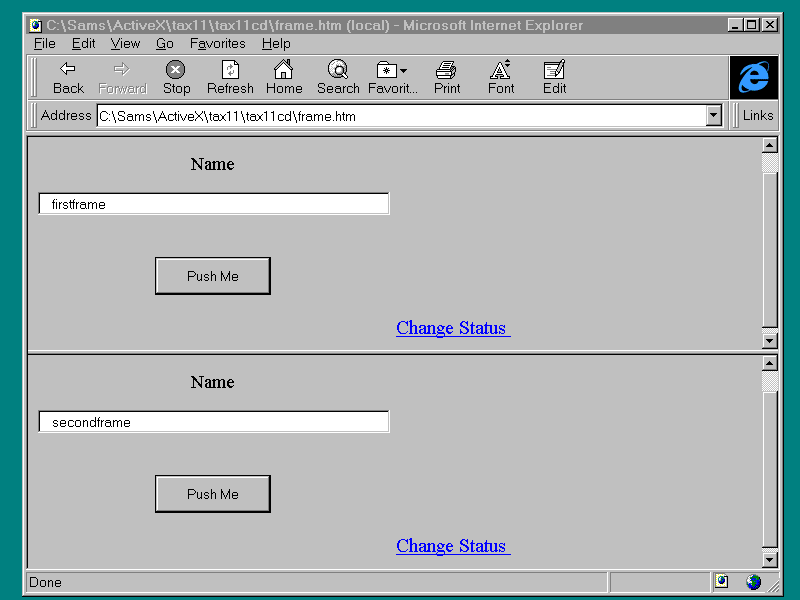
This splits the screen into two frames, named "firstframe" and "secondframe", and loads name.asp into both frames. Now add the line
to the name.asp file on the line following the </OBJECT> tag. This line will load chngstat.asp into "secondframe". Save the file. Now add the line
to the chngstat.asp file on the line following the
</OBJECT> tag. This calls names.asp back into "secondframe". Save the file
and bring up frame.asp in your browser. After clicking both Push Me buttons, your screen
should look like Figure 5.3. The truth comes out! windows.name is the name of the
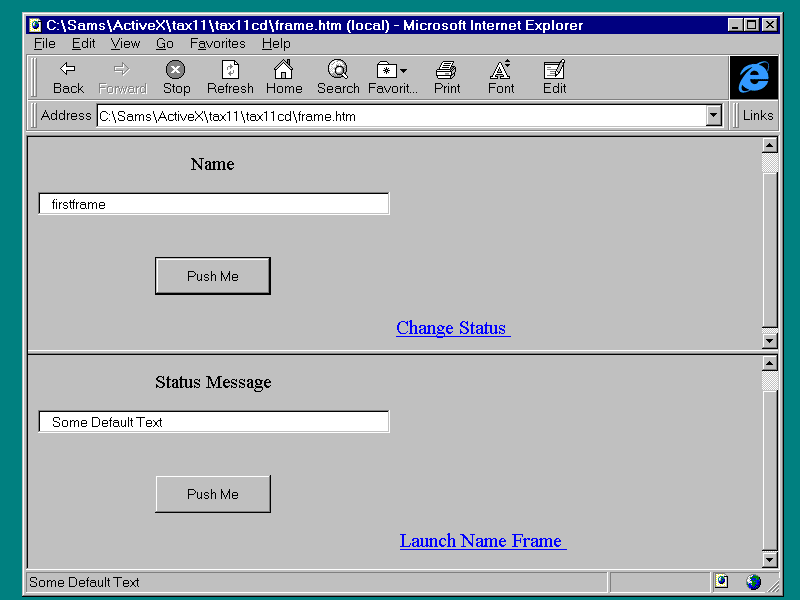
<FRAME> where the window is loaded. Clicking the Change Status link, adding some
text to the text box, and pushing the button results in Figure 5.4. Notice the status change . Notice how the window
object and the text box are manipulated the same way by VBScript. When you set the text
box text, you used TextBox1.Text. You used the same syntax for window.name.
Lets look at some of the other interesting
properties. The following example looks simple, but it does some cool stuff. Put three labels, a button, and a text box on a form
using ActiveX. The physical layout should look like Figure 5.5. Using the Script Wizard , add the following code to
the Onload Event for the layout control:
Place minibrs.alx inside a new HTML page, and save
them as minibrs.asp. Create a frame page to hold minibrs.asp . Use the source code in
Listing 5.7, and save it as brsfram.asp. Listing 5.7. brsfram.asp
Figure 5.6. A browser in a
browser. The secret to this program is in the object's
parent, frames, and location. The parent object in this case is the window created by
brsfram.asp. The parent object contains an zero-based (frame(0) is the first frame,
frame(1) is the second, and so on) array of frames that can be addressed like the windows
object in the first example. The third object you use is location. Location has the
property href, which you read (label1.caption = parent.frames(1).location.href) and wrote
to (parent.frames(1).location.href = TextBox2.Text) in the example. Another object,
history, gives you access to a listing of all the pages you have browsed; you can traverse
this URL list by using the Forward, Back, and Go buttons. At the time of this writing, the
history object was not yet supported by the browser. You have seen what objects are available to the
developer through the browser and how to access them using VBScript. Most of the objects
not covered in the last two examples will be covered during the rest of the discussion of
VBScipt. Window Methods
The window object offers nine methods.
Figure 5.8. To confirm or
not to confirm.
Figure 5.9. The Prompt
dialog.
Window Events
|
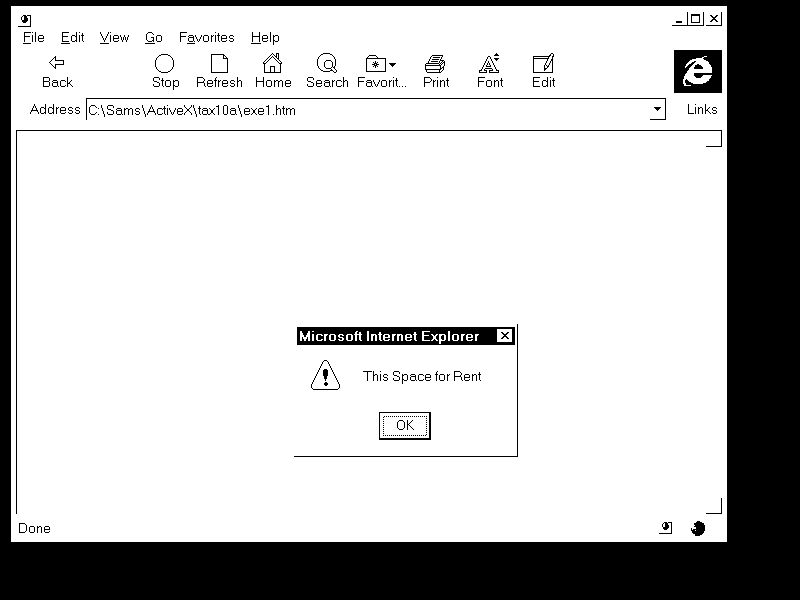
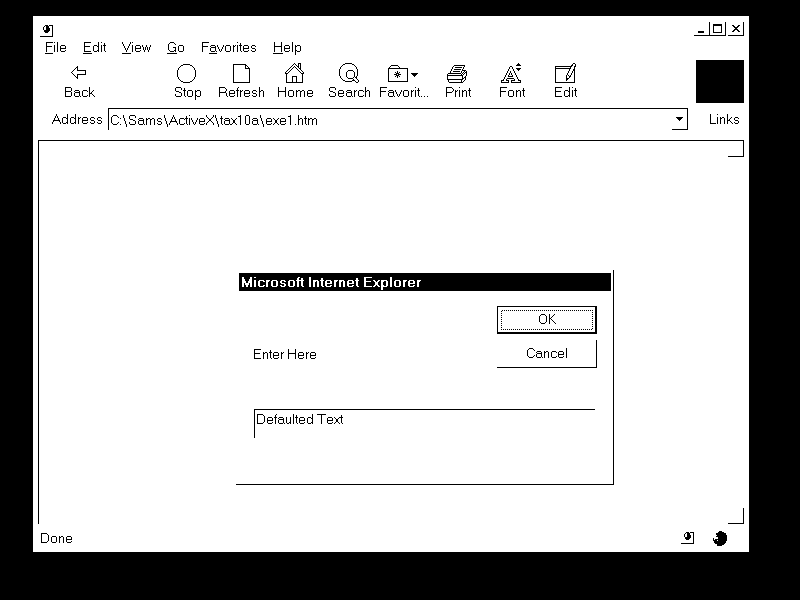
| <HTML> <HEAD> <TITLE>Boxes</TITLE> <SCRIPT LANGUAGE="VBScript" > <!-- Sub LoadMe() Alert "This Space for Rent" Answer = Confirm("Launch the Shuttle?") String1 = Prompt("Enter Here","Defaulted Text") Alert string1 end sub Sub OutofHere() Alert "Thats All Folks" end sub --> </SCRIPT> </HEAD> <BODY Language="VBS" onLoad="LoadMe" onUnload = "OutofHere"> |
Save this source code as boxes.asp and run it in the
browser. Notice how the onLoad and onUnload events are assigned to the subroutines Loadme
and OutofHere in the line
| <BODY Language="VBS" onLoad="LoadMe" onUnload = "OutofHere"> |
Also, notice how the default text for the text
box(where the user can enter a value) in the prompt is entered
| String1 = Prompt("Enter Here","Defaulted Text") |
Lets do another example. Launch the ActiveX Control
Pad and change the scripting language to JavaScript (Tools|Options|Script). Create one
HTML insert, and attach an image control called Image1. Save the HTML insert as
chngpix.alx. Open a New HTML file. Using the Script Wizard, add the variables MyTimer and
PicState. Then add the procedure ChangePic(). In the window.onload, window.onunload and
ChangePic event put the code shown in Listing 5.9.
Listing 5.9. chngpix.asp
| <HTML> <HEAD> <SCRIPT LANGUAGE="JavaScript"> <!-- var MyTimer var PicState function ChangePic() { if (PicState=1) { chngpix_alx.Image1.PicturePath = "pow.gif"; Picstate = 2; } else { chngpix_alx.Image1.PicturePate = "caution.gif"; Picstate = 1; } MyTimer = window.setTimeout('ChangePic()', 50000)} --> </SCRIPT> <SCRIPT LANGUAGE="JavaScript" FOR="window" EVENT="onLoad()"> <!-- MyTimer = window.setTimeout('ChangePic()', 500); PicState = 1; --> </SCRIPT> <SCRIPT LANGUAGE="JavaScript" FOR="window" EVENT="onUnload()"> <!-- window.clearTimeout(MyTimer) --> </SCRIPT> <TITLE>New Page</TITLE> </HEAD> <BODY> <OBJECT CLASSid="CLSID:812AE312-8B8E- 11CF-93C8-00AA00C08FDF" |
Save this as chngpix.asp. Listing 5.10 shows
chngpix.alx.
Listing 5.10. chngpix.alx
| <DIV id="Layout4"
STYLE="LAYOUT:FIXED;WIDTH:453pt;HEIGHT:275pt;"> <OBJECT id="Image1" CLASSid="CLSID:D4A97620-8E8F- 11CF-93CD-00AA00C08FDF" STYLE="TOP:16pt;LEFT:8pt; WIDTH:110pt;HEIGHT:94pt;ZINDEX:0;"> |
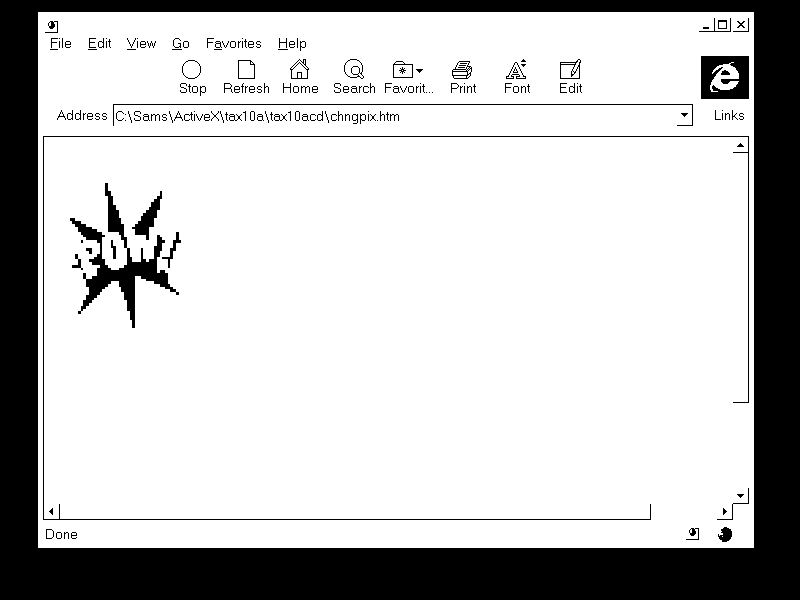
When you run this in your browser, the picture,
Pow.gif, will flash about one time per second and will look like Figure 5.10. Only yours
will be flashing, the one here on the page will not. You can get the same effect by
opening and closing the guide quickly.
One thing to note about this code is the reference
to the image control from outside the layout control. The image control is referenced as
chngpix_alx.Image1. It is not accessible as Image1 from outside the layout control. This
allows you to reference any piece inside the layout control. You can create clusters of
controls, such as a toolbar, and access the same alx component from many different forms.
You have seen what objects are available to the
developer through the browser and how to access them using VBScript and JavaScript. During
the course of the rest of the week, you will use window and its properties, methods, and
events over and over again.
Summary
Today you looked inside the Internet Explorer and
found the mother of all objects, window. You can use window's built-in functions to make
your Web pages more expressive. Tomorrow you will add VBScript to your tool chest.
Q&A
- Q I read in the ActiveX Help that a certain
function was not implemented, but it worked when I used it. What gives?
- A Browser software and the tools to support it
are still in their infancy. I think you are about to see them go through a very fast
adolescence. Someday they might move out of the house and leave us alone. No, wait, that
last line applies to my kids. Forget that line, but remember that Internet publishing and
programming are in a state of flux. Keep trying the functions that didn't work on your
last beta!
- Q Who is driving the Web Browser standard boat?
Every thing keeps changing so quickly!
- A The HTML standard that is the key to this
technology is public. However, JavaScript, VBScript, Netscape Navigator, and Internet
Explorer all represent proprietary standards. This is good and bad. The good thing is that
a proprietary standard evolves more quickly than a public standard. The bad thing is that
competition takes some proprietary standards out of the marketplace.
- Q Will Netscape Navigator support VBScript and
ActiveX?
- A The is an plug-in for Netscape Navigator
that supports VBScript and ActiveX.
Workshop
Rewrite the example in Listing 5.6
(brsfram.asp, minibrs.alx, and minbrs.asp) to use the Window object's Onload event instead
of Layout.onload. Also, use the window.navigate method instead of the
frame(1).location.href to load the user-selected window. Use the window.unload event to
display a farewell message.
Quiz
- What would happen if you typed window.mane instead of
window.name, then tried to assign it to a text box? What if you typed mane instead of
name?
- What object or function can you use to write directly
to the Web page from within the Web page?
- What HTML tag do I use to break my screen into
smaller windows? What attribute inside that component sets the name of the new region?
|
|
Popular Tutorials
-
 MS Access
1109
MS Access
1109
-
 C++
1222
C++
1222
-
 HTML
584
HTML
584
-
 JavaScript
616
JavaScript
616
-
 Vbscript
873
Vbscript
873
-
 Oracle
473
Oracle
473
-
 VC++
875
VC++
875
-
 SQL
2959
SQL
2959
-
 XML
514
XML
514
-
 Java
814
Java
814
-
 Perl
455
Perl
455
-
 Linux
451
Linux
451