Web based School
Writing VBScripts |
 |
 |
|
Chapter SixWriting VBScriptsToday you will learn VBScript. You have already used
quite a bit of VBScript. You implemented VBScript by both hand coding directly on the HTML
page, as covered on Day 2, and with the three editing tools you
looked at Day 4: Word, HoTMetaL, and the ActiveX Control pad.
Yesterday you used VBScript in some of the examples of programming inside the Internet
Explorer. Today, after looking briefly at the background of VBScript, you will learn many
aspects of the language from variables to error handling. By the end of the day, you will
have examined dozens of examples, and you will be ready to use VBScript in a project. Brief Background of VBScript
VBScript grew out of Visual Basic, a programming
language that has been around for several years. Visual Basic is the basis for scripting
languages in the Microsoft Office, Word, Access, Excel, and PowerPoint. Visual Basic is
component based. You build a Visual Basic Program by placing components onto a form and
then using the Visual Basic language to lace them together. Visual Basic also gave rise to
the grandfather of the ActiveX control, the Visual Basic Control (VBX). Visual Basic
Controls shared a common interface that allowed them to be placed on a Visual Basic form.
This was one of the first wide-spread uses of component-based software. VBXs gave way to
OLE Controls (OCXs), which were renamed ActiveX. So when Microsoft took an interest in
Internet affairs, they moved OCX to ActiveX modeled VBScript after Visual Basic. Overview of Scripting Architecture
To learn VBScript you will cover the following
topics. There will be several examples and a test at the end—so pay attention.
Supported Software Platforms
As of this writing only one Web browser supports
VBScript: Internet Explorer from Microsoft. It can be downloaded at http://www.microsoft.com/ie/ie.asp. Internet Explorer is freeware in its third version.
The other major Web browser, NetScape, has no built-in capability to run VBScript or use
ActiveX objects. However, it is very probable that by the time you read this, there will
be a plug-in module for NetScape that will support both VBScript and ActiveX objects.
NetScape is available at http://home.netscape.com. Microsoft currently controls both the ActiveX and
VBScript standards. But, Microsoft did recently publish its intention to transfer the
ActiveX standard to a industry-standards body. The bottom line is that if you need to use VBScript
and ActiveX right now, you have to use the Internet Explorer as your target software
platform. The Visual Basic Programming Model
VBScript is a procedural language . To those
of you who are new to programming, a procedural language uses subroutines as the basic
unit. During previous Days, you have seen many subroutines used to do work on a Web page.
For example, during Day 5, "Programming for Internet
Explorer," you wrote the following subroutine inside an HTML page you called
boxes.asp. Sub LoadMe() Alert "This Space for Rent" Answer = Confirm("Launch the Shuttle?") String1 = Prompt("Enter Here","Defaulted Text") Alert string1 end sub Everything between Sub and end sub is a procedure.
VBScript and procedural languages in general are strong in the areas of ease of use, and
speed of implementation. The downside of procedural languages is that large projects tend
to become unmanageable. Web pages, have to be passed across the Net in a reasonable period
of time, which favors small code, making VBScript is a good fit. What about all those objects you used on Day 5? Good question! You have used objects such as
window.document.write() and the ActiveX objects TextBox, Label, and Layout, so it is
possible to use objects inside VBScript. What is not possible is creating objects with
VBScript. Language Structure
Let's get to know VBScript. We will start off with a
discussion of the general elements of the language, and before you are through, you will
cover every keyword in VBScript. Most of the examples you use to learn VBScript will be
run from within the framework of template.asp, shown in Listing 6.1. Listing 6.1. template.asp . <HTML> <HEAD> <TITLE>Example Template</TITLE> <SCRIPT LANGUAGE="VBScript" > <!-- Sub LoadMe() ' Your Code Here end sub Sub OutofHere() ' Your Code Here end sub --> </SCRIPT> </HEAD> <BODY Language="VBS" onLoad="LoadMe" onUnload = "OutofHere"> </BODY> </HTML> Notice how the Language attribute of the
<SCRIPT> tag is set to VBScript . We have covered all the elements of this Web page
during the previous days of the week. As you can see, it assigns two functions to two
window object events. One function, Loadme() is assigned to the onLoad event. This causes
Loadme to be run whenever the page is loaded. OutofHere() is assigned to the onUnload
event and is be fired every time you leave the page. VBScript is not case sensitive. In VBScript, a Rose
is a ROSE is a rose. This will be a little unsettling for those of you coming from a C or
C++ programming background but old hat for those of you familiar with Pascal or Visual
Basic. You are free to capitalize at will. There will be a few cases, discussed later
today when I will recommend the use of capitalization but its use is entirely up to you. So how do you tell one line from another? In
VBScript all you have to do is start a new line. Observe the following code: </SCRIPT> <SCRIPT LANGUAGE="VBScript"> <!-- Sub CommandButton1_Click() parent.frames(1).navigate TextBox2.Text label1.caption = parent.frames(1).location.href end sub --> </SCRIPT> Notice the lines have no visible terminator. Some
languages, such as C, use a semicolon (;) as the terminator for a line. Lines of code in
VBScript use the line feed at the end of the line as a terminator. If you feel the need to pack several lines of code
on one line, use a colon (:) to separate them, as shown in Listing 6.2. Listing 6.2. separate.asp . <HTML> <HEAD> <TITLE>Example Template</TITLE> <SCRIPT LANGUAGE="VBScript" > <!-- Sub LoadMe() ' Your Code Here A = A + 1 : A = A + 1: A = A + 1 document.open:document.write:document.close end sub Sub OutofHere() ' Your Code Here end sub --> </SCRIPT> </HEAD> <BODY Language="VBS" onLoad="LoadMe" onUnload = "OutofHere"> </BODY> </HTML> Notice how this is embedded into template.asp.
Running this program produces the number 3. Multiple program lines on the same physical
line will also annoy any programming purists you work with. I recommend you keep to one
statement per line. Keep your code well organized and easy to read. Listing 6.2 is the only example using the entire
template that I will show you. You will focus on the code inside. Indentation is not required to make the language
work. Compare the following code segments. Sub LoadMe() ' Your Code Here A = A + 1 A = A + 1 A = A + 1 document.open document.write document.close end sub runs the same as Sub LoadMe() ' Your Code Here A = A + 1 A = A + 1 A = A + 1 document.open document.write document.close end sub But the second example won't win you many points for
style. I recommend that you use indentation to help organize your code so that if you or
others ever have to go back and maintain it, your code will be easier to understand. You
will see examples of indentation used for clarity throughout this chapter. Comments
Comments can make your life (or the life of someone
who looks at your work later) much easier. Remarks are not required in VBScript. But, if
you want to leave remarks in your code you have two choices: Rem and '; Any characters
from the start of the remark to the end of the line are ignored when the script is run.
The next segment is an example of Rem: <SCRIPT LANGUAGE="VBScript"> <!-- rem Here is rem used on a separate line Sub CommandButton1_Click():Rem This is rem after a comment, notice the : parent.frames(1).location.href = TextBox2.Text label1.caption = parent.frames(1).location.href end sub --> </SCRIPT> If you use the Rem at the end of a line, you must
use a colon (:) or you will get an error. Here is the same example using a single quote
('). <SCRIPT LANGUAGE="VBScript"> <!-- 'remark used on a separate line Sub CommandButton1_Click()'This is rem after a comment, notice the there is no : parent.frames(1).location.href = TextBox2.Text label1.caption = parent.frames(1).location.href end sub --> </SCRIPT> Variables
Variables are those things you learned in high
school algebra. You remember, the class you knew would never apply to your
"real" life. Well, we were wrong. Without variables, computer languages could do
little more than power player pianos or music boxes, limited to doing preset tasks over
and over. Variables are what allowed you to send people to the moon, build addictive games
like Doom, or make interactive Web pages. Types of Variables
VBScript has only one variable type, the Variant.
The Variant can be any type of data. For example this line string1 = "hello world" sets the value of string1 to "hello
world". In the very next line you could type: string1 = 2 + 2 Try it yourself. Add the code in Listing 6.3 to
template.asp. Listing 6.3. The variant.asp subroutine . Sub LoadMe() ' Your Code Here string1 = "hello world" window.document.open window.document.writeln("<PRE>") window.document.writeln(string1) string1 = 2 + 2 window.document.writeln(string1) window.document.writeln("</PRE>") window.document.close end sub Save it as variant.asp, then run it in the browser.
You should see hello world 4 on your Web page. Remember the <PRE>
(Preformatted Text) tag allows the browser to execute the new line character that the
writln function generates. Variable Typing
This example also suggests that VBScript is loosely
typed. This means that in VBScript you can add an int to a real without using a
conversion function. A strongly typed language would not allow you to add an int to
a float, or a string to an int. Modify the code you just did so it looks like Listing 6.4.
Listing 6.4. Using loosely typed variables . Sub LoadMe() ' Your Code Here string1 = "42" window.document.open window.document.writeln("<PRE>") window.document.writeln(string1) string2 = 2 + string1 window.document.writeln(string2) window.document.writeln("</PRE>") window.document.close end sub Save it as loosetyp.asp and run it in the browser.
You should see 42 44 proving that VBScript is loosely typed. The
advantage to a loosely typed language is that you don't have to remember lots of
conversion functions. The disadvantage is that you are at the mercy of the language
interpreter. The interpreter determines what conversions need to be done and how. You need
to keep an eye on these automatic conversions. In the section later today that covers the
built-in functions of VBScript, you will cover conversion functions in VBScript that give
you the ability to precisely change one type to another. Variable NamingWhat can you name the Variant variables? There are
four rules for naming a VBScript variable:
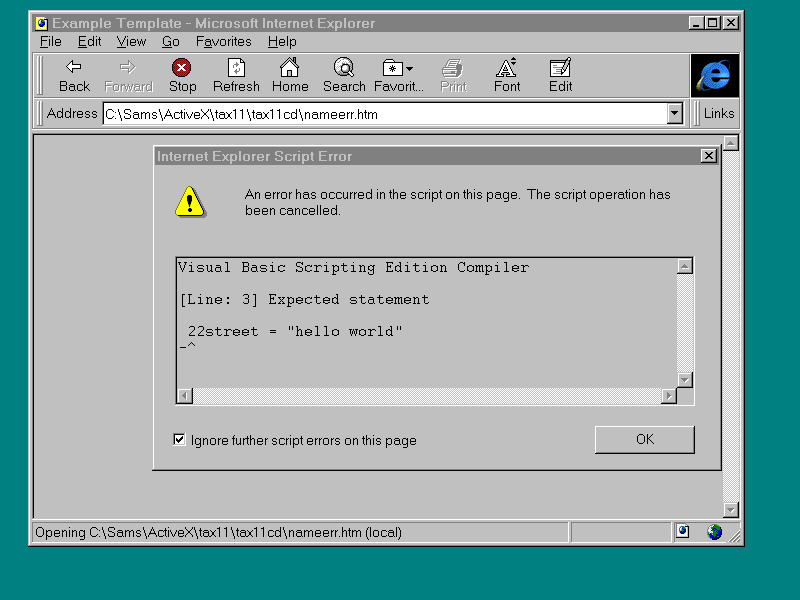
This means a variable such as 22street would return
an error like the one shown in Figure 6.1 Figure
6.1. Results of an improper variable name . This error was generated by changing string1 in
variant.asp to 22street, as shown in this pseudo code: Sub LoadMe() ' Your Code Here 22street = "hello world" window.document.open window.document.writeln("<PRE>") window.document.writeln(string1) 22street = 2 + 2 window.document.writeln(string1) window.document.writeln("</PRE>") window.document.close end sub Number of Variables AllowedNow that you know how to name a variable, the next
question is, how many variables can you use? The answer is that a particular form can have
no more that 127 variables. This shouldn't be a limitation unless you do some kind of
heavy duty number crunching on the forms. But it is a small enough number that you need to
remember it just in case one of your contemporaries (you would never make this mistake)
puts 128 variables on a form. DimDim declares variables . Declaring variables is
easy, and optional, in VBScript. Consider Listing 6.5. Listing 6.5. Using the Dim statement . Sub LoadMe() ' Your Code Here Dim string1 string1 = "I was declared" window.document.open window.document.writeln("<PRE>") window.document.writeln(string1) string2 = "I wasn't declared" window.document.writeln(string2) window.document.writeln("</PRE>") window.document.close end sub Notice how string1 is declared using and string2 is
not declared. The form will produce the lines: I was declared I wasn't declared Not declaring your variables will work, but will not
sit well with programming purists. Or you may be working in a corporation that has
programming standards requiring all variables to be declared. There is a way in VBScript
to require all variables to be declared: Option Explicit. Option ExplicitPlacing Option Explicit at the beginning of a
<SCRIPT> section generates an exception whenever your code tries to use a variable
that is not declared. Modify the Listing 6.5 to use Option Explicit as shown in Listing
6.6. Listing 6.6. Using Option Explicit to force
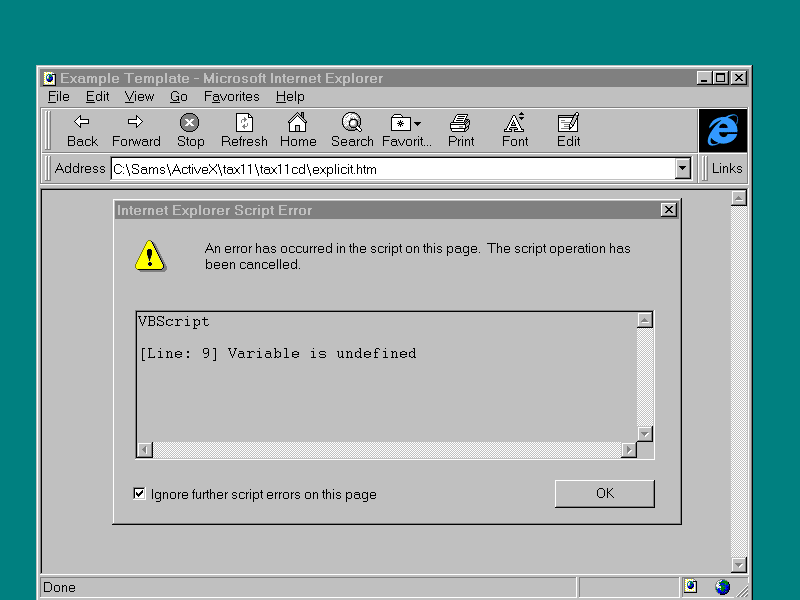
variable declaration . <SCRIPT LANGUAGE="VBScript" > <!-- Option Explicit Sub LoadMe() ' Your Code Here Dim string1 string1 = "I was declared" window.document.open window.document.writeln("<PRE>") window.document.writeln(string1) string2 = "I wasn't declared" window.document.writeln(string1) window.document.writeln("</PRE>") window.document.close end sub Sub OutofHere() ' Your Code Here end sub --> </SCRIPT> Showing this page results in the error box shown in
Figure 6.2. Figure
6.2. Option Explicit at work. Option Explicit applies only to the <SCRIPT>
section in which it is declared. Look at Listing 6.7. Listing 6.7 Where Option Explicit applies . <SCRIPT LANGUAGE="VBScript" > <!-- Sub LoadMe() ' Your Code Here Dim string1, string2 string1 = "I was declared" window.document.open window.document.writeln("<PRE>") window.document.writeln(string1) string2 = "So Was I!" window.document.writeln(string2) window.document.writeln("</PRE>") window.document.close end sub --> </SCRIPT> <SCRIPT LANGUAGE="VBScript" > <!-- Sub OutofHere() ' Your Code Here exitmessage = "Thats all folks" window.alert(exitmessage) end sub --> </SCRIPT> Notice how there are two <SCRIPT> sections and
only one has Option Explicit. Run Listing 6.7 (optexp02.asp). You will get: I was declared So Was I! Notice that you leave the Web page by loading a new
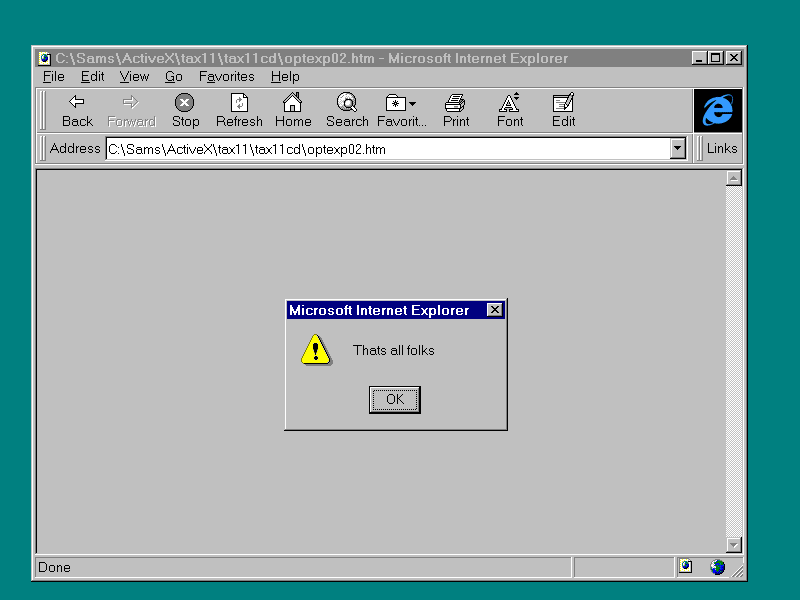
one; you will fire the onunload event and get the alert box as shown in Figure 6.3 Figure
6.3. The Alert box fired in the Unload event. The second section of <SCRIPT> was not
effected by the Option Explicit in the first block. Uninitialized VariablesIf you use Dim to declare a variable then print that
variable, what will be in it? I have spent days in other languages tracking down bugs
caused by uninitialized variables where the variable was assigned to some random number.
VBScript does not support this kind of frustration. Variables in VBScript are given a
value of a zero-length string ("") when they are declared in the Dim statement.
Let's prove it. Enter the code in Listing 6.8. Listing 6.8 Testing variable initialization .
Sub LoadMe() ' Your Code Here Dim string1, string2 window.document.open window.document.writeln("<PRE>") window.document.write("string1 = ") window.document.writeln(string1) window.document.write("string2 = ") window.document.writeln(string2) window.document.writeln("</PRE>") window.document.close end sub Save it as initial.asp and run it. You will get the
output: string1 = string2 = which shows the initial value to be empty. Modify
the code slightly as shown in Listing 6.9 (initial2.asp). Listing 6.9. More On initialzation . Sub LoadMe() ' Your Code Here Dim string1, string2 window.document.open window.document.writeln("<PRE>") window.document.write("string1 = ") window.document.writeln(string1) window.document.write("string2 = ") window.document.writeln(4 + string2) window.document.writeln("</PRE>") window.document.close end sub This treats the second variable, string2, as a
number and produces the following output: string1 = string2 = 4 The output shows that string2's initial value, when
expressed as a number, is 0. Constant VariablesIn general, VBScript does not support the idea of
constant variables . A constant variable is one of those programming oxymorons that
means a variable that cannot be changed once it is declared. A constant variable is used
to hold things such as the value of pi, which should not be open to the interpretation of
the programmer. This prevents the programmer from improving on pi or accidentally changing
pi. Unfortunately you don't have constant variables in VBScript, but there are ways to
work around this limitation. To implement constants in your Web pages, give them
a unique identifier like PI or MAXROWS (I recommend all uppercase letters—it is the C
programmer in me) and invent a stiff penalty for programmers that change them during the
course of a program (I recommend reassignment as the tech writer for a group of assembly
language programmers—they hate that). After telling you that you cannot declare a constant
variable, I have to tell you now that VBScript contains five built-in constant variables:
Empty, Null, Nothing, True, and False. Again, since VBScript is not case sensitive, I
recommend that you capitalize these in your code. EmptyThe Empty keyword is used to indicate an
uninitialized variable value. Let's see if it works. Type in the Listing 6.10 as
const01.asp. Listing. 6.10. Using the Empty keyword for
variables . Sub LoadMe() ' Your Code Here Dim string1 window.document.open window.document.write("string1 is empty ") if (string1 = empty) then window.document.writeln("<PRE>") else window.document.write("string1 is not empty ") end if window.document.writeln("</PRE>") window.document.close end sub Now run it. You will get the result: string1 is empty The same result is achieved by using the isEmpty
function inside the if statement. Empty is different from the next constant Null. Let's
find out how. NullNull means that a variable contains no valid data.
This is different than the uninitialized data that empty refers to. Assign a value of Null
and then test for it by using the function IsNull, as shown in const02.asp (Listing 6.11).
Listing 6.11. Using the Null constant . Sub LoadMe() ' Your Code Here Dim string1 string1 = Null window.document.open window.document.writeln("<PRE>") if (string1 = empty) then window.document.write("string1 is empty ") end if if (isNull(string1)) then window.document.write("string1 Null ") end if window.document.writeln("</PRE>") window.document.close end sub When you run Listing 6.11, it bypasses the first if
statement and produces the output: string1 is Null A variable can be set to Null and then tested later
in the program to see if any data has been put in it. A Null variant contains no data
where an empty variant contains uninitialized data. NothingNothing differs from both Null and Empty in that it
is applied to objects and has no associated testing function. When you set an object to
Nothing, you sever any ties the variable had to the object. To set an object to Nothing,
you use the Set statement as in Set MyObject = Nothing Doing this reallocates any system memory or
resources allocated to the object. You can use the following code: if isObject(MyObject) then MyObject.document.open MyObject.document.write("Written by MyObject") MyObject.document.close end if Set MyObject = Nothing However, if you try to use MyObject after setting it
to Nothing, you get one or two messages saying that the object is not initialized and then
you get a GP fault, which takes down your Internet Explorer. I would not use this method
to de-allocate memory and resources. If you use it, I recommend you test your objects (if
MyObject = nothing then...) before using them. As you shall see later in the day, VBScript
cleans up after itself pretty well. True and False
The last two constants are True and False . These
two are the classic boolean constant variables. In VBScript, they have the internal values
of -1 for True and 0 for False. This means you can not use the old C trick of assuming
true is any value that is not zero. Try the code in Listing 6.12 (const03.asp) and see. Listing 6.12. Using True and False . Sub LoadMe() ' Your Code Here Vartwo = -1 Varthree = 10 if Vartwo = True then window.document.open window.document.writeln("<PRE>") window.document.writeln("Vartwo is True") window.document.writeln("</PRE>") window.document.close end if if VarThree = true then window.document.open window.document.writeln("<PRE>") window.document.writeln("VarThree is True") window.document.writeln("</PRE>") window.document.close end if end sub As predicted, this produces the result: Vartwo is True Variable Scope and Global Variables.The scope of a variable has to do with where
it is visible within the structure of a program or an HTML page. Look at Listing 6.13
(scope01.asp). Listing 6.13. scope01.asp . <SCRIPT LANGUAGE="VBScript" > <!-- Dim MyVariable MyVariable = "Global edition of My Variable" Sub LoadMe() ' Your Code Here window.document.open window.document.writeln("<PRE>") window.document.write("In LoadMe MyVariable is ") window.document.writeln(MyVariable) ThingOne ThingTwo window.document.writeln("</PRE>") window.document.close end sub Sub ThingOne() dim Myvariable MyVariable = "ThingOne edition of MyVariable" window.document.write("In ThingOne MyVariable is ") window.document.writeln(MyVariable) end sub Sub ThingTwo() window.document.write("In ThingTwo MyVariable is ") window.document.writeln(MyVariable) end sub --> </SCRIPT> This produces the output: In LoadMe MyVariable is Global edition of My Variable In ThingOne MyVariable is ThingOne edition of MyVariable In ThingTwo MyVariable is Global edition of My Variable The first thing you should notice is that the
MyVariable declared outside of the functions is visible to all functions in the
<SCRIPT> making it global. Then, when a variable is declared inside ThingOne
with the same name, that local variable is used inside procedure ThingOne. Just to
prove you didn't overwrite the global MyVariable, ThingTwo writes the value of MyVariable,
and you see that the global MyVariable hasn't changed. Also worth noting here is how the
Window object is global. The Window object is visible from anywhere in your HTML page.
Change the code so ThingOne and ThingTwo are in a different <SCRIPT> tag
(See Listing 6.14, scope02.asp): Listing 6.14. scope02.asp . <SCRIPT LANGUAGE="VBScript" > <!-- Dim MyVariable MyVariable = "Global edition of My Variable" Sub LoadMe() ' Your Code Here window.document.open window.document.writeln("<PRE>") window.document.write("In LoadMe MyVariable is ") window.document.writeln(MyVariable) ThingOne ThingTwo window.document.writeln("</PRE>") window.document.close end sub --> </SCRIPT> <SCRIPT LANGUAGE="VBScript" > <!-- Sub ThingOne() dim Myvariable MyVariable = "ThingOne edition of MyVariable" window.document.write("In ThingOne MyVariable is ") window.document.writeln(MyVariable) end sub Sub ThingTwo() window.document.write("In ThingTwo MyVariable is ") window.document.writeln(MyVariable) end sub --> </SCRIPT> Run the page. The results are identical. So scope
applies across <SCRIPT> sections. Arrays and DeclarationsYou can also create arrays of variables. An array
is a collection of variables of the same type. If you have an array of MyThings, you would
get the first element of MyThings by writing MyThings(0). If you want the second element,
you would type, MyThings(1), and so on where 0 and 1 reflect the index of the array.
VBScript uses parentheses, (), to enclose the index. Arrays can have more than one
dimension. For example, Dim MYArray(10,10) creates an array with 100 possible values.
Arrays where the first element is stored in the element zero are called zero-based
arrays. Arrays in VBScript are zero based. To declare an array, you use the same Dim
function you used to declare a single variable. Dim and ReDimThere are two ways to declare an array. The first is
to declare the size of the array in the Dim statement, as shown in Listing 6.15
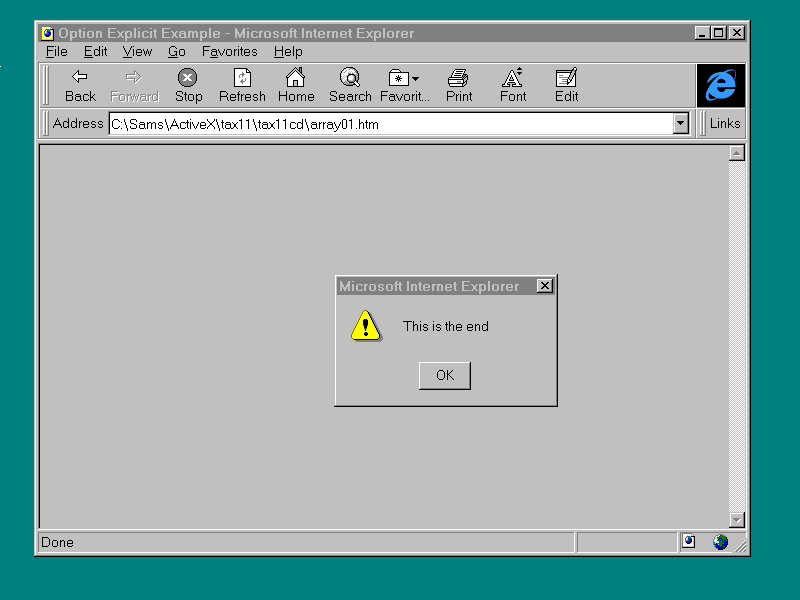
(array01.asp). Listing 6.15. array01.asp . <SCRIPT LANGUAGE="VBScript" > <!-- Sub LoadMe() Dim string1(2) string1(0) = "This is " string1(1) = "the end " alert string1(0) & string1(1) end sub --> This code produces an Alert dialog, as shown in
Figure 6.4. Figure
6.4. Results of array01.asp. If you want to vary the memory requirements of your
array at runtime, you would Dim the array without a value and then use ReDim to set and
reset the size. This is shown in Listing 6.16 (array02.asp). Listing 6.16. array02.asp . <SCRIPT LANGUAGE="VBScript" > <!-- Sub LoadMe() Dim string1() ReDim string1(2) string1(0) = "This is " string1(1) = "the end " alert string1(0) & string1(1) ReDim string1(3) string1(0) = "This is " string1(1) = "the end " string1(0) = "Really " alert string1(0) & string1(1) & string1(2) end sub --> </SCRIPT> Notice how the array is declared using Dim string(),
and then redimensioned twice using the ReDim function. This allows you to dimension the
array according to runtime requirements. Now that you know everything about variables, or at
least enough to start using variables, you can become formally introduced to the structure
where you will be doing most of your work: the procedure. ProceduresIn general, a procedure contains programming
instructions and can be assigned to events or called from other functions. You have seen
procedures in every example today. To be more precise, you have seen one kind of procedure
in every example today: the subroutine. The other kind of procedure is the function. Let's
look at subroutines first. SubThe keyword Sub starts a subroutine . A subroutine
is a collection of program statements that fall between the keyword Sub and the end sub
statement, which marks the end of the subroutine. The general structure, that you have
used many times already, appears in the following syntax: Sub LoadMe() ' Declare Variables Dim string1() ReDim string1(2) ' Do some Work string1(0) = "This is " string1(1) = "the end " alert string1(0) & string1(1) ReDim string1(3) string1(0) = "This is " string1(1) = "the end " string1(0) = "Really " alert string1(0) & string1(1) & string1(2) ' Leave when we are done end sub A subroutine can also have arguments. Arguments
are variables that are passed to the subroutine. Type in and run Listing 6.17 (sub01.asp).
Listing 6.17. sub01.asp . Sub LoadMe() ' Your Code Here firstnum = window.Prompt("Enter a number",10) secondnum = window.Prompt("Enter another number",20) SumONumbers firstnum, secondnum end sub Sub SumONumbers(a, b) answer = a + b window.document.open window.document.writeln("<PRE>") window.document.write("The Answer is -> ") window.document.writeln(answer) window.document.writeln("</PRE>") window.document.close end sub The idea here is pretty straight forward: Have the
user enter two numbers and then call a function to add them together (use the defaults 10
and 20) and display them. Run the page, you will get The Answer is -> 1020 Wait a minute! Adding 10 and 20 should equal 30, not
1020! Remember before, in this discussion of variables, that you saw how the language does
conversions for you. In this case the computer is treating the inputs as strings and
adding them together. Later today, in the section on built-in VBScript functions, you will
revisit this example and use some of VBScripts built-in procedures to make the numbers add
up. CallCall is an optional element that can be used to
start a subroutine . If you do use it, you must enclose any arguments in parentheses. For
example, the call to SumONumbers in Listing 6.17 could be rewritten: call SumONumbers( firstnum, secondnum) There is no particular advantage to using call. Exit SubExit Sub provides a way to leave a subroutine
somewhere other than the End Sub. When Exit Sub is called, the program resumes running on
the line after the call to the subroutine, as in Listing 6.18 (sub02.asp). Listing 6.18. sub02.asp . Sub LoadMe() ' Your Code Here firstnum = 10 secondnum = 30 SumONumbers firstnum, secondnum end sub Sub SumONumbers(a, b) answer = a + b window.document.open window.document.writeln("<PRE>") window.document.write("The Answer is -> ") window.document.writeln(answer) window.document.writeln("</PRE>") window.document.close if (a + b) > 0 then exit sub end if window.document.open window.document.writeln("<PRE>") window.document.write("Error, negative sum") window.document.writeln("</PRE>") window.document.close end sub Left as it is, this page performs the exit sub in
the middle of SumONumbers and displays the number 40. If you change one of the variables
in the LoadMe subroutine to be a negative number, then the second message, "Error,
negative sum", is displayed. I do not recommend using exit sub. I have found that in
the long run, it is harder to maintain procedures with multiple exit points than
procedures with a single exit. There are a couple of things you can't do with
subroutines. First, you can not declare a subroutine inside another procedure. Second, you
can not pass a reference to an argument. The variables passed to a subroutine are copies
of the originals, changing these copies has no effect on the original. Third, a subroutine
cannot be used as part of an expression, as in, Var1 = Var2 + MySub, because a subroutine
doesn't return a value. To return a value, you use the other type of procedure called a
function. User-Built FunctionsA function has the same general structure as a
subroutine but functions have different keywords and the capability to return a value.
Type in the code in Listing 6.19 (sub03.asp): Listing 6.19. sub03.asp . Sub LoadMe() ' Your Code Here window.document.open window.document.writeln("<PRE>") window.document.write("The Answer is -> ") window.document.writeln(RADtoDeg(3.14)) window.document.writeln("</PRE>") window.document.close end sub Function RADtoDEG(Radian) RADtoDEG = Radian * 57.32 end Function This is a simple radians to degrees function. Notice
the keyword Function is at the beginning and end. Also see how the value of the function
is assigned using the function name. If no value is assigned the function value is
assigned to uninitialized, which is 0 if the function is used in a numeric expression and
"" if the function is used as a string. Functions can not be declared inside other
procedures. And, like subroutines, the arguments passed to the function are only copies,
changing the copies has no effect on the original variables. Functions are strung together with operators. Let's
see what you can use to operate. OperatorsOperators determine what you do to variables and
functions. There are five types of operators: assignment, math, mtring, comparison, and
object. Let's start with the most used, assignments. AssignmentsYou use assignment operators all the time to assign
one value to another; assignment variables are the heart of programming. VBScript has two
ways to assign one value to another, the equal symbol (=) and Set. The = OperatorYou have already used the equal sign (=) hundreds of
times in this guide. We use it so much, we start to take it for granted. It does the
simplest and most powerful thing you can do in a program, assign one variable to another.
The general form is myvariable = someothervariable, or myvariable = somevalue. It can be
used to assign everything in VBScript except objects. SetThe Set keyword is used to define objects. Type in
the following and call it set01.asp (see Listing 6.20). Listing 6.20. set01.asp . Sub LoadMe() ' Your Code Here Set MyWindow = window MyWindow.document.open MyWindow.document.writeln("<PRE>") MyWindow.document.writeln("Did this with my own object") MyWindow.document.writeln("</PRE>") MyWindow.document.close end sub In this example, you use the Set function to set the
variable MyWindow to the object window. When used this way, setting a variable to an
object, Set creates a reference to the object. You are free to create as many references
to an object as you want using Set. Set does not create a new object, only a reference to
it. Set can also be used to assign a variable to a value
other than a set. For example, you could write Set MyVariable = 9, and it would be the
same as MyVariable = 9. Set is optional for variable assignment but required when objects
are assigned. MathThe math functions are another group we tend to take
for granted. The important thing to note as you go through these operators is how they
work on various combinations of integer and real numbers. Addition (+)The + operator covers both reals and integers in
that it can be used to add any two numbers together. Consider Listing 6.21: Listing 6.21 The addition operator . Sub LoadMe() ' Your Code Here example1 = 2 + 2 example2 = 5.67 + 1 example3 = 9.9 + 4.568 window.document.open window.document.writeln("<PRE>") window.document.write("example 1 = ") window.document.writeln(example1) window.document.write("example 2 = ") window.document.writeln(example2) window.document.write("example 3 = ") window.document.writeln(example3) window.document.writeln("</PRE>") window.document.close end sub This produces the result: example 1 = 4 example 2 = 6.67 example 3 = 14.468 Here you add two integers and get an integer. You
also add an integer and a real and get a real. Subtraction (-)Subtraction also applies to both integers and reals.
Look at Listing 6.22 (math02.asp): Listing 6.22. math02.asp . Sub LoadMe() ' Your Code Here example1 = 2 - 20 example2 = 5.67 - 1 example3 = 9.9 - 4.568 window.document.open window.document.writeln("<PRE>") window.document.write("example 1 = ") window.document.writeln(example1) window.document.write("example 2 = ") window.document.writeln(example2) window.document.write("example 3 = ") window.document.writeln(example3) window.document.writeln("</PRE>") window.document.close end sub This page produces the result: example 1 = -18 example 2 = 4.67 example 3 = 5.332 Again, an integer minus an integer is an integer.
Any other combination is a real. Exponentiation (^)This symbol raises a number by a power as
illustrated in Listing 6.23 (math03.asp): Listing 6.23. math03.asp . Sub LoadMe() ' Your Code Here example1 = 2 ^ 8 example2 = 5.67 ^ 2 example3 = 9.9 ^ 4.568 window.document.open window.document.writeln("<PRE>") window.document.write("example 1 = ") window.document.writeln(example1) window.document.write("example 2 = ") window.document.writeln(example2) window.document.write("example 3 = ") window.document.writeln(example3) window.document.writeln("</PRE>") window.document.close end sub This produces the following result: example 1 = 256 example 2 = 32.1489 example 3 = 35323.3243300256 Modulus Arithmetic (Mod)The Mod function divides the first number by the
second number and returns the remainder, as show in Listing 6.24 (math04.asp): Listing 6.24. math04.asp . Sub LoadMe() ' Your Code Here example1 = 2 Mod 8 example2 = 2 Mod 5.67 example3 = 4.5 Mod 4600.9 window.document.open window.document.writeln("<PRE>") window.document.write("example 1 = ") window.document.writeln(example1) window.document.write("example 2 = ") window.document.writeln(example2) window.document.write("example 3 = ") window.document.writeln(example3) window.document.writeln("</PRE>") window.document.close end sub Real numbers are rounded to integers during the Mod.
The results of the above are as follows: example 1 = 2 example 2 = 2 example 3 = 4
Multiplication (*)This operator multiplies two numbers, as shown in
Listing 6.25 (math05.asp): Listing 6.25. math05.asp . Sub LoadMe() ' Your Code Here example1 = 2 * 8 example2 = 2 * 5.67 example3 = 4.5 * 4600.9 window.document.open window.document.writeln("<PRE>") window.document.write("example 1 = ") window.document.writeln(example1) window.document.write("example 2 = ") window.document.writeln(example2) window.document.write("example 3 = ") window.document.writeln(example3) window.document.writeln("</PRE>") window.document.close end sub This returns the following result: example 1 = 16 example 2 = 11.34 example 3 = 20704.05 Note that an integer times an integer returns an
integer. All other combinations return a real. Division (/)Division works the same way as multiplication. See
the Listing 6.26 (math06.asp): Listing 6.26. math06.asp . Sub LoadMe() ' Your Code Here example1 = 25 / 8 example2 = 2 / 5.67 example3 = 4.5 / 4600.9 window.document.open window.document.writeln("<PRE>") window.document.write("example 1 = ") window.document.writeln(example1) window.document.write("example 2 = ") window.document.writeln(example2) window.document.write("example 3 = ") window.document.writeln(example3) window.document.writeln("</PRE>") window.document.close end sub This page results in example 1 = 3.125 example 2 = 0.352733686067019 example 3 = 9.78069508139712E-04 which shows that in the case of division, all cases
return a real. Integer Division (\)This is the companion function to Mod. Where Mod
returns the remainder the division operator returns the integer result of the division.
See Listing 6.27 (math07.asp): Listing 6.27. math07.asp . Sub LoadMe() ' Your Code Here example1 = 25 \ 8 example2 = 2000 \ 5.67 example3 = 400.5 \ 46.9 window.document.open window.document.writeln("<PRE>") window.document.write("example 1 = ") window.document.writeln(example1) window.document.write("example 2 = ") window.document.writeln(example2) window.document.write("example 3 = ") window.document.writeln(example3) window.document.writeln("</PRE>") window.document.close end sub This page results in the following lines: example 1 = 3 example 2 = 333 example 3 = 8
Negation (-)The final math operator is negation (-). This is a
straightforward concept. If you set a = 2, then write a line such as, a = -a, the final
value of a is -2. This operator simply returns the negative. StringThere is only one string operator : concatenation
(&). This allows you to lace strings together. If a variable is not a string, using
concatenation (&) converts it to one. Look at Listing 6.28 (string01.asp): Listing 6.28. string01.asp . Sub LoadMe() ' Your Code Here part1 = "This is " part2 = "just a " part3 = "test" window.document.open window.document.write("Together the parts are->" & part1 & part2 & part3) window.document.close end sub This produces the following line: Together the parts are->This is just a test ComparisonComparison operators are used inside VBScript's
Control structures to test the relationship between variables. We will cover these
operators using essentially the same Web page. It covers the cases of comparing number to
number, number to string, and string to string. Equality (=)Some languages have a special symbol for testing
equality to keep assignment and equality separate; VBScript does not. Instead, VBScript
keeps them separate strictly by context. Look at Listing 6.29 (comp01.asp) Listing 6.29. comp01.asp . Sub LoadMe() ' Your Code Here num1 = 10 num2 = 10 string1 = "10" string2 = "Hello" if num1 = num2 then Alert("num1 equals num2") else Alert("num1 is not equal to num2") end if if num1 = string1 then Alert("num1 equals string1") else Alert("num1 is not equal to string1") end if if string1 = string2 then Alert("string2 equals string1") else Alert("string1 is not equal to string2") end if end sub The way the preceding code is written, it will pop
up alert boxes to tell you:
Experiment with the numbers and the text on this and
on all the following comparison examples to see what to expect from the specific
comparison operator. Inequality (<>)The inequality test is the guideend for the equality
test you just looked at. It uses the symbol <>. Check out Listing 6.30 (comp02.asp):
Listing 6.30. comp02.asp . Sub LoadMe() ' Your Code Here num1 = 21 num2 = 10 string1 = "Hello" string2 = "Hello" if num1 <> num2 then Alert("num1 is not equal to num2") else Alert("num1 equals num2") end if if num1 <> string1 then Alert("num1 is not equal to string1") else Alert("num1 equals string1") end if if string1 <> string2 then Alert("string1 is not equal to string1") else Alert("string2 equals string1") end if end sub Given the numbers at the start of the subroutine,
this example tells you:
Other Comparison OperatorsThese comparison operators are used frequently to
compare numbers and text, usually for the purpose of sorting a list of numbers or names.
less than (<) and greater than(>) return true when the number on the left of the
expression is less than but not equal to the number on the right or greater than but not
equal to the number on the right. Adding an equal = to either one includes the number on
the right. See Listing 6.31 for greater understanding (comp03.asp): Listing 6.31. comp03.asp . Sub LoadMe() ' Your Code Here item1 = 21 item2 = 10 if itme1 < item2 then Alert("item1 one is less than item2") end if if itme1 > item2 then Alert("item1 one is greater than item2") end if if item1 <= item2 then Alert("item1 one is less than or equal to item2") end if if item1 >= item2 then Alert("item1 one is greater than or equal to item2") end if end sub Notice you didn't call the variable num1 or string1.
These comparison operators work on both strings and numbers. IsThe Is operator compares two objects. Let's look at
Listing 6.32 (comp04.asp). Listing 6.32. comp04.asp . Sub LoadMe() ' Your Code Here set Window1 = window set Window2 = window.document set Window3 = window window.document.open window.document.writeln("<PRE>") if Window1 Is Window2 then window.document.writeln("Window1 is Window2") end if if Window1 Is Window3 then window.document.writeln("Window1 is Window3") end if window.document.writeln("</PRE>") window.document.close end sub This returns Window1 is Window3 The result not only shows you how Is works, it also
reinforces the idea of using Set to create multiple references to the same object. and, or, and xorThe keywords and, 0r, and xor allow you to compare
the results of one expression with another using boolean logic. The syntax for And, Or,
and Xor is the same: Expression1 And Expression2 Where expression is a function that returns a
boolean or a statement using one of the comparison operators similar to: A >= B The logic used in these three operators is described
in Tables 6.1, 6.2, and 6.3. Table 6.1. Using And.
Table 6.2. Using Or.
Table 6.3. Using Xor.
Listing 6.33 (comp05.asp) is an example using these
operators. Listing 6.33. comp05.asp . Sub LoadMe() ' Your Code Here A = 10 B = 10 C = 30 window.document.open window.document.writeln("<PRE>") if (A = B) or (B = C) then window.document.writeln("Passed or") end if if (A = B) and (B = C) then window.document.writeln("Passed and") end if if (A = B) xor (B = C) then window.document.writeln("Passed xor") end if window.document.writeln("</PRE>") window.document.close end sub Notice how the expressions are grouped within ().
These operators can be used in the same expression. Two similar, but less commonly used,
operators are Eqv (equivalance), and Imp (implication). The syntax of these two operators
is the same as the group you just looked at, but the logic of these two operators is a not
intuitive and is contained in Tables 6.4 and 6.5. Table 6.4. Eqv.
Table 6.5. Imp.
Operator PrecedenceYou have seen that it is possible to combine several
comparison operators from the arithmetic, comparison, and logical groups on one line. You
have also seen that the operators can be grouped within () to clarify the order of
operation. When expressions are not grouped within () what happens? First the arithmetic operators are evaluated. Within
the Arithmetic group, the precedence is:
Next the comparison operators are evaluated. All
comparison operators are have equal precedence so they are evaluated from left to right.
See Listing 6.34 (comp06.asp) for an example of
arithmetic precedence: Listing 6.34. comp06.asp .
Which results in: A + B / C * 12 = 18 Use () to group your statements so they are
performed in the order you want and not in the order the machine wants. Built-In FunctionsVBScript contains both user-built functions, which
we have already covered, and built-in functions. These built in functions cover several
areas, including conversions, dates/times, math, array, string, and variant. ConversionsAs you have seen, in previous examples, working with
variants can be confusing. Is it a string? Is it a number? What does the interpreter think
it is? Well, conversion functions allow you to specify exactly what kind of variable the
variant represents. absThis function converts its argument into the
absolute value of the argument. Listing 6.35 (funct01.asp) contains an example: Listing 6.35. funct01.asp .
asc, ascb and ascAll these functions return the first character of
the argument string. asc returns this character as a string. ascb returns it as a byte.
And, on 32-bit systems (Windows 95, Windows NT), ascw returns the first character as a
unicode character (a double-byte character set that allows more complex languages to be
represented). These functions are demonstrated in Listing 6.36
(funct02.asp): Listing 6.36. funct02.asp .
The result is 84 in all three cases. In a place as
international as the Web, you will need the support for new character sets that ascb and
ascw give you. chr, chrb and chrwThis is the companion group of functions for asc.
chr converts a number into its ASCII character. chrb converts one byte of the character to
its ASCII character. And chrw provides the same function for unicode characters. Listing
6.37 (funct03.asp) is an example. Listing 6.37. funct03.asp .
This example results in all functions returning an
I. Again, remember the chrb and chrw functions, because the days of working locally are
numbered. Think global. cboolcbool converts its argument (numeric or expression)
into either TRUE or FALSE. If the argument evaluates to true or is not zero, cbool returns
TRUE. If the argument evaluates to false or is zero, cbool returns FALSE. If the argument
cannot be evaluated or is not a number, cbool causes a runtime error. Listing 6.38
(funct04.asp)shows how cbool works: Listing 6.38. funct04.asp .
Note how the function evaluates, and how it is used
in printing the results of cbool. This page displays: Which is what you would expect. cdate, cdbl, cint, clng, csng, cstrThese functions convert their argument into a
specific type. cdate turns it argument into a date, cdbl into a double precision number,
cint into an integer, clng into a long integer, csng into a single precision number, and
cstr into a string (see Listing 6.39): Listing 6.39. Conversion functions at work .
This page prints out: The function datavalue can be directly substituted
for cdate. DateSerialDateSerial takes three numbers, year, month, and
day, and converts them into a date (see Listing 6.40). Listing 6.40. funct06.asp .
returns: hex and octThese two functions convert their numerical argument
into a string representation of the argument in a different number system. hex shows what
the number would look like in hexadecimal form, and oct shows the octal representations,
as shown in Listing 6.41 (funct07.asp). Listing 6.41. funct07.asp .
This shows the decimal number 256 as: fix and intfix and int can be used to isolate the integer parts
of a number. The difference between the two is if the argument is negative, int returns
the integer less than or equal to the argument, whereas fix returns the integer greater
than or equal to the argument (as shown in Listing 6.42): Listing 6.42. funct08.asp .
Notice the difference in rounding: sgnThe sgn function returns an integer that depends on
the sign of its argument. If the argument is positive, sgn returns 1. If the argument is
negative, sgn returns -1. And if the argument is 0, sgn returns 0. Dates/TimesVBScript has many functions that allow you to
manipulate time. (Actually they allow you to manipulate time and date values. Manipulating
time itself is beyond the scope of this guide.) date, time, nowThese functions return all or part of the time and
date information available from your systems hardware. date returns date information. time
returns time information. And now return time and date information. Listing 6.43 shows how
these functions work: Listing 6.43. funct09.asp .
funct09.asp returns the following: day, month, weekday, year, hour, minute, secondThese functions all return a part of the time and
date information available from the machine. The first four, day, month, weekday, and
year, derive their information from a date string. The last three, hour, minute, and
second, operate on time strings. They all take one argument except weekday, which has a
second argument that tells it what day of the week the week starts (1 for Sunday, 2 for
Monday, and so on). If you don't give weekday a number for the second argument, it
defaults to Sunday being the first day of the week. Listing 6.44 (funct10.asp) shows how
all these functions work. Listing 6.44. funct10.asp .
The return values are: TimeSerialTimeSerial is a straight-forward function that
returns a time string given three numerical inputs, as shown in Listing 6.45
(funct11.asp). Listing 6.45. funct11.asp .
returning: MathVBScript has a few math-specific functions . It
isn't FORTRAN, but it should be enough for your pages. atn, cos, sin, tanThese four trigonometric functions take a numerical
argument and return trigonometric information. atn takes a ratio and returns an angle in
radians. tan, sin, and cos, do just the opposite and return a ratio from an input of
degrees in radians. 2PI radians (6.2830) is equal to 360 degrees. Listing 6.46
(funct12.asp) contains examples of these functions: Listing 6.46. funct12.asp .
Note the use of the global variable PI. The result
of all this is: exp, log, sqrThese three functions return e raised to a power,
the natural log of a number, and the square root of a number, respectively. Listing 6.47
(funct13.asp) contains examples of these functions: Listing 6.47. funct13.asp .
Which shows that: randomize, rndThe randomize statement seeds VBScript's random
number generator, and rnd returns a random number with a value not greater than one but
greater than or equal to 0. If randomize is not used, or if randomize is not passed an
argument, it uses a number from the system timer. Let's make some random numbers Listing
6.48 (funct14.asp): Listing 6.48. funct14.asp .
Your result will vary from the following, after all
it is a random function. Array Functions
VBScript provides four functions for working with
arrays: IsArray, Erase, Ubound, and Lbound. These functions allow you to determine whether
a variable is an array, to erase all the data in the array, and to find the lower and
upper bounds of an array. Two of these functions are seldom used; IsArray and Lbound
provide little useful information. IsArray tells you whether or not a variable is an array
(you had to declare to make it an array, so you already knew), and Lbound gives you the
lower bound of any dimension of the array (the lower bound is always zero in VBScript
because all arrays are 0 based, so this number is always zero). Ubound is relatively useful for finding out how big
dynamically dimensioned arrays are (Redim). If the user changes the size of the array at
runtime, you might need to know how many elements to check. Erase does just what it says: It reinitializes all
the data in an array. If the array is static (declared using MyArray(10) or some other
size), only the data is reset. If the array is declared dynamically (using MyArray() and
Redim to resize the array), the data is erased and the memory for the array is reallocated
(which, when you think about it, is redundant). If Erase is used on a dynamic array, the
array must be redimmed before it is used again. Listing 6.49 (funct15.asp) contains
examples of these functions: Listing 6.49. funct15.asp.
The results are String FunctionsYou can tell what a language is designed for by
looking at the number and type of its functions. There are two string functions for every
math function in VBScript. This shows you where the emphasis of VBScript is. This is a
good thing to remember when you pick the projects where you use VBScript. Instr, InStrBInStr takes two stings as arguments. It searches the
fist one for an occurrence of the second, and returns the position in the string. If the
search string is not found in the target string, InStr returns 0. InStrB provides the same
function for byte data. Listing 6.50 (funct16.asp) contains an example. Listing 6.50. funct16.asp .
This search finds: You can also change where the search starts by
placing a number before the search string: This would start the search on 5. The 1 at the end
of the function changes the search from exact match to case insensitive. If these numbers
are left out (as they are in the example), the defaults are start at the first character
and use a case-sensitive search. len, lenbThe len function and it's binary counterpart lenb,
return the number of characters in a string (as shown in Listing 6.51). Listing 6.51. funct17.asp .
Showing you that: Lcase, Ucase
Lcase and Ucase take a string as an argument and
return a lower-case version and an upper-case version, as shown in Listing 6.52
(funct18.asp): Listing 6.52. funct18.asp .
Which did just what the functions said they would: Left, LeftB, Mid, MidB, Right, RightBLeft, Mid, and Right and their binary counterparts
allow you to pull pieces from a string. Look at Listing 6.53 (funct19.asp): Listing 6.53. funct19.asp .
The string was sliced up like this: Space, String
Space and String are variations on the same theme.
Space takes a numeric argument and returns a string composed of the same number of spaces
as the argument. String takes an number and a character and returns a string as long as
the number made up of the characters. Listing 6.54 (funct20.asp) demonstrates: Listing 6.54. funct20.asp .
It's hard to see the blank spaces in the Space
function, but they are there: Space(10) is String(10,45) is ----------
StrComp
Where Instr finds parts of one string in another,
StrComp compares two strings and returns a 0 if they are the same, a -1 if the first is
closer to the front of the alphabet than the second, and a 1 if the first is closer to the
end of the alphabet than the second. Listing 6.55 provides an example. Listing 6.55. funct21.asp .
The results of the comparisons are Ltrim, Rtrim, Trim
Sometimes strings have leading and trailing spaces
that you need to get rid of. Ltrim takes a string argument and returns the string without
leading edge spaces. Rtrim does the same to the trailing spaces. Trim removes unwanted
spaces on both ends. These functions are shown in Listing 6.56 (funct22.asp). Listing 6.56. funct22.asp .
I added the | character on each end to highlight the
effect: Variants
Sometimes it is convenient to find out at runtime
what kind of variant you have. To this end, VBScript provides five functions. The first
four, IsArray, IsDate, IsNumeric, and IsObject, are boolean functions that return TRUE or
FALSE depending on what the variant in question is. The last function, VarType returns a
number that depends on the variant type, as shown in Table 6.6. Table 6.6. Return value of
VarType:
If the variant is an array, the number returned will
be 8191 + the number of the type of array. For example, a date array would be 8191 + 7,
for a grand total of 8198. These functions are shown in Listing 6.57
(funct23.asp). Listing 6.57. funct23.asp .
Remember: true is -1, false is 0. Notice how vartype
saw an array of variants: Program FlowYou have been using the If Then Else program control
structure throughout the entire week. Let's look at all five control structures available
to you in VBScript . Do...LoopIf you want something done at least once before you
decide to do it again, use Do...Loop with an Until at the end. If you want to make your
decision before you do any looping again, your choice is Do...Loop with a While at the
beginning. Listing 6.58 (flow01.asp) contains examples of both. Listing 6.58. flow01.asp .
Notice that the first loop was never entered, and
the second was not evaluated until the end. Use Exit Do to leave the loop at any time. This
transfers control to the first line after the Do...Loop. I strongly advise you to write
your loops with just one exit point and avoid using Exit...Do. For...NextThis function allows you to execute selected program
statements a given number of times. The For part of the loop sets up a counter, and the To
part of the loop sets a limit. The optional Step part allows you to control how you step
through the counter. Listing 6.59 (flow02.asp) contains an example: Listing 6.59. flow02.asp .
This produces the following: Notice how the string function mid was used to read
the characters. There is also an Exit For instruction that can be used to leave the loop
prematurely. Again, I don't recommend have more than one exit from a loop. If...Then...ElseYou have already used this function close to a hundred times
this week, but there are a few parts you haven't used. You should be familiar with the
basic if...then...else. There is also an Else If that can be used in place of the else
statement to launch another if statement. Since you already have lots of examples of the
basic use of If...Then...Else, Listing 6.60 (flow03.asp) contains an example of the else
if.
|
| Sub LoadMe() ' Your Code Here choice = 3 window.document.open window.document.writeln("<PRE>") if (choice = 1) then window.document.write("Choice is 1") else if (choice = 2) then window.document.write("Choice is 2") else window.document.write("Choice is 3") end if end if window.document.writeln("</PRE>") window.document.close end sub |
This page decides that the:
Choice is 3
Notice that you had to put another
end if to end the second if statement started by the else if. I have seen this kind of
construction used to decode a user choice. I recommend that you use Select Case (described
next) instead of else if.
Select Case
Select Case allows you to execute code depending on
the value of a selected case. It is most often used to handle choices. Look at Listing
6.61 (flow04.asp).
Listing 6.61. flow04.asp .
| Sub LoadMe() ' Your Code Here choice = int(prompt("Input a number","4")) window.document.open window.document.writeln("<PRE>") Select Case Choice Case 1, 2, 3, 4, 5 window.document.writeln("Number is between 1 and 5") Case 6, 7 window.document.writeln("Number is 6 and 7") Case 8, 9 window.document.writeln("Number is between 8 and 9") Case Else window.document.writeln("Number over 9") End Select window.document.writeln("</PRE>") window.document.close end sub |
The default input, (4), causes the output:
Number is between 1 and 5
While...Wend
While...Wend is a holdover from earlier versions of
Visual Basic. It executes statements sandwiched between While and Wend as long as the
condition after While is true. Look at Listing 6.62 (flow05.asp):
Listing 6.62. flow05.asp .
| Sub LoadMe() ' Your Code Here string1 = "Now is The Time" Teststring = "T" Dim CurrentString Count = 1 window.document.open window.document.writeln("<PRE>") While StrComp(CurrentString, TestString) And Count <= len(string1) CurrentString = mid(String1, count, 1) window.document.write(CurrentString & "*") count = count + 1 Wend window.document.writeln("</PRE>") window.document.close end sub |
The loop stops when it finds a T:
N*o*w* *i*s* *T*
Error Handling
The On Error statement and the Err object work hand
in hand to provide error control inside your VBScript procedures. Start error handling
with On Error Resume Next. In VBScript, this is the only type of On Error statement you
can make. It tells the interpreter to ignore any errors that pop up and resume at the line
after the error. If you have a place in your code where something risky happens, place a
On Error Resume Next statement in front of it. If it causes an error, the program control
will pass to the next statement (if it can; some errors are fatal) where you will have
Select Case ready based on the Err object. The Err object contains three properties that
allow you to deal with the error: number, description, and source. Normally, you build the
Select Case around Err.number and use Err.source and Err.description to break the bad news
to the user. The good thing about this is that non-fatal errors don't stop the rest of
your code from executing. Listing 6.63 (err01.asp) demonstrates On Error and Err:
Listing 6.63. err01.asp .
| Sub LoadMe() ' Your Code Here On Error Resume Next window.dodah = 23 'Generate an error Select Case Err.Number Case 0 'Nothing Happened, Go on with the program Case 438 Alert("Something is wrong in" & err.source) Case Else Alert(err.Description & err.number) End Select Alert("Error Didn't stop execution!") end sub |
When this page is run, the interpreter throws an
error 438(No such property or method), you catch it, and go on. When the last alert box
goes up, you are sure the code is still running. Err also has two methods, clear (to clear
the err object), and raise (to throw an exception). You can use err.raise(438) to simulate
the error in the previous example.
User Interfac
VBScript has two user interface elements that are
redundant with Alert and Prompt. MsgBox is a little more flexible than Alert. It allows
you to assign a title and predefined group of buttons; there are even provision for
assigning a help file. There are several reasons you will probably Alert or Confirm before
you use MsgBox. First, MsgBox requires more setup. Since there are no constants in
VBScript, you have to know the numeric codes for the different buttons. Second, nine times
out of ten, you want to produce a MsgBox that looks just like Alert. The same holds true
for InputBox. Look at Listing 6.64 (output01.asp):
Listing 6.64. output01.asp .
| Sub LoadMe() ' Your Code Here result1 = MsgBox("This is the Message",0, "MyMessageBox") result2 = InputBox("This is the Prompt", "MyTitle", "Default Text") end sub |
This will demo the MsgBox and InputBox
Resources
The best place to go for VBScript information is the
source. Start at http://www.microsoft.com/vbscript/us/vbslang/vbstoc.asp.
This page changes from time to time. When in doubt, check http://www.microsoft.com.
Summary
It was a long day, but worth it. We looked at
VBScript from variables to error handling, and all the stops in between. This is the final
stone in your foundation if you are only going to use VBScript to build your Web pages.
Tomorrow you will use everything that you have learned so far (HTML, the ActiveX Control
Pad, and VBScript) to build an ActiveX-enabled Web site. Even if you don't plan on using
JavaScript, I suggest you look at the JavaScript chapter and its project. With the
emphasis on objects in programming, it won't hurt to know what JavaScript can teach you.
Q&A
- Q Why don't all these functions work as described
in the online reference you gave in resources?
- A VBScript is evolving, which is one of the
reasons I provided examples for every function. The best way to deal with this evolving
standard is to test the functions you use with every new release and keep your eyes open
for new things that are built in or old things that finally work.
- Q Why are there differences between VBScript and
Visual Basic? Why not just implement Visual Basic?
- A The answer is security. To promote security,
VBScript has no functions that interact with files on the user's machine.
- Q How do you think VBScript will evolve from here?
- A I predict that VBScript will mature over the
next year rather than evolve. There are too many security issues in the area of OLE
automation to cause changes in that area. VBScript is well-suited to coordinating with the
objects on existing Web pages because of its simplicity. I don't see VBScript getting more
complicated.
Workshop
Rewrite sub01.asp to use conversion functions to
convert the user input to numbers (remember, this is the page where 10 + 20 = 1020 because
the code assumes you are working with strings).
Quiz
- Would you be more likely to use VBScript on a
math-intensive application or a string-intensive application? Why?
- Which are illegal variables in VBScript: MY.NAME,
MyName, 4Things.
- How can I test my error catching without generating real errors?
|
|
Popular Tutorials
-
 MS Access
1109
MS Access
1109
-
 C++
1222
C++
1222
-
 HTML
584
HTML
584
-
 JavaScript
616
JavaScript
616
-
 Vbscript
873
Vbscript
873
-
 Oracle
473
Oracle
473
-
 VC++
875
VC++
875
-
 SQL
2959
SQL
2959
-
 XML
514
XML
514
-
 Java
814
Java
814
-
 Perl
455
Perl
455
-
 Linux
451
Linux
451